





Document Library Pro is een gehoste dienst, dus je hoeft niets te installeren en geen updates uit te voeren. Dit artikel behandelt je bibliotheek maken, de installatiewizard doorlopen, en je weg vinden in je dashboard.
Bekijk de volledige tutorial
Je bibliotheek maken
Na het aanmelden opent het Je bibliotheek verder instellen scherm. Het heeft twee velden:
- Bibliotheeknaam - De naam van je documentbibliotheek, gebruikt in je dashboard en op je bibliotheekwebsite. Je kunt dit later wijzigen bij Instellingen → Algemeen.
- Webadres - Een kort adres zoals acme, waarmee acme.documentlibrary.app wordt gemaakt. Gebruik kleine letters, cijfers en koppeltekens. Een merkadres zoals docs.yourcompany.com kun je later instellen door een aangepast domein te koppelen.
Klik Maak mijn bibliotheek. Dit duurt ongeveer 20 seconden, dus houd de pagina open tot het klaar is.
Installatiewizard
De installatiewizard opent automatisch de eerste keer dat je je dashboard bezoekt, te beginnen met een Welkom scherm. Hiermee stel je de belangrijkste opties voor je documentbibliotheken in. De wizard heeft drie stappen.
Al deze opties zijn daarna beschikbaar in Instellingen, en elke bibliotheek die je later maakt kan andere opties gebruiken.
Stap 1: Je bibliotheek
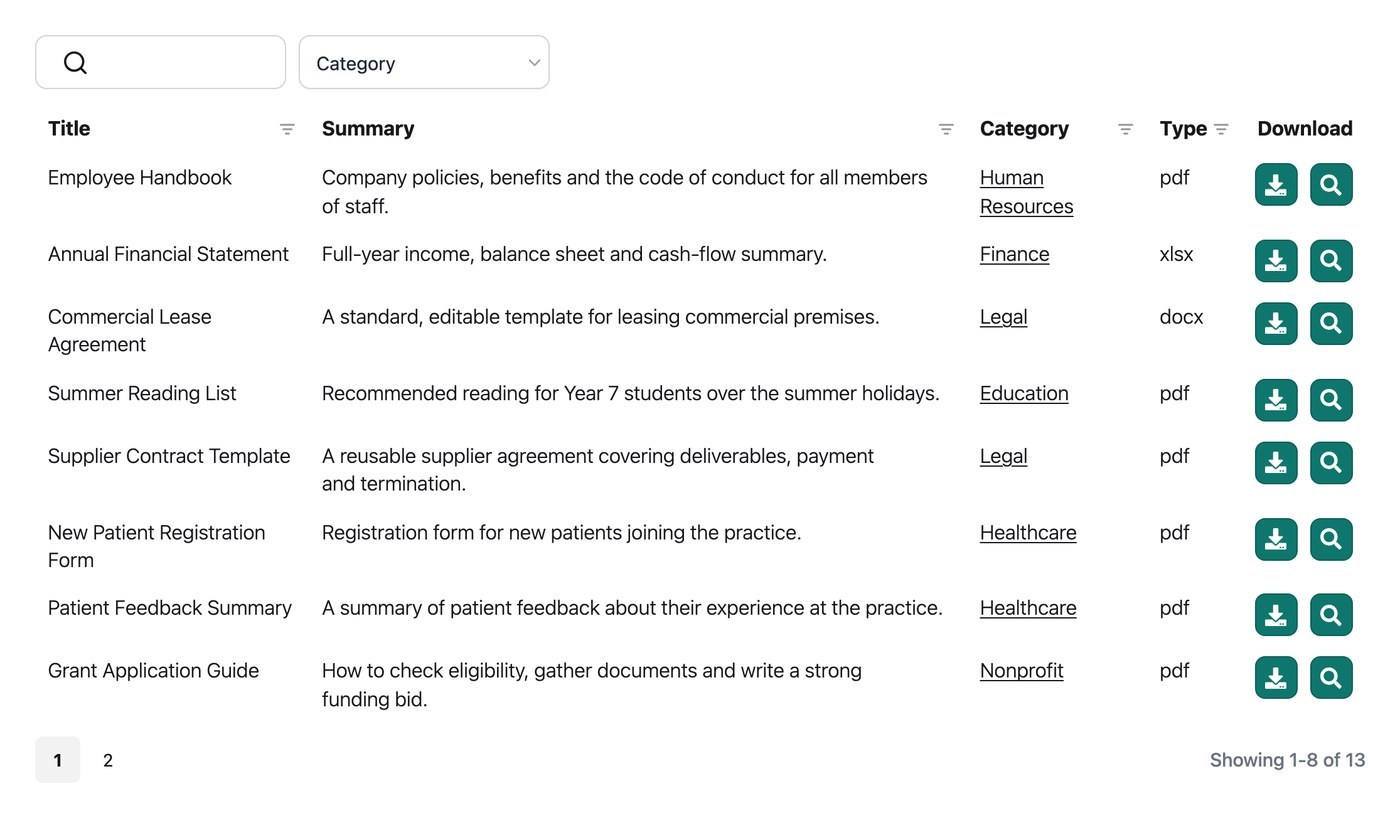
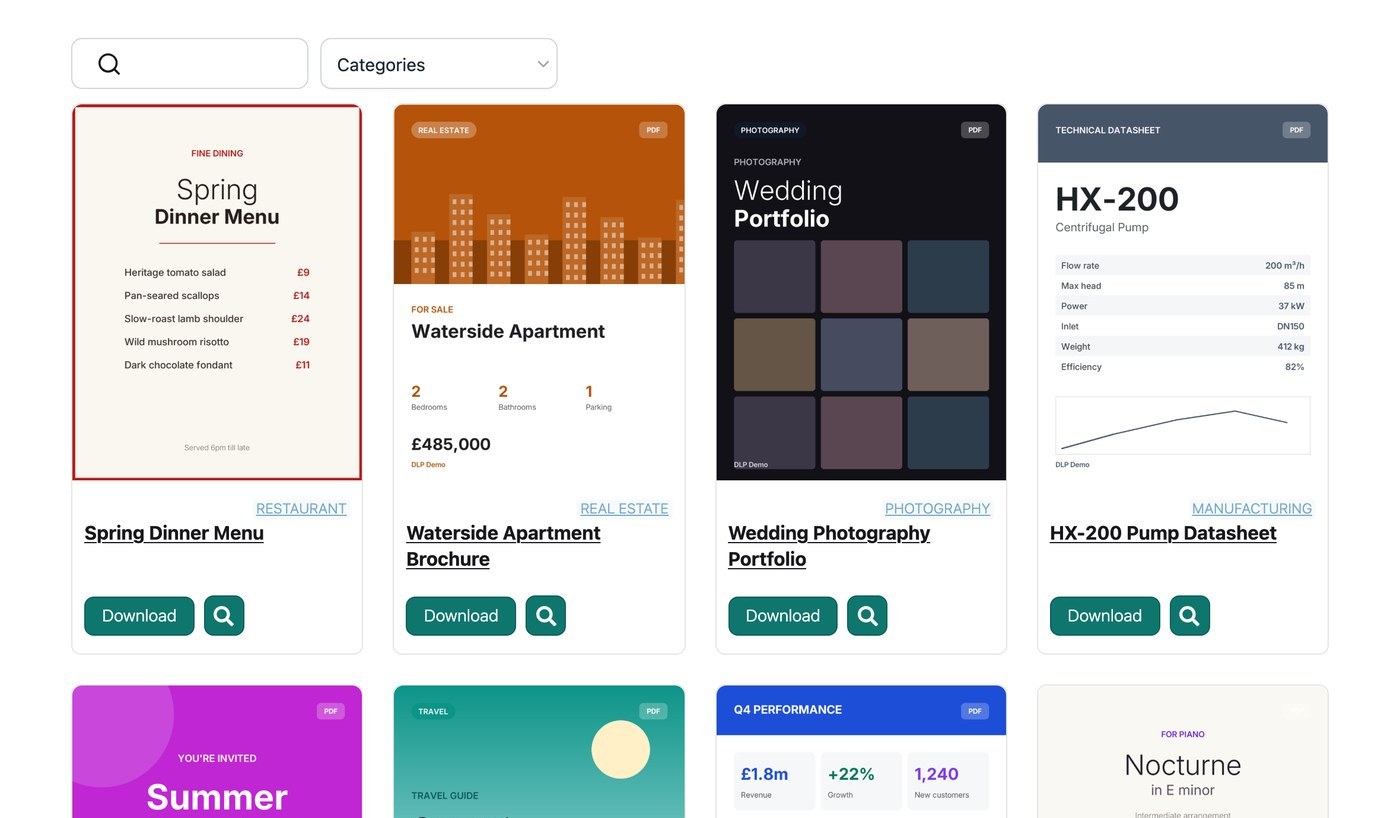
- Standaardindeling - Tabel toont documenten met meerdere informatiekolommen. Dat past bij lange lijsten waarin bezoekers zoeken en scannen. Raster toont documenten als tegels. Dat past bij visuele collecties zoals brochures en rapporten. Zie indeling van documentbibliotheek.
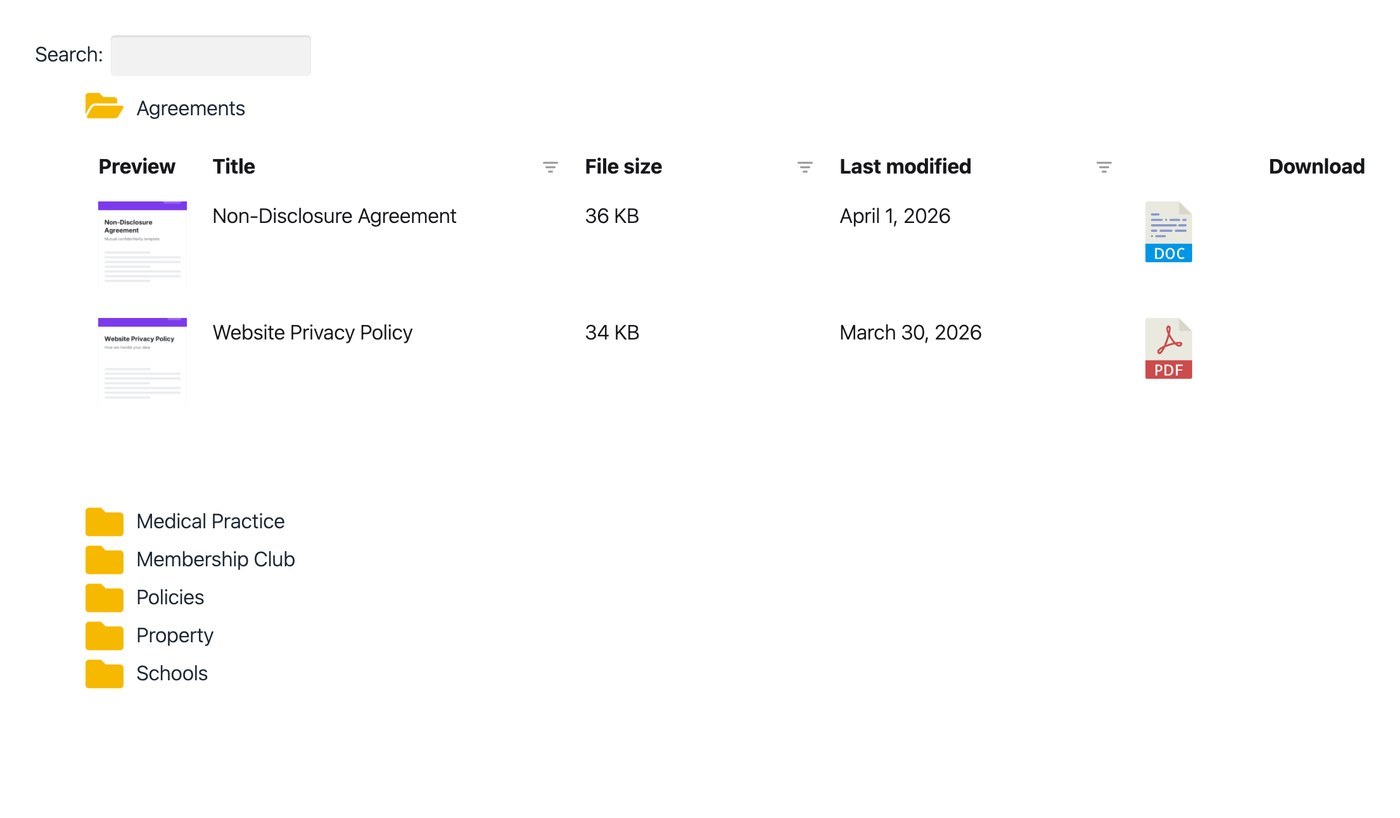
- Mappen - Rangschikt de bibliotheek in een mappenstructuur op basis van je documentcategorieën. Bezoekers openen één map tegelijk. Zie documentmappen.
- Documentvoorbeeld - Voegt een voorbeeldknop toe, zodat bezoekers een document in een lightbox kunnen lezen in plaats van het te downloaden. De voorbeeldoptie verschijnt alleen voor ondersteunde bestandstypen. Zie documentvoorbeeld.
- Hoofdtaal - De taal die je bezoekers in je bibliotheek zien. Dit stelt ook de taal in van je dashboard en van de e-mails die naar je worden gestuurd. Wil je een taal gebruiken die niet in de lijst staat, of een andere taal per bibliotheek, zie je documentbibliotheek vertalen.
Stap 2: Tabellen of Raster
De tweede stap hangt af van de indeling die is gekozen in stap 1. Als je Tabel kiest, wordt de Tabellen stap getoond. Als je Raster kiest, wordt de Raster stap getoond.
De stap Tabellen heeft twee opties:
- Kolommen - Gebruik de kolombouwer om te kiezen welke documentgegevens in de tabel verschijnen, zoals titel, categorieën, bestandstype, bestandsgrootte, datum en de documentlink. Versleep de kolommen om de volgorde te wijzigen, en gebruik het potloodpictogram om een kolom te hernoemen of de breedte aan te passen. Zie inhoud van documentbibliotheek.
- Meervoudige downloads - Voegt aan elke rij een selectievakje toe, plus een knop die de geselecteerde documenten als één zipbestand downloadt. Zie links in de documentbibliotheek.
De stap Raster heeft één optie:
- Rasterinhoud - Kies welke informatie op elke kaart verschijnt. De opties zijn de afbeelding, titel, bestandsnaam, bestandstype, bestandsgrootte, aantal downloads, categorieën, auteurs, de beschrijving van het document en de documentlink.
Elke bibliotheek die je later maakt kan de andere indeling gebruiken, en de eigen kolommen of kaartinhoud stel je in de Library Builder in.
Stap 3: Documentfilters
Filters zijn keuzelijsten waarmee bezoekers de bibliotheek verfijnen op categorie, tag, auteur of bestandstype.
- Filterkeuzelijsten inschakelen - Standaard uitgeschakeld, omdat filters categorieën of tags nodig hebben om op te filteren.
- Filterlocaties - Toon de filterkeuzelijsten boven de bibliotheek, in de kolomkoppen, of allebei.
- Filters met meervoudige selectie - Laat bezoekers meer dan één optie per filter kiezen.
- Actieve filters - Toont de filters die momenteel zijn toegepast boven de bibliotheek.
- Filteraantallen - Toont het aantal overeenkomende documenten naast elke optie in een filterkeuzelijst.
Bekijk documentbibliotheekfilters voor alle details, inclusief hoe je filters hernoemt en opnieuw ordent.
Installatie voltooid
De laatste stap van de wizard bevestigt dat de installatie klaar is. Klik op Bibliotheek bekijken om je documentbibliotheek te openen. Deze blijft leeg tot er documenten zijn toegevoegd.
Je dashboard
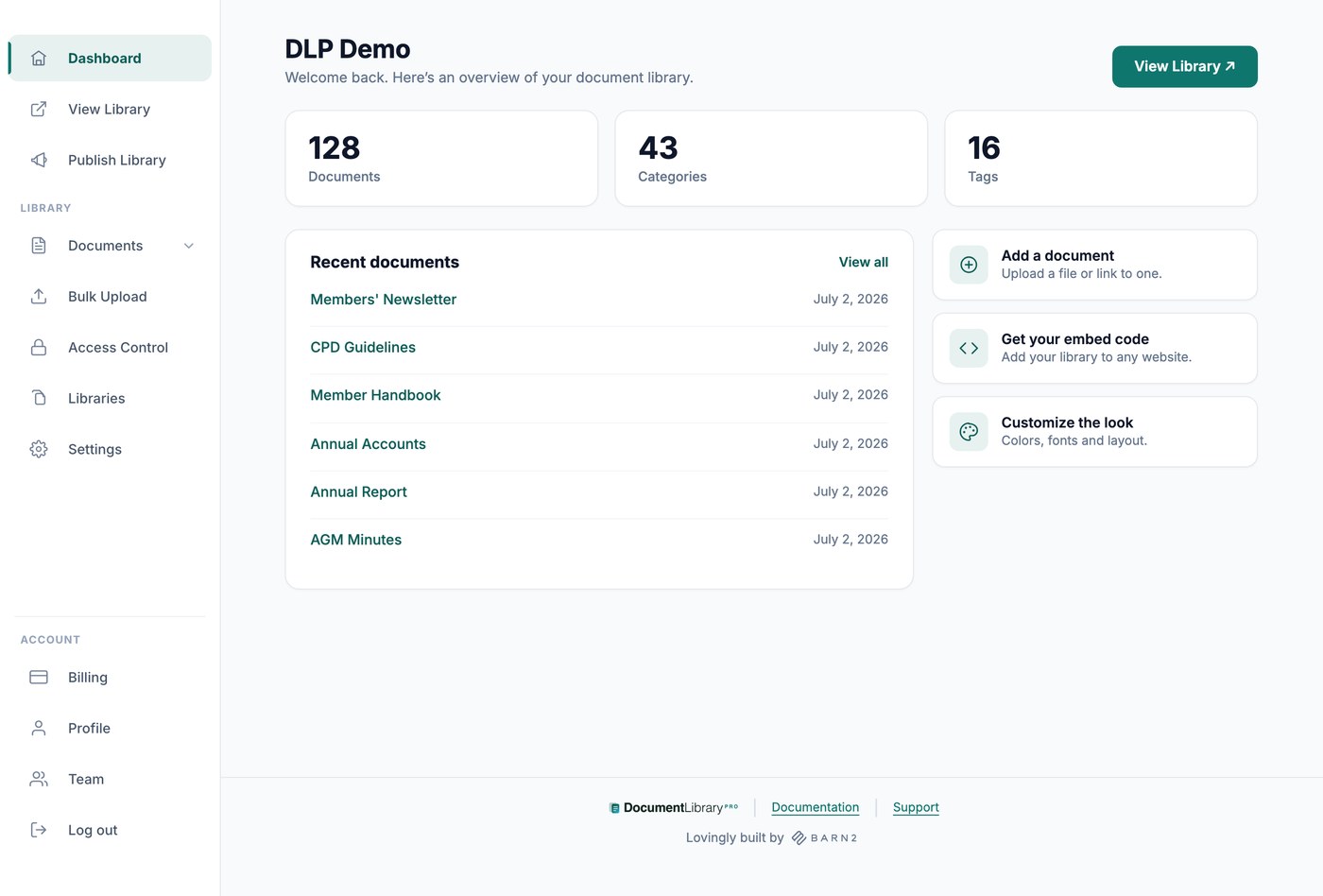
Het startscherm van het dashboard toont je bibliotheeknaam, het aantal documenten, categorieën en tags, en je zes meest recente documenten. Het linkermenu bevat de volgende secties:
- Bibliotheek bekijken - Opent je documentbibliotheek in een nieuw tabblad.
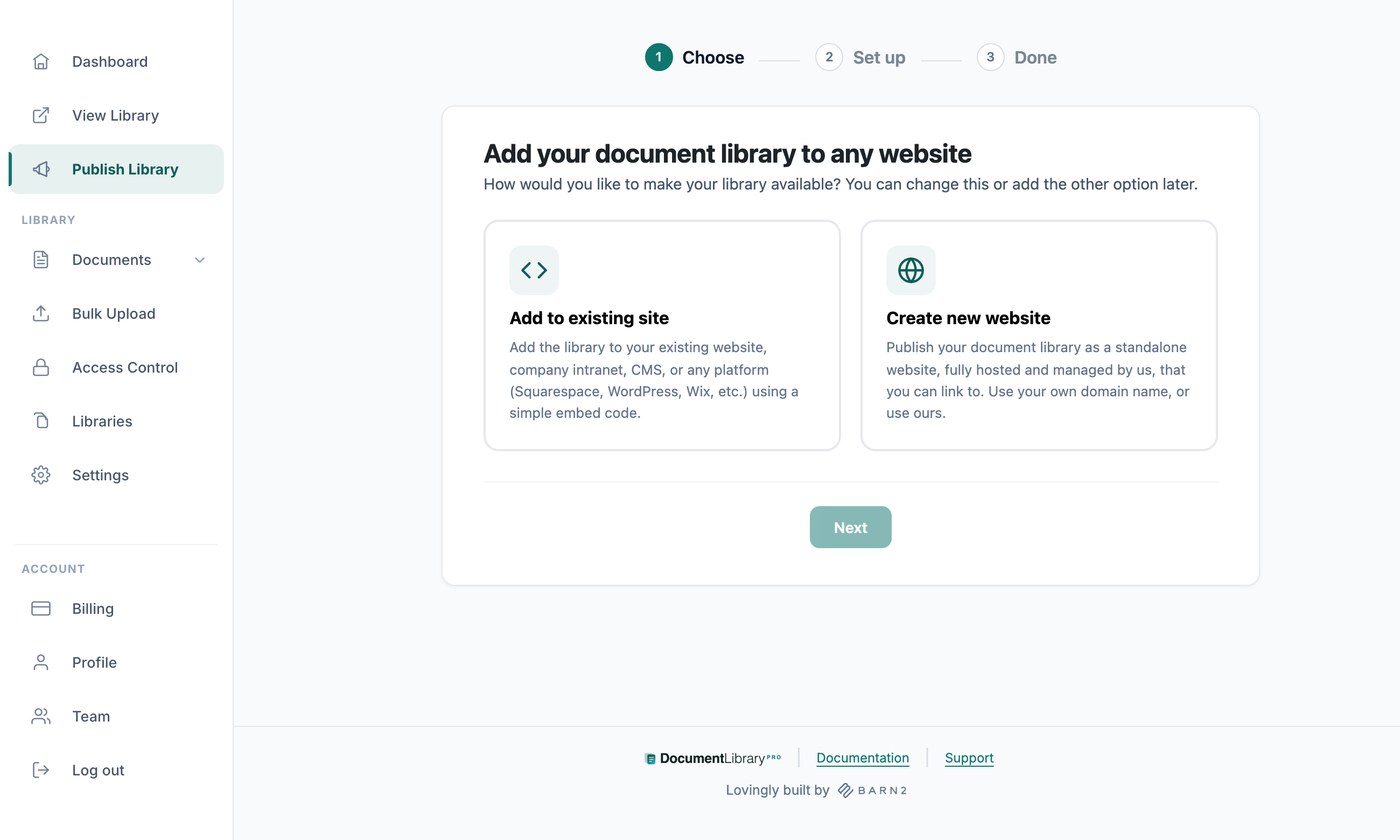
- Bibliotheek publiceren - Bevat je insluitcode en de instellingen voor je bibliotheekwebsite.
- Documenten - Mijn documenten, Document toevoegen, Categorieën, Tags en Auteurs.
- Bulk-upload (Alleen Advanced-abonnement) - Maakt documenten aan vanuit een batch bestanden of een spreadsheet.
- Toegangsbeheer (Alleen Advanced-abonnement) - Beveiligt je bibliotheken en je geüploade bestanden met een wachtwoord.
- Bibliotheken - Maakt extra documentbibliotheken, elk met eigen documenten, opties en insluitcode.
- Instellingen - Zeven tabbladen met globale opties: Algemeen, Weergave, Zoeken, Branding, Bibliotheekontwerp, Vertalingen en Geavanceerd.
- Facturering - Wijzig je abonnement, werk je betaalgegevens bij en bekijk je facturen.
- Profiel - Wijzig je naam, e-mailadres en wachtwoord.
- Team - Nodigt andere mensen uit om je documenten te helpen beheren.
Bibliotheek publiceren, Bibliotheken, Toegangsbeheer, Instellingen, Facturering en Team zijn alleen beschikbaar voor de accounteigenaar. Uitgenodigde teamleden zien een korter menu, omdat zij je documenten beheren in plaats van je abonnement en algemene instellingen.
Volgende stappen
Je bibliotheek is nu ingesteld en klaar voor documenten. De volgende artikelen behandelen wat je hierna doet, in de volgorde die de meeste bibliotheken nodig hebben:
- Documenten toevoegen aan je bibliotheek - Voeg documenten één voor één toe, als upload of als link naar een bestand dat ergens anders wordt gehost.
- Bulk-upload (Alleen Advanced-abonnement) - Maak documenten in bulk aan door een batch bestanden te plaatsen of een spreadsheet te importeren.
- Categorieën, tags en auteurs - Orden je documenten. Je filters en mappen worden opgebouwd uit je documentcategorieën.
- Instellingen - De opties die niet in de installatiewizard staan. Dit zijn onder andere je logo en merkkleur, het ontwerp van je tabellen en rasters, je zoekopties en de berichten die worden getoond wanneer een bibliotheek leeg is. Versiebeheer en lead capture staan op dezelfde pagina met het Advanced-abonnement.
- Je bibliotheek publiceren - Deel je bibliotheek als eigen website, of sluit deze in op een site die je al hebt.
- Je documentbibliotheek beschermen (Alleen Advanced-abonnement) - Beveilig een bibliotheek met een wachtwoord, zodat alleen de juiste mensen deze kunnen openen.
- Meerdere bibliotheken maken - Maak extra bibliotheken wanneer verschillende pagina's verschillende sets documenten nodig hebben.
- Teamleden toevoegen - Nodig collega's uit zodat zij documenten kunnen toevoegen en bewerken.
Als je hulp nodig hebt met je installatie, neem contact op en we helpen je graag.