





Elk document in je bibliotheek is een bestand dat je uploadt of een link naar een bestand dat ergens anders wordt gehost. Je voegt ze toe en bewerkt ze in de Documenten sectie van je dashboard.
Dit artikel behandelt het één voor één toevoegen van documenten. Zie om veel documenten tegelijk toe te voegen documenten in bulk toevoegen.
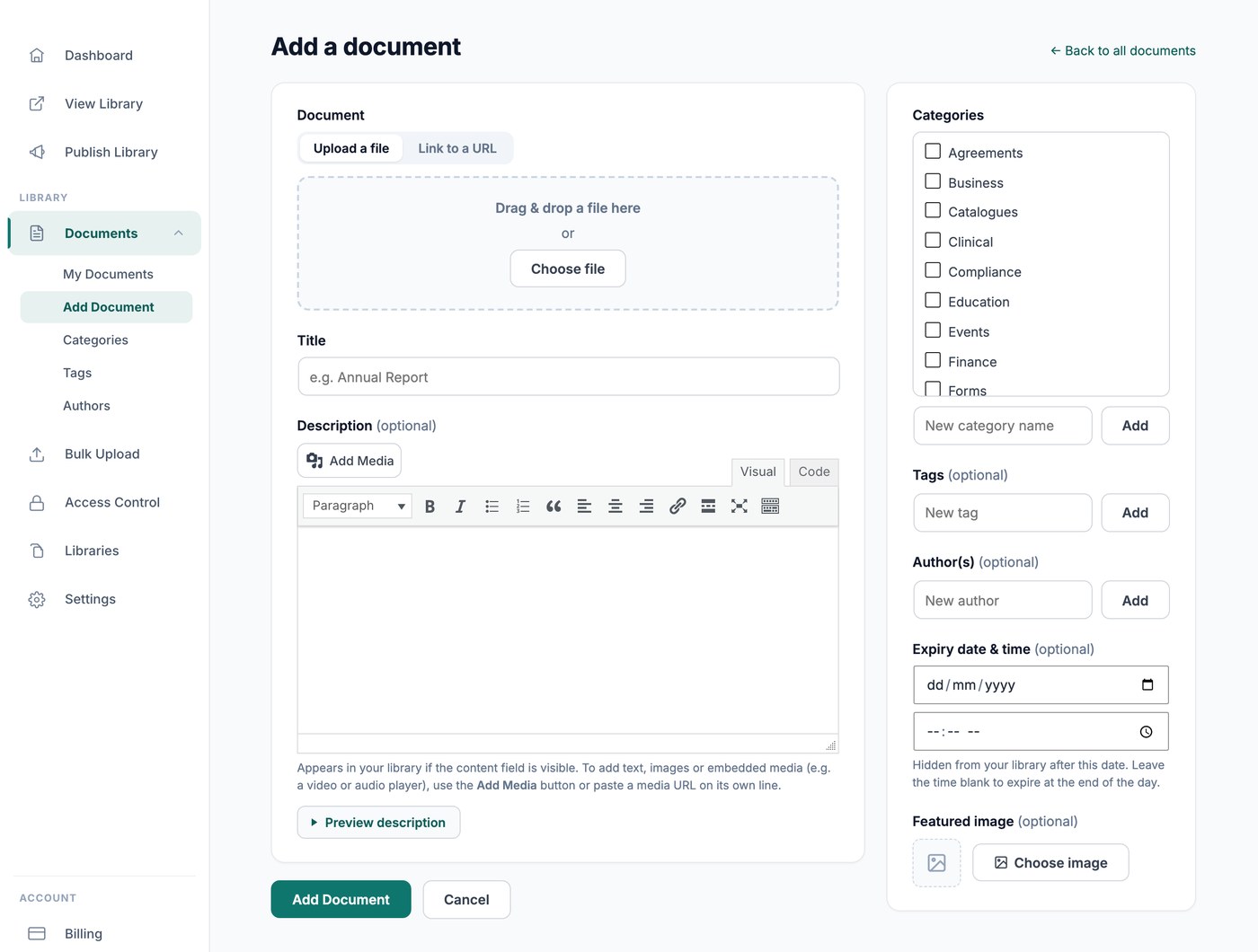
Document toevoegen
Ga naar Documents → Add Document. Het scherm heeft de volgende velden:
- Document - Kies Een bestand uploaden of Naar een URL linken. Om te uploaden sleep je een bestand naar het neerzetgebied of klik je op Bestand kiezen. De meeste bestandstypen worden ondersteund, waaronder PDF's, Word-, Excel- en PowerPoint-bestanden, afbeeldingen, audio en video. Als je wilt linken naar een bestand dat al online staat, zoals een Google Drive-bestand of een video, schakel je over naar Link to a URL en plak je het webadres. Zie welke bestandstypen en -groottes je kunt toevoegen.
- File size (optioneel) - Automatisch gedetecteerd voor geüploade bestanden. Voer dit handmatig in voor een URL, bijvoorbeeld 2 MB, zodat het in je bibliotheek kan verschijnen.
- Titel - De naam van het document in je bibliotheek. Dit is het enige verplichte veld.
- Beschrijving (optioneel) - Verschijnt in je bibliotheek wanneer het contentveld wordt weergegeven. Gebruik de Media toevoegen knop om afbeeldingen op te nemen, of plak een media-URL op een eigen regel om een video- of audiospeler in te sluiten. Klik op Beschrijving bekijken om te zien hoe deze eruitziet in je bibliotheek.
- Categorieën - Groepeer gerelateerde documenten samen. Je filters en mappen worden opgebouwd uit je documentcategorieën, en elke bibliotheek kan worden beperkt tot bepaalde categorieën. Klik op Toevoegen om een nieuwe categorie aan te maken zonder het scherm te verlaten. Zie categorieën, tags en auteurs.
- Tags (optioneel) - Een tweede, lossere manier om documenten te labelen. Tags werken naast categorieën en kunnen ook als filter worden gebruikt.
- Auteur(s) (optioneel) - De auteur die bij het document wordt weergegeven. Dit staat los van de persoon die het heeft toegevoegd.
- Uitgelichte afbeelding (optioneel) - De thumbnail voor het document, die er vooral goed uitziet in de rasterlay-out. Laat dit leeg en waar mogelijk wordt er een thumbnail gegenereerd uit PDF- en afbeeldingsbestanden. Zie afbeeldingsopties voor de documentbibliotheek.
- Versiegeschiedenis (Alleen Advanced-abonnement) - Bewaart het vorige bestand telkens wanneer je er een vervangt, zodat je een geschiedenis van het document hebt. Zie documentversiebeheer.
- Vervaldatum & -tijd (optioneel, alleen Advanced-abonnement) - Het document wordt na deze datum verborgen in je bibliotheek. Laat de tijd leeg om het aan het einde van de dag te laten verlopen. Zie documentvervaldatum.
Klik Publiceren om het document aan je bibliotheek toe te voegen, of Concept opslaan om eraan te blijven werken. Conceptdocumenten blijven uit je bibliotheek totdat je ze publiceert.
Een document bewerken of verwijderen
Ga naar Documents → My Documents om alles in je bibliotheek te zien en klik vervolgens op een document om het te openen. Het scherm is hetzelfde als het scherm dat je gebruikte om het toe te voegen, met onderaan een Wijzigingen opslaan knop.
Om het bestand achter een document te vervangen, klik je op Bestand vervangen en upload je de nieuwe versie. Het document behoudt de titel, beschrijving, categorieën en instellingen, zodat eventuele links ernaartoe blijven werken. Zie hoe je documenten bijwerkt en vervangt.
Om documenten te verwijderen, selecteer je ze op het scherm My Documents en verwijder je ze samen.
documenten in bulk toevoegen
Er zijn drie manieren om documenten toe te voegen zonder ze één voor één in te voeren:
- Bulk-upload (Alleen Advanced-abonnement) - Sleep een batch bestanden naar binnen om één document per bestand te maken, of importeer een spreadsheet om de titel, beschrijving, categorieën en meer voor elk document in één keer in te stellen.
- Mapsynchronisatie (Alleen Advanced-abonnement) - Verbind een Google Drive- of Dropbox-map met een categorie. De documenten worden voor je gemaakt en blijven gesynchroniseerd met de map. Zie een Google Drive- of Dropbox-map synchroniseren met je bibliotheek.
- Bezoekersinzendingen - Laat bezoekers hun eigen documenten indienen via een formulier, dat jij goedkeurt voordat ze verschijnen. Zie documentinzendingen van bezoekers accepteren.
Volgende stappen
Nu je documenten zijn toegevoegd, is de volgende stap kiezen hoe ze aan je bezoekers verschijnen. Zie indeling van documentbibliotheek om te kiezen tussen een tabel, een raster en mappen, en je bibliotheek publiceren om deze aan mensen te tonen.