





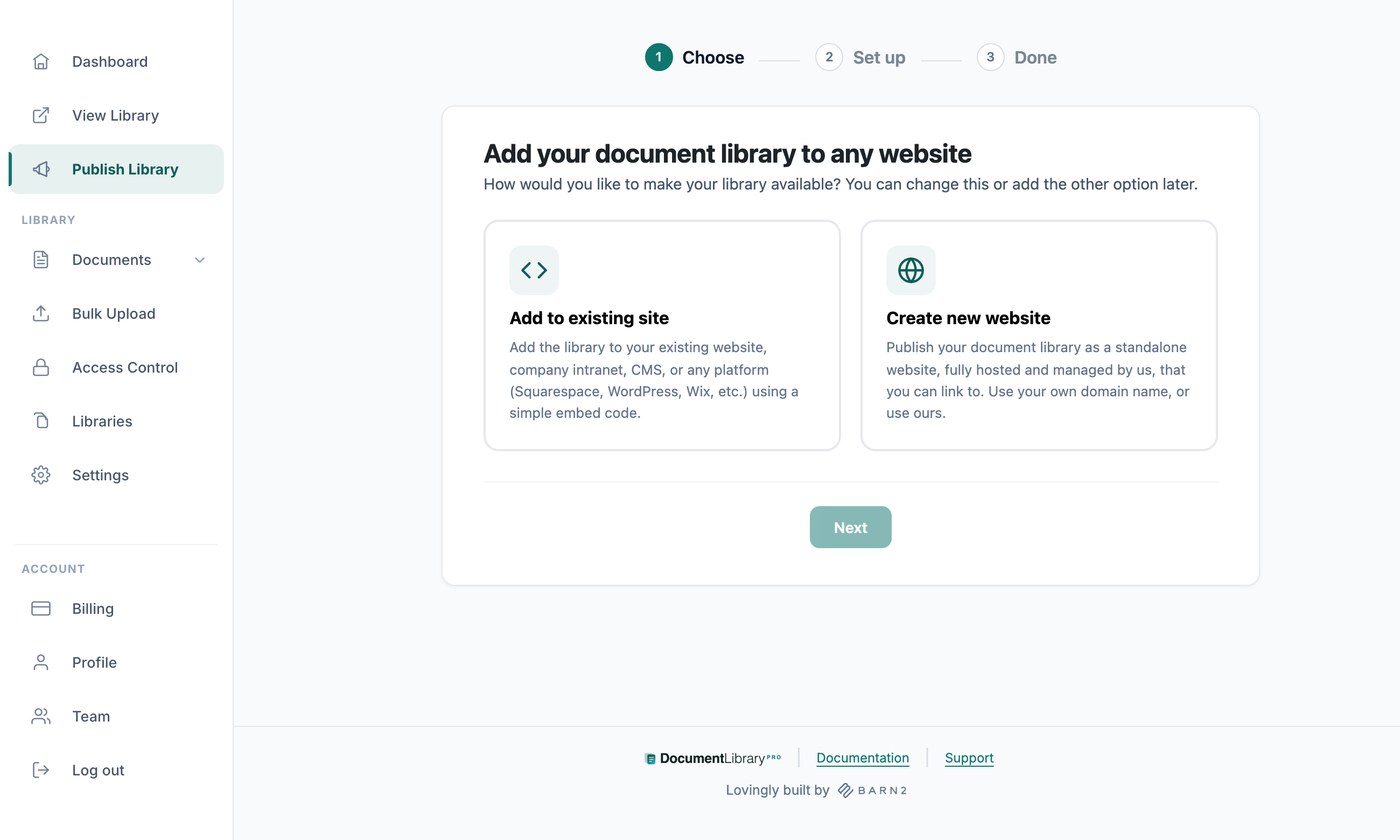
Er zijn twee manieren om je documentbibliotheek aan mensen te tonen. Je kunt één van beide gebruiken, of allebei:
- Sluit deze in op je website, op elke pagina van een site die je al hebt.
- Gebruik de kant-en-klare website die bij je account hoort, en deel de link.
Je stelt beide in op de Bibliotheek publiceren pagina in je dashboard. De eerste keer dat je die opent, vraagt een korte wizard welke methode je wilt en stelt deze in. Daarna toont de pagina de instellingen voor beide.
Bekijk de volledige tutorial
Insluiten op je website
Een insluitcode is een klein stukje HTML dat je gehoste bibliotheek toont op een pagina van je eigen site. Open Bibliotheek publiceren en kopieer de code met de Kopieer de code knop. Je code ziet er zo uit, met je eigen webadres in plaats van dat van ons:
<iframe src="https://your-library.documentlibrary.app/?dlp_embed=1" title="Document library" style="display:block;width:100%;border:0;height:600px;" loading="lazy"></iframe>
<script src="https://your-library.documentlibrary.app/?dlp_embed_resize=1" async></script>
De eerste regel is de iframe, die de bibliotheek toont. De tweede regel is een klein script waarmee de bibliotheek zichzelf aanpast aan de inhoud en documentvoorbeelden binnen de pagina opent. Plak beide regels waar je de bibliotheek wilt tonen.
De Zo voeg je dit toe aan je website sectie bevat de stappen voor WordPress, Squarespace, Wix, Shopify, Webflow, Google Sites, GoDaddy, Framer en elk ander platform, elk met een link naar de volledige instructies. Klik op Live voorbeeld tonen om de bibliotheek te zien zoals je bezoekers die zien.
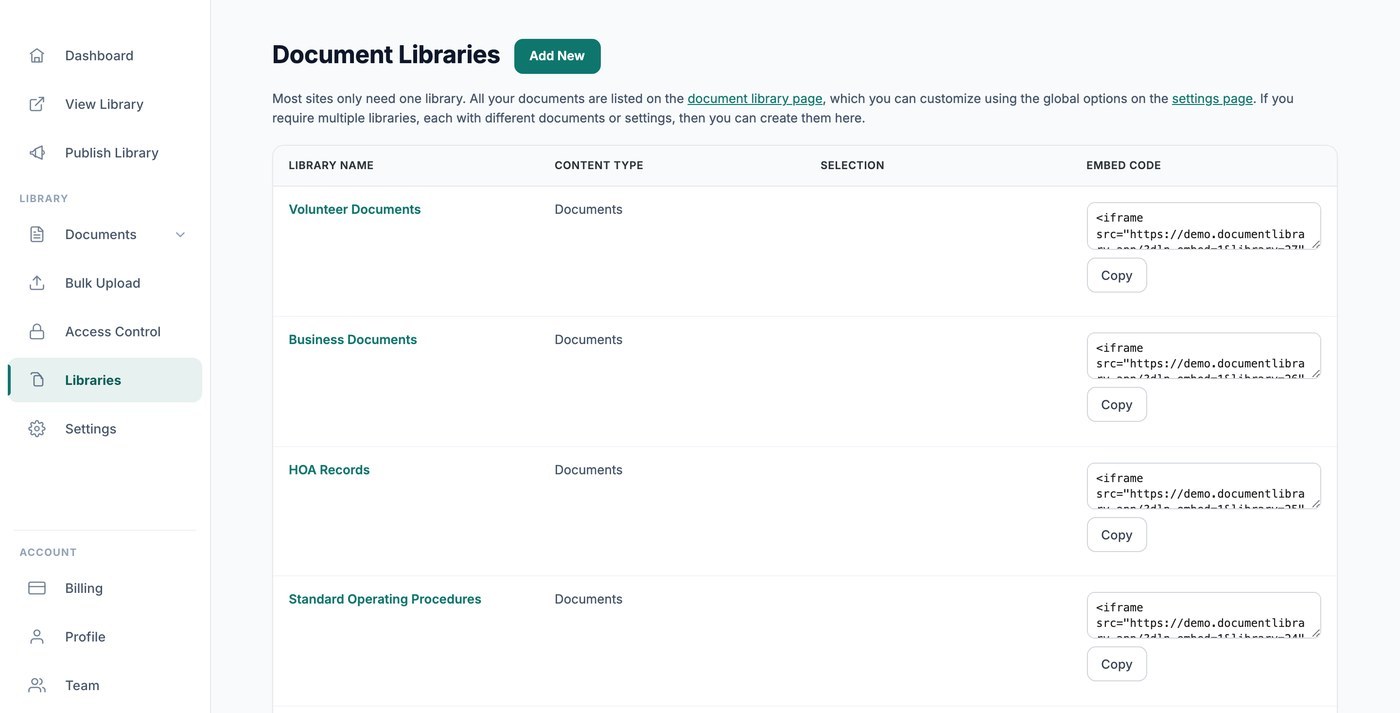
Als je extra bibliotheken hebt gemaakt, heeft elke bibliotheek een eigen insluitcode onder de hoofdcode en op het scherm Bibliotheken. Zie een bibliotheek maken met de Library Builder.
Waar je insluiting kan verschijnen
Standaard werkt je insluiting op elke website. Om dit te beperken, zet je de domeinen die deze mogen tonen elk op een eigen regel. Klik daarna op Opslaan. Browsers blokkeren deze overal anders. Laat het veld leeg om elke site toe te staan.
Vul dit in als je bibliotheek met een wachtwoord is beveiligd of documentinzendingen accepteert, zodat niemand deze op een eigen site kan zetten.
Je insluitcode bevat een adres om je bibliotheek in een iframe te tonen. Dat adres werkt alleen binnen een insluiting. Als iemand het in een browsertabblad opent, verschijnt de bibliotheek niet. Bibliotheekpagina's blijven verborgen voor zoekmachines, tenzij je de zelfstandige pagina publiceert. Als je die pagina publiceert, stuurt het adres mensen daarheen.
Het adres is niet 100% waterdicht. Als niemand je documenten ergens anders dan op de ingesloten bibliotheekpagina mag bereiken, beveilig je documentbibliotheek met een wachtwoord en activeer Directe bestandslinks blokkeren. Beide instellingen horen bij het Advanced-abonnement en staan op de Toegangsbeheer pagina.
Insluitcode voor inzendformulier
Onder je bibliotheekcode staat een aparte Insluitcode voor inzendformulier. Plak deze op elke website om mensen documenten naar je bibliotheek te laten inzenden. Zie documentinzendingen van bezoekers accepteren.
Je website
Elk account bevat een kant-en-klare website voor je bibliotheek. Je hoeft niets in te stellen en hebt geen eigen website nodig. Klik op Openen om deze te bekijken.
- Websiteadres - Het adres van je bibliotheek, in de vorm your-slug.documentlibrary.app. Gebruik Link kopiëren om deze te delen.
- Gebruik je eigen domein - Voer een eigen adres in, zoals docs.yourcompany.com, en klik op Domein aanvragen. We stellen het binnen twee werkdagen samen met je in. Zie een aangepast domein gebruiken met je gehoste documentbibliotheek.
- Titel van startpagina - De kop bovenaan je website. De standaard is Documentbibliotheek.
- Introtekst (optioneel) - Tekst die boven je documenten wordt getoond, bijvoorbeeld een korte uitleg of een contactadres.
- Homepage - Kies wat de startpagina toont: Alle documenten of één van de bibliotheken die je hebt gemaakt. Dit is belangrijk wanneer sommige van je bibliotheken met een wachtwoord zijn beveiligd en de weergave met alle documenten niet openbaar mag zijn.
Klik Opslaan wanneer je klaar bent. Gebruik de opties Logo, Merkkleur en Lettertype op het tabblad Branding van je instellingen.
Documentinzendingen
Vink aan Bezoekers toestaan documenten bij de bibliotheek in te dienen om mensen hun eigen documenten te laten toevoegen. Kies daarna waar het formulier staat onder Locatie van documentinzendformulier:
- Voeg een link toe boven de documentbibliotheek - Bezoekers bereiken het formulier vanuit je bibliotheek. Stel de tekst in bij Tekst van menulink.
- Gebruik een aparte, niet-vermelde pagina - Het formulier staat op een eigen pagina, verborgen voor het menu en voor zoekmachines. Stel de Kop van documentinzendpaginain en deel daarna het adres met Link kopiëren.
Of nieuwe documenten op je goedkeuring wachten, stel je in op het tabblad Algemeen van je instellingen.
Beide methoden gebruiken
Welke methode je ook in de wizard hebt gekozen, je kunt de andere altijd toevoegen. Zoek de kaart onderaan de pagina Bibliotheek publiceren en klik op Website maken of Insluitcode ophalen.
Volgende stappen
- Voeg je bibliotheek toe aan WordPress, Wix, Shopify, Squarespace of elk ander platform.
- Beveilig je documentbibliotheek met een wachtwoord, met het Advanced-abonnement.
- Controleer hoe zoekmachines je bibliotheek zien als je wilt dat je documenten in zoekresultaten verschijnen.