





De Embed-component van Framer is alles wat je nodig hebt om je gehoste documentbibliotheek op een pagina te plaatsen. De stappen hieronder behandelen het hele proces van begin tot eind.
Voordat je begint: Je kunt de Embed-component gebruiken met het gratis abonnement van Framer, en je bibliotheek verschijnt zodra de site is gepubliceerd. Let op: gratis sites worden gepubliceerd op een framer.website-adres en hebben een kleine badge “Made in Framer”. Met een betaald Framer-abonnement verdwijnt die badge en kun je je eigen aangepaste domein gebruiken.
Stap 1: Kopieer je insluitcode
Open in uw gehoste dashboard Bibliotheek publiceren om uw insluitcode te vinden en deze te kopiëren. De meeste sites hebben een enkele bibliotheek, en de pagina Publiceren bibliotheek is waar de insluitcode zich bevindt. (Als u meer dan één bibliotheek hebt gebouwd, kopieert u de code voor degene die u wilt uit Bibliotheken scherm in plaats daarvan.) Plak altijd de exacte code van uw eigen dashboard, niet het onderstaande voorbeeld:
<iframe src="https://your-library.documentlibrary.app/?dlp_embed=1" title="Document library" style="width:100%;border:0;height:600px;" loading="lazy"></iframe>
<script src="https://your-library.documentlibrary.app/?dlp_embed_resize=1" async></script>
Stap 2: Open de pagina voor je bibliotheek
Ga in de Framer-editor naar de pagina waarop de bibliotheek moet komen. Als je liever een nieuwe pagina gebruikt, maak er dan een aan vanuit het paneel Pages en geef deze een duidelijke naam zoals Documentenbibliotheek.
Stap 3: Voeg een Embed-component toe
Kies Invoegen, typ Insluiten in het zoekvak en sleep de Insluiten component naar de plek waar de bibliotheek moet staan.
Stap 4: Plak uw insluitcode
Houd de Embed-component geselecteerd, zodat de instellingen rechts verschijnen. Wijzig het type van URL naar HTML, en plak daarna de code uit stap 1 in het HTML .
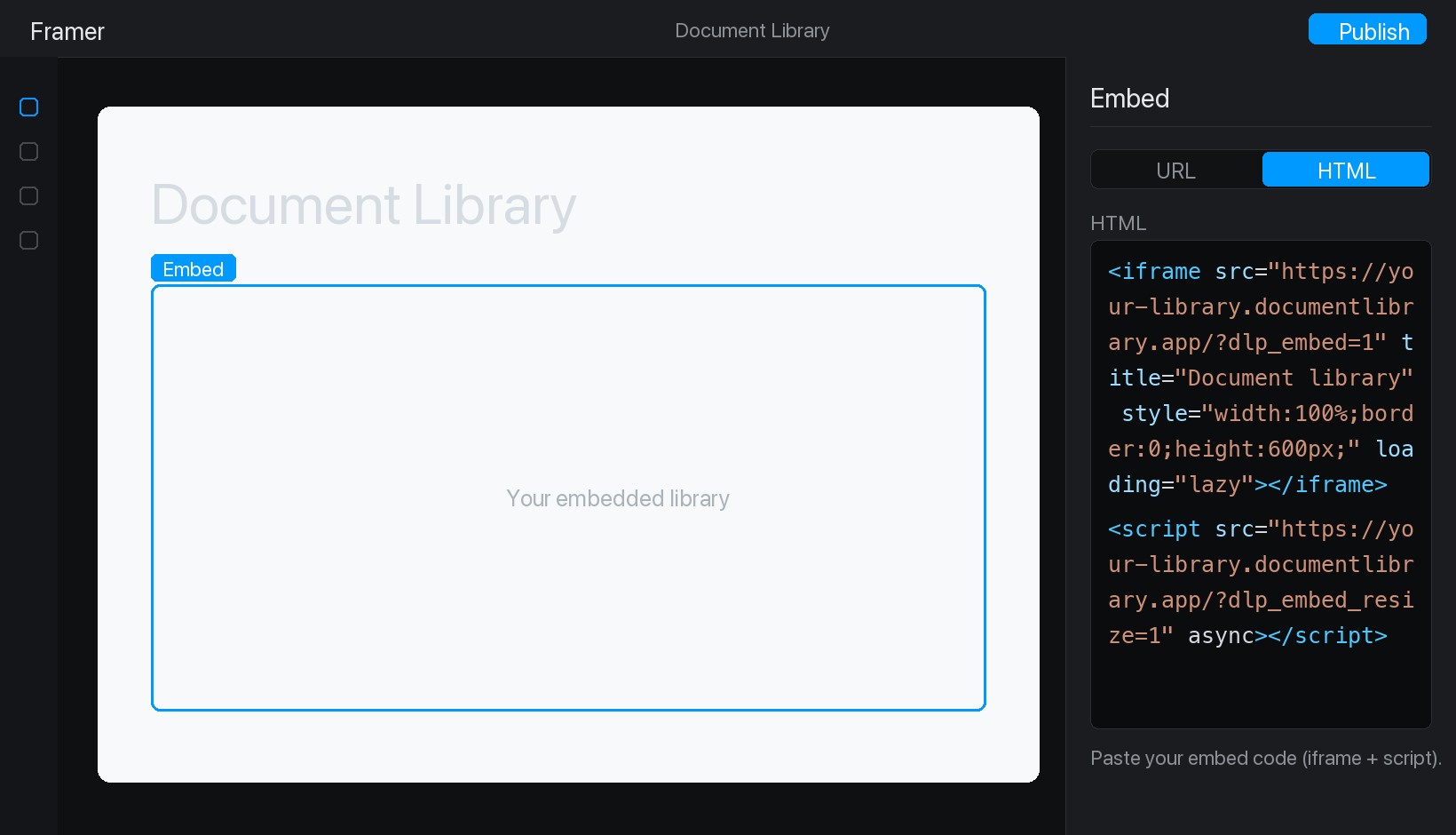
Stap 5: Publiceer en bekijk je bibliotheek
Klik op Publiceren rechtsboven en open daarna je live site. Je documentbibliotheek staat nu op zijn plek, en bezoekers kunnen zoeken, op categorie filteren en elk document bekijken of downloaden.