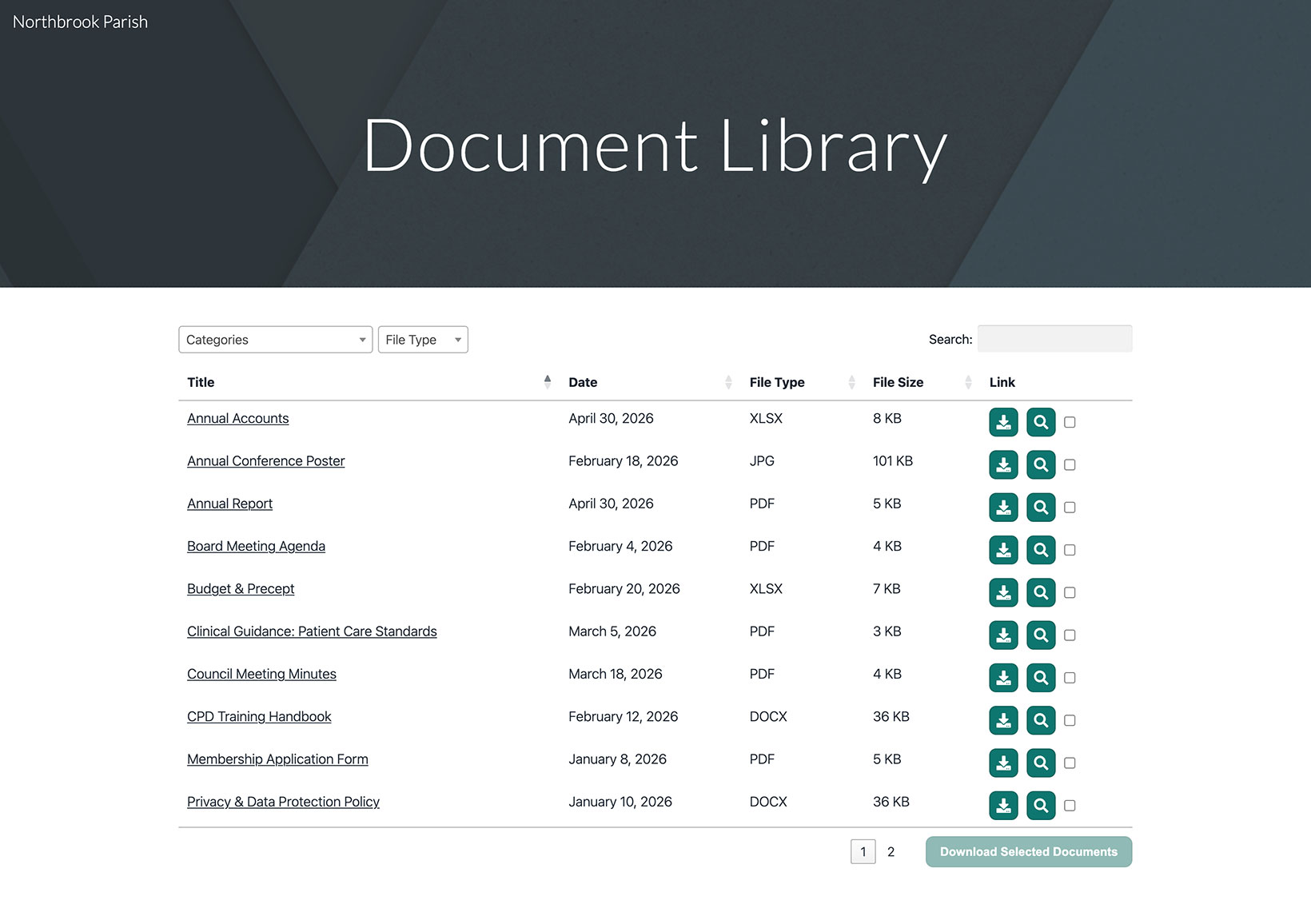
Google Sites heeft een ingebouwde tool Insluiten waarmee je je gehoste documentbibliotheek op elke pagina kunt tonen. Zo stel je alles van begin tot eind in.
Voordat je begint: elke insluiting in Google Sites krijgt een vaste grootte, dus je moet het vak rond je bibliotheek groter of kleiner maken (behandeld in stap 5). De bibliotheek wordt zowel in Voorbeeld als op je gepubliceerde site weergegeven.
Stap 1: Kopieer je insluitcode
Open in uw gehoste dashboard Bibliotheek publiceren om uw insluitcode te vinden en deze te kopiëren. De meeste sites hebben een enkele bibliotheek, en de pagina Publiceren bibliotheek is waar de insluitcode zich bevindt. (Als u meer dan één bibliotheek hebt gebouwd, kopieert u de code voor degene die u wilt uit Bibliotheken scherm in plaats daarvan.) Plak altijd de exacte code van uw eigen dashboard, niet het onderstaande voorbeeld:
<iframe src="https://your-library.documentlibrary.app/?dlp_embed=1" title="Document library" style="width:100%;border:0;height:600px;" loading="lazy"></iframe>
<script src="https://your-library.documentlibrary.app/?dlp_embed_resize=1" async></script>
Stap 2: Een pagina voor je bibliotheek maken
Ga in de Google Sites-editor naar het tabblad Pagina's en voeg een nieuwe pagina toe, of gebruik een pagina die je al hebt. Geef deze een naam zoals Documentenbibliotheek. Google Sites voegt deze automatisch toe aan je navigatiemenu.
Stap 3: Open de tool Insluiten
Open op je pagina het paneel Invoegen en klik op Insluiten. Wanneer het dialoogvenster opent, ga je naar het tabblad Insluitcode tabblad.
Stap 4: Plak uw insluitcode
Plak de insluitcode uit stap 1 in het vak en klik daarna op Volgende gevolgd door Invoegen.
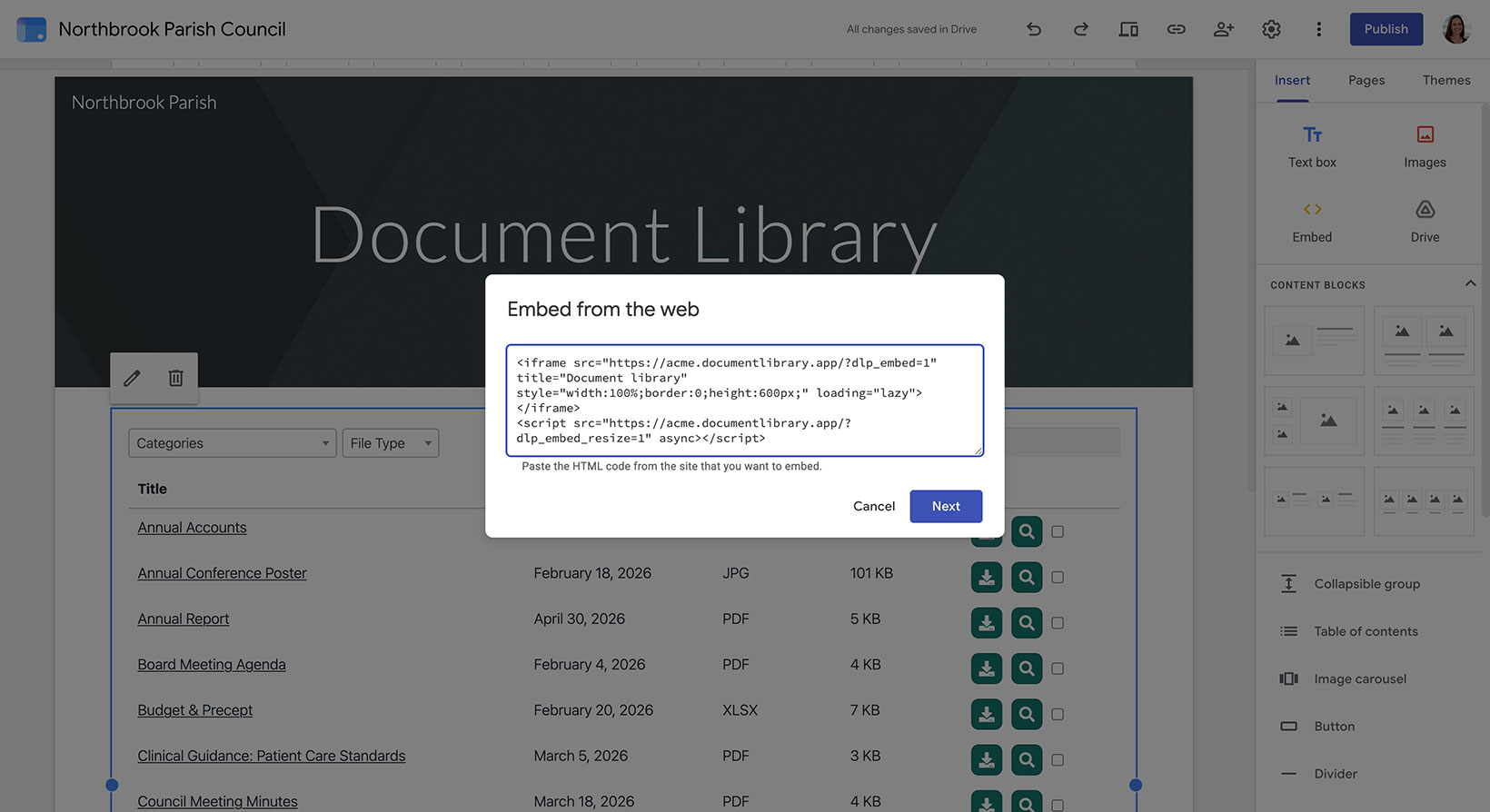
Stap 5: Pas de insluiting aan je bibliotheek aan
Sla dit onderdeel niet over. Omdat Google Sites de insluiting een vaste grootte geeft, sleep je de grepen zodat het vak uiteindelijk zowel breder als hoger is dan je bibliotheek. Zo past de hele tabel erin zonder te worden afgesneden en blijft er nog wat ruimte over. Schakel ook over naar Desktop weergave, zodat de bibliotheek genoeg ruimte heeft om alle kolommen te tonen.
Stap 6: Publiceer en bekijk je bibliotheek
Klik Publiceren rechtsboven, of gebruik Voorbeeld als je het eerst wilt controleren. Zodra het live is, open je de pagina om je documentbibliotheek te vinden, waar bezoekers kunnen zoeken, op categorie kunnen filteren en elk document kunnen downloaden of bekijken.