





Een Code Embed-element is de manier om je gehoste documentbibliotheek op een Webflow-pagina te plaatsen. De stappen hieronder leiden je er van begin tot eind doorheen.
Voordat je begint: Code Embed is een betaalde Webflow-functie, inbegrepen bij het Basic Site-abonnement en hoger. Het gratis Starter-abonnement blokkeert aangepaste code, dus je hebt een betaald Site-abonnement nodig voordat je de insluiting kunt toevoegen en publiceren. Houd er rekening mee dat de bibliotheek alleen wordt weergegeven wanneer je een voorbeeld bekijkt of publiceert. Terwijl de Designer open is om te bewerken, toont Webflow een placeholder in plaats van de live bibliotheek.
Stap 1: Kopieer je insluitcode
Open in uw gehoste dashboard Bibliotheek publiceren om uw insluitcode te vinden en deze te kopiëren. De meeste sites hebben een enkele bibliotheek, en de pagina Publiceren bibliotheek is waar de insluitcode zich bevindt. (Als u meer dan één bibliotheek hebt gebouwd, kopieert u de code voor degene die u wilt uit Bibliotheken scherm in plaats daarvan.) Plak altijd de exacte code van uw eigen dashboard, niet het onderstaande voorbeeld:
<iframe src="https://your-library.documentlibrary.app/?dlp_embed=1" title="Document library" style="width:100%;border:0;height:600px;" loading="lazy"></iframe>
<script src="https://your-library.documentlibrary.app/?dlp_embed_resize=1" async></script>
Stap 2: Een pagina voor je bibliotheek maken
Open in de Webflow Designer het paneel Pagina's en klik op de + om een nieuwe pagina te maken en geef deze een naam zoals Documentenbibliotheek. Voeg een link naar deze pagina toe aan je navigatiemenu, zodat bezoekers deze kunnen vinden.
Stap 3: Voeg een Code Embed-element toe
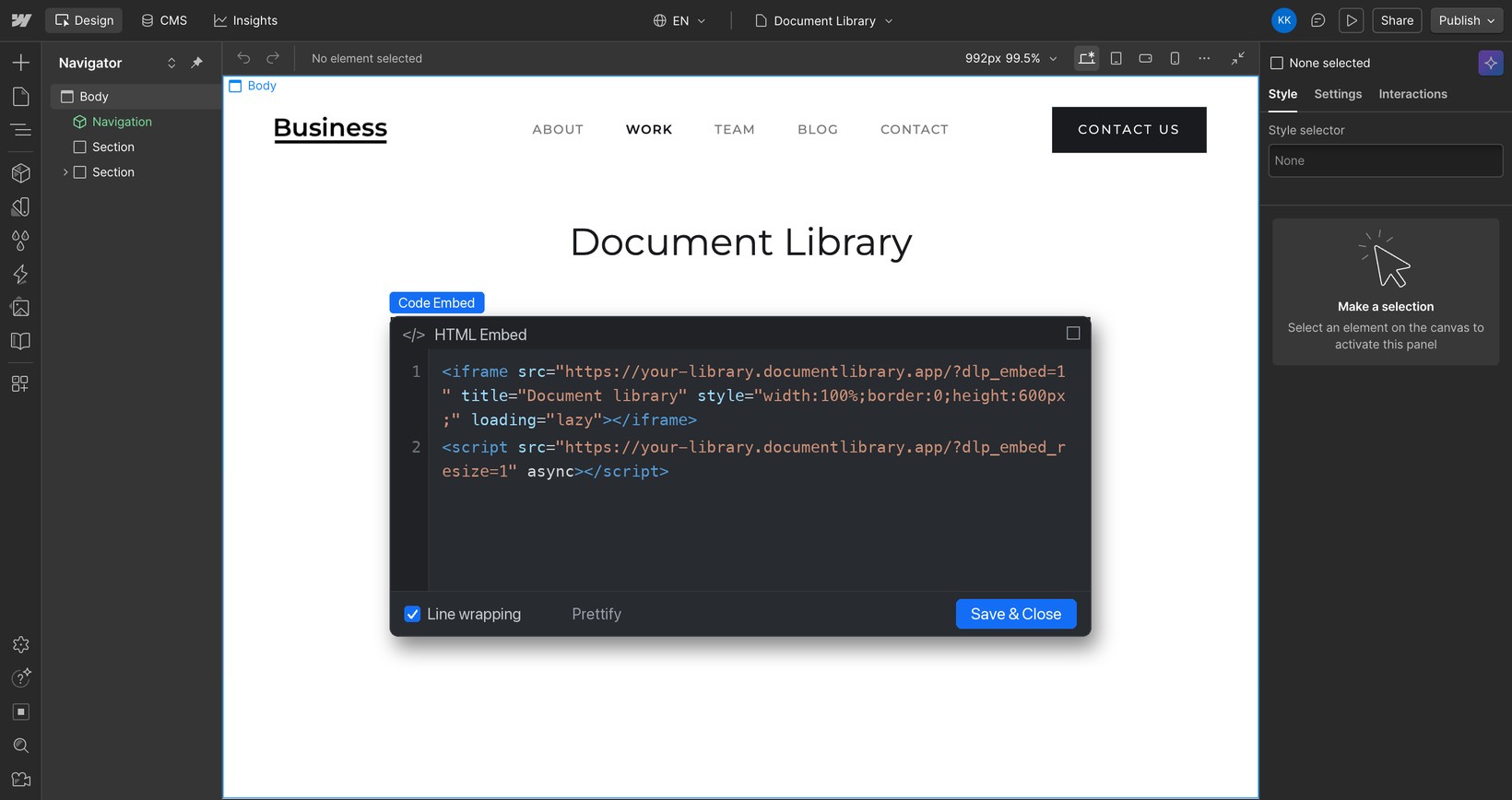
Klik met je nieuwe pagina geopend op het paneel + (Elementen toevoegen), zoek naar Insluiten, en sleep de Code Embed element naar de sectie waar de bibliotheek hoort.
Stap 4: Plak uw insluitcode
De code-editor verschijnt vanzelf. Verwijder eventuele placeholdertekst, plak het fragment uit stap 1 en klik op Save & Close.
Stap 5: Publiceer en bekijk je bibliotheek
Tijdens het bewerken toont Webflow een placeholder op de plek van de Code Embed. Klik op Publiceren rechtsboven om de site live te zetten en open daarna de pagina om je documentbibliotheek te zien, waar bezoekers kunnen zoeken, op categorie kunnen filteren en elk document kunnen bekijken of downloaden. Als je een kijkje wilt nemen voordat je live gaat, klik dan op Voorbeeld (het oogicoon) in de Designer.