





Met het Advanced-abonnement van Document Library Pro kun je je documentbibliotheken met een wachtwoord beveiligen, zodat alleen mensen met het wachtwoord ze kunnen openen. Dit past bij een documenthub alleen voor je team, een privéset bestanden naast een openbare bibliotheek, of elke downloadruimte die buiten publiek zicht moet blijven.
Je beheert alles op de Toegangsbeheer pagina in je dashboard. Je hoeft niet in te loggen op WordPress-beheer en je hoeft geen code of shortcodes toe te voegen.
Dit artikel behandelt een bibliotheek beveiligen, directe bestandslinks blokkeren, de tekst op het wachtwoordformulier en hoelang toegang geldig blijft.
Een bibliotheek beveiligen
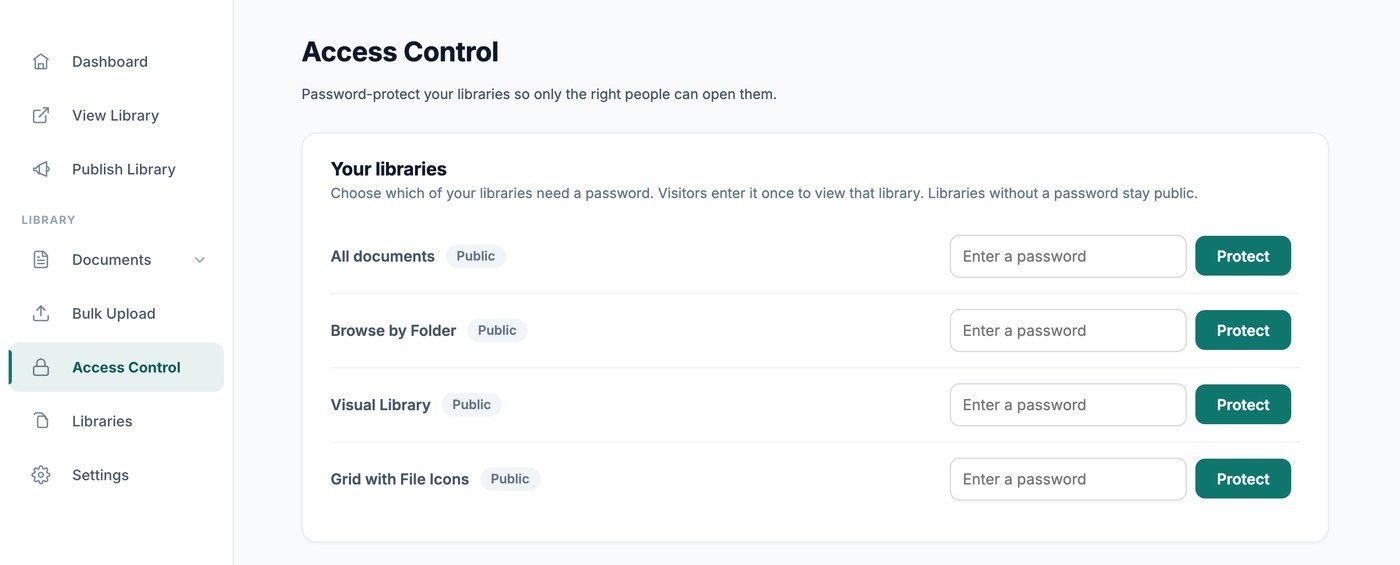
Open Toegangsbeheer. De Je bibliotheken kaart toont Alle documenten bovenaan, gevolgd door alle bibliotheken die je hebt gemaakt. Elke bibliotheek toont een status van Openbaar of Met wachtwoord beveiligd.
- Zoek de bibliotheek die je wilt beveiligen.
- Typ een wachtwoord in het veld.
- Klik Beveiligen.
Die bibliotheek is nu privé. Gebruik Wijzigen om later een nieuw wachtwoord in te stellen, of Verwijderen om de bibliotheek weer openbaar te maken.
Elke bibliotheek wordt apart beveiligd. Als je je bibliotheek Alle documenten beveiligt, worden de andere bibliotheken niet vergrendeld. Je kiest dus precies welke bibliotheken een wachtwoord nodig hebben. Bibliotheken zonder wachtwoord blijven openbaar.
Je gepubliceerde bibliotheek laat altijd zien wat je bezoekers zien, ook wanneer je bent ingelogd op je account. Zo kun je je werk makkelijk controleren. Je kunt nog steeds elk document bekijken en beheren vanuit je dashboard.
Een wachtwoord beschermt de bibliotheek, niet het document
Een bibliotheekwachtwoord bepaalt wie die bibliotheek kan openen. Het vergrendelt geen afzonderlijk document overal waar het voorkomt. Een document dat ook in een openbare bibliotheek staat, blijft daar dus openbaar.
Twee dingen houden privédocumenten buiten een openbare weergave:
- Insluiten - Sluit de specifieke bibliotheek in die je wilt gebruiken, met de eigen insluitcode van die bibliotheek. Gebruik de insluitcode voor alle documenten niet als sommige van je documenten privé zijn, want die weergave toont elk document.
- Je bibliotheekwebsite - Standaard toont de startpagina al je documenten. Stel op de pagina Bibliotheek publiceren Homepage in op een specifieke bibliotheek. Zie je bibliotheek publiceren.
Directe bestandslinks blokkeren
Een bibliotheekwachtwoord bepaalt wie de bibliotheek kan openen. Vink aan om de bestanden zelf te beveiligen: Voorkom dat mensen je geüploade bestanden downloaden via een directe link in de Directe bestandslinks blokkeren kaart.
Je bestanden worden dan op de achtergrond verplaatst naar privéopslag, en de pagina toont de voortgang. Je kunt de pagina verlaten terwijl dit loopt. Je bibliotheek ziet er hetzelfde uit en laadt even snel. De bestanden worden teruggezet als je de optie later uitschakelt.
Dit is handig om te weten voordat je dit inschakelt:
- Het is één instelling voor je hele account en geldt voor elk bestand dat je hebt geüpload.
- Het adres van een bestand kopiëren en in een browser plakken werkt niet meer.
- Als een bibliotheek een wachtwoord heeft, voeren bezoekers dat in voordat ze de bestanden kunnen downloaden.
- Als een bibliotheek geen wachtwoord heeft, kan iedereen die de bibliotheek kan zien de bestanden downloaden. De bestandsadressen kunnen niet worden geraden, gedeeld of geïndexeerd door Google.
- Dit geldt voor de bestanden die je uploadt naar Document Library Pro. Bestanden die op een andere dienst staan, zoals Dropbox of Google Drive, volgen de eigen deelinstellingen van die dienst.
- Iedereen die een bestand mag downloaden, kan het daarna nog steeds delen.
Wachtwoordinvoerformulier
Bezoekers van een beveiligde bibliotheek zien een wachtwoordformulier in je eigen huisstijl. Lager op de pagina Toegangsbeheer stelt de Wachtwoordinvoerformulier sectie de tekst in:
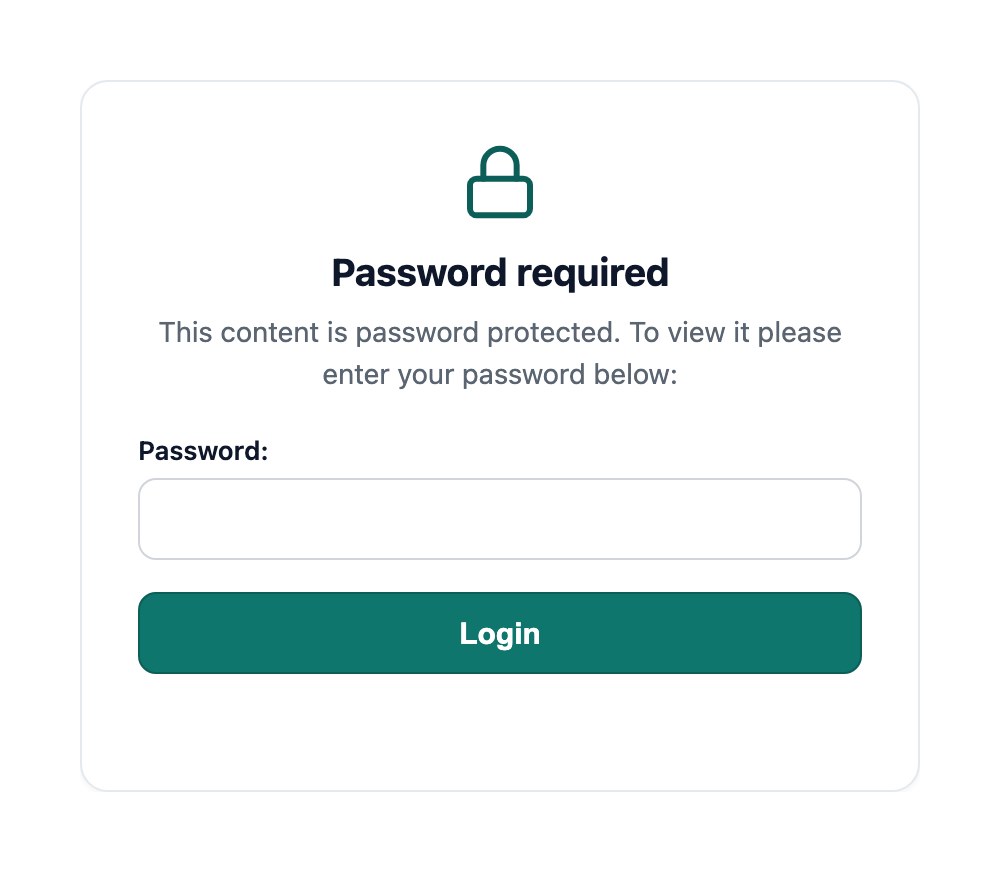
- Bericht op wachtwoordformulier - Het bericht dat op het formulier wordt getoond. Je kunt hier HTML gebruiken.
- Wachtwoordlabel - Het label naast het wachtwoordveld.
- Placeholder gebruiken? - Toont het label in het veld in plaats van ernaast.
- Tekst op wachtwoordknop - De tekst op de knop, bijvoorbeeld Inloggen.
- Wachtwoord verloopt na - Het aantal dagen dat een bezoeker toegang houdt. De standaard is 10 dagen.
De kleuren en het lettertype van het formulier komen uit het tabblad Branding van je instellingen.
Hoe lang toegang blijft gelden
Een bezoeker voert het wachtwoord één keer in, en de browser houdt toegang voor het aantal dagen dat is ingesteld in Wachtwoord verloopt na. Daarna wordt opnieuw om het wachtwoord gevraagd. Er is geen uitlogknop, dus verkort de verlooptijd als je wilt dat mensen vaker een prompt krijgen.
Hoeveel wachtwoorden kan ik gebruiken?
Er is geen vaste limiet. Voeg zoveel wachtwoorden toe als je nodig hebt. Een bezoeker kan de bibliotheek openen met elk van die wachtwoorden. Dat is handig wanneer verschillende groepen mensen hun eigen wachtwoord hebben.
Elke keer dat iemand een wachtwoord invoert, controleert je bibliotheek het tegen elk wachtwoord dat je hebt opgeslagen. Tientallen wachtwoorden zijn geen probleem. Als je er honderden hebt en ontgrendelen traag begint te voelen, kort de lijst dan in tot de wachtwoorden die je nog gebruikt.
Verborgen voor zoekmachines
Beveiligde bibliotheken worden automatisch buiten zoekresultaten gehouden, met een noindex-instructie die zoekmachines vertelt ze over te slaan. Zie worden mijn beveiligde documentbibliotheken verborgen voor zoekmachines?
Andere manieren om toegang te beheren
- E-mailadressen verzamelen vóór downloads vraagt bezoekers om hun gegevens in plaats van een wachtwoord, met het Advanced-abonnement.
- Als je je bibliotheek insluit op een pagina van een intranet of lidmaatschapssite die al een eigen login heeft, staat je bibliotheek achter die login.
- Teamleden toevoegen gaat over toegang tot je dashboard, niet over toegang tot je documenten.