





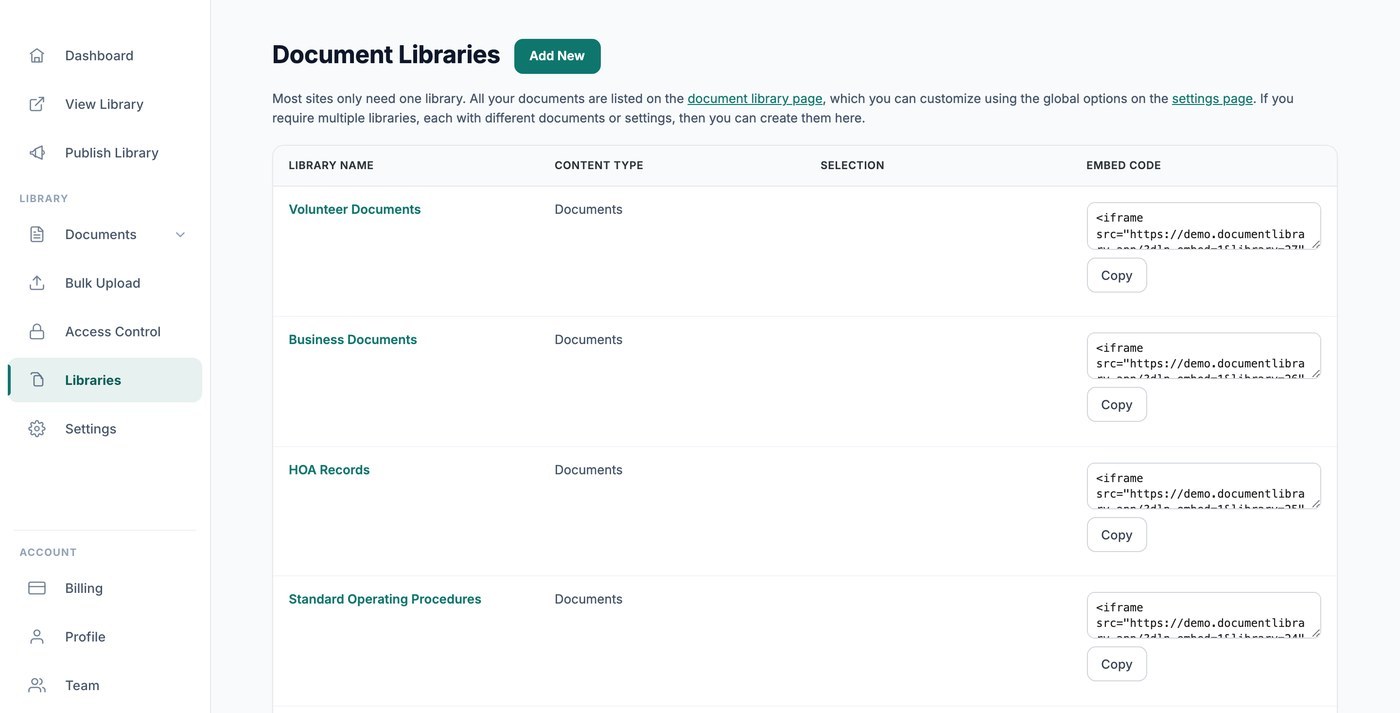
Most sites only need a single library, where all your documents live and are controlled by your global settings. That main library is published and embedded from the Publish Library page, and the Libraries screen is empty until you create additional libraries. If you do need separate libraries with different documents or settings, you can create as many as you like here.
When to use multiple libraries
Multiple libraries are useful when you want to show different sets of documents in different places, for example a public policies library on one page and a password-protected forms library on another.
Create a new library
Open the Libraries screen and click Create Library. A short wizard lets you name the library, choose which documents it contains (by category or tag), and set its columns, filters, layout, and sorting.
Embed a specific library
Each additional library you build here has its own embed code, which includes a library reference so the right one appears. Copy it from the Embed code column next to the library, then add it to your site just like any other embed. (Your main library’s embed code is on the Publish Library page, not here.)
Each library gets its own page
Every library you build also gets its own page on your library’s web address, so you can link to it directly or embed it, whichever suits.
Choosing which documents a library shows
How scoping works in the Library Builder
When you create or edit a library from the Libraries screen, the Library Builder walks you through picking the documents that belong in it. You can keep a library wide open so it lists everything you have uploaded, or restrict it to specific categories and tags. Each library you build gets its own embed and its own page on your hosted site, so you can publish several focused libraries side by side, each scoped to different content.
Scope by category
The most common way to control a library is by category. In the Library Builder, choose the categories you want the library to include. Documents filed under those categories will appear, and everything else stays out. This is handy when you keep separate collections such as “Design”, “Print” or “Policies” and want a dedicated library for each one.
If you select more than one category, the library shows documents that belong to any of the chosen categories.
Scope by tag
You can also narrow a library by tag. Tags work alongside categories, so you can build a library that pulls in everything carrying a particular tag regardless of which category it sits in. Pick the tags you want in the Builder and the library will list the matching documents.
Combining categories and tags
Categories and tags can be used together to fine-tune a library. For example, you might scope a library to a “Reports” category and then further limit it to documents tagged “2025” so the library only shows that year’s reports. Adjust the selections in the Builder until the preview shows the documents you expect.
Separating content into folders
If you would rather keep everything in one place but still let visitors drill down, you can switch a library to folder view at the Layout step of the Library Builder. Folders group documents by category and sub-category so people can open one folder at a time instead of scrolling a single long list. This is a good alternative to building several separate libraries when all the content belongs together.
Building multiple focused libraries
Because each library is independent, the simplest way to show different sets of documents in different places is to build a separate library for each set and scope it accordingly. Every library you create from the Libraries screen produces its own embed code and its own page, so you can drop each one wherever you need it and be confident it only ever shows the documents you chose when you built it.