





Hosted Document Library Pro gives you two ways to present your files: a structured table or a visual grid. You set the layout for each library you build in the visual Library Builder, and you can use a different look for each library you create.
Table layout
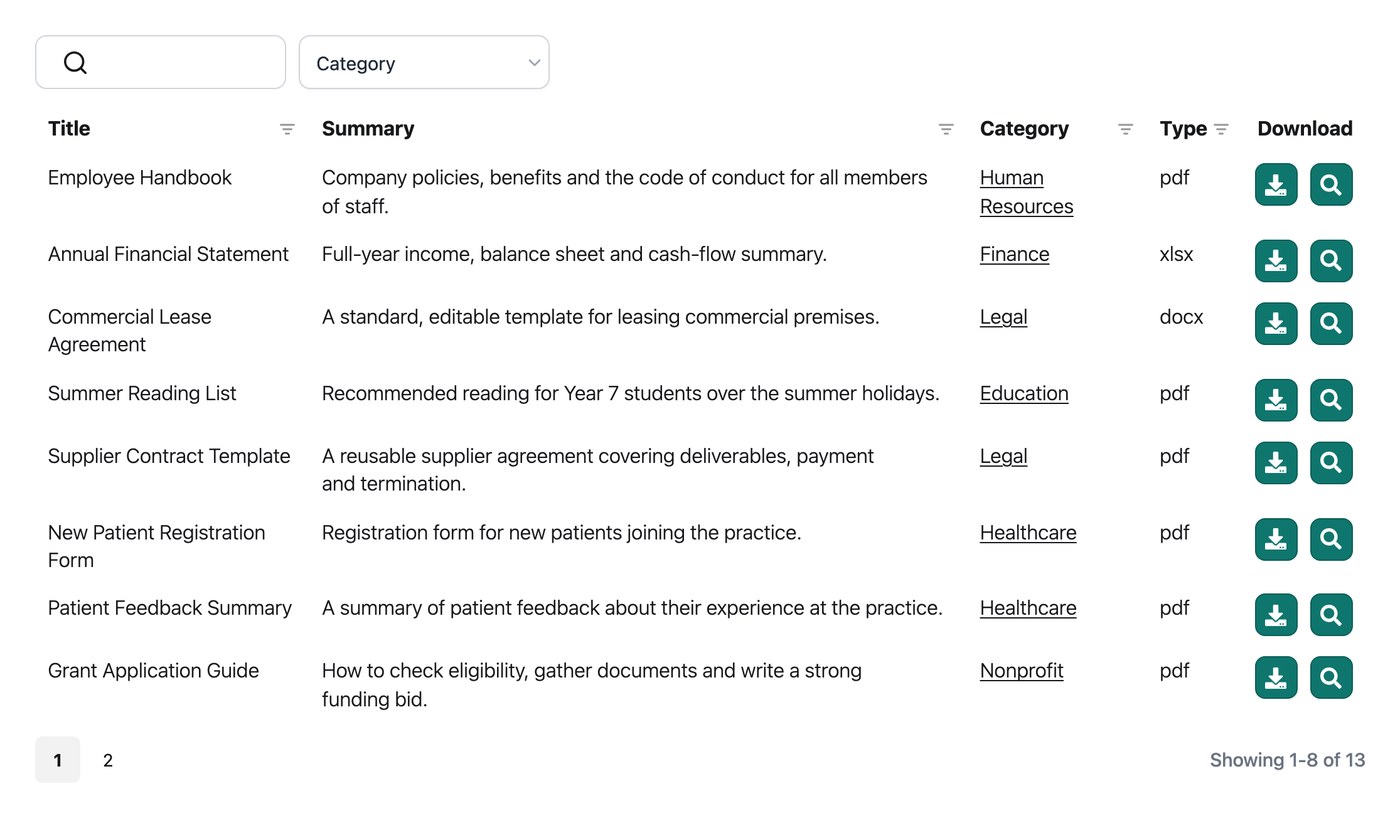
The table is the more powerful of the two layouts because of how flexible it is. You decide which columns of information appear, and you have detailed control over how the table reflows across phones, tablets and desktops.
It is built for libraries that hold a lot of documents. Visitors can sort by clicking a column heading, type into the keyword search box, and narrow the results with filter dropdowns, so finding a specific file stays quick even in a large collection.
Grid layout
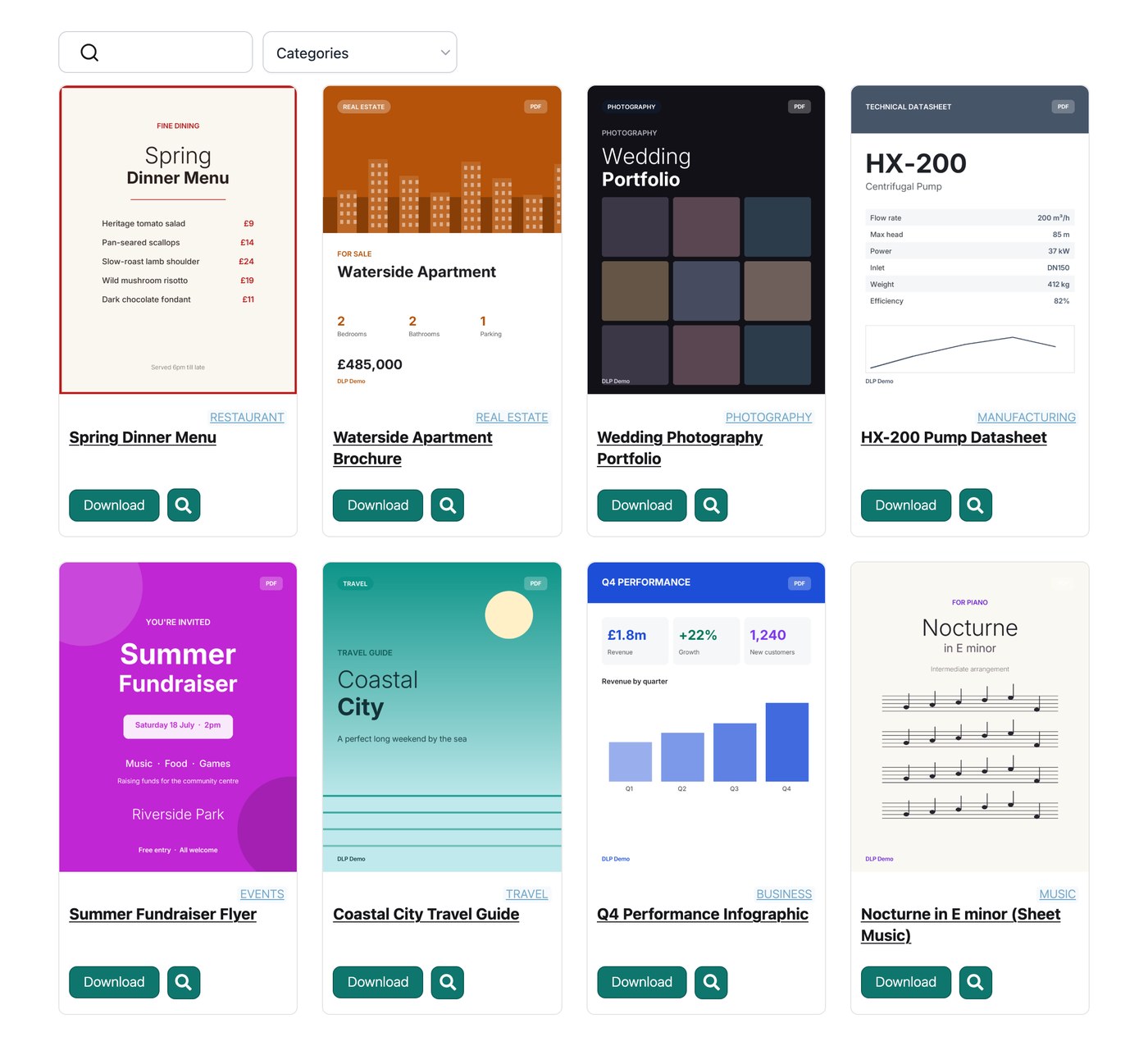
The grid shows your documents as tiles, in the style of a Trello board or a streaming-service catalog. It is a more visual presentation, and it suits smaller collections where each file only needs a little information attached to it.
By default the grid auto-sizes, so the number of columns adjusts to the visitor’s screen and the space available on the page. If you would rather fix the count, choose between 1 and 4 columns in the Library Builder. The grid supports a set list of fields you can switch on or off for each document.
You can place a keyword search box and filter dropdowns above the grid as well. When the Image field is switched on, each tile shows the document’s featured image, falling back to a file-type icon when no image is set.
Which layout should I use?
Use this to decide which layout fits each library:
- Appearance. Pick whichever style you prefer the look of.
- Number of documents. The grid works well for smaller collections. You can turn on the Folders option to group documents by category so visitors see one category at a time. For categories that hold a lot of files, the table is the better choice because it supports filter dropdowns above the list.
- Information to display. If you only need standard details (image, title, file size, file type, categories, description and the download or preview buttons) either layout works. Choose the table when you want to show more fields, such as additional taxonomies.
- Search box. Both layouts can include a search box, and the search works in the same way in each layout. Read more about the search logic.