Add a document library to Framer
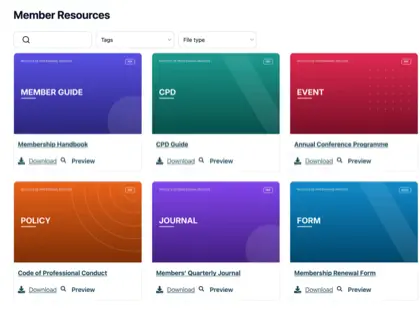
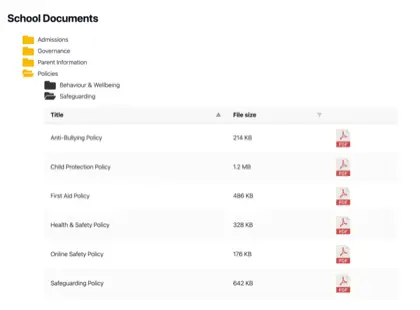
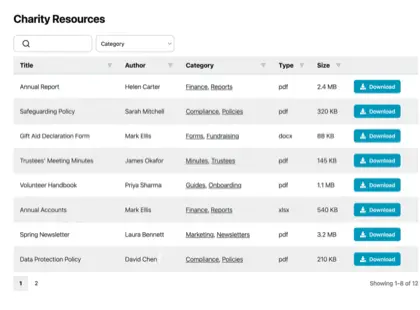
Build your library once, then add a simple embed code to a Framer Embed component to display a searchable, filterable document library on any page.
Why add a document library to your site?
Give visitors the documents they came for
Whatever your Framer site is for, visitors often need more than a web page. Put the documents they came for one click away - searchable, on-brand, and easy to download.
Projects & portfolios
Showcase your work, services, and prices in downloadable detail.
Guides & manuals
How-to guides and instructions your visitors can take away.
Reports & policies
Annual reports, policies, and official documents in one place.
Forms & price lists
Registration forms, price lists, and resources to download.
How it works
A document library on Framer, in three steps
Build your library in the hosted dashboard, then add the embed code to a Framer Embed component.
Build your library
Create your library in the hosted dashboard. Upload your documents and sort them into categories. You can also sync a Google Drive or Dropbox folder, so your documents create themselves.
Copy your embed code
Copy the embed code shown next to your library in the dashboard.
Add it to your site
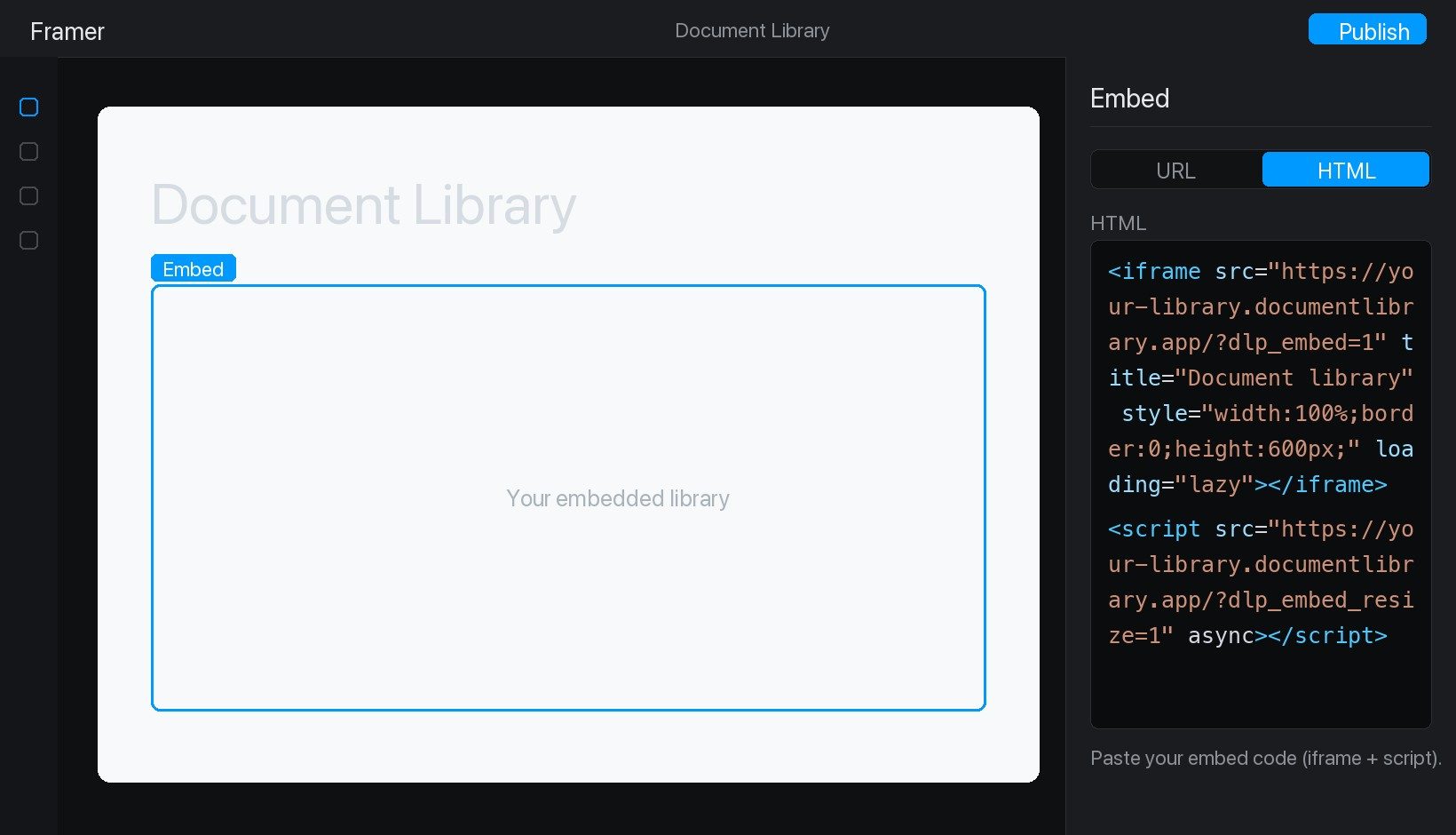
Add an Embed component to a Framer page, switch it to HTML, paste the embed code, then publish. Our step-by-step guide walks you through it.
How you add it
Pasting the embed code in Framer
Drag an Embed component onto your page, switch it to HTML, and paste your embed code.
Help your visitors find every document
Share brochures, guides, and reports in one searchable library that your visitors can browse and download.
See it in action
The admin demo shows the WordPress plugin. The hosted version works the same way behind the scenes - just with its own dashboard.