Add a document library to Google Sites
Build your library once, then add a simple embed code to a Google Sites Embed element to display a searchable, filterable document library on any page.
Why add a document library to your site?
Give visitors the documents they came for
Whatever your Google Sites site is for, visitors often need more than a web page. Put the documents they came for one click away - searchable, on-brand, and easy to download.
Agendas & minutes
Publish meeting agendas and minutes, organized by date or committee.
Policies & reports
Annual reports, finance, and official documents in one searchable place.
Guides & resources
Toolkits, fact sheets, and guidance your community can take away.
Forms & publications
Registration forms, newsletters, and resources to download.
How it works
A document library on Google Sites, in three steps
Build your library in the hosted dashboard, then add the embed code to a Google Sites Embed element.
Build your library
Create your library in the hosted dashboard. Upload your documents and sort them into categories. You can also sync a Google Drive or Dropbox folder, so your documents create themselves.
Copy your embed code
Copy the embed code shown next to your library in the dashboard.
Add it to your site
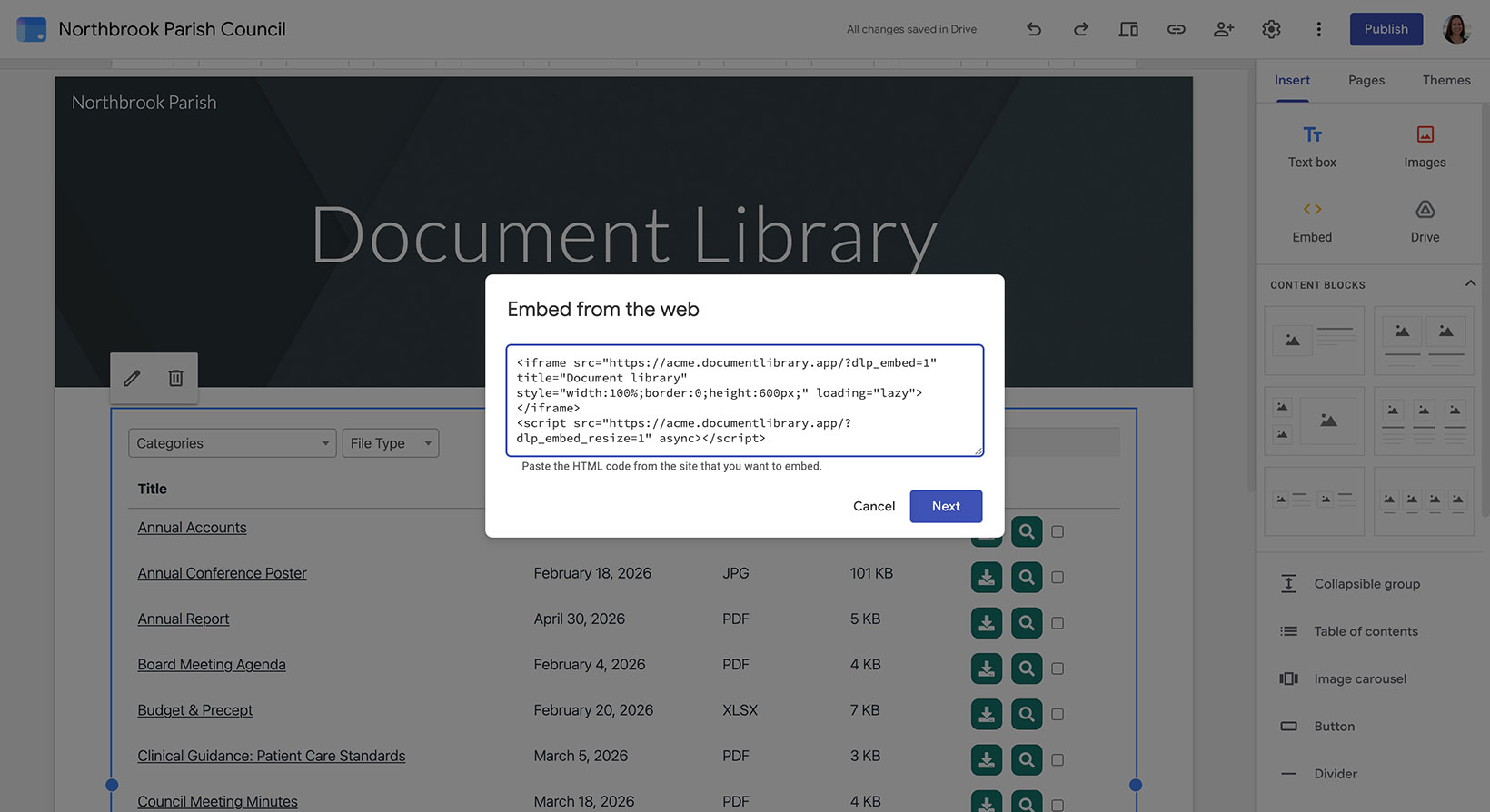
Add an Embed element to a Google Sites page, paste the embed code, and publish. Our step-by-step guide walks you through it.
How you add it
Pasting the embed code in Google Sites
Open the Insert panel, click Embed, choose the Embed code tab, and paste your embed code. Then drag the embed box larger than your library so it fully fits.
See it on Google Sites
What it looks like on your site
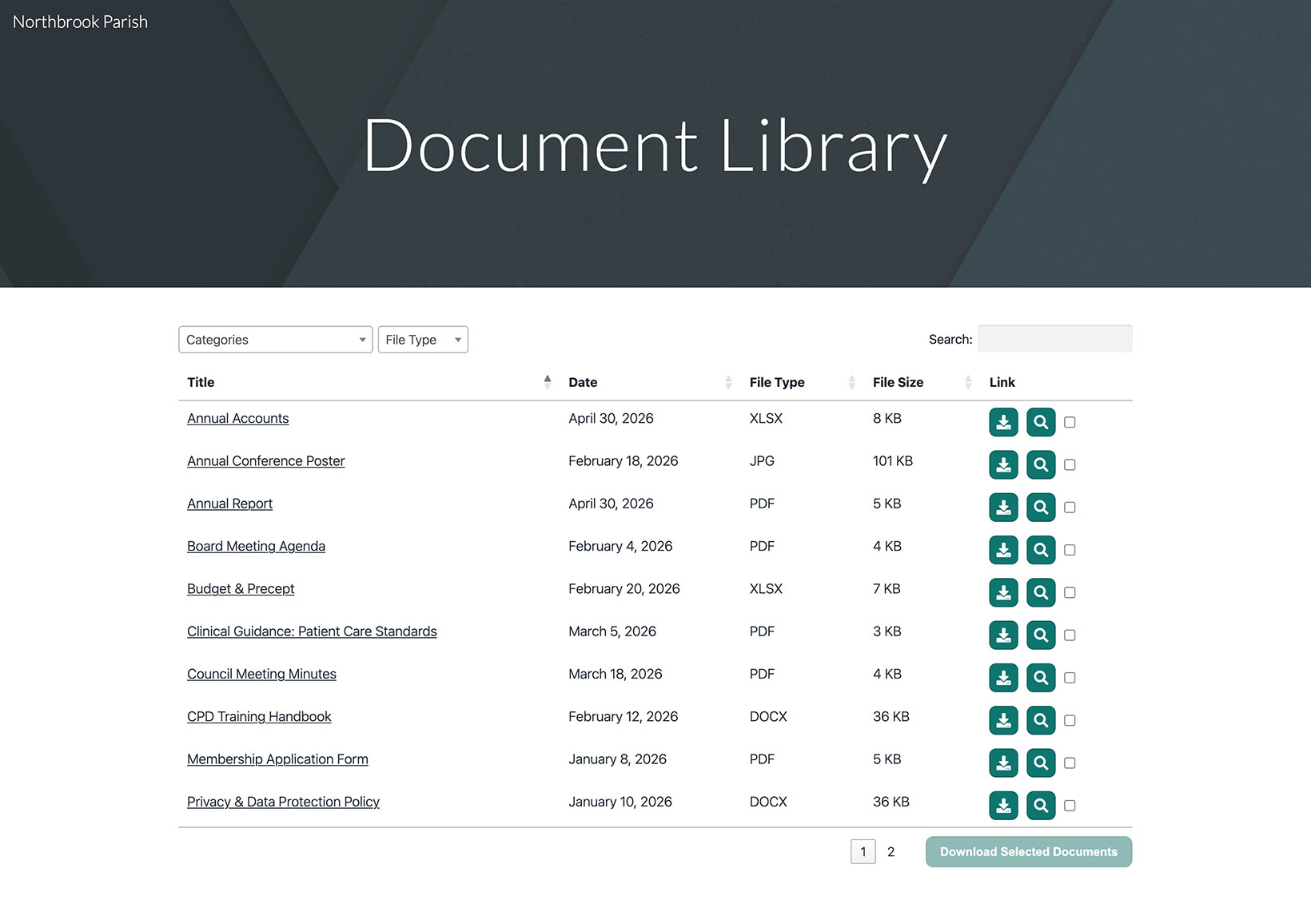
Help your visitors find every document
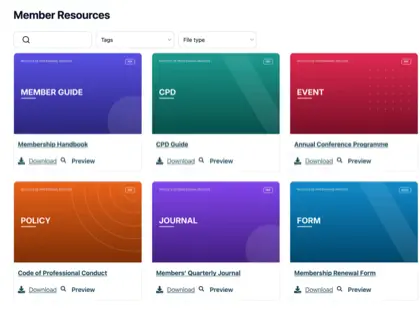
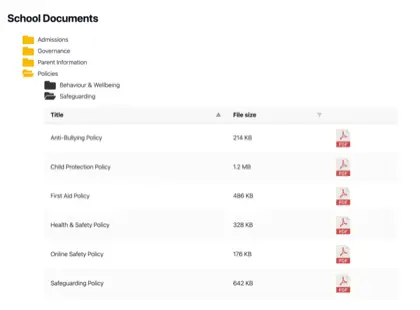
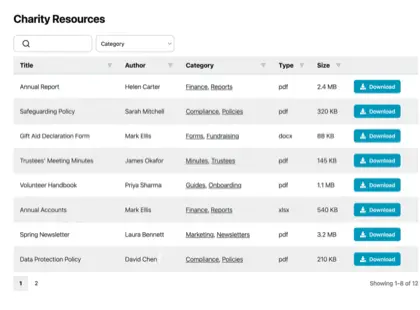
Share agendas, minutes, reports, and resources in one searchable library that your visitors can browse and download.
See it in action
The admin demo shows the WordPress plugin. The hosted version works the same way behind the scenes - just with its own dashboard.