





Hosted Document Library Pro has flexible search built in, making it easy for visitors to find documents by typing a search term. You can use search on its own or alongside filters, which let people narrow the list by choosing from a set of predefined options.
Search box above the document library
By default, your library shows a search box above the table or grid, at the top right. Visitors can type into it to instantly narrow the list to documents matching their term.
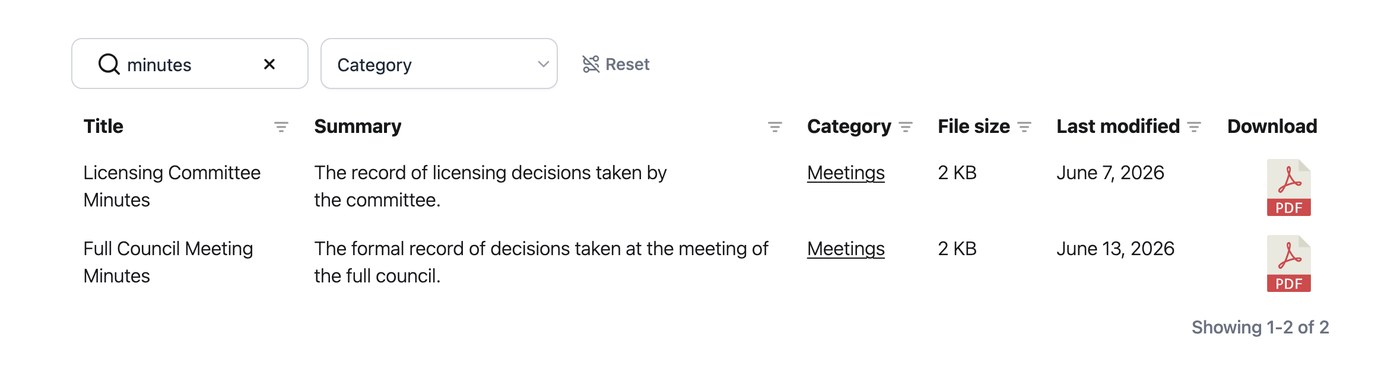
In this example, the visitor has typed “policy” into the search box, which has narrowed the table to the two matching documents:
You can also hide the search box in the Library Builder.
Search logic
The search box searches the information in your library, so visitors can search by document title, description, author, filename, category and tag. The search covers your whole library, including documents that are not currently visible on screen, and it works in the same way whether you are using the table layout, the grid layout, or folders.
Can I search the contents of PDFs or files in the library?
Yes. The search box also looks inside the files attached to your documents, so visitors can find a document by searching for words that only appear within the file itself. There is nothing to set up, as the file contents are indexed automatically.
This works for PDF files, Microsoft Office files such as Word, Excel and PowerPoint (for example .docx, .xlsx and .pptx), and OpenDocument files (for example .odt and .ods).
Bear in mind that a file must contain actual text for its contents to be searchable. Image-based files, such as a PDF created by scanning a paper document, do not contain readable text. For those, label each document with categories, tags or taxonomies that match the words people are likely to search for, or add the key details to the document’s title or description.
Why aren’t the contents of my protected PDFs searchable?
The search cannot read the text inside a PDF whose contents are encrypted. When the search cannot read that text, it cannot match words that appear only inside the PDF.
PDF security can use two password types.
- An open password controls who can open the file.
- A permissions password controls actions such as printing, copying, or editing.
Either type prevents the PDF text from being searchable. A PDF can still open without asking you for a password and remain encrypted. Print or copy restrictions can encrypt the file too.
The document stays in your library. You can still find it by its title, description, categories, and other details. A search for words that appear only inside the file returns no results for that PDF.
To make the PDF contents searchable, save or export the PDF again without security restrictions. Then upload the new version to replace the existing file in the library. You need to choose between protection and searchable file contents.
How does search treat accents and special characters?
Search treats accented and plain characters as interchangeable. For example, a search for “Zurich” will also match “Zürich” in the library, and vice versa, so visitors can find what they need whether or not they type the accent.