





There are two ways to put your document library in front of people, and you can use either or both:
- Embed it on your website, on any page of a site you already have.
- Use the ready-made website that comes with your account, and share the link.
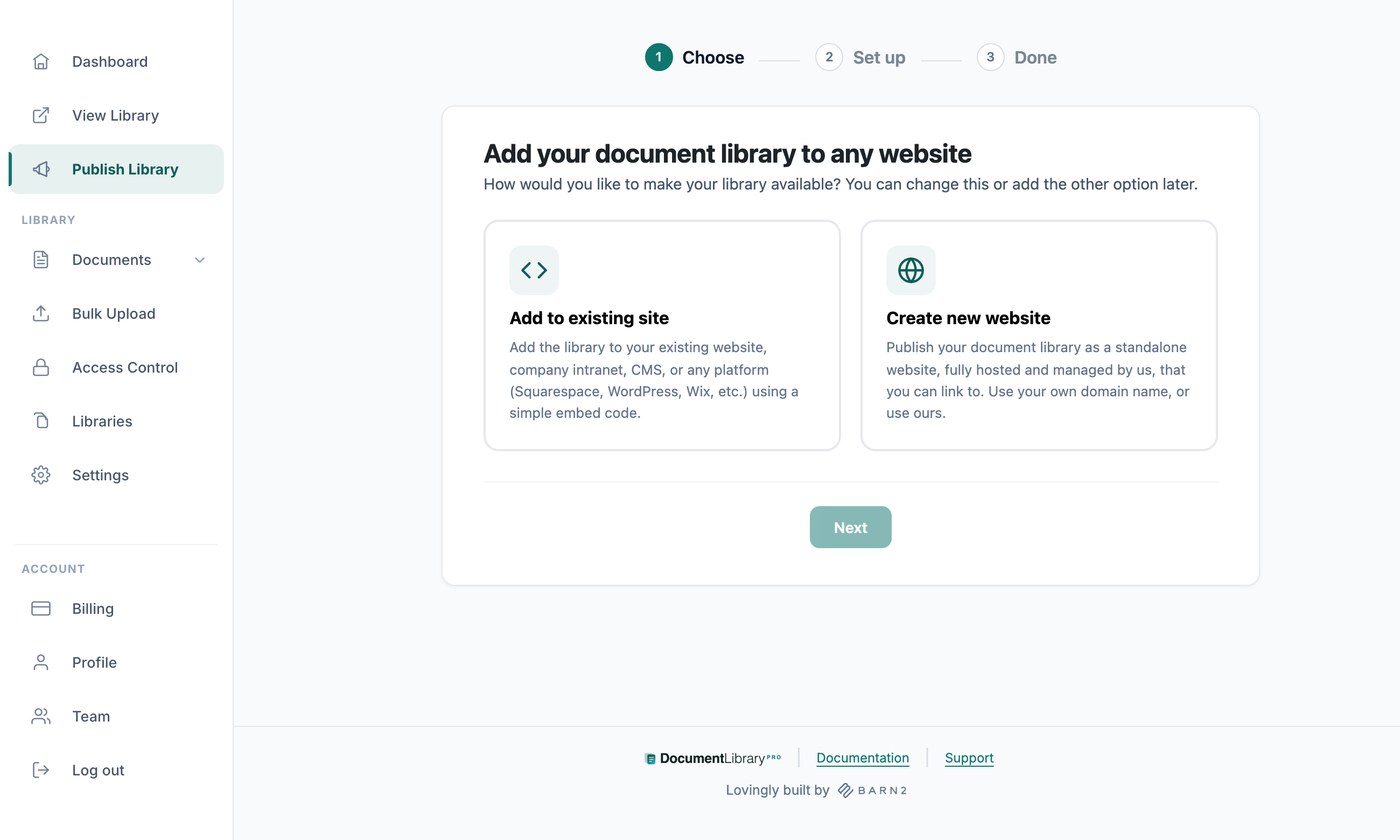
Both are set up on the Publish Library page in your dashboard. The first time you open it, a short wizard asks which method you want and sets it up. Afterwards, the page shows the settings for both.
Watch the full tutorial
Embed on your website
An embed code is a small piece of HTML which displays your hosted library inside a page of your own site. Open Publish Library, then copy the code with the Copy Code button. Your code looks like this, with your own web address in place of ours:
<iframe src="https://your-library.documentlibrary.app/?dlp_embed=1" title="Document library" style="display:block;width:100%;border:0;height:600px;" loading="lazy"></iframe>
<script src="https://your-library.documentlibrary.app/?dlp_embed_resize=1" async></script>
The first line is the iframe, which displays the library. The second line is a small script which lets the library resize itself to fit its contents and opens document previews inside the page. Paste both lines wherever you want the library to appear.
The How to add this to your website section has the steps for WordPress, Squarespace, Wix, Shopify, Webflow, Google Sites, GoDaddy, Framer and any other platform, each with a link to the full instructions. Click Show live preview to see the library as your visitors will.
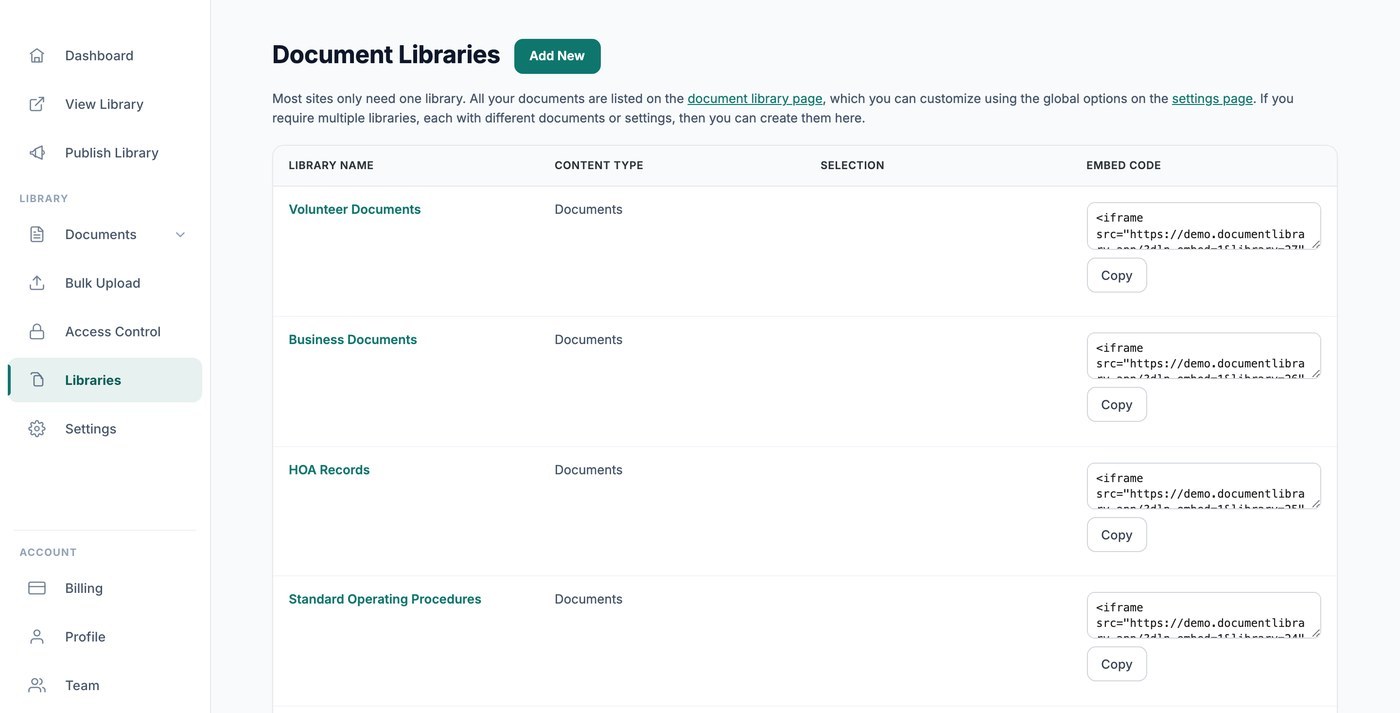
If you have built additional libraries, each one has its own embed code below the main one, and on the Libraries screen. See building a library with the Library Builder.
Where your embed can appear
By default your embed works on any website. To lock it down, list the domains allowed to show it, one per line, then click Save. Browsers block it everywhere else. Leave the box blank to allow any site.
Fill this in if your library is password protected or accepts document submissions, so that nobody can put it on a site of their own.
Your embed code contains an address for showing your library inside an iframe. That address only works inside an embed. If someone opens it in a browser tab, the library will not appear. Library pages stay hidden from search engines unless you publish the standalone page. If you publish that page, the address takes people there instead.
The address is not completely bulletproof. If nobody should reach your documents anywhere other than the embedded library page, password protect your library and turn on Block direct file links. Both settings are on the Advanced plan’s Access Control page.
Submission form embed code
Underneath your library code is a separate Submission form embed code. Paste it on any website to let people submit documents to your library. See accepting document submissions from visitors.
Your website
Every account comes with a ready-made website for your library, which needs no setup and no website of your own. Click Open to view it.
- Website address - Your library’s address, in the form your-slug.documentlibrary.app. Use Copy Link to share it.
- Use your own domain - Enter an address of your own, such as docs.yourcompany.com, and click Request domain. We set it up with you within two working days. See use a custom domain with your hosted document library.
- Homepage title - The heading at the top of your website. The default is Document library.
- Intro text (optional) - Text shown above your documents, for example a short explanation or a contact address.
- Home page - Choose what the home page shows, either All documents or one of the libraries you have built. This matters when some of your libraries are password protected and the all-documents view should not be public.
Click Save when you have finished. To style the website, use the Logo, Brand color and Font options on the Branding tab of your settings.
Document submissions
Tick Allow visitors to submit documents to the library to let people add their own documents, then choose where the form lives under Document submission form location:
- Add a link above the document library - Visitors reach the form from your library. Set the wording in Menu link text.
- Use a separate, unlisted page - The form sits on its own page, hidden from the menu and from search engines. Set its Document submission page heading, then share the address with Copy Link.
Whether new documents are held for your approval is set on the General tab of your settings.
Using both methods
Whichever method you chose in the wizard, you can add the other at any time. Look for the card at the foot of the Publish Library page and click Create website or Get embed code.
Next steps
- Add your library to WordPress, Wix, Shopify, Squarespace or any other platform.
- Protect your document library with a password, on the Advanced plan.
- Check how search engines see your library if you want your documents to appear in search results.