





There are two ways to add a Document Library Pro library to a Wix site. The easiest option is to use the Document Library Pro app for Wix, which adds the library as a Wix widget. The universal embed code still works if you prefer to add the library manually. This article covers the Wix app method first, then the embed code method.
Add the library with the Wix app
- Install the Document Library Pro app from the Wix App Market. Choose a plan to start your 14-day free trial, which is billed through Wix. The app creates your document library for you.
- Open the welcome email and click Set Your Password. This is how you sign in to manage your documents.
- Open the page where you want to display the library in the Wix editor.
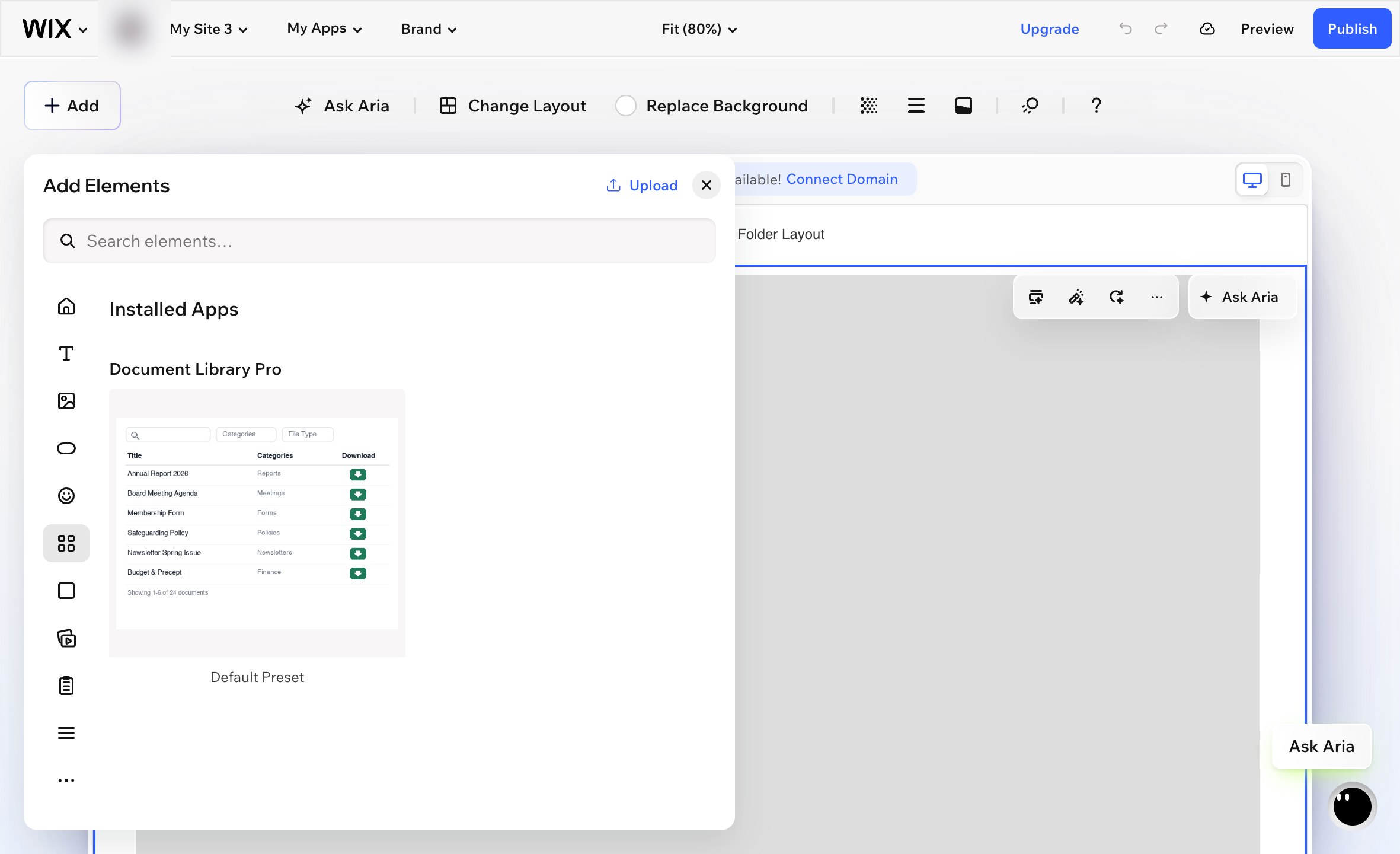
- Go to Add → Elements.
- Scroll to the Installed Apps section and choose Document Library Pro. Please be aware that the widget will not appear if you type its name into the Add search box. You need to use the Installed Apps section.
- Wix adds the widget as a small box in the middle of the page. Drag the widget into position and resize it to fill the area where you want the document library to appear.
- Select the widget and click the gear icon to open its settings.
- Under Library, choose the document library that you want to display on this page.
- Publish your Wix site.
Your Documents page
The app also adds a ready-made Documents page to your site which lists all of your documents. Publish your Wix site to make it live. The page is a normal Wix page, so you can rename it, move it in your menu, or add your own text above and below the library.
Where you manage your library
Your documents and libraries live on the Document Library Pro platform, and the app displays them on your Wix site. Open Document Library Pro from your Wix dashboard to go straight to your account, where you can add and edit documents, build additional libraries and change your settings.
If a payment fails or the app is removed, your library is paused rather than deleted. Reinstall the app or choose a plan again, and your documents are waiting where you left them.
Add the library with embed code
You can also add your Document Library Pro library to Wix using the universal embed code. This is useful if you prefer to control the embed manually instead of using the Wix app.
- Open your Document Library Pro dashboard and go to the Publish Library section for the library you want to display.
- Copy the embed code.
- In Wix, go to Pages And Menu and create a new blank page.
- Add an Embed Code element. This is the HTML embed element in Wix.
- Paste the Document Library Pro embed code into the element.
- Resize the embed element to full width and set a suitable height. Around 700px is a reasonable starting point. Larger libraries may need more height.
- Publish your Wix site.
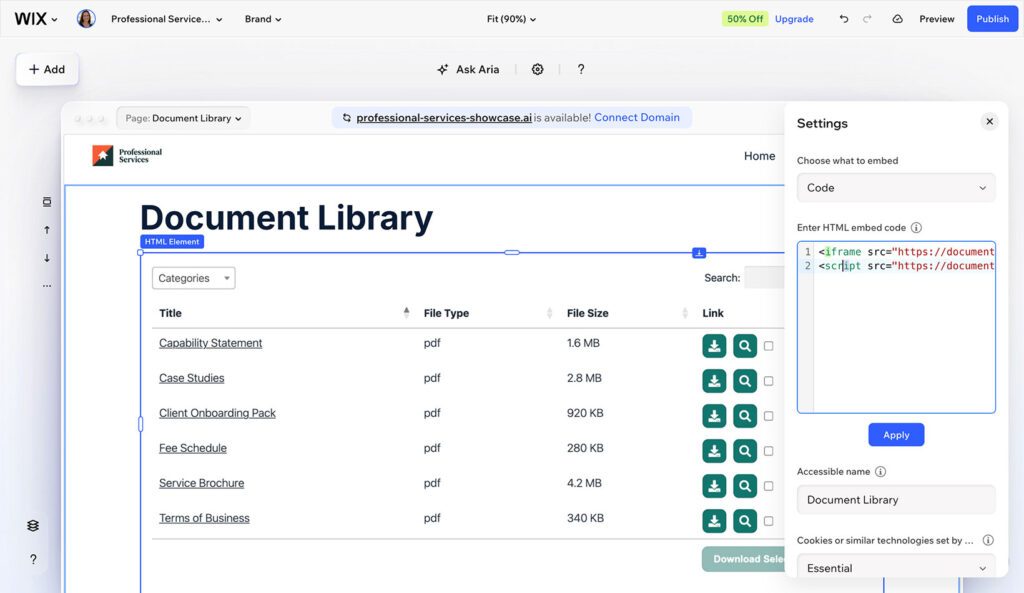
The embed element size is important. If the element is too small, the library may scroll inside the embed box or collapse into a single column.
The embed code does not display the live document library inside the Wix editor. To see the finished library, check your published site.
Next steps
If you have not created your document library yet, set it up in your Document Library Pro dashboard first. Then return to Wix and choose either the app method or the embed code method above.