





The Advanced plan of Document Library Pro lets you password protect your document libraries, so that only people with the password can open them. This suits a team-only document hub, a private set of files alongside a public library, or any download area which should stay out of public view.
Everything is managed on the Access Control page in your dashboard. There is no WordPress admin to log into, and no code or shortcodes to add.
This article covers protecting a library, blocking direct file links, the wording on the password form and how long access lasts.
Protect a library
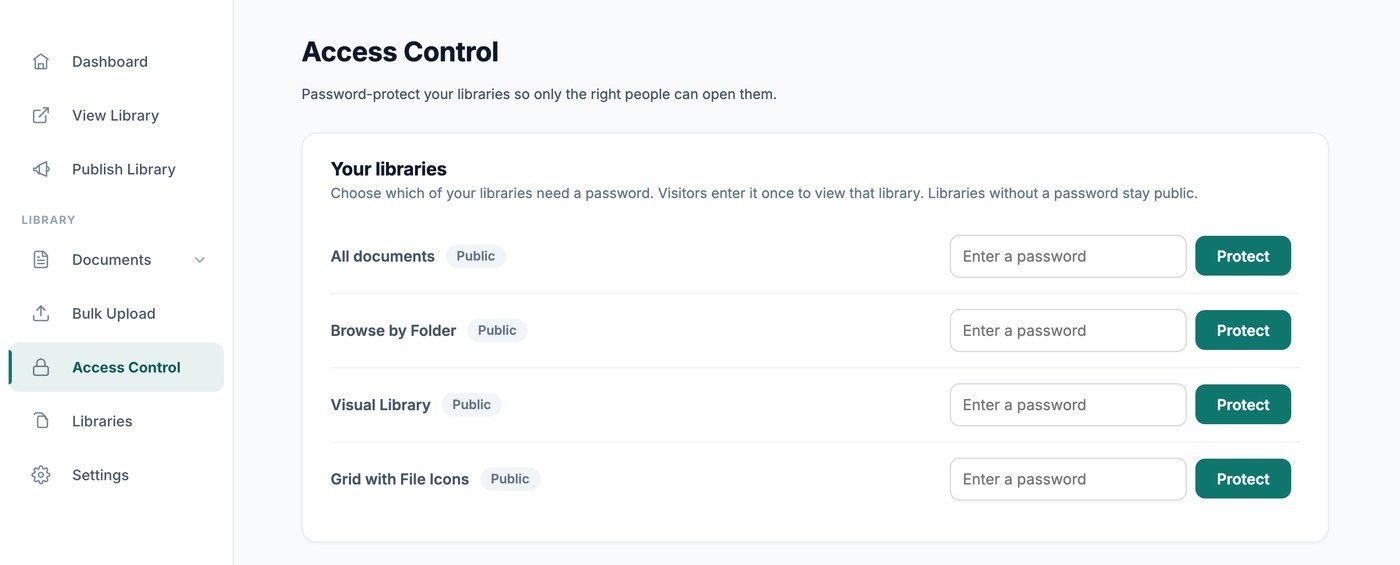
Open Access Control. The Your libraries card lists All documents at the top, followed by any libraries you have built. Each one shows a status of Public or Password protected.
- Find the library you want to protect.
- Type a password into its box.
- Click Protect.
That library is now private. Use Change to set a new password later, or Remove to make the library public again.
Each library is protected on its own. Protecting your All documents library does not lock the others, so you choose exactly which ones need a password. Libraries without a password stay public.
Your published library always shows you what your visitors see, even while you are signed in to your account, which makes it easy to check your work. You can still see and manage every document from your dashboard.
A password protects the library, not the document
A library password controls who can open that library. It does not lock an individual document wherever it appears, so a document which also sits in a public library stays public there.
Two things keep private documents out of a public view:
- Embedding - Embed the specific library you want, using that library’s own embed code. Do not use the all-documents embed code if any of your documents are private, because that view lists every document.
- Your library website - By default the home page lists all of your documents. On the Publish Library page, set Home page to a specific library instead. See publishing your library.
Block direct file links
A library password controls who can open the library. To protect the files themselves, tick Stop people downloading your uploaded files from a direct link in the Block direct file links card.
Your files are then moved into private storage in the background, and the page shows the progress as it works. You can leave the page while it runs. Your library looks the same and loads at the same speed, and the files move back if you switch the option off later.
There are a few things worth knowing before you switch it on:
- It is one setting for your whole account, and it applies to every file you have uploaded.
- Copying a file’s address and pasting it into a browser no longer works.
- Where a library has a password, visitors enter it before they can download the files.
- Where a library has no password, anyone who can see the library can download the files. The file addresses cannot be guessed, shared or indexed by Google.
- It covers the files you upload to Document Library Pro. Files which live on another service, such as Dropbox or Google Drive, follow that service’s own sharing settings.
- Anyone who is allowed to download a file can still share it afterwards.
Password entry form
Visitors to a protected library see a password form in your own branding. Lower down the Access Control page, the Password entry form section sets its wording:
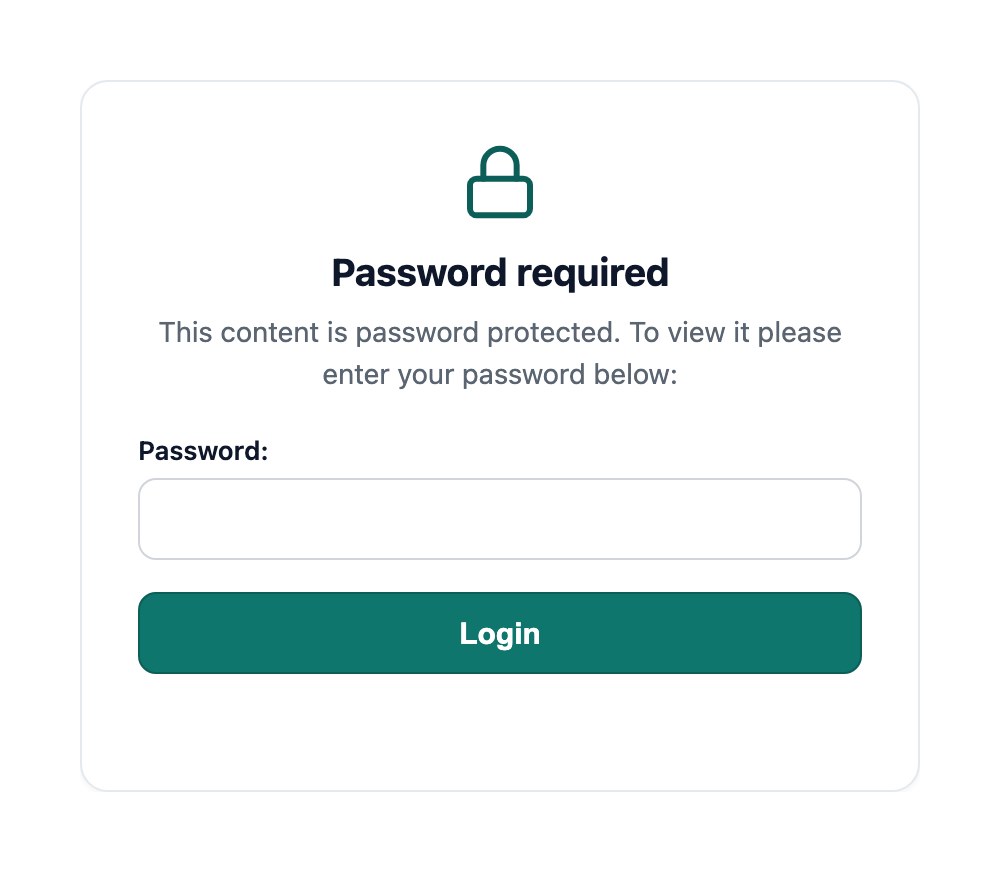
- Password form message - The message shown on the form. You can use HTML here.
- Password label - The label beside the password box.
- Use placeholder? - Shows the label inside the box instead of beside it.
- Password button text - The wording on the button, for example Login.
- Password expiry - How many days a visitor stays unlocked. The default is 10 days.
The colors and font of the form come from the Branding tab of your settings.
How long access lasts
A visitor enters the password once, and their browser stays unlocked for the number of days set in Password expiry. After that they are asked for the password again. There is no log out button, so shorten the expiry period if you would like people to be prompted more often.
How many passwords can I use?
There is no fixed maximum. Add as many passwords as you need, and a visitor can unlock the library with any one of them, which is handy when different groups of people have their own password.
Each time someone submits a password, your library checks it against every password you have saved. Dozens are no problem. If you build up hundreds and unlocking starts to feel slow, trim the list back to the passwords you still use.
Hidden from search engines
Protected libraries are kept out of search results automatically, with a noindex instruction which tells search engines to leave them alone. See will my protected document libraries be hidden from search engines?
Other ways to control access
- Collecting email addresses before downloads asks visitors for their details instead of a password, on the Advanced plan.
- Embedding your library on a page of an intranet or membership site which already has its own login puts your library behind that login.
- Adding team members covers access to your dashboard, rather than access to your documents.