





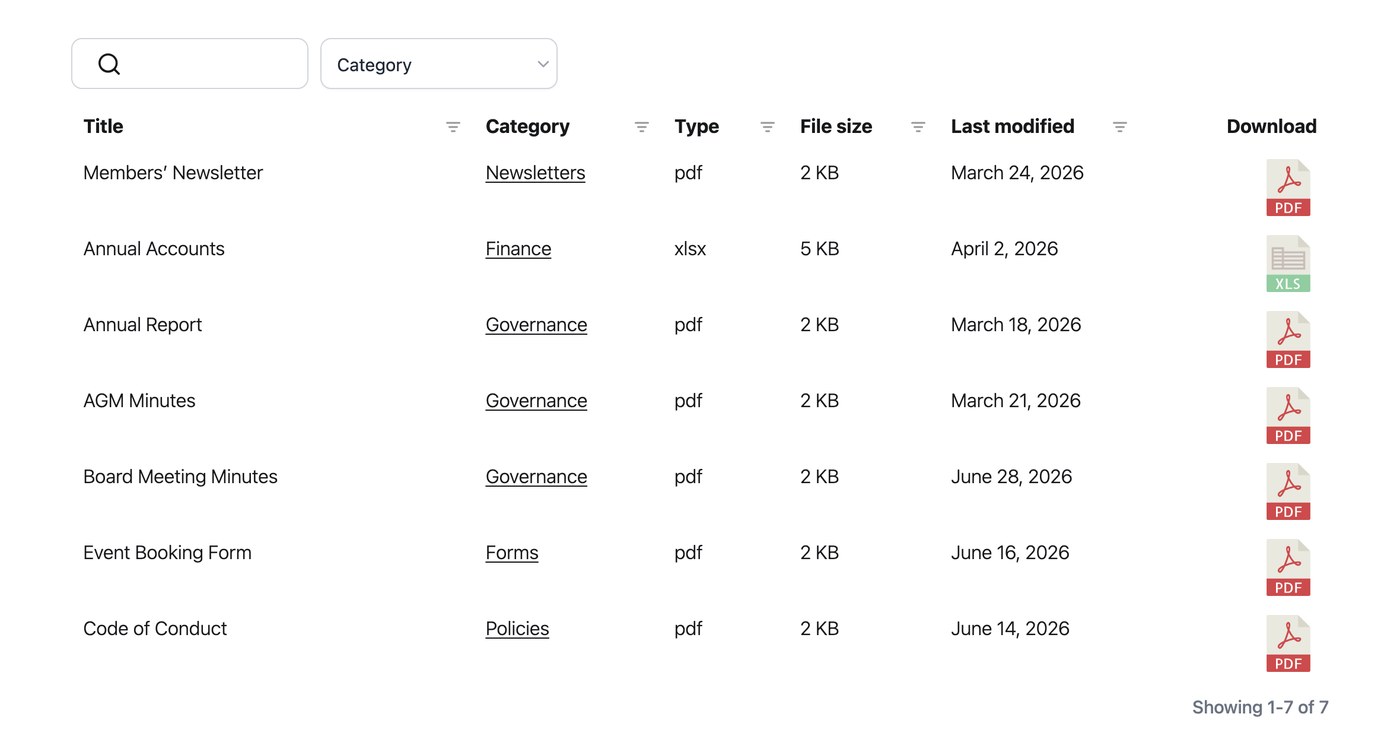
Document Library Pro can show a date for each document in your library and lets you control how those dates are formatted. Because the date column is treated as a date rather than plain text, it also sorts the column correctly by date instead of alphabetically.
Adding a date column
To show dates in your library, add the date column to your table or grid on the Display tab of your settings. Once the column is in place, visitors can sort by it and the dates appear in your chosen format.
Date format
By default, dates use the format set in Settings → General. You can change the date format to any valid format string. For example, “F j, Y” displays dates like “August 24, 2026”. You set this on the General tab of your settings, and it applies to the date column wherever it appears.