





Document Library Pro lets visitors view a file before they download it, or instead of downloading it altogether. A preview button or icon appears alongside the download link for each supported document, and clicking it opens the file in a popup lightbox right on the page.
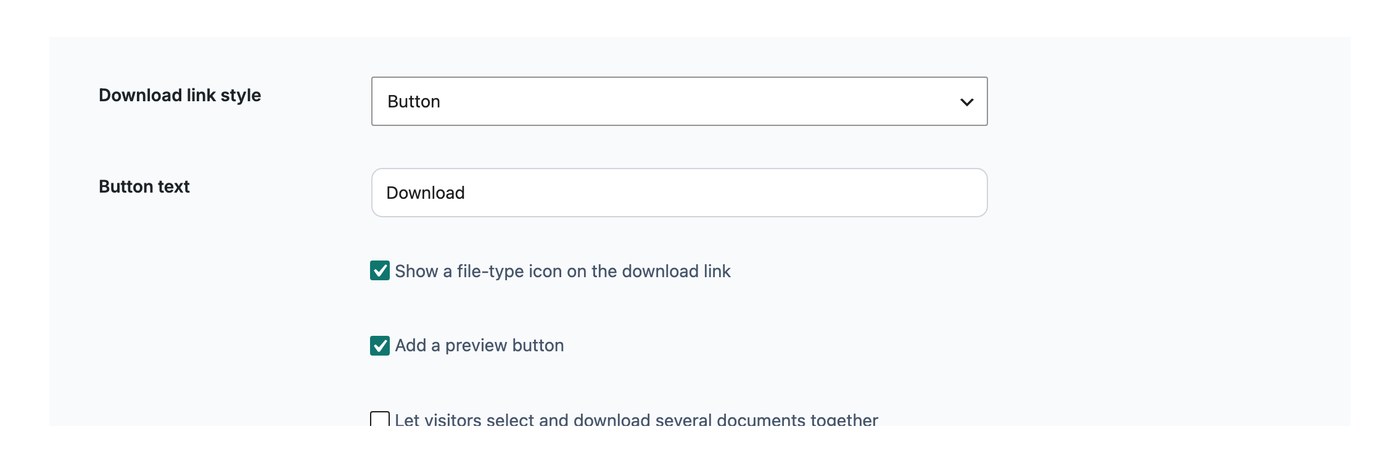
If you have turned off the download link, the preview option appears on its own. This is handy when you want people to read a file online without saving a copy.

Turning previews on
Previews are off by default. To enable them, go to Settings → Display and switch on Enable preview? in the Preview button section. From the same place you can choose how the preview control looks and what it says.
Preview-only mode (no download link)
You can let people view documents online without giving them a way to download. To do this, enable the preview and turn off the document link on the Display tab of your settings. The preview button then appears on its own with no download link beside it.
Preview style
Choose how the preview control appears:
- Button with text: a button containing your preview text.
- Button with icon and text: a button with the preview text plus a magnifying glass icon.
- Button with icon (the default): a button containing a magnifying glass icon only.
- Icon only: a magnifying glass on its own, not inside a button.
- Text link: a plain text link.
Preview text
If you choose a button or text style, you can set the wording that appears. The default is “Preview”. You can change it to anything you like, for example “Preview document online”.
Which file types are supported
The preview option is only available for these file types:
- PDF (pdf**)
- Images (jpeg, gif, png, webp, svg)
- Videos (mp4, ogg*)
- Audio (mp3, mp4, mpeg, ogg*, aac*, aacp*, flac*)
- Microsoft Word (doc, docx***)
- Microsoft Excel (xls, xlsx***)
- Microsoft PowerPoint (ppt, pptx***)
For unsupported file types, no preview option appears in the list of documents.
* These may need a browser plugin in certain browsers.
** Android and Firefox on macOS (Sequoia) do not allow previews and require the file to be downloaded.
*** Powered by the Microsoft Office 365 Online Viewer, see below.
Word, Excel and PowerPoint previews
Previews of Word, Excel and PowerPoint files are powered by the Microsoft Office 365 Online Viewer. It looks identical to the viewer used for other file types, but there are a few things to be aware of:
- Privacy: for the preview to work, the document is temporarily uploaded to Microsoft’s servers for viewing. If you have GDPR concerns, consider mentioning this in your privacy and cookies policy, and adding measures such as a cookie notice to get consent from your visitors.
- Maximum file size: the Office 365 Online Viewer has a size limit of 25MB for Excel, 100MB for Word and 300MB for PowerPoint. The preview icon is hidden for files that exceed these limits, so a preview never appears broken for your visitors.
Previews for externally hosted files
You can preview files that you have uploaded to your library and files that you have added by URL.
The file type is read from the end of the web address. The address has to end in the file name, such as .pdf or .docx. If the address has no file type on the end, no preview button appears. The document still downloads or opens normally.
Dropbox share links work because they keep the file name in the address. Files stored on Dropbox should use one of these URL formats:
- https://dropbox.com/<rest_of_url> or www.dropbox.com/<rest_of_url>, which open the file in the Dropbox web app.
- https://dl.dropbox.com/<rest_of_url> or dl.dropboxusercontent.com/<rest_of_url>, which are direct links to the file.
These link types do not show a preview button because they point to a viewer page rather than the file:
- Google Drive share links, drive.google.com/file/d/FILE_ID/view
- Google Drive download links, drive.google.com/uc?export=download&id=FILE_ID
- OneDrive share links
- SharePoint share links
The same applies to any other service whose share link opens a page instead of the file. Use a link that ends in the file name, if the service offers one. Or upload the file to your library instead of linking to it.
Externally hosted files also have to be reachable by anyone with the address and not behind a login. The service hosting the file also has to allow the file to be displayed inside a frame on another website. Some services block this. When they do, the preview will not open, but the download will still work.