





Document Library Pro fully supports images, so you can show a picture for each document. Images can appear in the main library and look especially good in the grid layout.
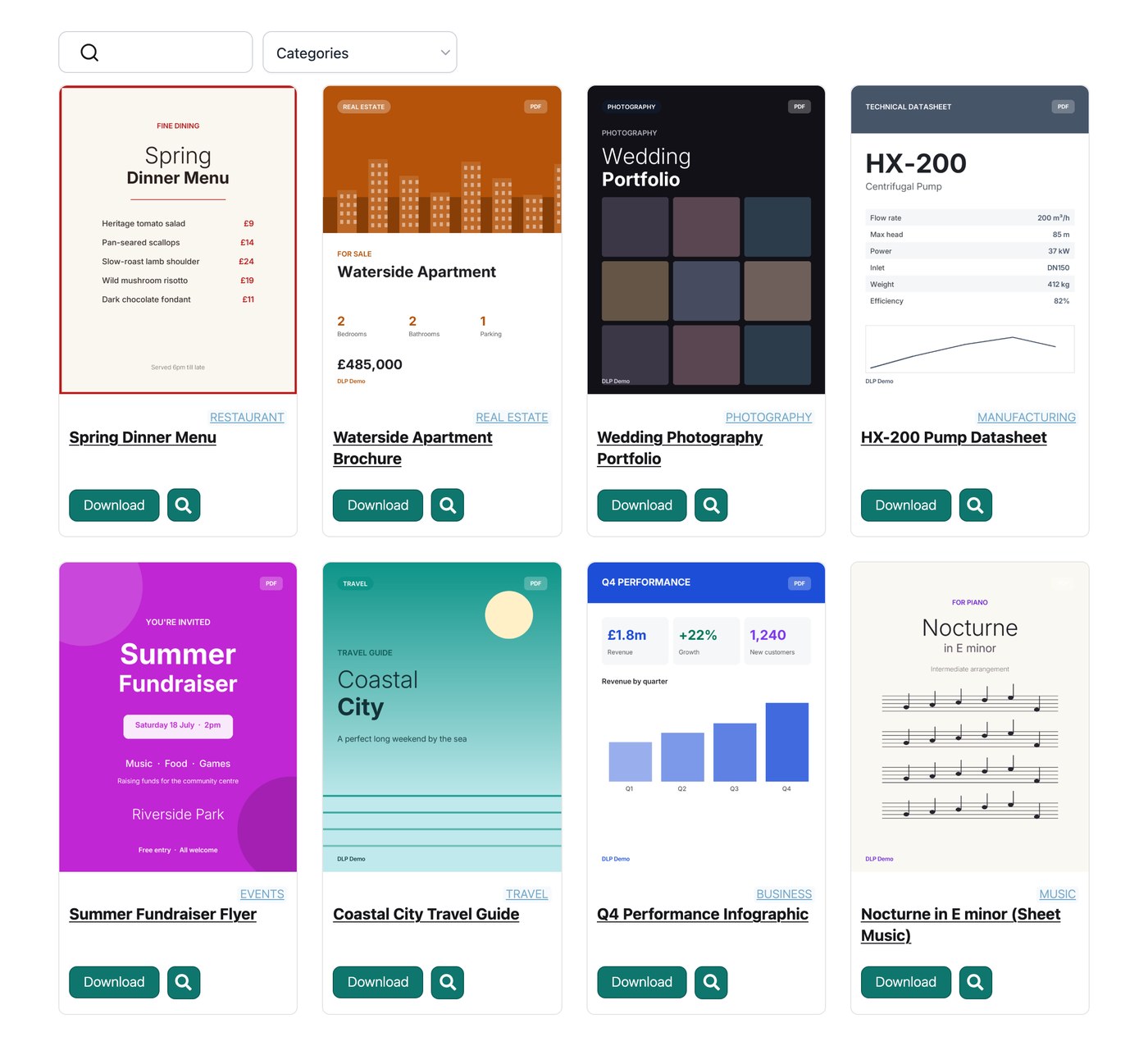
For example, you can use images to:
- Add file type icons, which is useful if you have set the document link to show a button or text link rather than an icon.
- Show a screenshot of the front cover of a document as a preview before people download it.
- Display any other picture you want to represent the document.
How to add images to documents
Automatic images
Where possible, Document Library Pro creates the image for you automatically from image and PDF files. For a PDF, the image is the first page of the document. This image is added when you first create the document. If you replace the file later, you will need to set a new image yourself if you want one.
If you would rather not use the automatic image, you can remove it when editing the document, leave images out of your library, or replace it with a picture of your own.
Adding images manually
You can set an image yourself on the Add Document screen when you add or edit a document. Simply upload the picture you want to represent that document.
Images in the grid layout
The grid layout works best with square images. When the image field is turned on, the grid shows each document’s image, and if a document has no image, its file type icon shows instead. For the grid layout, use images at least 800px wide, and ideally at least 1024px wide. This makes sure there is no extra space to the left and right of the image, whatever number of columns you use in the grid.