





Document Library Pro gives you control over the links that appear in each row of your library, including the main download or access link for every document. This article explains how to set up and style those links. The same options apply to both the table layout and the grid layout, and you set them on the Display tab of your settings, or in the Library Builder for a library you have built.
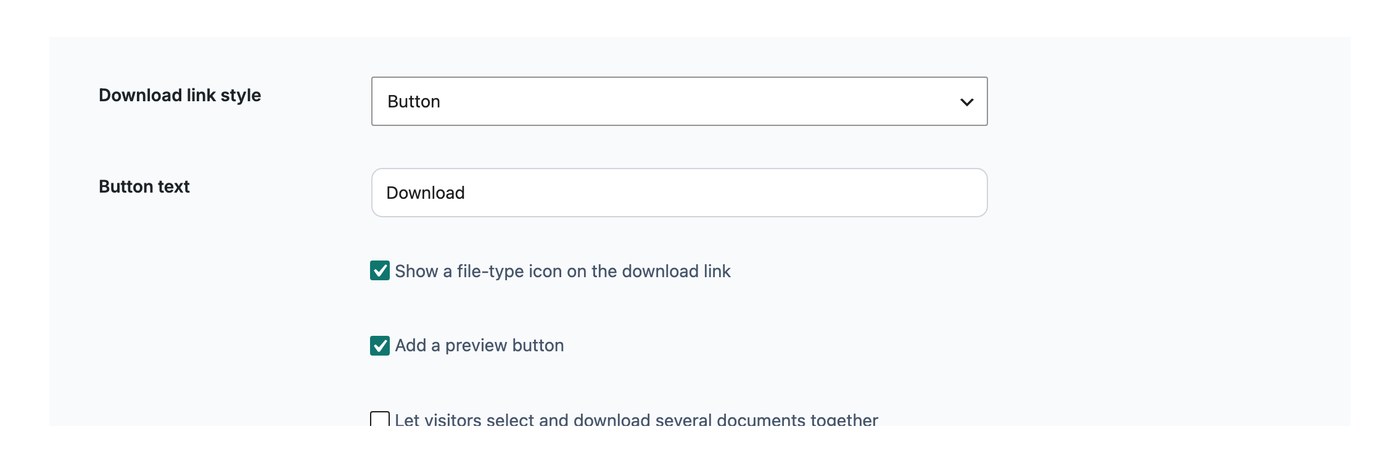
The document link field
You can add a main document link field to your table or grid. This holds a download button, an icon or a text link, and its style and behavior are controlled by the options described below.
Tip: if you turn off the document link, you can still turn on the document preview, which appears in the same column or field of the library.
Button behavior
This controls what happens when someone clicks the link. The file can download straight away, which is the default. Choose the behavior on the Display tab of your settings.
Style
Choose how the document link looks. The style you pick is used throughout the list of documents:
- Button with text
- Button with icon and text
- Button with icon
- Icon only
- File type icon
- Text link
Button or link text
When you choose a button or text style, you can set the wording that appears, for example “View document”. The text is case sensitive, so you can enter it in uppercase, lowercase or mixed case as needed.
Icon
You can add a download icon that appears to the left of the link text.
New tab
You can choose whether links open in the same browser tab, which is the default, or in a new tab.
Making other fields clickable
As well as the main document link, you can make other fields clickable. Category, tag and author fields can be set to filter the library by that term when clicked, so a visitor can narrow the list to everything sharing the same category, tag or author. You choose which fields are clickable in the column editor, using the pencil icon on that column.
Multi-download buttons
In the table layout you can give visitors three ways to access documents:
- Link to document: show a button, icon or text link to the document.
- Multi-select checkboxes: show a checkbox so people can select several documents and download them together as a zip file.
- Both: show a link and a checkbox.
Note: the checkbox option only works with certain file types. Items in an unsupported format, and documents added by URL, will not show a checkbox, so switch those to a supported format such as PDF or enable individual document links instead.
Multi-download button text
You can change the wording on the “Download Selected Documents” button on the Display tab of your settings.
Button position
You can set the download button to appear above the table, below it, or both.
Limitations of the checkboxes
Multi-download works in all major desktop browsers and can build zip archives up to 1GB. On mobile browsers, zip files only generate for selections under 50MB, because of the tighter memory available on phones. Checkboxes appear only for file-type documents, not for documents that link out to a URL.