





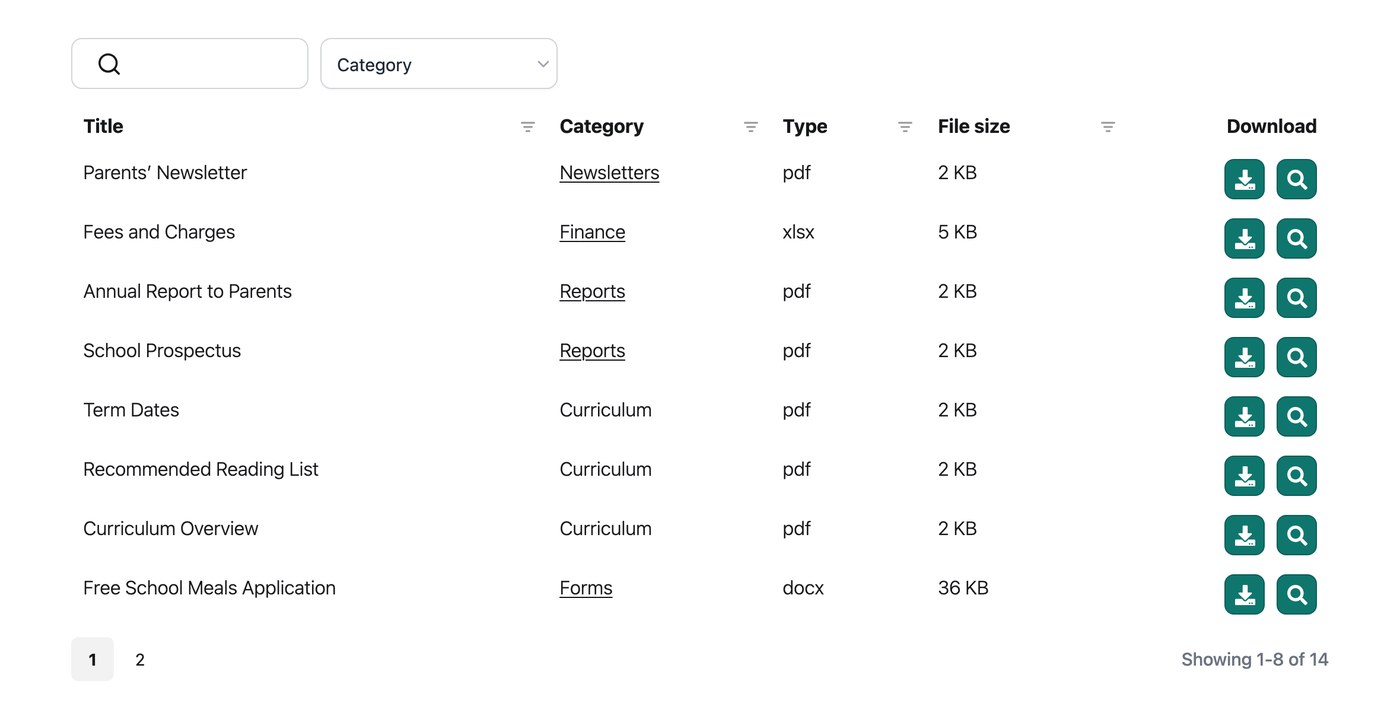
Hosted Document Library Pro gives you two ways to control how a library is ordered when it first loads. You set both on the Display tab of your settings, or in the Library Builder for a library you have built. Once the library has loaded, visitors can click a column heading to re-sort by that column.
Sort by
The Sort by setting decides which column orders the library when it first appears. It defaults to the publish date. You can order by any column in the library, or by any of these:
- ID. Sort by document ID.
- Title. Sort by document title.
- Menu order. Sort by the document’s set order.
- Date. Sort by the publish date.
- Name. Sort by the document slug.
- Modified. Sort by the last modified date.
- Random. Show the documents in a random order.
Sort order
The Sort order setting controls the direction of that initial sort, either ascending or descending. It defaults to descending for date-based sorting and ascending for everything else, and you can override it in the Library Builder. For an A to Z list of documents, the ascending default is what you want.
How to sort by date or number
With the table layout, you can sort taxonomy columns by number or by date. Open the advanced options for that column in the column builder and change the Column type to Number or Date. You may also want to adjust the date format.
Can I sort by multiple columns?
Yes. Switch on the Multi-column sorting option on the Display tab of your settings to let visitors sort by up to two columns at a time. The library is sorted by the first column, and any documents with the same value are then sorted by the second column. This is useful when two fields matter together, such as category and date.
Sorting folders
Hosted Document Library Pro also has a Folders option, where documents appear inside folders based on their categories. The Sort folders by option lets you order the folders by category name, category slug, category order or the number of documents in each category. For example, ordering by count in descending order lists the folders holding the most documents first.
Sorting the content of category and taxonomy columns
When a document has more than one term selected for a category or taxonomy, those terms appear as a comma-separated list in that column, ordered alphabetically. For example, a document in three categories might show as “Presentations, Training, Videos”.