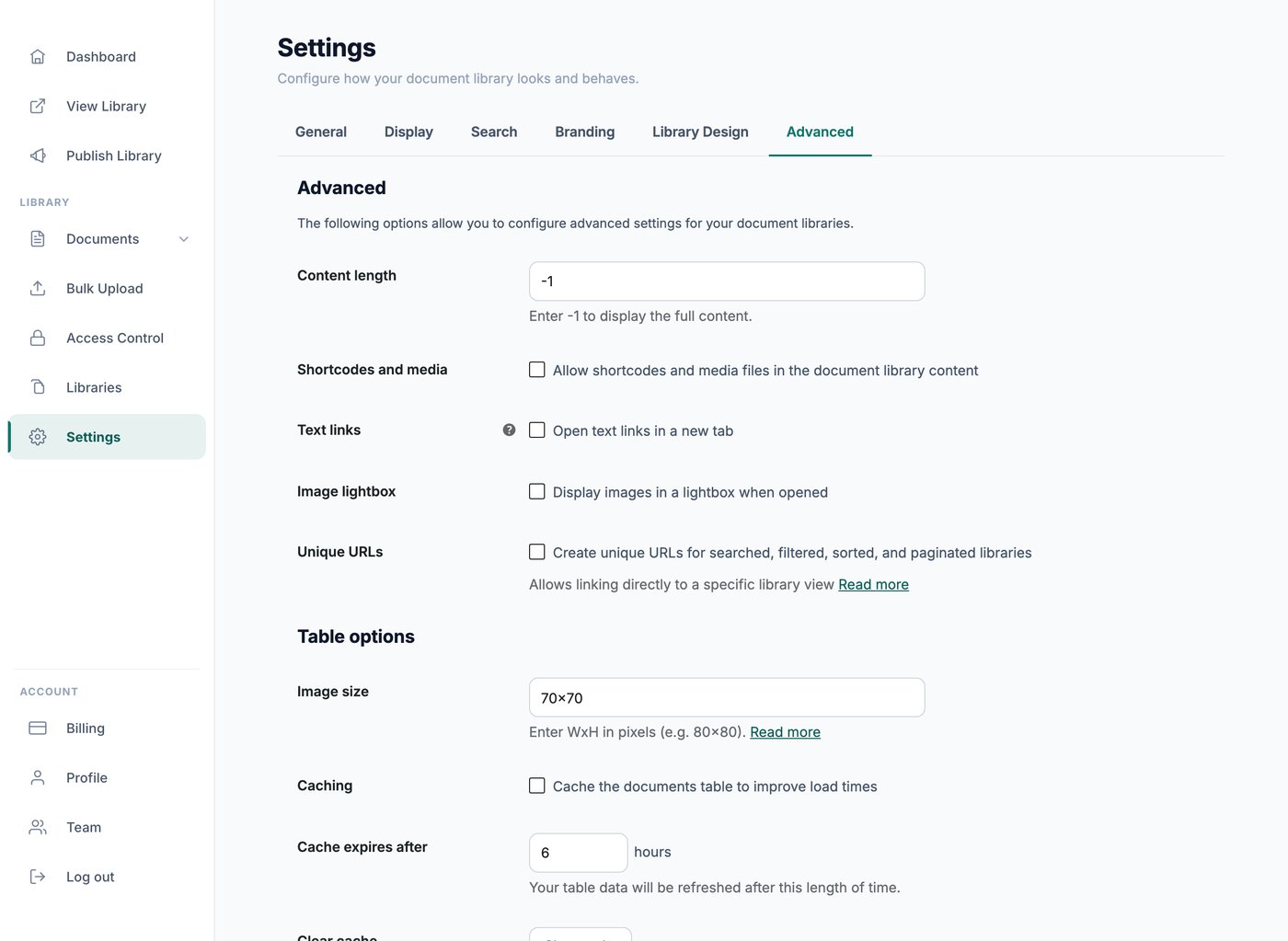
Hosted Document Library Pro offers two layouts, table and grid, and you have full control over which information appears about each document. You set this up visually in the Library Builder when creating or editing a library.
Available fields
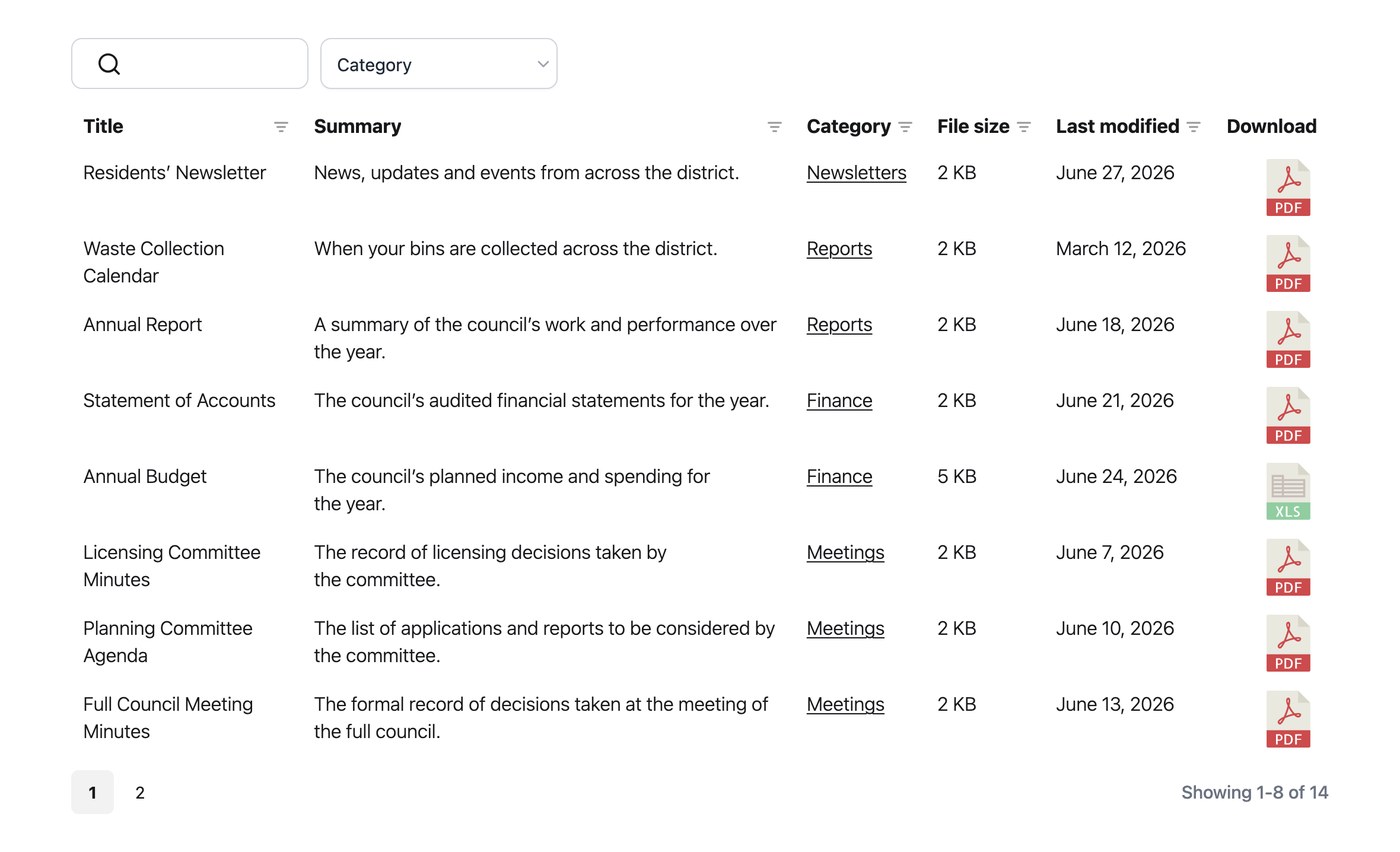
The fields you can display about each document depend on the layout you choose:
- Table layout. ID, title, content, excerpt, image, date, modified date, document author, document categories, document tags, download count, file size, file type, filename, status and link.
- Grid layout. Title, image, document author, document categories, download count, file size, file type, filename and link.
Choosing your fields
You choose which fields to display in the Library Builder. The available controls depend on whether the library uses the table or grid layout.
Table layout
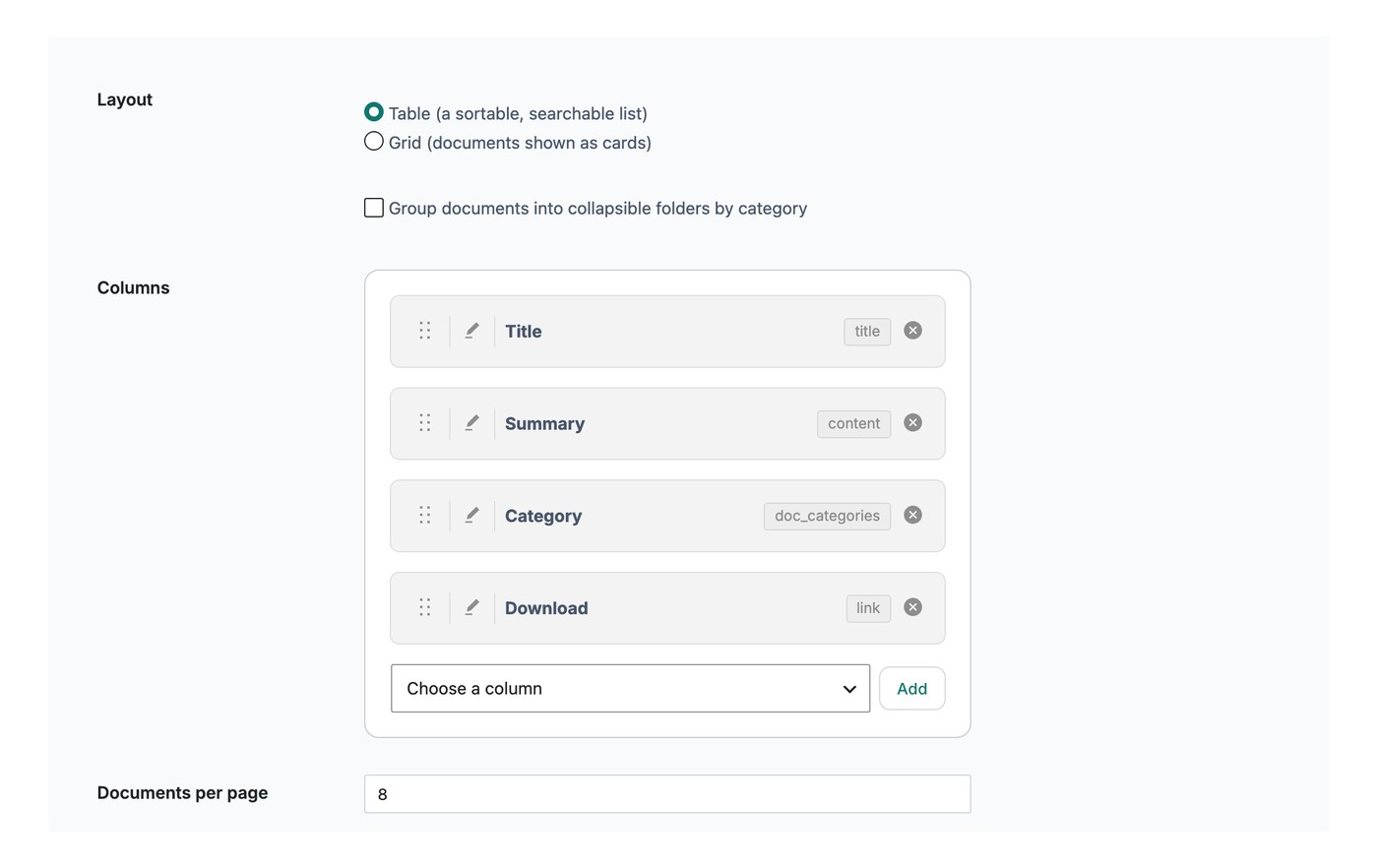
Use the column builder to add and reorder your table columns. Click the pencil icon on a column to open its settings:
- Rename the column header label.
- Choose whether the column is clickable (for clickable column types only).
- Choose where the column links to (for example, the download file).
- Advanced settings:
- Hide the column heading.
- Set the column type to Text, Date or Number, which affects how the column sorts.
- Set the column width.
- Set the responsive visibility (which devices the column shows on).
- Set the responsive priority (the order in which columns are hidden when there is not enough room).
Grid layout
Tick the boxes to choose which fields appear in the grid. You can then configure them further:
- Clickable fields. Choose which fields are clickable, in addition to the Document link field, which is always clickable.
- Number of columns. Select between 1 and 4 columns.
- Document title and File name. Choose whether clicking these downloads the file.
Details of fields
Fields available for both layouts
- Title is the main document title.
- Image shows the featured image (the document thumbnail). In the grid, it falls back to a file-type icon when no image is set.
- Document author shows the name of the document author.
- Document categories shows the categories for each document, comma-separated where there is more than one.
- Link contains a download link and/or a preview link.
- Filename shows the file name as plain text with no link. It is for information only, so use one of the clickable fields for the actual download.
Fields available for the table layout only
- ID shows the document’s unique internal number.
- Content shows the document content, truncated to 15 words by default. You can change this with the content length setting.
- Date shows the date the document was published.
- Modified date shows when the document was last updated.
- Document tags shows the tags for each document, comma-separated where there is more than one.
- Status shows the document’s status (such as draft, pending or published).
- Download count shows the total number of downloads for each document.
Choosing your own column headings
To rename a table column heading, click the pencil icon for that column in the Library Builder and type your preferred wording. You can change both the text and the capitalization this way.
Removing a column heading
To remove a table column heading, open the Advanced settings for that column in the column editor and switch off the Show column heading toggle. This hides the label while keeping the sort arrows.
How to hide a field
To hide a field, remove it from the column builder (table layout) or untick it (grid layout) in the Library Builder. To hide a field on certain devices only, such as phones or tablets, use the responsive visibility option instead.
Column widths
Setting column widths
To override the automatic widths, open the column editor in the Library Builder, click to edit the column you want to change, and set a custom width in its advanced settings. You can enter the width as either a percentage or a number of pixels. Leaving a column on automatic lets the library work out the best width for it.
For example, with a title, content and date column, you might set the title to 20 percent, the content to 50 percent and the date to 30 percent. Or you could fix the first column at 50 pixels and leave the rest on automatic.
Common problems
The width isn’t being applied
If a width you set isn’t taking effect, it is probably too narrow for the content to fit. Rather than letting the column look broken, the library widens it so everything fits. Try increasing the width of the affected column.
I want multiple libraries to line up
Widths are worked out for each library on its own. If you have more than one library on a page and want their columns to match, give each one the same custom widths.
My column widths change between pages or when I filter
This can happen when a column holds a different amount of text for each document. The width is based on the documents currently shown, so it can shift when you move between pages or apply a filter. Setting custom widths forces the columns to stay the same.
Content and excerpt length
Content length
The content length setting controls how much of the content column is shown, if you have added that column to your library. Enter the number of words you want to display. The default is 15 words. To show the full content with no trimming, set the value to -1.
Excerpt length
The excerpt length setting controls how much of the excerpt column is shown, if you are using it. Enter the number of words to display. For reference, the standard WordPress excerpt length is 55 words.