





Document Library Pro est un service hébergé. Il n'y a donc rien à installer et aucune mise à jour à appliquer. Cet article couvre la création de votre bibliothèque, le suivi de l'assistant de configuration, et des la découverte de votre tableau de bord.
Regarder le tutoriel complet
Créer votre bibliothèque
Après votre inscription, l'écran Terminer la configuration de votre bibliothèque s'ouvre. Il comporte deux champs :
- Nom de la bibliothèque - Le nom de votre bibliothèque de documents, utilisé dans votre tableau de bord et sur le site web de votre bibliothèque. Vous pouvez le modifier plus tard dans Settings → General.
- Adresse web - Une adresse courte comme acme, qui crée acme.documentlibrary.app. Utilisez des lettres minuscules, des chiffres et des traits d'union. Une adresse de marque comme docs.yourcompany.com peut être configurée plus tard en connectant un domaine personnalisé.
Cliquez sur Créer ma bibliothèque. Cela prend environ 20 secondes. Gardez donc la page ouverte jusqu'à la fin.
Assistant de configuration
L'assistant de configuration s'ouvre automatiquement la première fois que vous consultez votre tableau de bord, en commençant par un écran Bienvenue . Il définit les principales options de vos bibliothèques de documents et comporte trois étapes.
Toutes ces options sont ensuite disponibles dans Settings, et chaque bibliothèque que vous créez plus tard peut utiliser des options différentes.
Étape 1 : Votre bibliothèque
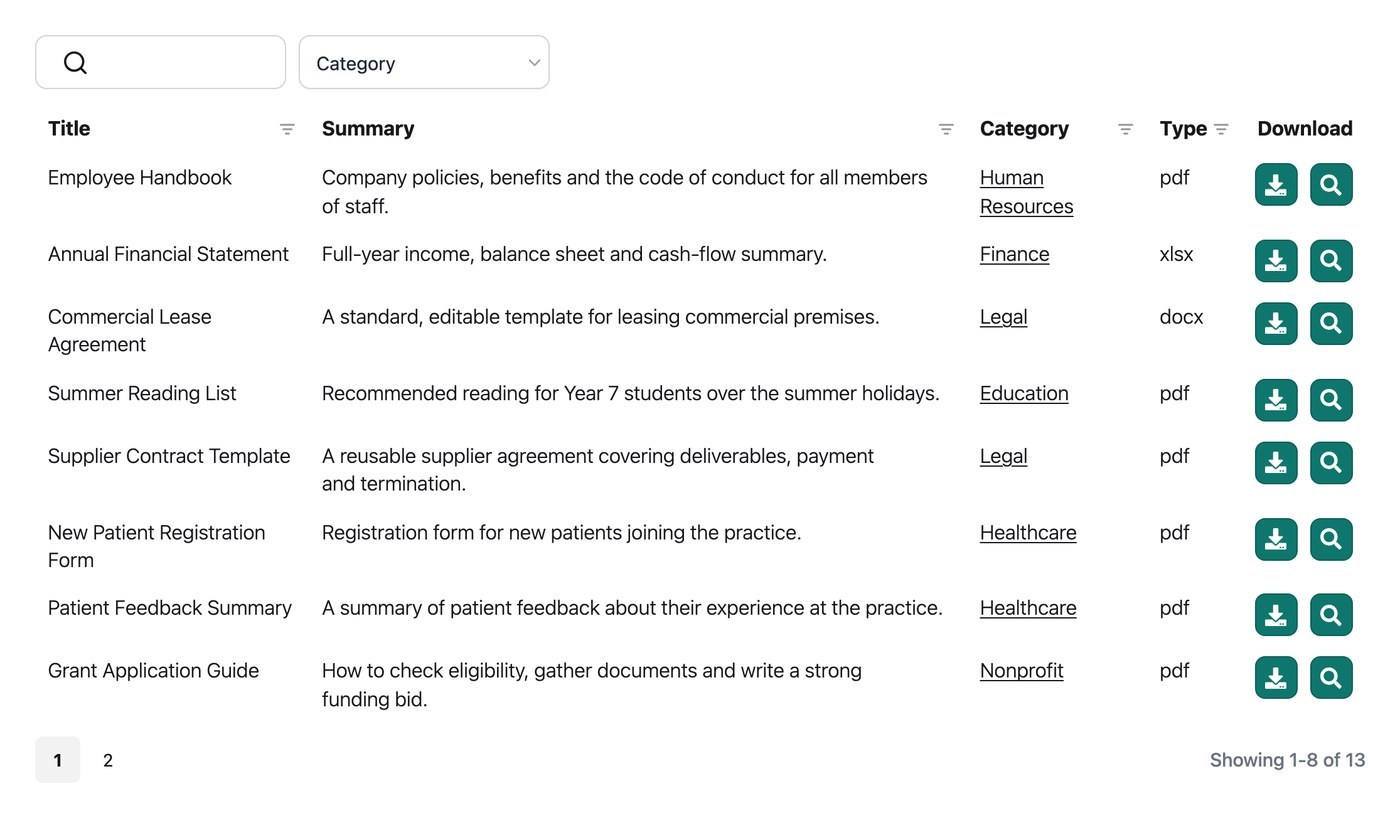
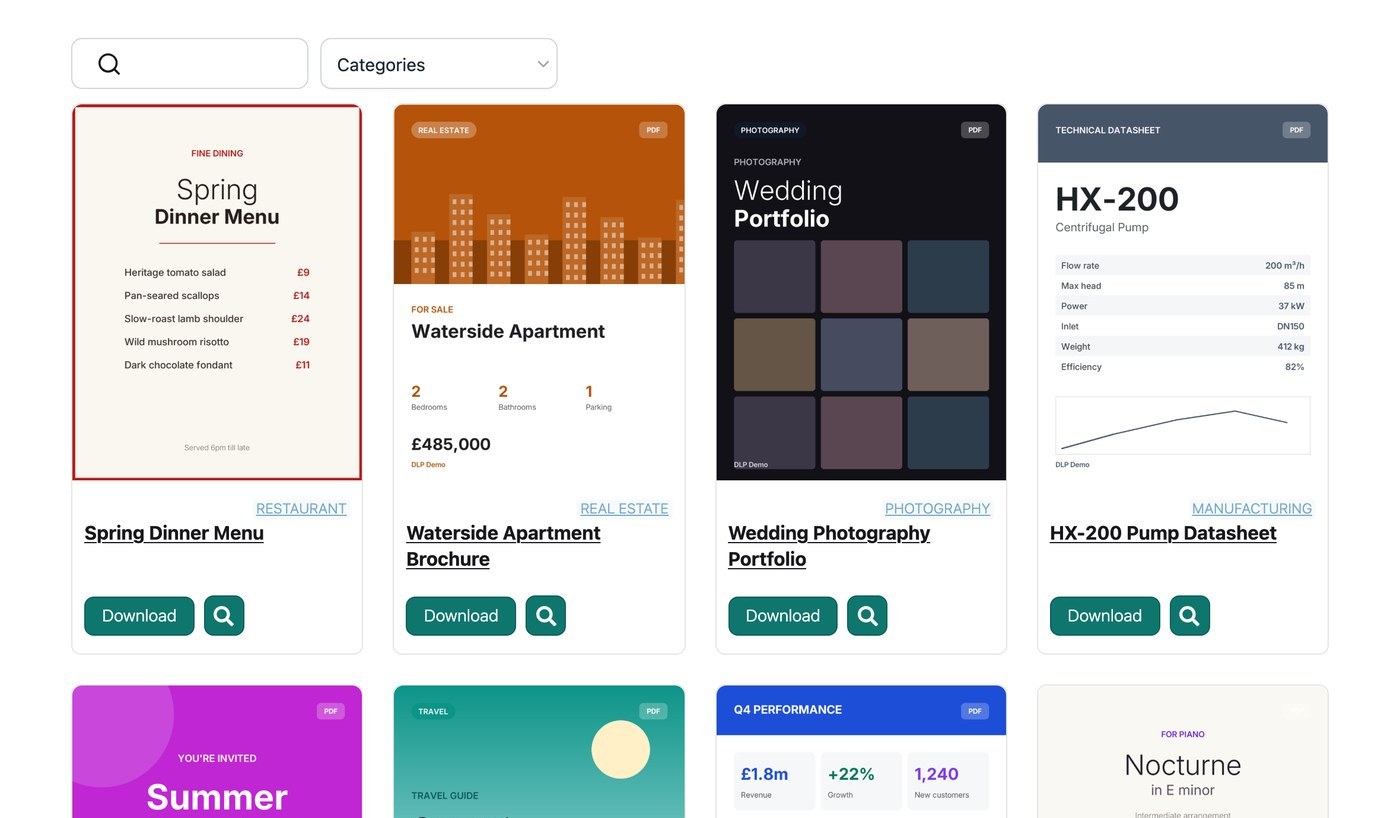
- Mise en page par défaut - Table répertorie les documents avec plusieurs colonnes d'informations, ce qui convient aux longues listes que les visiteurs recherchent et parcourent. Grid affiche les documents sous forme de tuiles, ce qui convient aux collections visuelles comme les brochures et les rapports. Voir mise en page de la bibliothèque de documents.
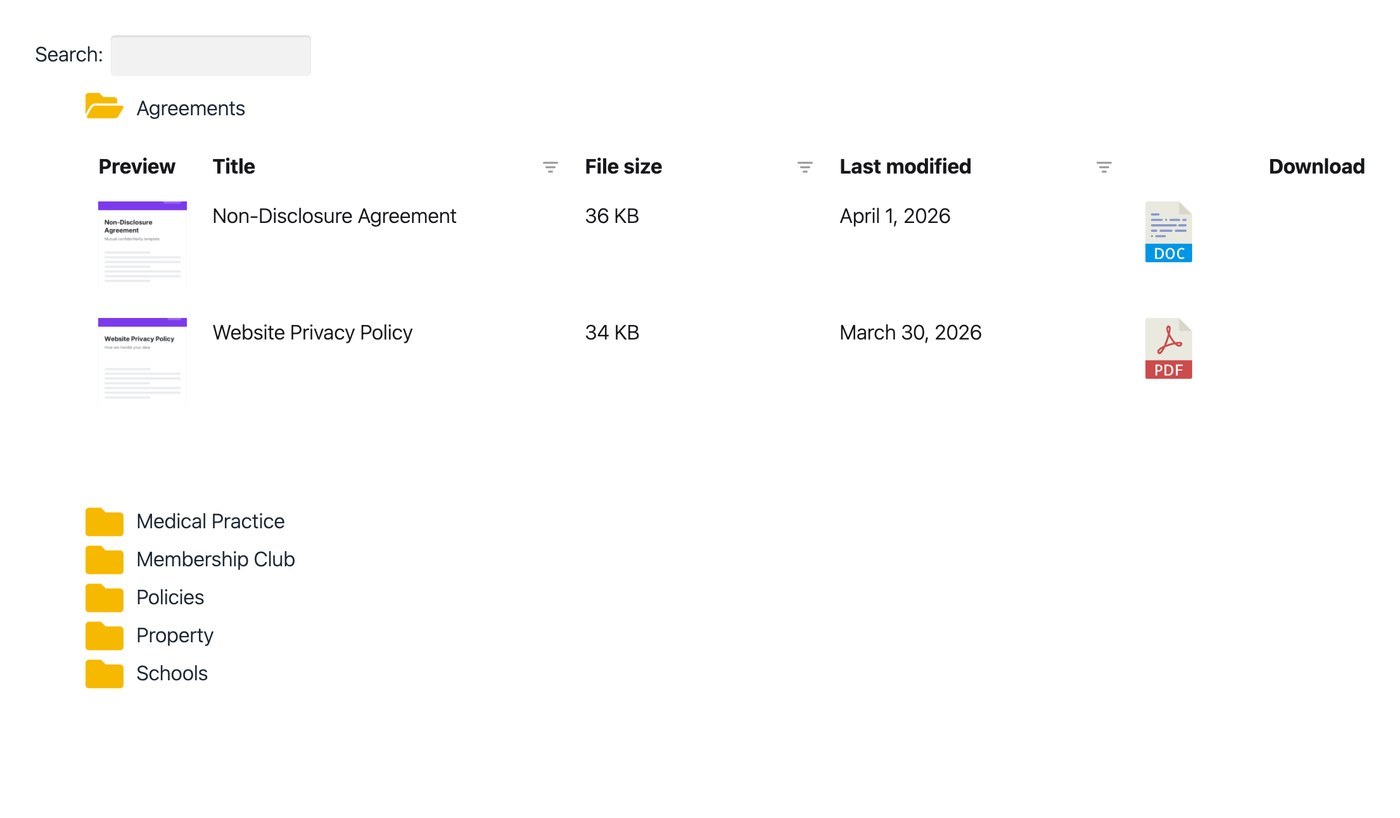
- Dossiers - Organise la bibliothèque dans une arborescence de dossiers créée à partir de vos catégories de documents, que les visiteurs ouvrent un dossier à la fois. Voir dossiers de documents.
- Aperçu du document - Ajoute un bouton d'aperçu afin que les visiteurs puissent lire un document dans une lightbox au lieu de le télécharger. L'option d'aperçu apparaît uniquement pour les types de fichiers pris en charge. Voir aperçu du document.
- Langue principale - La langue que vos visiteurs voient dans votre bibliothèque. Elle définit aussi la langue de votre tableau de bord et des e-mails qui vous sont envoyés. Pour utiliser une langue qui n'est pas répertoriée, ou une langue différente dans chaque bibliothèque, voir traduire votre bibliothèque de documents.
Étape 2 : Tables ou Grid
La deuxième étape dépend de la mise en page sélectionnée à l'étape 1. Choisir Table affiche l'étape Tables et choisir Grid affiche l'étape Grille à la place.
L'étape Tables comporte deux options :
- Colonnes - Utilisez le générateur de colonnes pour sélectionner les données de document qui apparaissent dans le tableau, comme le titre, les catégories, le type de fichier, la taille du fichier, la date et le lien du document. Glissez-déposez pour réorganiser les colonnes, et utilisez l'icône crayon pour renommer une colonne ou ajuster sa largeur. Voir contenu de la bibliothèque de documents.
- Téléchargements multiples - Ajoute une case à cocher à chaque ligne, ainsi qu'un bouton qui télécharge les documents sélectionnés sous forme d'un seul fichier zip. Voir liens dans la bibliothèque de documents.
L'étape Grid comporte une option :
- Contenu de la grille - Sélectionnez les informations qui apparaissent sur chaque carte. Les options sont l'image, le titre, le nom du fichier, le type de fichier, la taille du fichier, le nombre de téléchargements, les catégories, les auteurs, la description du document et le lien du document.
Chaque bibliothèque que vous créez plus tard peut utiliser l'autre mise en page, et ses propres colonnes ou le contenu de ses cartes se définissent dans le Library Builder.
Étape 3 : Filtres de documents
Les filtres sont des menus déroulants que les visiteurs utilisent pour affiner la bibliothèque par catégorie, étiquette, auteur ou type de fichier.
- Activer les menus déroulants de filtres - Désactivé par défaut, car les filtres ont besoin de catégories ou d'étiquettes pour filtrer.
- Emplacements des filtres - Affichez les menus déroulants de filtres au-dessus de la bibliothèque, affichez-les dans les en-têtes de colonnes, ou les deux.
- Filtres à sélection multiple - Permet aux visiteurs de sélectionner plusieurs options dans chaque filtre.
- Filtres actifs - Affiche les filtres actuellement appliqués au-dessus de la bibliothèque.
- Nombre de filtres - Affiche le nombre de documents correspondants à côté de chaque option dans un menu déroulant de filtre.
Voir filtres de bibliothèque de documents pour tous les détails, y compris comment renommer et réorganiser les filtres.
Configuration terminée
La dernière étape de l'assistant confirme que la configuration est terminée. Cliquez sur Voir la bibliothèque pour ouvrir votre bibliothèque de documents, qui reste vide jusqu'à ce que des documents soient ajoutés.
Votre tableau de bord
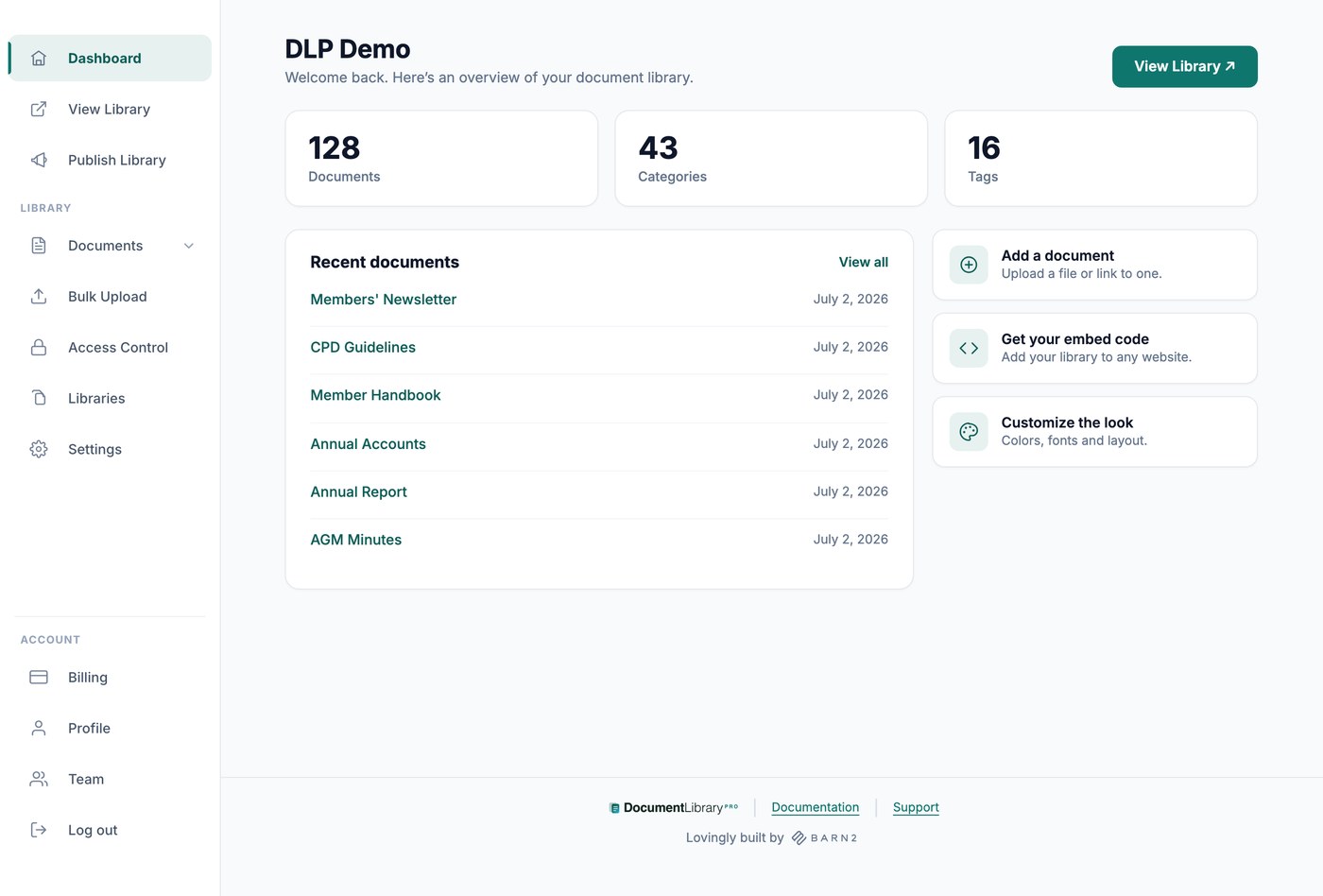
L'écran d'accueil du tableau de bord affiche le nom de votre bibliothèque, le nombre de vos documents, catégories et étiquettes, ainsi que vos six documents les plus récents. Le menu de gauche contient les sections suivantes :
- Voir la bibliothèque - Ouvre votre bibliothèque de documents dans un nouvel onglet.
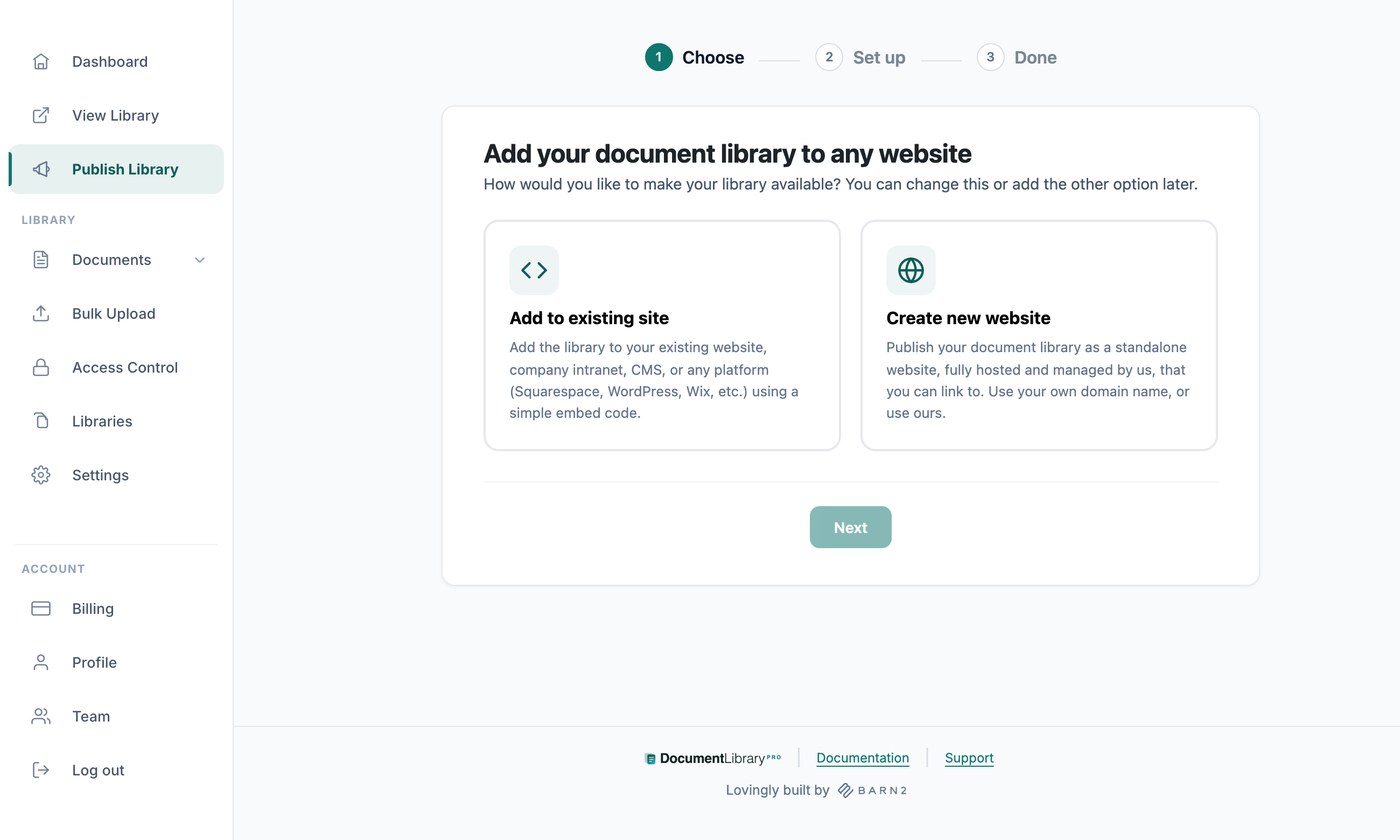
- Publier la bibliothèque - Contient votre code d'intégration et les réglages du site web de votre bibliothèque.
- Documents - My Documents, Add Document, Categories, Tags et Authors.
- Téléversement groupé (Plan Advanced uniquement) - Crée des documents à partir d'un lot de fichiers ou d'une feuille de calcul.
- Contrôle d'accès (Plan Advanced uniquement) - Protège vos bibliothèques et vos fichiers téléversés par mot de passe.
- Bibliothèques - Crée des bibliothèques de documents supplémentaires, chacune avec ses propres documents, options et code d'intégration.
- Paramètres - Sept onglets d'options globales : General, Display, Search, Branding, Library Design, Translations et Advanced.
- Facturation - Modifiez votre plan, mettez à jour vos informations de paiement et consultez vos factures.
- Profil - Modifiez votre nom, votre adresse e-mail et votre mot de passe.
- Team - Invitez d'autres personnes à aider à gérer vos documents.
Publier la bibliothèque, Bibliothèques, Contrôle d’accès, Réglages, Facturation et Équipe ne sont disponibles que pour le propriétaire du compte. Les membres d’équipe invités voient un menu plus court, car ils gèrent vos documents plutôt que votre abonnement et vos réglages globaux.
Étapes suivantes
Votre bibliothèque est maintenant configurée et prête à recevoir des documents. Les articles suivants couvrent les étapes suivantes, dans l'ordre dont la plupart des bibliothèques ont besoin :
- Ajouter des documents à votre bibliothèque - Ajoutez des documents un par un, soit sous forme de téléversement, soit sous forme de lien vers un fichier hébergé ailleurs.
- Téléversement groupé (Plan Advanced uniquement) - Créez des documents en masse en déposant un lot de fichiers ou en important une feuille de calcul.
- Catégories, étiquettes et auteurs - Organisez vos documents. Vos filtres et dossiers sont créés à partir de vos catégories de documents.
- Paramètres - Les options qui ne sont pas dans l'assistant de configuration. Elles incluent votre logo et votre couleur de marque, le design de vos tableaux et grilles, vos options de recherche, et les messages affichés lorsqu'une bibliothèque est vide. Le contrôle de version et la capture de prospects se trouvent sur la même page avec le plan Advanced.
- Publier votre bibliothèque - Partagez votre bibliothèque comme son propre site web, ou intégrez-la sur un site que vous possédez déjà.
- Protéger votre bibliothèque de documents (Plan Advanced uniquement) - Protégez une bibliothèque par mot de passe afin que seules les bonnes personnes puissent l'ouvrir.
- Créer plusieurs bibliothèques - Créez des bibliothèques supplémentaires lorsque différentes pages ont besoin de différents ensembles de documents.
- Ajouter des membres d'équipe - Invitez des collègues afin qu'ils puissent ajouter et modifier des documents.
Si vous avez besoin d'aide pour votre configuration, veuillez contactez-nous et nous serons heureux de vous aider.