





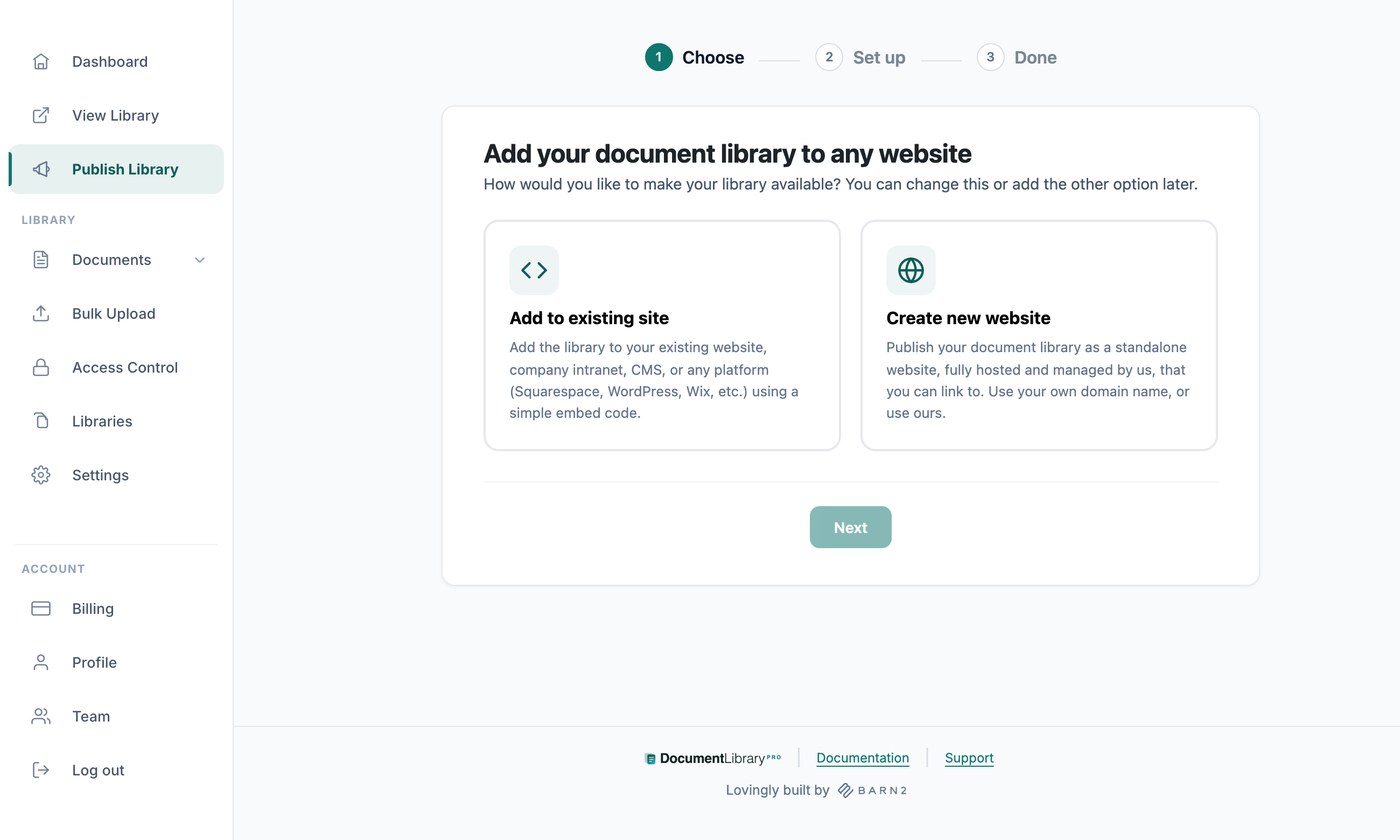
Ci sono due modi per mostrare la tua libreria di documenti alle persone, e puoi usarne uno o entrambi:
- Incorporala nel tuo sito web, in qualsiasi pagina di un sito che hai già.
- Usa il sito web pronto incluso nel tuo account e condividi il link.
Entrambi si configurano nella pagina Pubblica Libreria della tua bacheca. La prima volta che la apri, una breve procedura guidata ti chiede quale metodo vuoi e lo configura. In seguito, la pagina mostra le impostazioni per entrambi.
Guarda il tutorial completo
Incorpora nel tuo sito web
Un codice embed è un piccolo pezzo di HTML che mostra la tua libreria ospitata dentro una pagina del tuo sito. Apri Pubblica libreria, poi copia il codice con il pulsante Copiare il codice . Il tuo codice ha questo aspetto, con il tuo indirizzo web al posto del nostro:
<iframe src="https://your-library.documentlibrary.app/?dlp_embed=1" title="Document library" style="display:block;width:100%;border:0;height:600px;" loading="lazy"></iframe>
<script src="https://your-library.documentlibrary.app/?dlp_embed_resize=1" async></script>
La prima riga è l'iframe, che mostra la libreria. La seconda riga è un piccolo script che permette alla libreria di ridimensionarsi in base ai contenuti e apre le anteprime dei documenti dentro la pagina. Incolla entrambe le righe dove vuoi che appaia la libreria.
Il Come aggiungerlo al tuo sito web contiene i passaggi per WordPress, Squarespace, Wix, Shopify, Webflow, Google Sites, GoDaddy, Framer e qualsiasi altra piattaforma, ognuno con un link alle istruzioni complete. Clicca su Mostra anteprima live per vedere la libreria come la vedranno i visitatori.
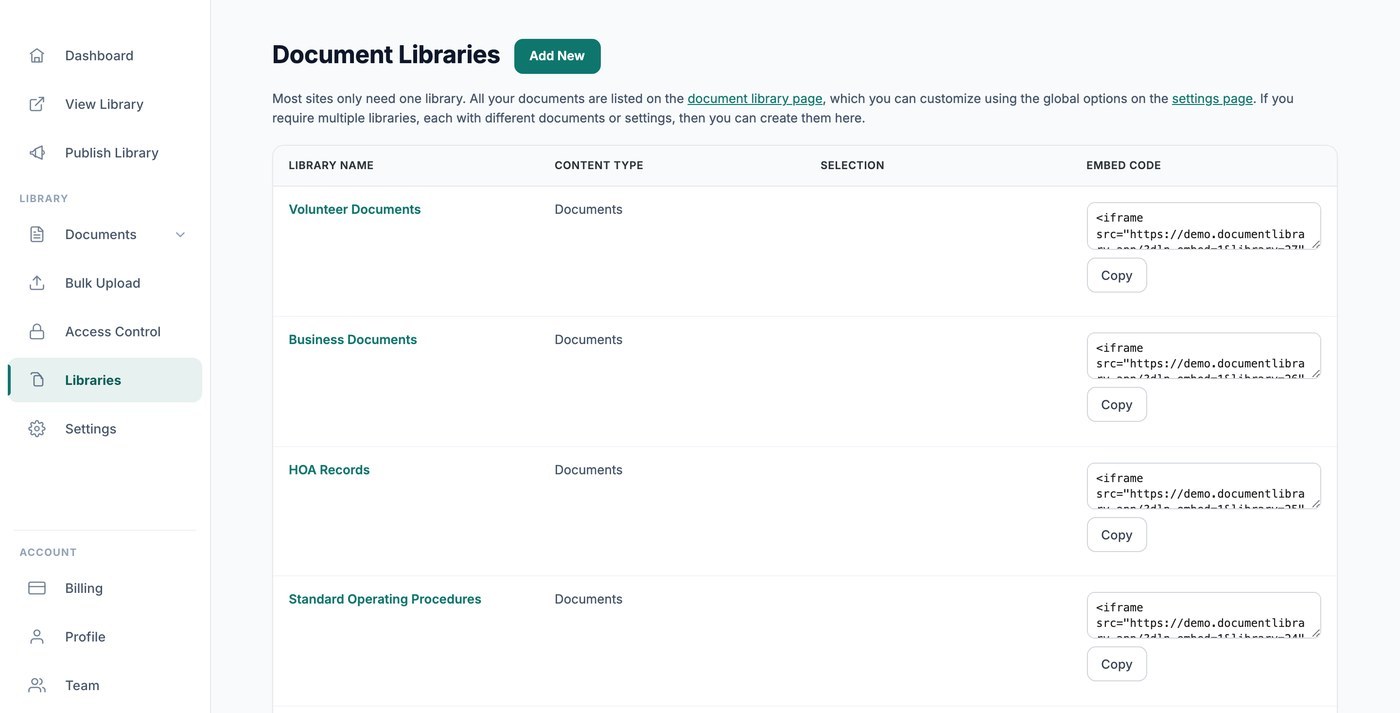
Se hai creato librerie aggiuntive, ognuna ha il proprio codice embed sotto quello principale e nella schermata Librerie. Vedi creare una libreria con Library Builder.
Dove può apparire il tuo embed
Per impostazione predefinita, il tuo embed funziona su qualsiasi sito web. Per limitarlo, elenca i domini autorizzati a mostrarlo, uno per riga, poi clicca su Salva. I browser lo bloccano ovunque altro. Lascia il campo vuoto per consentire qualsiasi sito.
Compila questo campo se la tua libreria è protetta da password o accetta invii di documenti, così nessuno può inserirla in un proprio sito.
Il tuo codice di incorporamento contiene un indirizzo per mostrare la libreria di documenti dentro un iframe. Questo indirizzo funziona solo dentro un elemento incorporato. Se qualcuno lo apre in una scheda del browser, la libreria di documenti non appare. Le pagine della libreria restano nascoste ai motori di ricerca, a meno che tu non pubblichi la pagina autonoma. Se pubblichi quella pagina, l'indirizzo porta lì le persone.
L'indirizzo non è sicuro al 100%. Se nessuno deve accedere ai tuoi documenti se non dalla pagina della libreria incorporata, proteggi la tua libreria di documenti con una password e attiva Bloccare i link diretti ai file. Entrambe le impostazioni fanno parte del piano Advanced e si trovano nella pagina Controllo accessi .
Codice embed del modulo di invio
Sotto il codice della tua libreria c'è un elemento separato Codice embed del modulo di invio. Incollalo in qualsiasi sito web per permettere alle persone di inviare documenti alla tua libreria. Vedi accettare gli invii di documenti dai visitatori.
Il tuo sito web
Ogni account include un sito web pronto per la tua libreria, che non richiede configurazione né un tuo sito web. Clicca su Apri per visualizzarlo.
- Indirizzo del sito web - L'indirizzo della tua libreria, nel formato your-slug.documentlibrary.app. Usa Copia link per condividerlo.
- Usa il tuo dominio - Inserisci un tuo indirizzo, come docs.yourcompany.com, e clicca su Richiedi dominio. Lo configuriamo con te entro due giorni lavorativi. Vedi usare un dominio personalizzato con la tua libreria di documenti ospitata.
- Titolo della home page - Il titolo in alto nel tuo sito web. Il valore predefinito è Libreria di documenti.
- Testo introduttivo (facoltativo) - Testo mostrato sopra i tuoi documenti, ad esempio una breve spiegazione o un indirizzo di contatto.
- Home page - Scegli cosa mostra la home page: Tutti i documenti oppure una delle librerie che hai creato. Questo è importante quando alcune delle tue librerie sono protette da password e la vista di tutti i documenti non deve essere pubblica.
Clicca Salva quando hai finito. Per definire lo stile del sito web, usa le opzioni Logo, Colore brand e Font nella scheda Branding delle tue impostazioni.
Invii di documenti
Seleziona Consenti ai visitatori di inviare documenti alla libreria per permettere alle persone di aggiungere i propri documenti, poi scegli dove si trova il modulo in Posizione del modulo di invio documenti:
- Aggiungi un link sopra la libreria di documenti - I visitatori raggiungono il modulo dalla tua libreria. Imposta il testo in Testo del link del menu.
- Usa una pagina separata non elencata - Il modulo si trova in una pagina propria, nascosta dal menu e dai motori di ricerca. Imposta il relativo Titolo della pagina di invio documenti, poi condividi l'indirizzo con Copia link.
La scelta di trattenere i nuovi documenti per la tua approvazione si imposta nella scheda Generale delle impostazioni.
Usare entrambi i metodi
Qualunque metodo tu abbia scelto nella procedura guidata, puoi aggiungere l'altro in qualsiasi momento. Cerca la scheda in fondo alla pagina Pubblica libreria e clicca su Crea sito web o Ottieni codice embed.
Passaggi successivi
- Aggiungi la tua libreria a WordPress, Wix, Shopify, Squarespace o qualsiasi altra piattaforma.
- Proteggi la tua libreria di documenti con una password, con il piano Advanced.
- Controlla come i motori di ricerca vedono la tua libreria se vuoi che i tuoi documenti appaiano nei risultati di ricerca.