





Schede web di Salesforce ti permettono di incorporare e mostrare una libreria di Document Library Pro come scheda a larghezza piena dentro Salesforce. Gli utenti possono aprire la libreria da Salesforce come qualsiasi altra scheda, senza bisogno di codice.
Prima di iniziare: Devi essere un amministratore Salesforce o avere l'autorizzazione Personalizza applicazione. Salesforce elenca le schede web per le edizioni Contact Manager, Group, Professional, Enterprise, Performance, Unlimited e Developer. Le schede web funzionano in Lightning Experience e Salesforce Classic. Se usi un'altra edizione di Salesforce e non vedi le schede web, verifica con Salesforce prima di continuare. La differenza principale rispetto ad altre guide di incorporamento è che Salesforce richiede un indirizzo web, non il codice di incorporamento completo di due righe.
Non devi aggiungere la tua libreria a Trusted URLs o CSP Trusted Sites.
Passaggio 1: copia l'indirizzo della tua libreria
Apri la tua bacheca di Document Library Pro e vai a Pubblica Libreria. Copia il codice di incorporamento della tua libreria.
Se hai più di una libreria, copia il codice di incorporamento dalla Libraries schermata della libreria che vuoi mostrare in Salesforce.
L'indirizzo della libreria è la parte dentro src=”…” nella prima riga del codice di incorporamento. Ad esempio:
<iframe src="https://your-library.documentlibrary.app/?dlp_embed=1" title="Document library" style="display:block;width:100%;border:0;height:600px;" loading="lazy"></iframe>
In questo esempio, copieresti questo indirizzo:
https://your-library.documentlibrary.app/?dlp_embed=1
Usa l'indirizzo della tua libreria, non l'esempio sopra. Copia tutto quello che si trova tra le virgolette, incluso ciò che viene dopo il punto interrogativo.
Passaggio 2: crea una scheda web di Salesforce
- In Salesforce, fai clic sull'icona dell'ingranaggio e scegli Configurazione.
- in Ricerca rapida, digita Schede, poi seleziona Schede.
- Nel Schede web sezione, fai clic su Nuovo.
- Scegli Larghezza pagina intera, poi fai clic su Avanti.
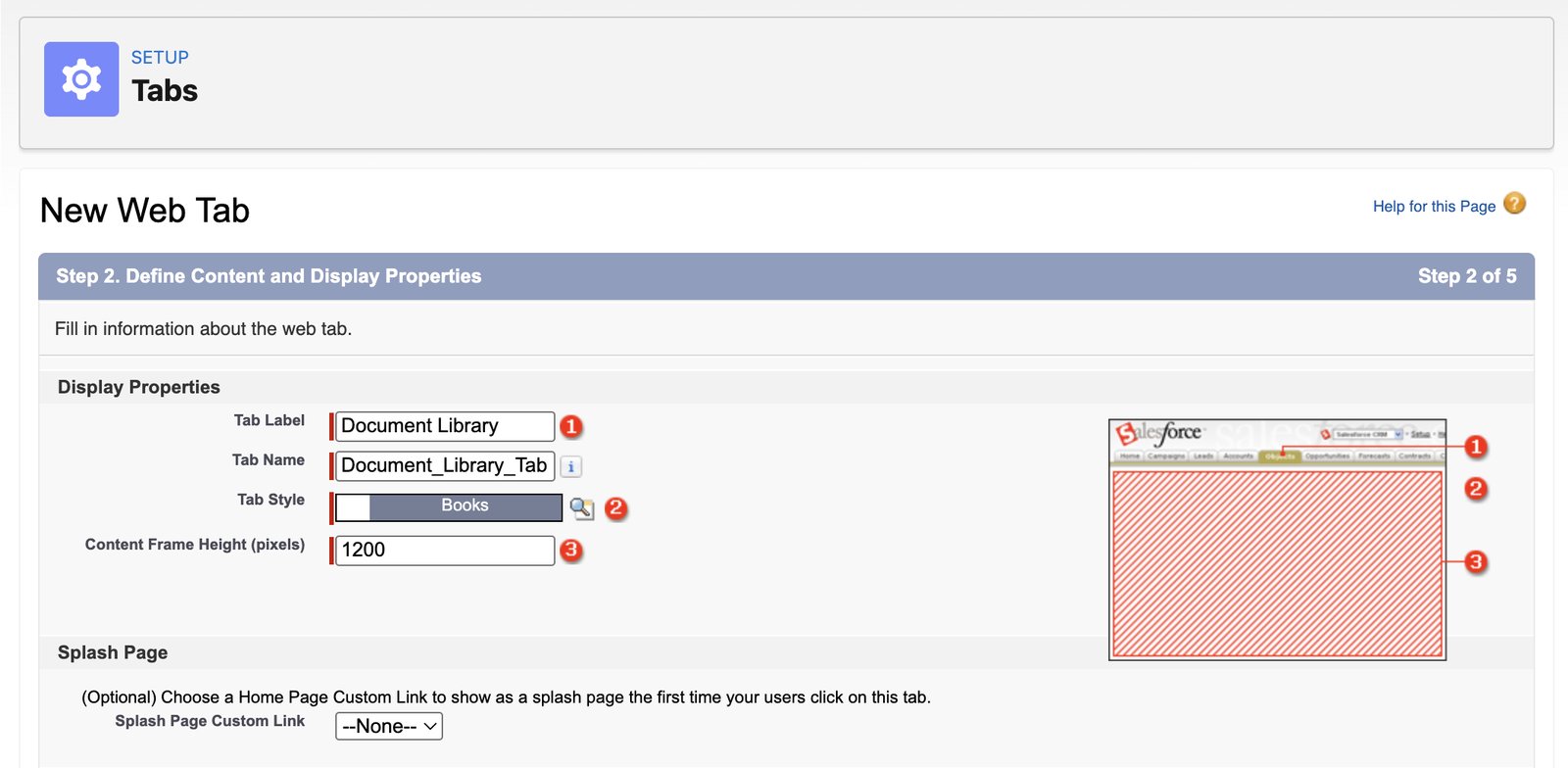
- Inserisci una Etichetta scheda, ad esempio Document Library. Salesforce compila il Nome scheda.
- Clicca sul Stile scheda icona di ricerca e scegli un'icona e un colore.
- Imposta Altezza frame contenuto (pixel). Il valore predefinito è 600. 1200 va bene per la maggior parte delle librerie, oppure impostalo più alto per una libreria lunga. Dentro Salesforce, la libreria non può ridimensionarsi da sola. Questa casella imposta l'altezza dell'area della libreria. Se la libreria è più alta, Salesforce mostra una barra di scorrimento dentro la scheda.
- Clicca Avanti.
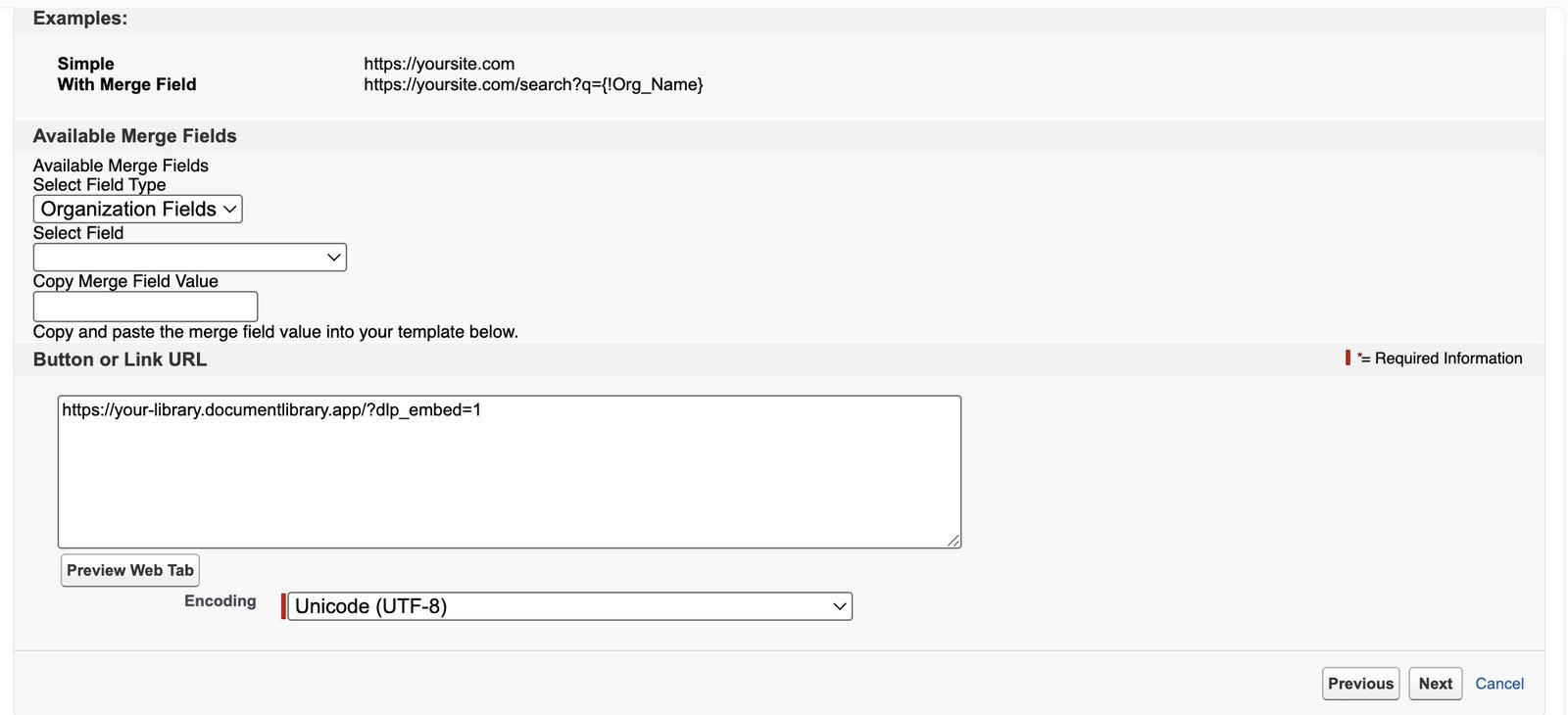
- Incolla l'indirizzo della libreria nella URL pulsante o link casella. Lascia Codifica com'è. Fai clic su Avanti.
- Scegli quali profili utente vedono la scheda. Attiva per impostazione predefinita la mostra a tutti. Fai clic su Avanti.
- Scegli quali app Salesforce includono la scheda. Tutte le app sono selezionate per impostazione predefinita. Fai clic su Salva.
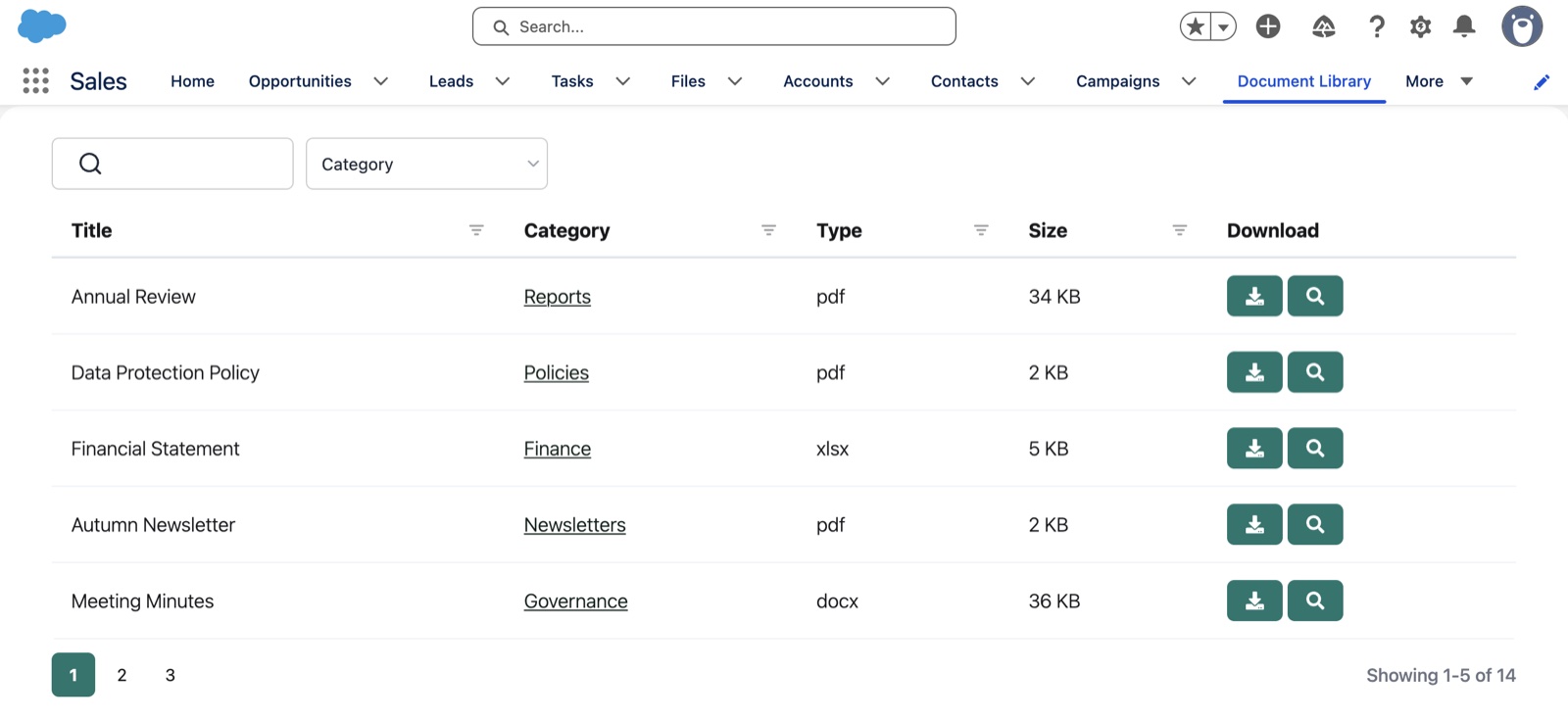
Salesforce aggiunge la scheda web a ogni app che hai selezionato nell'ultimo passaggio; ad esempio, l'app Sales la mostra accanto a Campaigns. Alcune app la nascondono sotto Altro, e gli utenti possono trovarla anche con l' Avvio app (la griglia di puntini, in alto a sinistra) digitando il nome della scheda. Gli utenti non possono aggiungere una scheda web con l'icona della matita, quindi un amministratore deve aggiungerla in Gestore app se manca in un'app.
Passaggio 3: controlla il risultato
Apri la scheda in Salesforce e controlla che la tua libreria di documenti appaia a larghezza intera. La casella di ricerca, il filtro categoria e i numeri di pagina dovrebbero apparire tutti dentro la scheda.
La ricerca dovrebbe funzionare normalmente. Quando fai clic su anteprima, la libreria di documenti apre l'anteprima dentro la scheda, con un pulsante di chiusura.
Le modifiche che fai in Document Library Pro vengono mostrate subito in Salesforce. Non devi modificare di nuovo la scheda Salesforce dopo aver aggiornato la tua libreria.
Chi può vedere la libreria
In Salesforce, la tua libreria di documenti viene mostrata nel Web Tab alle persone il cui profilo può aprire quella scheda. L'indirizzo della libreria che incolli nel Web Tab funziona solo dentro un elemento incorporato come quella scheda. Se qualcuno apre lo stesso indirizzo in una scheda del browser, la libreria non verrà mostrata.
L'indirizzo non è sicuro al 100%. Per documenti riservati come listini prezzi o policy interne, proteggi la tua libreria di documenti con una password e attiva Bloccare i link diretti ai file nella pagina Controllo accessi . Entrambe sono incluse nel piano Advanced.
Se la libreria non appare
Scheda vuota o errore
Controlla di aver incollato solo l'indirizzo della libreria, non tutto il codice di incorporamento. L'indirizzo deve iniziare con https://.
Libreria tagliata o barra di scorrimento dentro la scheda
Modifica la scheda in Salesforce e aumenta Altezza frame contenuto (pixel). Puoi trovarlo da Configurazione > Schede > Modifica accanto alla scheda.
Scheda non visibile per alcuni utenti
Controlla la visibilità del profilo che hai scelto durante la creazione della scheda. Gli utenti vedono la scheda solo se il loro profilo vi ha accesso.
Vuoi che la configuriamo per te?
Se preferisci che creiamo noi la libreria per te, richiedi il nostro servizio di configurazione gratuito.