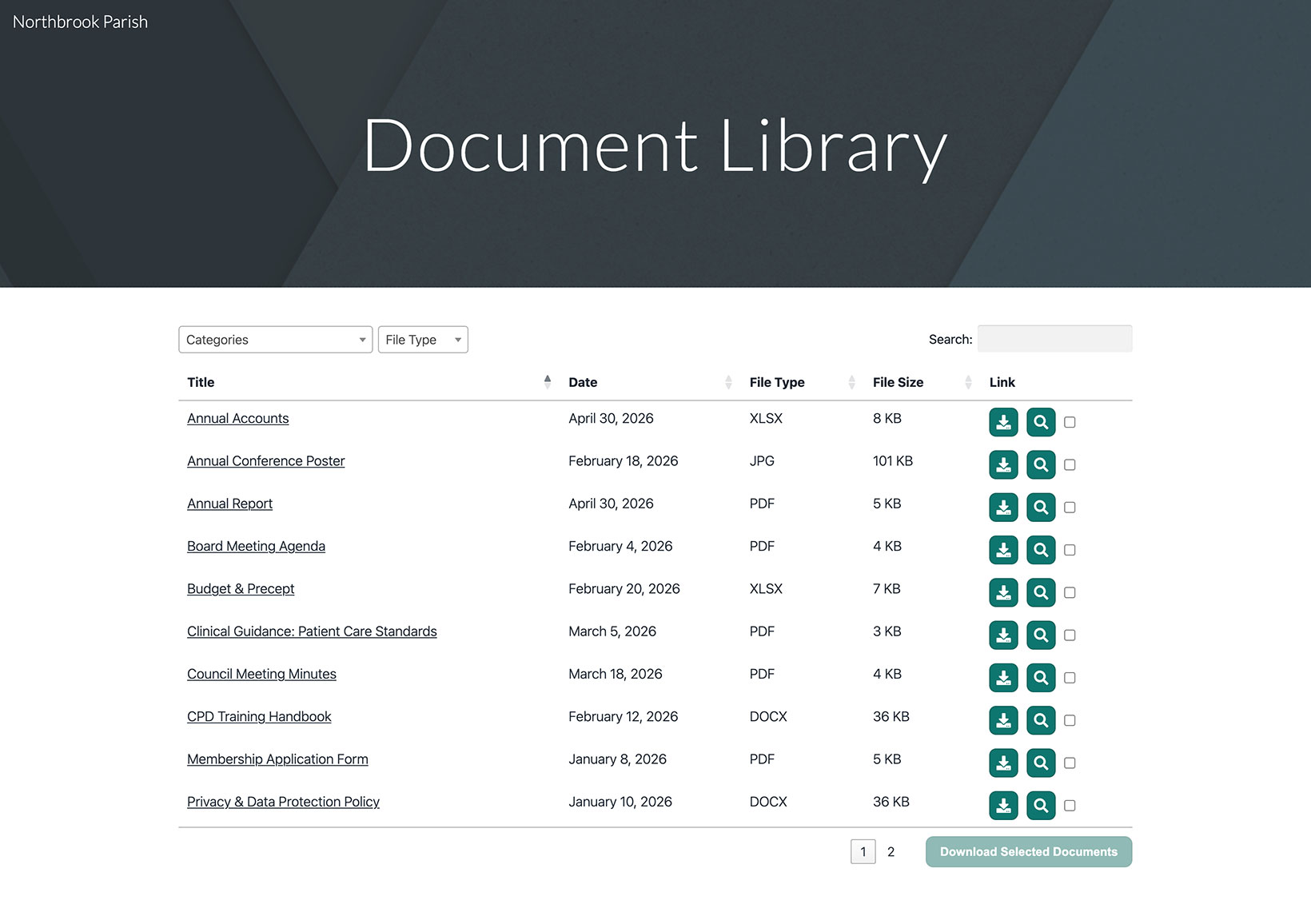
Google Sites ha uno strumento Incorpora integrato che ti permette di mostrare la tua libreria di documenti ospitata su qualsiasi pagina. Ecco come configurarla dall'inizio alla fine.
Prima di iniziare: a ogni incorporamento in Google Sites viene assegnata una dimensione fissa, quindi dovrai ridimensionare il riquadro intorno alla tua libreria (trattato nel Passaggio 5). La libreria viene mostrata sia in Anteprima sia sul sito pubblicato.
Passaggio 1: Copia il codice embed
Nel tuo dashboard ospitato, apri Pubblica Libreria per trovare il tuo codice embed, quindi copialo. La maggior parte dei siti ha una singola libreria e la pagina Pubblica libreria è dove si trova il relativo codice embed. (Se hai creato più di una libreria, copia il codice per quella desiderata dalla schermata Libraries .) Incolla sempre il codice esatto dal tuo pannello di controllo, non l’esempio seguente:
<iframe src="https://your-library.documentlibrary.app/?dlp_embed=1" title="Document library" style="width:100%;border:0;height:600px;" loading="lazy"></iframe>
<script src="https://your-library.documentlibrary.app/?dlp_embed_resize=1" async></script>
Passaggio 2: Crea una pagina per la tua libreria
Nell'editor di Google Sites, passa alla scheda Pagine e aggiungi una nuova pagina, oppure riutilizzane una che hai già. Chiamala ad esempio libreria di documenti. Google Sites la aggiungerà automaticamente al tuo menu di navigazione.
Passaggio 3: apri lo strumento Incorpora
Mentre sei sulla tua pagina, apri il pannello Inserisci e fai clic su Embed. Quando si apre la finestra di dialogo, passa alla scheda Embed Code scheda.
Passaggio 4: Incolla il codice embed
Inserisci il codice di incorporamento del Passaggio 1 nella casella, poi fai clic su Avanti seguito da Inserisci.
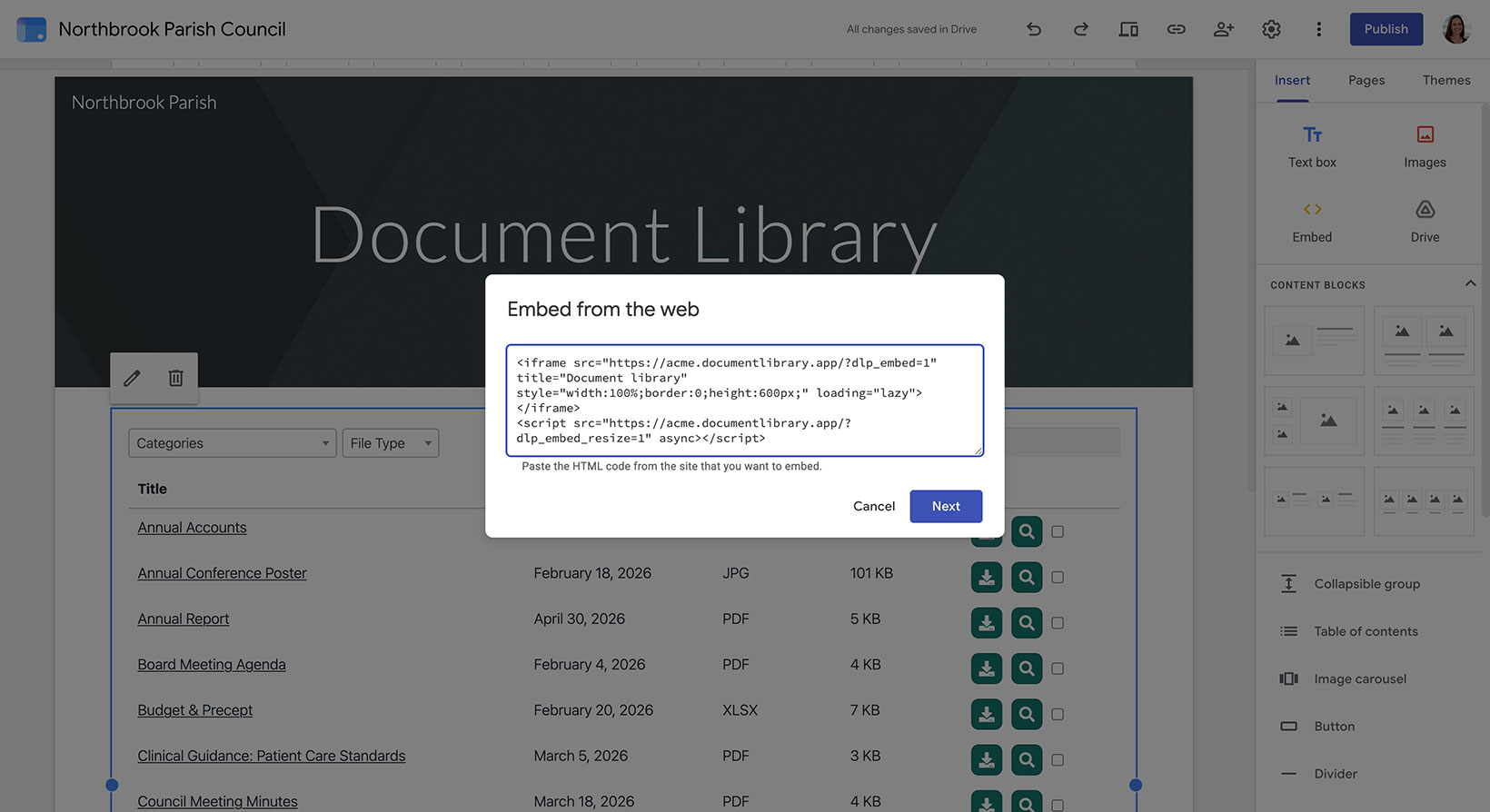
Passaggio 5: ridimensiona l'incorporamento per adattarlo alla tua libreria
Non saltare questa parte. Poiché Google Sites assegna all'incorporamento una dimensione fissa, trascina le sue maniglie in modo che il riquadro risulti sia più largo sia più alto della tua libreria. In questo modo l'intera tabella entra senza essere tagliata e ha anche un po' di spazio in più. Passa anche alla vista Desktop così la libreria ha spazio sufficiente per mostrare tutte le sue colonne.
Passaggio 6: pubblica e visualizza la tua libreria
Clicca Pubblica in alto a destra, oppure usa Anteprima se vuoi controllarla prima. Quando è online, apri la pagina per trovare lì la tua libreria di documenti, dove i visitatori possono cercare, filtrare per categoria e scaricare o visualizzare in anteprima qualsiasi documento.