





The Folders option in hosted Document Library Pro controls the overall structure of a library. You switch it on or off for each library in the Library Builder.
Folders disabled
This is the default. It lists all your documents together, regardless of category. You can turn folders off in the Library Builder.
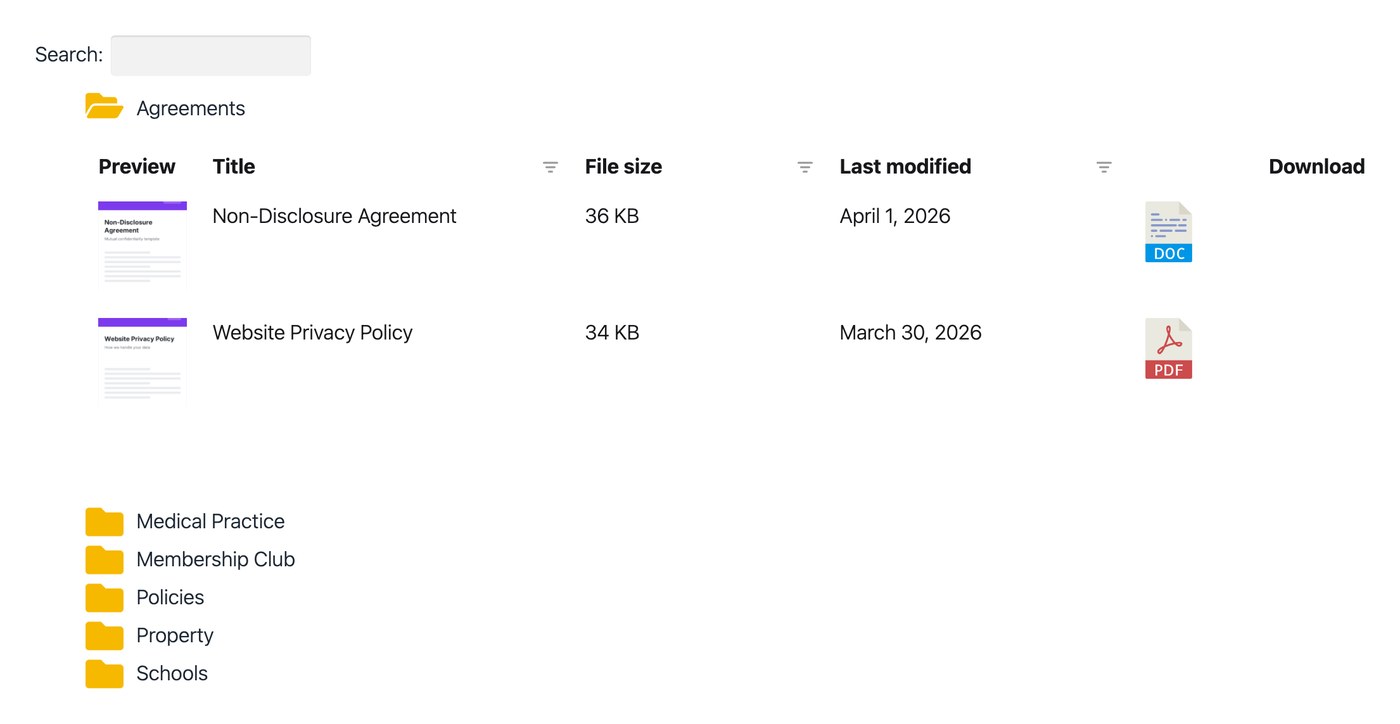
Folders enabled
This arranges the library into a folder tree built from your document categories, sub-categories and so on. Visitors can drill down through the tree by category.
When a visitor clicks a folder, they see the documents in that category and any sub-category folders. Clicking a sub-category shows the documents within it, and so on.
The folders are collapsible, and only one is ever open at a time. This keeps the library easy to navigate so visitors never lose their place. You can turn folders on in the Library Builder.
Folder status
By default, every folder is closed when the library first loads. Using the Folder display option on the Display tab of your settings, you can instead have all folders open, or pick specific folders to open while the rest stay closed.
Adding your own folder icon
Hosted Document Library Pro includes a built-in folder icon. Top-level folders are yellow and sub-folders are black. On the Library Design tab of your settings you can change the color of the folder icons or replace them with your own icon.
Choosing which categories to include in the folders
By default, all your document categories appear in the folder list. For more control, use the Library Builder to scope a library to specific categories, which also determines which folders appear.
Changing the sort order of folders
You can reorder the folder list in several ways. See sorting folders.
Limitations
Folder view does not support filters. If you need filter dropdowns above the library, keep folders switched off.
FAQ
Does it support sub-categories?
Yes. Sub-categories are indented to show the structure, and you can nest as many levels as you like, as long as the page is wide enough to display them. When a category has both documents and sub-categories, the documents that belong only to the parent appear first, followed by the nested sub-category folders.
Can a document appear in multiple folders?
Yes. A document in several categories appears in each matching folder. The exception is when it is in both a parent category and its child, in which case it only appears in the child.
Can I add a search option to the folder view?
Yes. If you enable the search box, it appears above the folder list so visitors can search across all folders at once. The results show as a flat list of documents rather than in folders, and visitors can use the Reset button to return to the folder view. Learn more about the search logic when folders are enabled.