





Hosted Document Library Pro te ofrece dos formas de presentar tus archivos: una tabla estructurada o una cuadrícula visual. Definirás el diseño de cada biblioteca que crees en el Library Builder visual, y puedes usar un aspecto distinto para cada biblioteca que crees.
Diseño de tabla
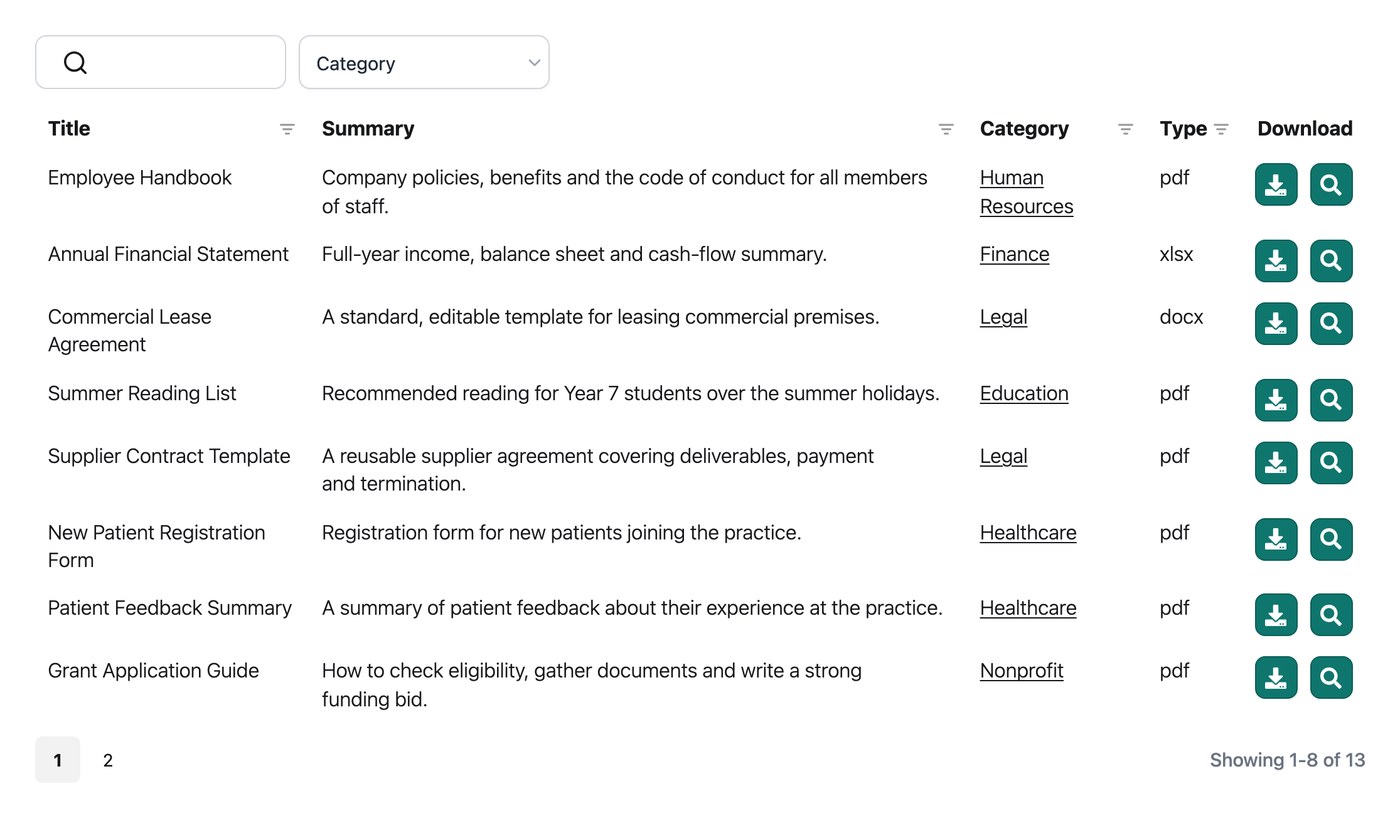
La tabla es el más potente de los dos diseños por su flexibilidad. Tú decides qué columnas de información aparecen y tienes control detallado sobre cómo se reajusta la tabla en móviles, tabletas y ordenadores.
Está pensada para bibliotecas que contienen muchos documentos. Los visitantes pueden ordenar haciendo clic en el encabezado de una columna, escribir en el cuadro de búsqueda por palabra clave y acotar los resultados con desplegables de filtro, por lo que encontrar un archivo concreto sigue siendo rápido incluso en una colección grande.
Diseño de cuadrícula
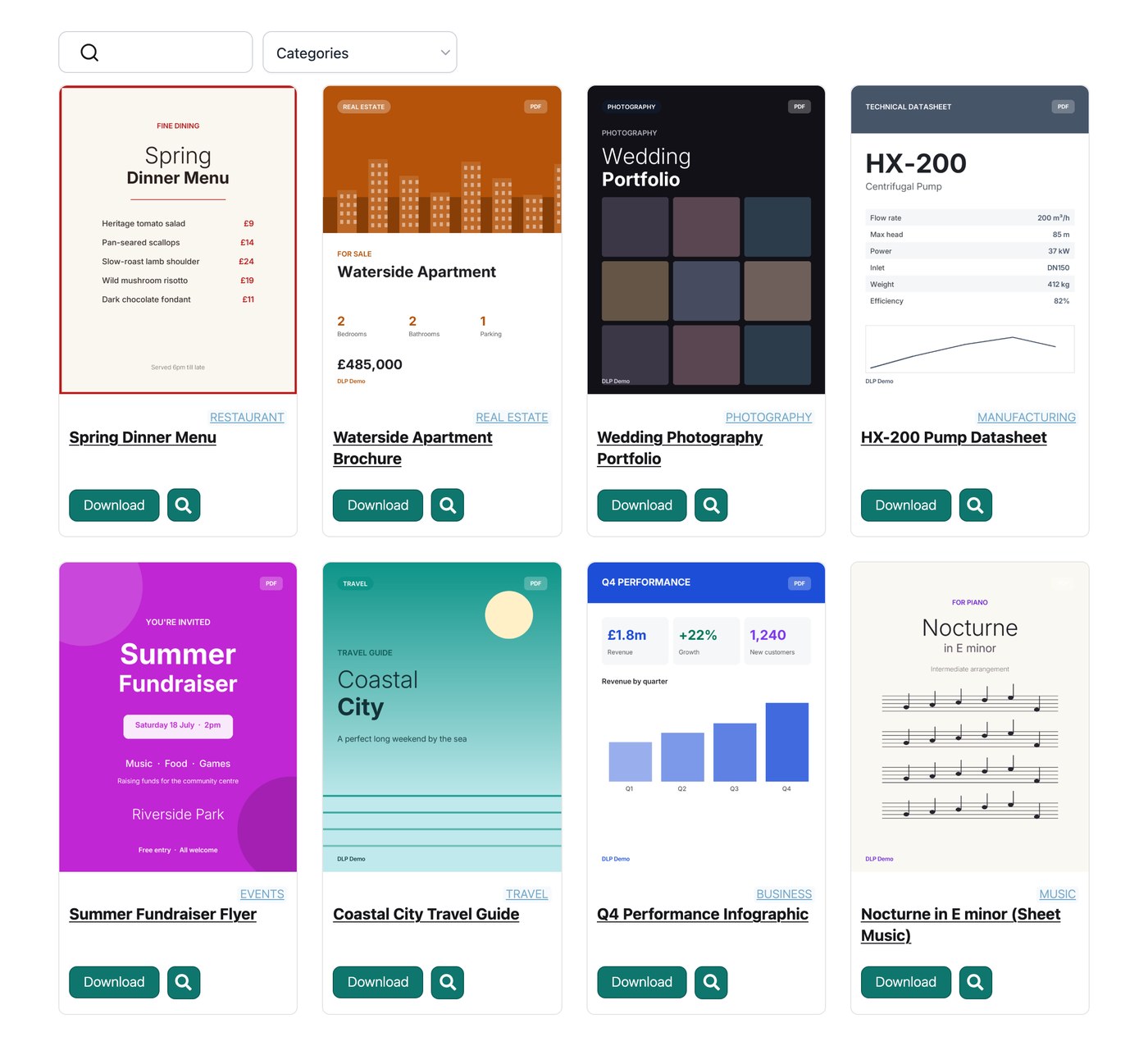
La cuadrícula muestra tus documentos como mosaicos, al estilo de un tablero de Trello o un catálogo de un servicio de streaming. Es una presentación más visual y resulta adecuada para colecciones pequeñas en las que cada archivo solo necesita incluir unos pocos datos.
De forma predeterminada, la cuadrícula ajusta su tamaño automáticamente, por lo que el número de columnas se adapta a la pantalla del visitante y al espacio disponible en la página. Si prefieres fijar el número, elige entre 1 y 4 columnas en el Library Builder. La cuadrícula admite una lista fija de campos que puedes activar o desactivar para cada documento.
También puedes colocar un cuadro de búsqueda por palabra clave y desplegables de filtro encima de la cuadrícula. Cuando el campo Imagen está activado, cada mosaico muestra la imagen destacada del documento y usa un icono de tipo de archivo si no se ha definido ninguna imagen.
¿Qué diseño debería usar?
Usa esto para decidir qué diseño encaja con cada biblioteca:
- Apariencia. Elige el estilo cuyo aspecto prefieras.
- Número de documentos. La cuadrícula funciona bien para colecciones más pequeñas. Puedes activar la Carpetas opción para agrupar documentos por categoría, de modo que los visitantes vean una categoría cada vez. Para categorías que contienen muchos archivos, la tabla es la mejor opción porque admite desplegables de filtro encima de la lista.
- Información que mostrar. Si solo necesitas datos estándar, como imagen, título, tamaño de archivo, tipo de archivo, categorías, descripción y botones de descarga o vista previa, cualquiera de los dos diseños funciona. Elige la tabla cuando quieras mostrar más campos, como taxonomías adicionales.
- Cuadro de búsqueda. Ambos diseños pueden incluir un cuadro de búsqueda, y la búsqueda funciona de la misma forma en cada diseño. Lee más sobre la lógica de búsqueda.