





Keeping your library current matters, so visitors always reach the latest version of each file. When a document changes in your organization, your hosted Document Library Pro library makes it quick to swap in the new version. Documents synced from a Google Drive or Dropbox folder update themselves: Just replace the file in the folder and the change syncs across automatically.
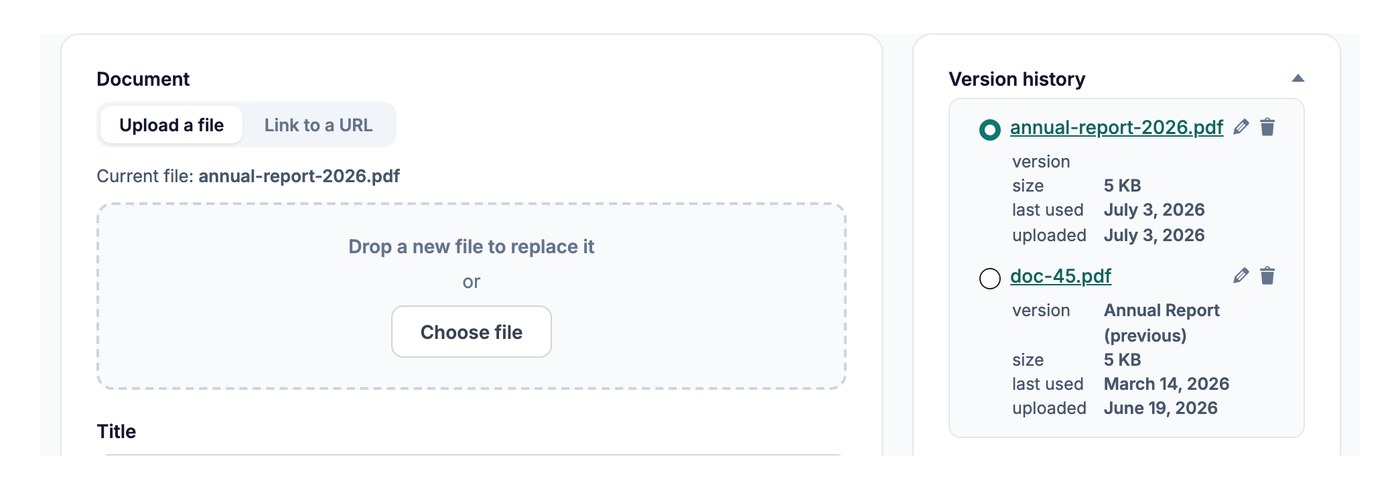
Replace the file on the document
To update a document, open it from Documents → My Documents and replace its file:
- Open the document you want to update from your dashboard.
- Click Replace file and upload the new version, or paste a new link if the file lives elsewhere online.
- Save the document.
The download link now points to the updated file, with no other changes needed.
Keeping older versions
If you have version control switched on, and Replacing files is set to keep the original, replacing a file keeps the earlier version on record so you can review what changed over time. Version control is an Advanced plan feature.