





Version control lets you replace the file behind a document while keeping the same library entry, and it keeps a record of the earlier files so you can look back at them. It is part of the Advanced plan of hosted Document Library Pro, so you will need an Advanced subscription (or an active trial) to use it. Once enabled, version history applies to documents whose file is stored in your account’s uploaded files; it does not apply to documents that link out to a file hosted elsewhere.
What version control does
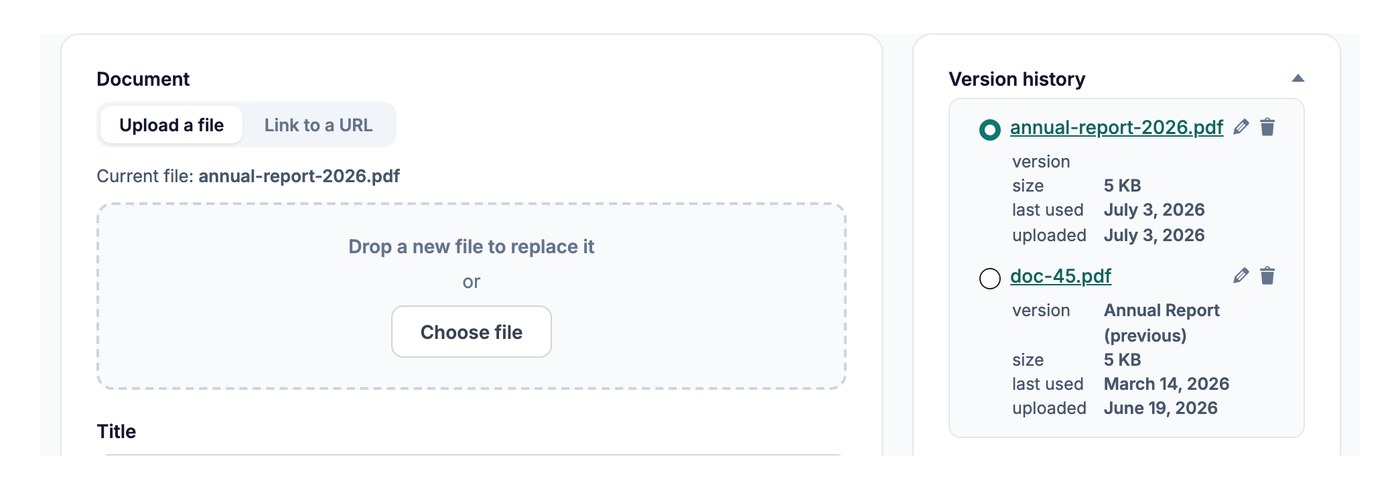
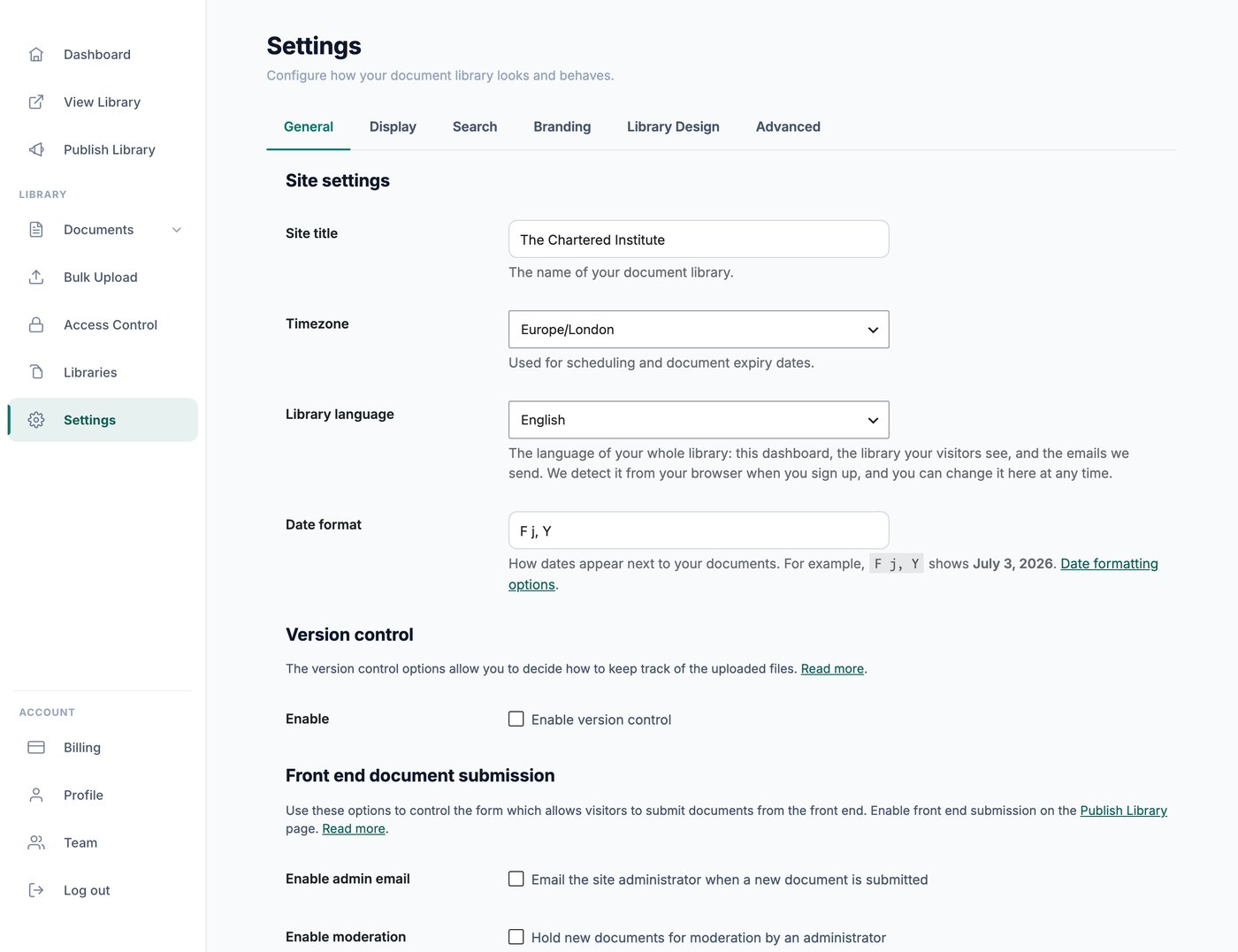
When you replace the downloadable file for a document, version control records details of the file it replaced. This gives you a history of the changes to that document over time, so you can keep track of how a file has been updated. You turn version control on in the Version control section of the General tab of your settings, where you also choose whether previous files are kept or deleted.
Keeping previous versions
Keeping previous versions is the default once version control is enabled. Each time you replace a document’s file, the older file is retained. Choose this if you might want to refer back to earlier files later.
With this option, the document’s editing screen shows a version history listing every file that has been used for that document. You can give each entry a version name or number to help you keep track. These labels are for your reference and are not shown to visitors. You can also delete an individual entry from the history if you no longer need that file.
Please note that version history is currently view-and-download only. You can open or download any earlier file from the history, but there is not yet a one-click option to make an older file the active version again. To go back to a previous file, download it from the history and re-upload it as the document’s current file.
Deleting previous versions
If you would rather not store old files, choose the delete option in your settings. With this setting, replacing a document’s file removes the previous file automatically, which saves storage space. Only the current file is kept, so there is no history to refer back to.
Showing a version label to visitors
Version names and numbers are stored against the document for your own reference and are not displayed in the library by default. If you want visitors to see a version label, the simplest approach is to include it in a column that does appear in the table, such as the document title or its description, and update that text whenever you replace the file.
As a related tip, file size is a built-in column in hosted Document Library Pro, so if you want to show how large each file is you can add the file size column to your library without any extra setup.