





Die gehostete Version von Document Library Pro enthält mehrere Elemente, die du über oder unter der Tabelle anzeigen kannst. Sie helfen Besuchern beim Suchen, Sortieren und Blättern durch deine Dokumente. Für deine Hauptbibliothek aktivierst und positionierst du diese Elemente in den Tabs Suche und Erweitert. Für eine von dir erstellte Bibliothek legst du sie im Schritt Steuerelemente des Bibliothekseditors fest.
Die verfügbaren Elemente sind:
- Suchfeld, das Stichwort-Suchfeld oben rechts in der Tabelle.
- Seitenlänge, das Auswahlfeld “x Einträge anzeigen”.
- Gesamtzahlen, die Anzahl der Dokumente in der Bibliothek (zum Beispiel “50 Dokumente”).
- Seitennummerierung, die Seitennavigations-Buttons, die unter einer mehrseitigen Tabelle erscheinen.
- unendliches Scrollen, eine Alternative zur Seitennavigation, die weitere Dokumente lädt, während Besucher scrollen.
- Zurücksetzen-Button, die allein erscheint, sobald ein Besucher gesucht oder gefiltert hat, und die Suche sowie die Filter zurücksetzt.
- Fußzeile, eine optionale Zeile am Ende der Tabelle, die die Spaltenüberschriften wiederholt.
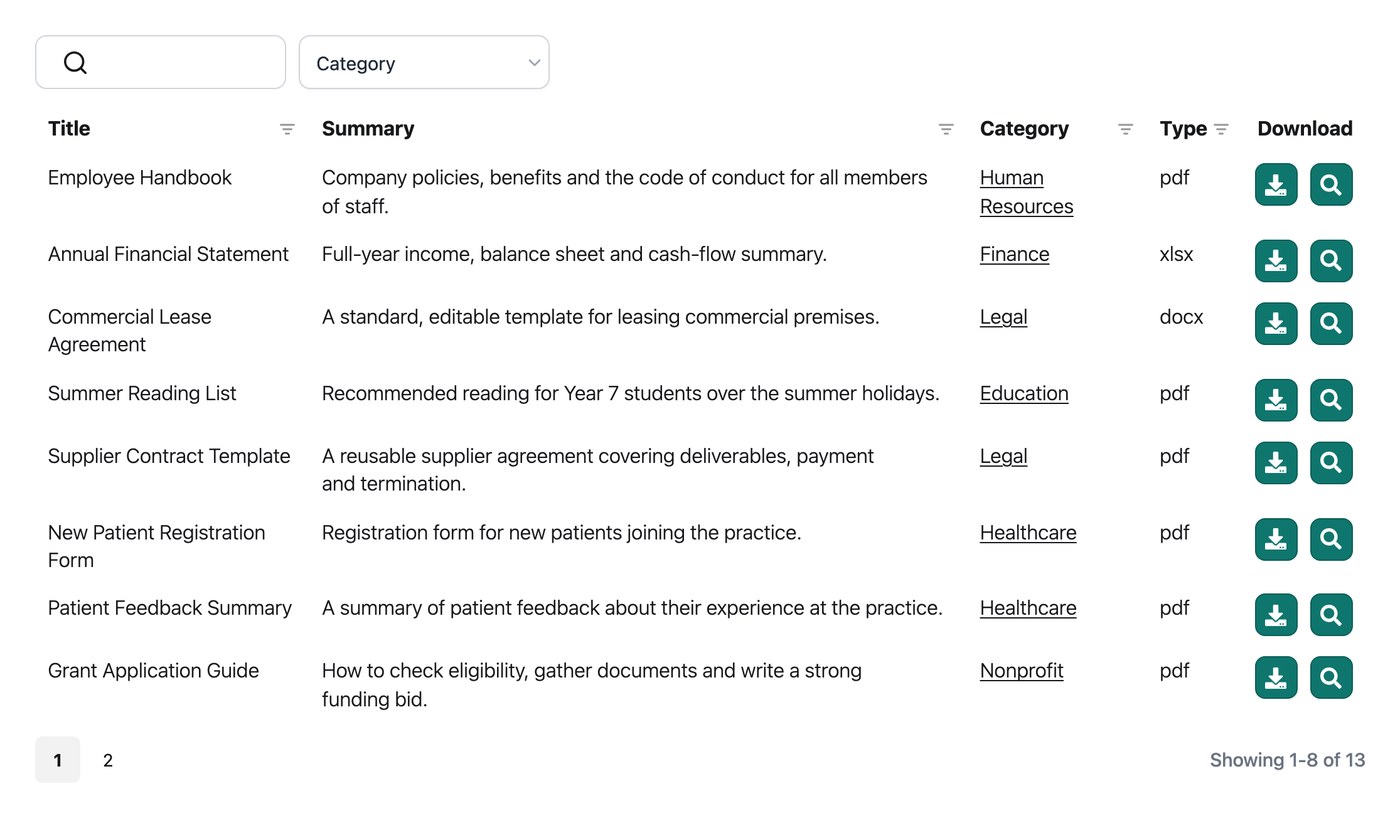
Suchfeld anzeigen
Mit dem Suchfeld können Besucher die Tabelle nach Stichwort filtern. Es erscheint oben rechts über der Tabelle, und du kannst es im Library Builder ein- oder ausschalten. Lies mehr darüber, wie die Suche funktioniert.
Seitenlänge anzeigen
Die Einstellung Seitenlänge steuert das Dropdown “x Einträge anzeigen”, mit dem Besucher festlegen, wie viele Dokumente gleichzeitig angezeigt werden. Du kannst es im Bibliothekseditor ein- oder ausschalten und seine Position im Tab Erweitert festlegen:
- Über der Bibliothek. Über der Tabelle.
- Unter der Bibliothek. Unter der Tabelle (Standardeinstellung).
- Über und unter der Bibliothek. An beiden Positionen.
- Ausgeblendet. Das Dropdown ausblenden.
Gesamtzahlen anzeigen
Die Einstellung Gesamtzahlen steuert die Dokumentanzahl, zum Beispiel “50 Dokumente”, und ihre Position. Du kannst sie im Bibliothekseditor ein- oder ausschalten und ihre Position im Tab Erweitert festlegen:
- Über der Bibliothek. Über der Tabelle.
- Unter der Bibliothek. Unter der Tabelle (Standardeinstellung).
- Über und unter der Bibliothek. An beiden Positionen.
- Ausgeblendet. Die Gesamtzahlen ausblenden.
Seitennavigation anzeigen
Die Einstellung Seitennummerierung steuert die Schaltflächen, mit denen Besucher zwischen den Seiten der Bibliothek wechseln. Deine Position legst du im Tab Erweitert fest:
- Über der Bibliothek. Über der Tabelle.
- Unter der Bibliothek. Unter der Tabelle (Standardeinstellung).
- Über und unter der Bibliothek. An beiden Positionen.
- Ausgeblendet. Die Buttons ausblenden.
Seitennavigationstyp
Die Einstellung für den Stil der Seitennavigation steuert das Aussehen der Seitennavigations-Buttons. Wähle aus fünf Stilen:
- Nur Zahlen. Nur Seitenzahlen (Standardeinstellung).
- Zurück|Weiter. Nur Zurück- und Weiter-Buttons.
- Zurück|Weiter + Zahlen. Zurück- und Weiter-Buttons plus Seitenzahlen.
- Zurück|Weiter|Erste|Letzte. Erste-, Zurück-, Weiter- und Letzte-Buttons.
- Zurück|Weiter|Erste|Letzte + Zahlen. Erste-, Zurück-, Weiter- und Letzte-Buttons plus Seitenzahlen.
unendliches Scrollen
Unendliches Scrollen ist eine Alternative zu den Standard-Buttons der Seitennavigation. Statt sich durch nummerierte Seiten zu klicken, werden automatisch weitere Dokumente geladen, wenn der Besucher in der Bibliothek nach unten scrollt. Das eignet sich besonders gut für Bibliotheken zum Stöbern, bei denen Besucher eher überfliegen, als nach etwas Bestimmtem zu suchen.
Du kannst im Tab Erweitert das unendliche Scrollen aktivieren. Danach gelten die obigen Optionen für die Seitennummerierung nicht mehr. Du wirst durch die Einstellung Containerhöhe ersetzt, welche die feste Höhe des scrollbaren Bereichs steuert. Der Standardwert ist 70vh (70 % der Höhe des Browserfensters). Du kannst jede CSS-Längeneinheit eingeben, zum Beispiel 500px.
Zurücksetzen-Button
Die Schaltfläche Zurücksetzen erscheint über der Tabelle, sobald ein Besucher gesucht oder gefiltert hat. Sie löscht die aktuelle Suche und die Filter. Dafür gibt es keine Einstellung, da sie nur erscheint, wenn etwas zurückgesetzt werden kann.
Fußzeile anzeigen
Nur beim Tabellenlayout wiederholt die Fußzeilen-Einstellung die Spaltenüberschriften sowohl am Ende der Tabelle als auch oben. Sie ist standardmäßig ausgeblendet, und du kannst sie im Library Builder aktivieren.