





Your hosted library can show download links as a separate button for each document, as multi-select checkboxes, or both together. This article explains how the multi-select checkboxes work and what to keep in mind when you use them.
How it works
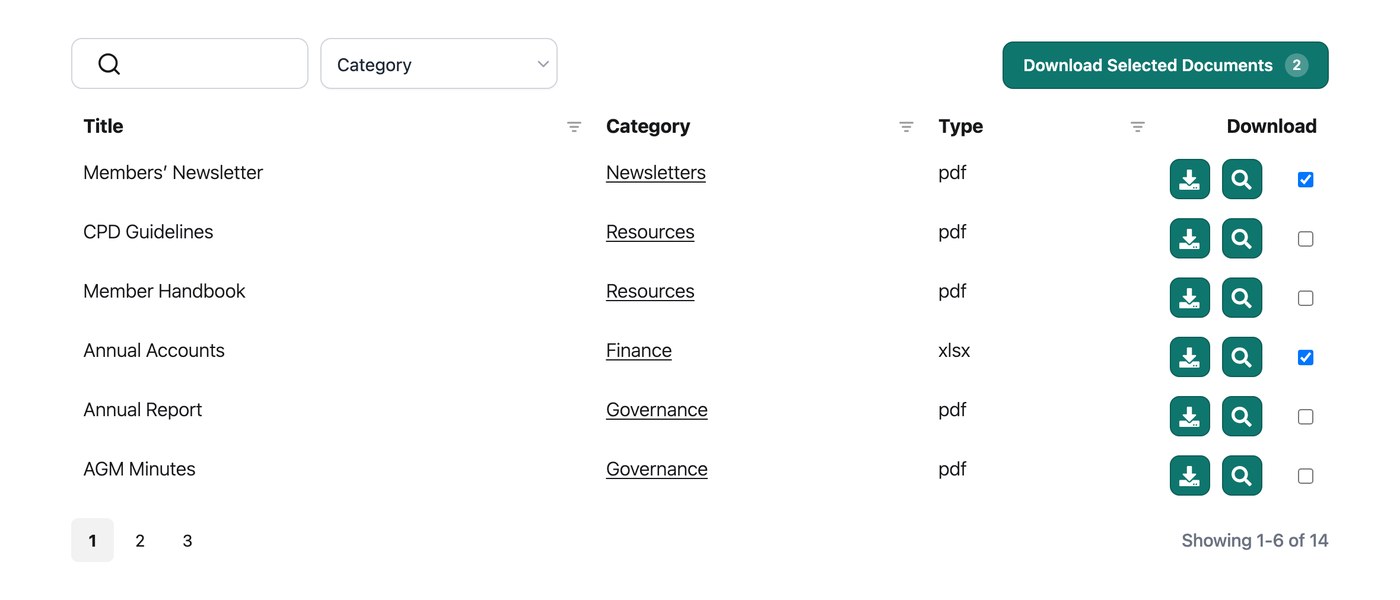
Checkboxes are available in the table layout, not the grid layout. Once enabled, a checkbox appears beside every document that can be downloaded directly to the visitor’s device. Documents that link to a web page or URL do not get a checkbox, because there is no file to bundle up.
Visitors tick the documents they want from the current page, then click the “Download Selected Documents” button shown above and/or below the table. The chosen files arrive on their device as a single zip archive, saved to wherever their browser sends downloads, such as a Downloads folder or the desktop.
Options
The multi-download feature gives you these choices in your library settings:
- Show the checkboxes on their own, or alongside a separate download button for each document.
- Place the “Download Selected Documents” button above the table, below it, or in both spots.
- Reword the “Download Selected Documents” button to suit your site.
Limitations
Multi-download works in all major desktop browsers and can build zip archives up to 1GB. On mobile browsers, zip files only generate for selections under 50MB, because of the tighter memory available on phones. Checkboxes appear only for file-type documents, not for documents that link out to a URL.