





Once you have added documents to your hosted Document Library Pro library, keeping them tidy and up to date is straightforward. This article walks through viewing and editing documents, organizing them with categories and tags, and tracking older versions.
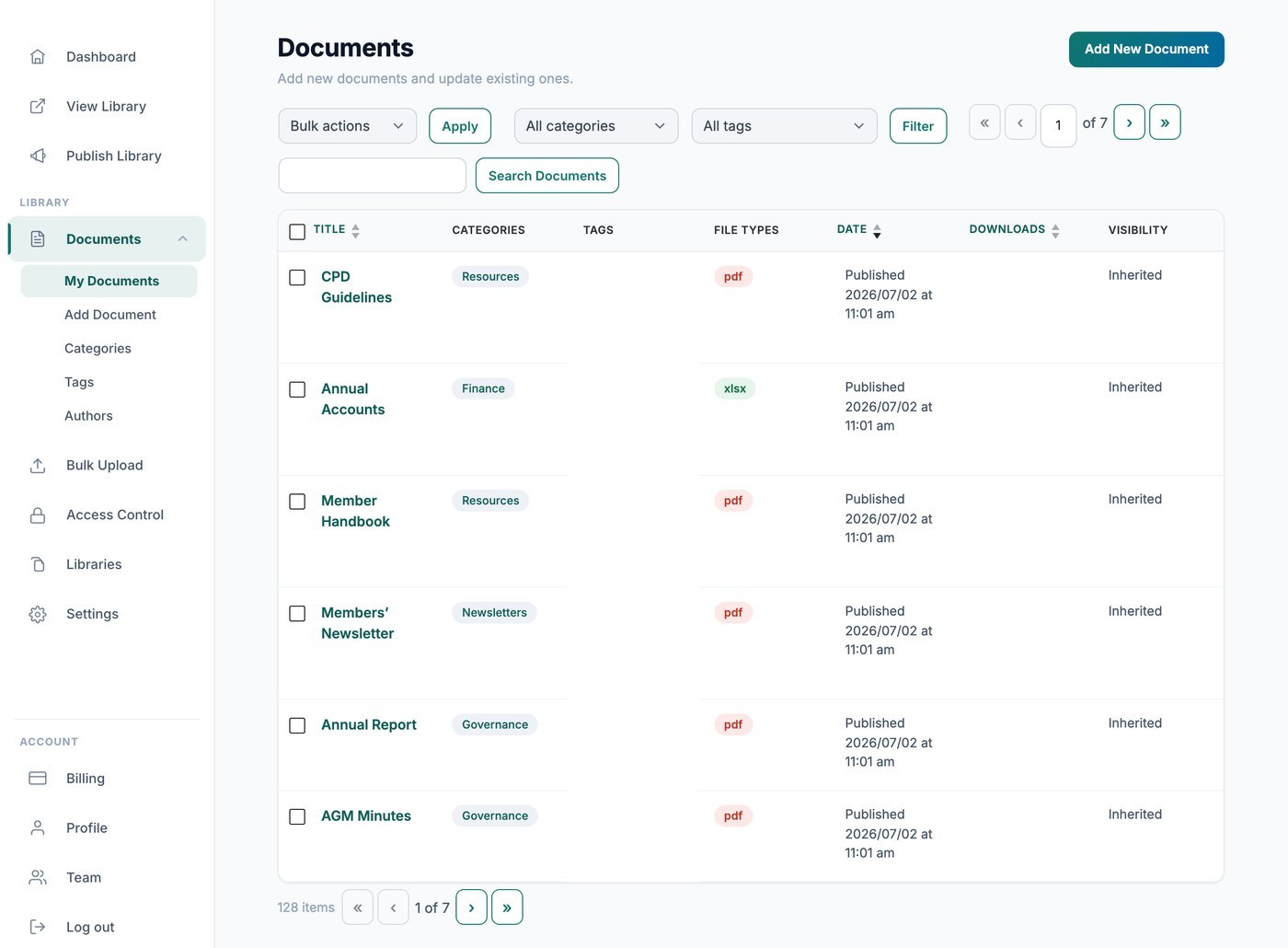
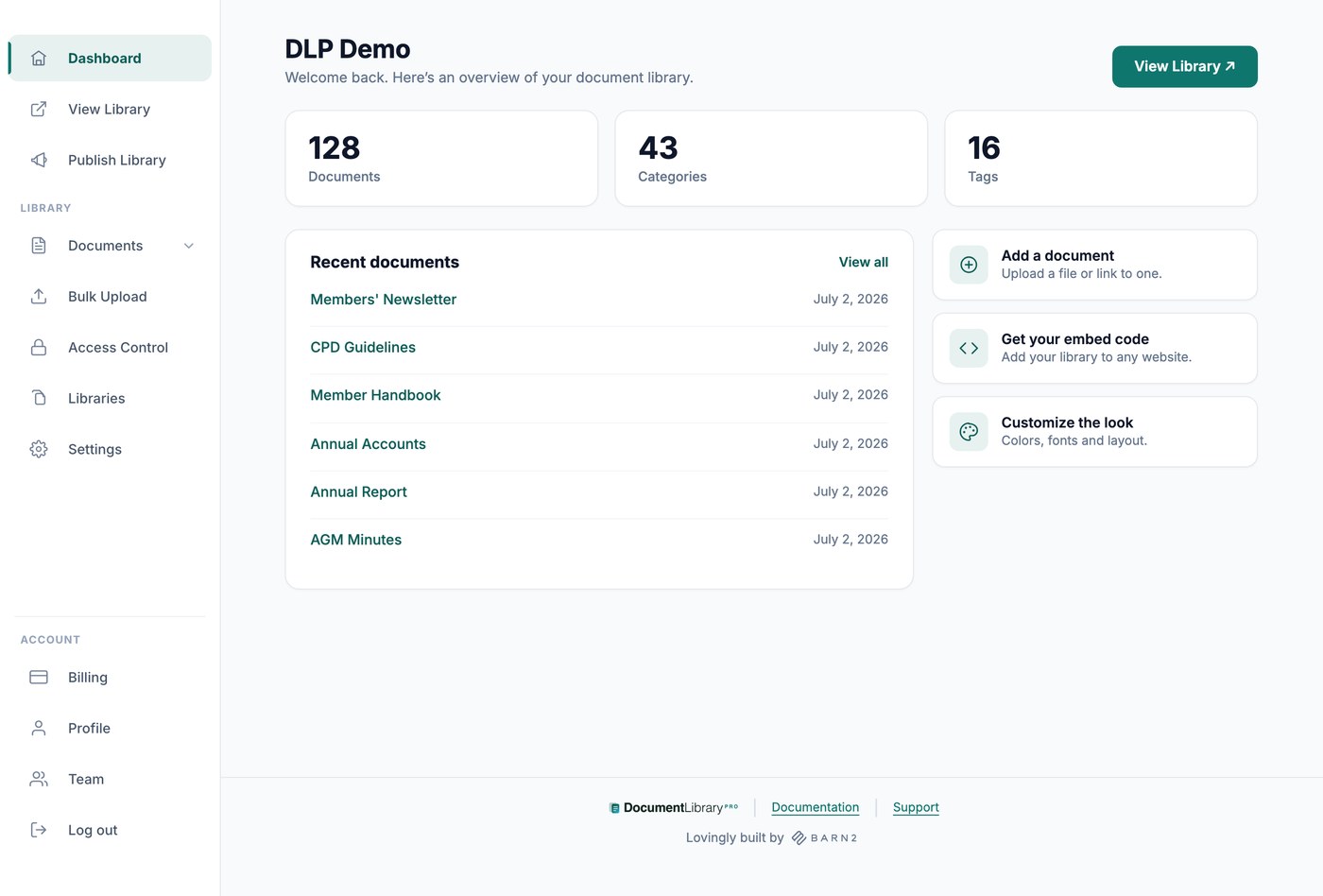
Viewing and editing documents
Open your dashboard to see the full list of documents in your library. From there you can click any document to open it on the Add Document screen and make changes, or select several documents at once to remove them together.
Further reading: How to update and replace documents with newer versions.
Document categories
Categories group related documents and are kept separate from any blog categories on your site. Manage them from the Categories area of your dashboard, where you can create, edit, and delete categories and arrange them into parent and child groups. Any category you type straight into the Add Document screen is added to this list too. The Categories area is also where you can sync a category with a Google Drive or Dropbox folder on the Advanced plan.
Document tags
Tags give you a second, looser way to label documents. Manage them from the Tags area of your dashboard to create, rename, and remove tags. As with categories, any tag you add on the Add Document screen also shows up here.
Managing document versions
Document Library Pro includes version control, which lets you keep and review earlier versions of a document’s file as you replace it over time. Version control is an Advanced plan feature.