





Lead capture lets you ask visitors for their details before they can download documents from your library. It is part of the Advanced plan of hosted Document Library Pro, so you will need an Advanced subscription (or an active trial) to use it.
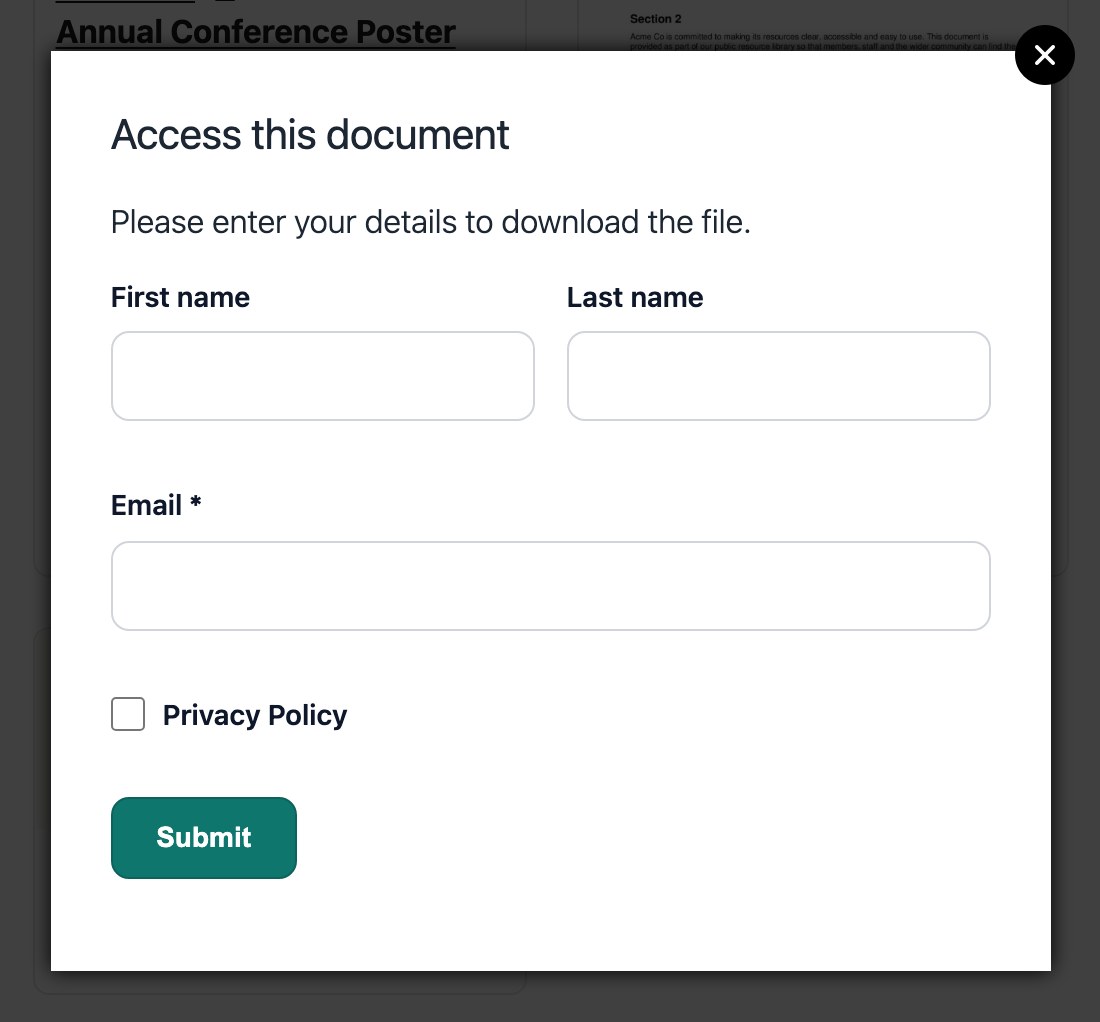
When lead capture is switched on, clicking a download button opens a popup form. The visitor has to complete that form before the file becomes available to them.
Turning lead capture on
Open your account settings and go to the Lead Capture section. Switch on lead capture, then enter the recipient email address that should receive a notification whenever someone completes the form. The settings let you control who sees the form, which details are collected, and the wording shown in the popup.
Recipient email address
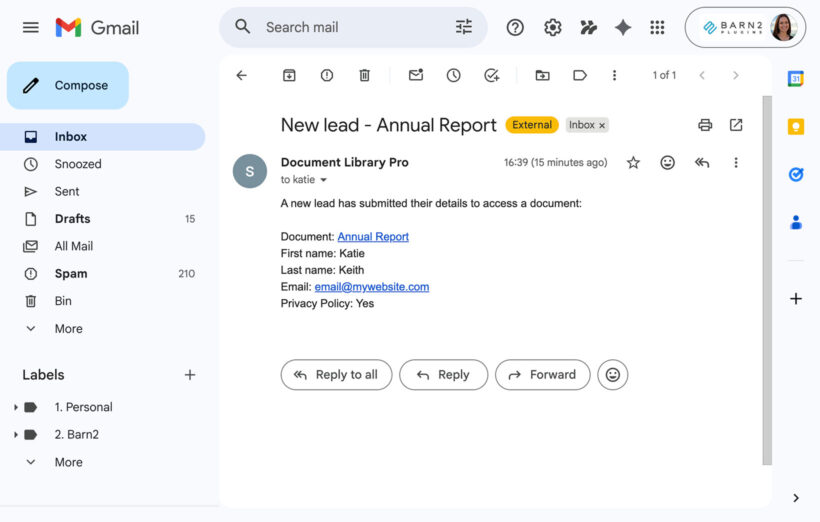
Enter the address that should be notified about new leads. Each time a visitor submits the form, you will receive an email containing the details they entered.
Skip the form for signed-in visitors
If you only want to capture details from new visitors, you can choose not to require the form for people who are already signed in. The form is also always skipped for the account owner.
Form text
You can edit the wording of every part of the popup:
- Heading text shown at the top of the form.
- Introduction text shown below the heading.
- First name, last name and email address labels for each field.
- Privacy consent text shown next to the consent checkbox (leave blank to hide the checkbox).
- Submit button text.
- Confirmation message shown after the form is submitted.
- Download button text shown once the form is complete.
Use the Required options to decide whether the first name, last name and privacy consent fields must be completed before the form can be submitted.
Privacy consent
The form can include an optional privacy consent checkbox. Enter wording in the privacy consent text field and it will appear next to a checkbox in the popup. Leave the field blank and no checkbox is shown. You can also mark the consent as required so visitors cannot download until they tick the box. It is your responsibility to make sure the wording meets your local data protection rules, including GDPR where it applies.
What happens after someone submits the form
Once a visitor submits the form they see your confirmation message and a download button, and clicking it starts the download. From then on they can use the rest of the library without filling in the form again. At the same time, a notification email is sent to your recipient address, including the name of the document they were trying to download and the details they entered.
Sending leads to your mailing list or CRM
As well as emailing you, hosted Document Library Pro can send each submission to an external service automatically using a webhook. In the Lead Capture settings, enter your Webhook URL. Whenever someone completes the form, the lead details (such as first name, last name, email address, consent status and the document title) are posted to that URL.
Most mailing list platforms, CRMs and automation tools (for example Zapier or Make) let you create an inbound webhook that gives you a URL to paste here. Once connected, you can use that platform to add the contact to a list, start an email sequence, notify your sales team, or trigger follow-up actions based on the document that was downloaded. This keeps everything no-code: you set the webhook URL once and your hosted library handles the rest.
Anti-spam protection
The form includes built-in anti-spam protection so you do not need a third-party CAPTCHA service. A hidden honeypot field catches automated bots, and the form also checks how quickly it was submitted. If it is sent within a few seconds of the page loading, the submission is treated as spam.
What visitors can see before entering their details
Only the download buttons require visitors to complete the form. Everything else in the library stays available as normal, including browsing documents and their data in the table, and using the preview buttons. If you do not want people previewing files before they hand over their details, switch document previews off.
If you need stronger restrictions, the Advanced plan also includes password protection so you can lock the whole library, or a specific library, behind a password.
How long access lasts
After submitting the form, visitors can keep using the library without seeing it again. Signed-in visitors will never be shown the form again. For everyone else, access is remembered in a cookie in their browser, so if they return from a different browser or device they will need to complete the form once more.