


Many parish and town councils build their websites with HugoFox. HugoFox doesn’t let you embed content from other websites: Its page builder has no HTML or embed block, and its Video block only accepts YouTube and Vimeo links. Instead, you link to your library’s own website from a page on your HugoFox site.
Before you begin: This works on every HugoFox package, including the free trial. Your Document Library Pro account already includes a hosted website for your library, so there’s no second site to build. Visitors click a link on your HugoFox site and the library opens on its own page, where they can search, filter and download your council documents.
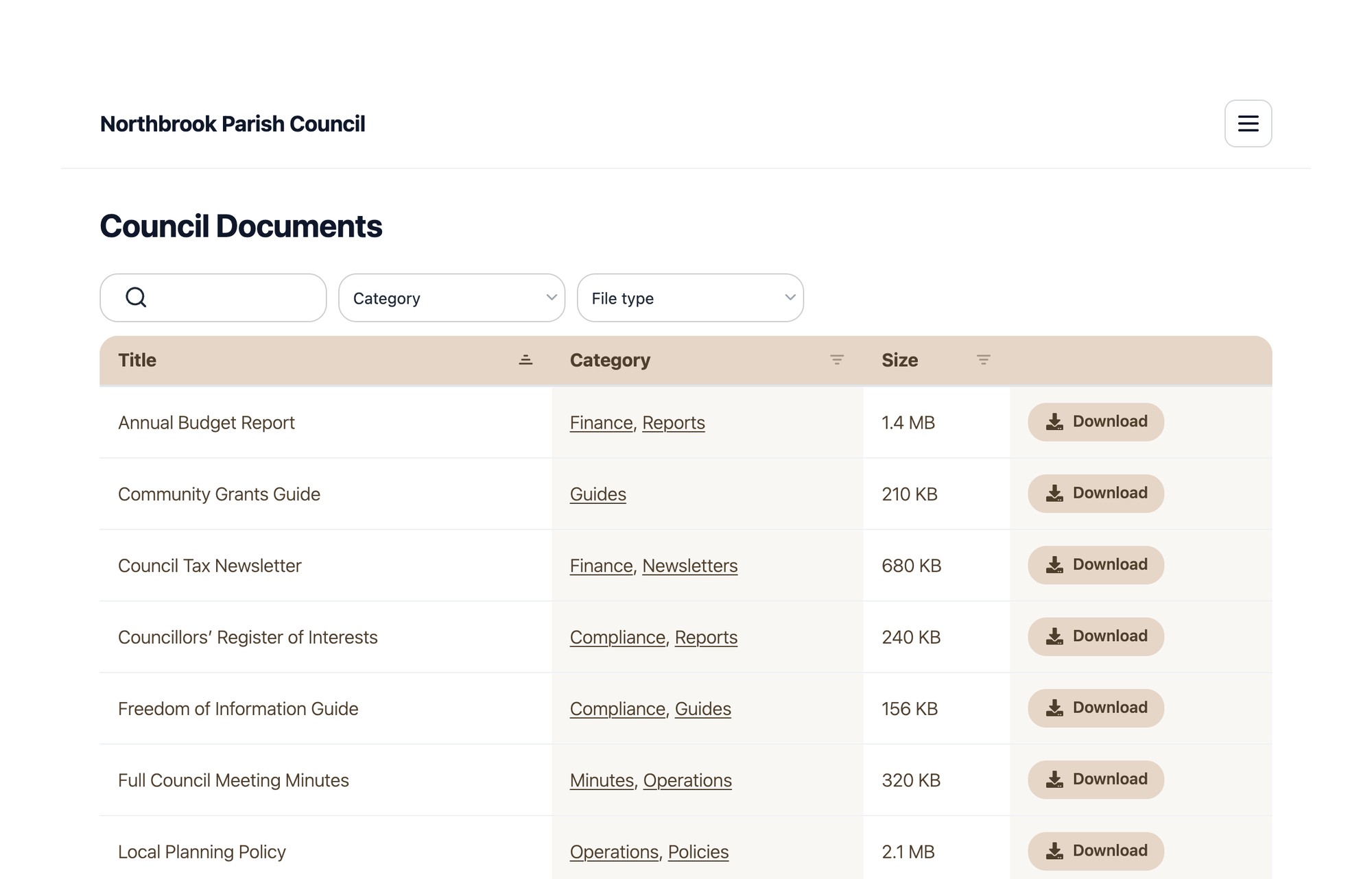
Step 1: Copy your library’s website address
- Log in to Document Library Pro and click Publish Library in the menu.
- Find the Your website section. If you don’t see it, click Create website at the foot of the page.
- Set the Homepage title to your council’s name, for example Northbrook Parish Council, and click Save.
- Click Copy Link next to your Website address.
Your address looks like https://your-library.documentlibrary.app. To use an address of your own, such as documents.yourcouncil.gov.uk, see using a custom domain with your document library.
Step 2: Add a documents page to your HugoFox site
- In your HugoFox dashboard, go to Dashboard → Website and click Add New Page.
- Type a Page Title, such as Council Documents. HugoFox uses it in your site navigation, so keep it under its 25-character limit.
- Under Add+, click Text to add a Text block.
- Type a sentence for visitors, for example: Search and download our agendas, minutes, policies and budget reports in the council document library.
- Highlight a few words to turn into a link, such as council document library, and click the link button in the toolbar.
- Paste your library’s address into the URL box. HugoFox sets the Protocol to https:// for you. Click OK.
- Click Save & Close.
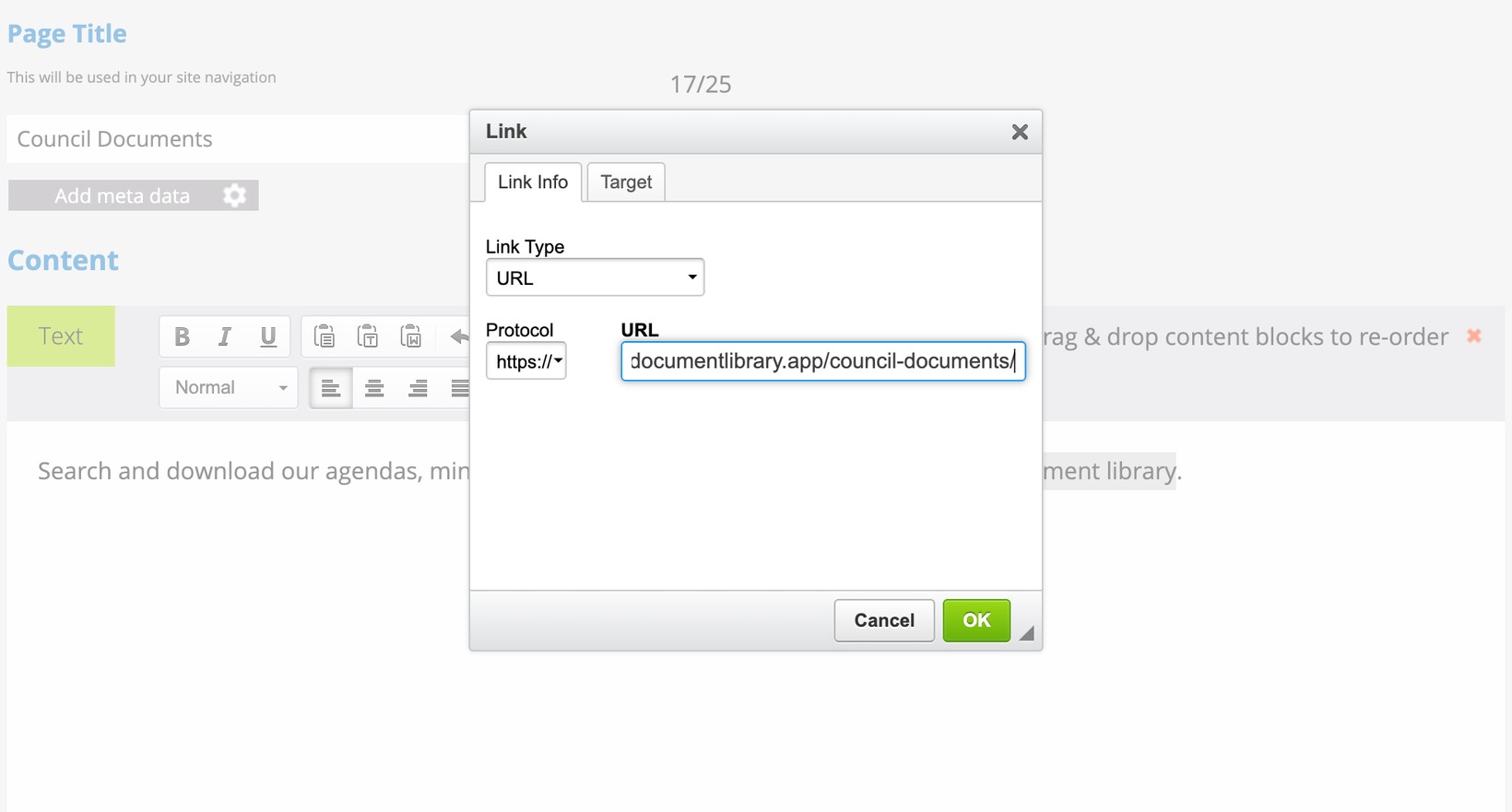
You can add the same link to your Home page, or to any other page where residents look for documents.
Step 3: Check the page
Back on Dashboard → Website, click the magnifying glass next to your new page to preview it. The page appears in your menu, and the link opens your document library.
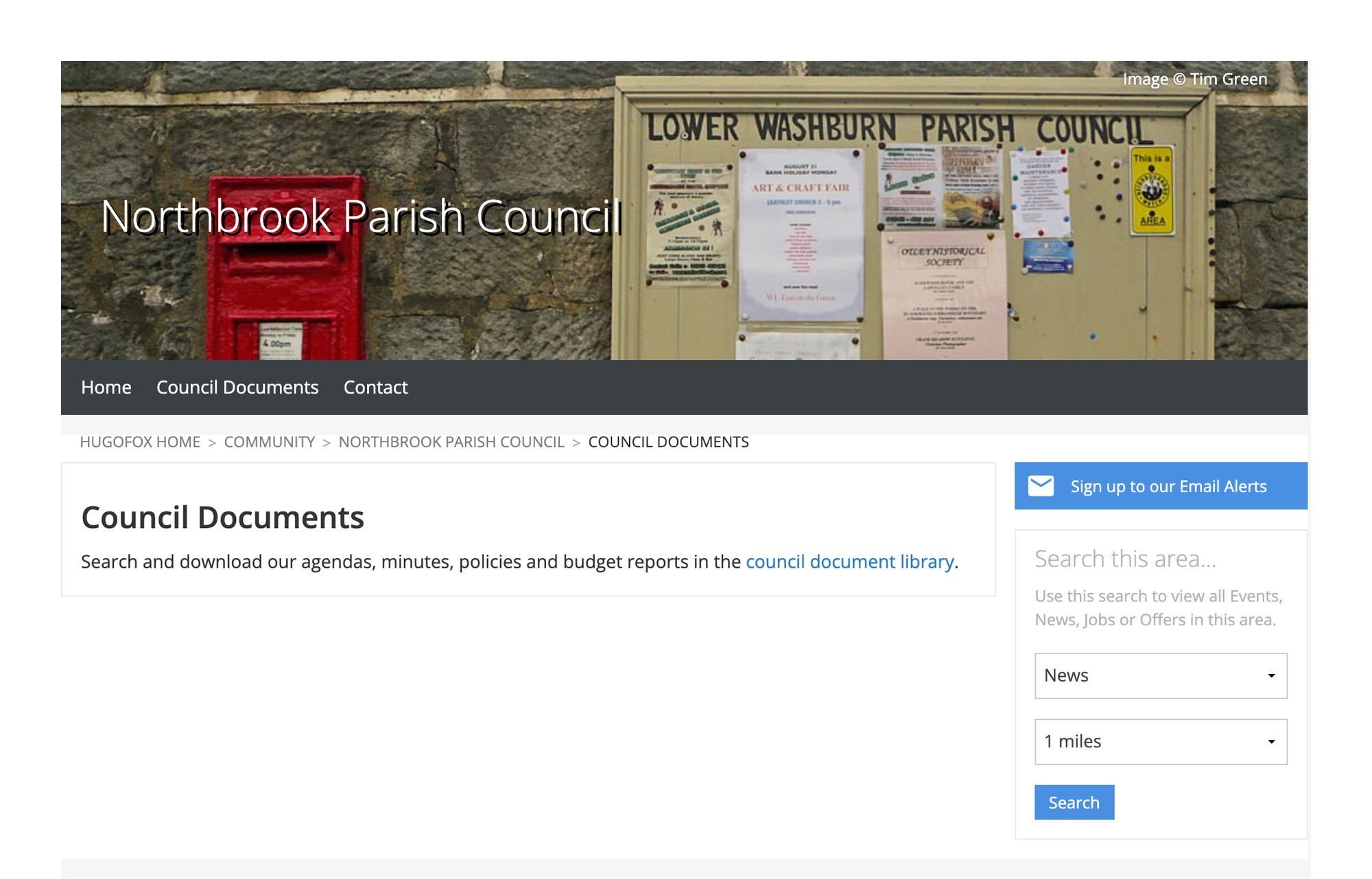
When you add or replace documents in Document Library Pro, the library updates straight away. You don’t need to edit the HugoFox page again.
Who can see the library
Your library’s website is public, so anyone with the address can open it. That suits minutes, agendas and policies, which councils publish for residents anyway. For documents that only councillors or staff should see, password protect your library on the Advanced plan.
If the link doesn’t work
Open the page in the HugoFox editor, click the link and click the link button again. Check that the URL box holds your full library address and that Protocol is set to https://.
Free setup for your council library
Our team can build your council’s library for you at no cost. To ask for this, fill in the form on our free setup service page.