





Ogni documento nella tua libreria è un file che carichi oppure un link a un file ospitato altrove. Li aggiungi e modifichi nella Documents sezione della tua dashboard.
Questo articolo copre l'aggiunta di documenti uno alla volta. Per aggiungere molti documenti in una volta sola, vedi aggiungere documenti in blocco.
Aggiungi un documento
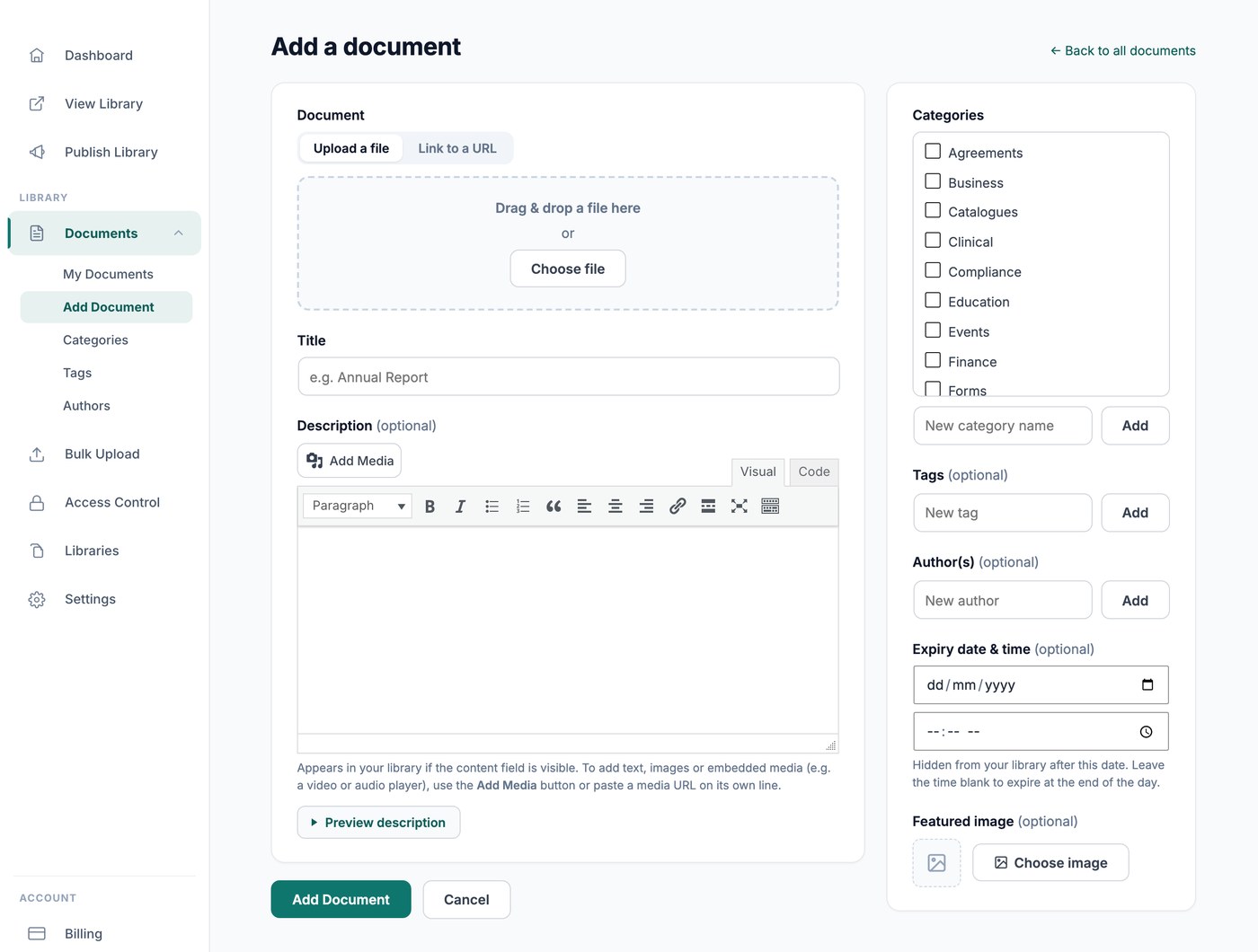
Vai a Documenti → Aggiungi documento. La schermata contiene i seguenti campi:
- Document - Scegli Carica un file o Collega a un URL. Per caricare, trascina un file nell'area di rilascio oppure fai clic su Scegli file. La maggior parte dei tipi di file è supportata, inclusi PDF, file Word, Excel e PowerPoint, immagini, audio e video. Per collegarti a un file che è già online, ad esempio un file Google Drive o un video, passa a Link a un URL e incolla l'indirizzo web. Vedi quali tipi e dimensioni di file puoi aggiungere.
- File size (facoltativo) - Rilevato automaticamente per i file caricati. Inseriscilo manualmente per un URL, ad esempio 2 MB, così può apparire nella tua libreria.
- Titolo - Il nome del documento nella tua libreria. Questo è l'unico campo obbligatorio.
- Descrizione (facoltativo) - Appare nella tua libreria quando il campo contenuto è visualizzato. Usa il pulsante Aggiungi media per includere immagini, oppure incolla un URL multimediale su una riga separata per incorporare un lettore video o audio. Fai clic su Anteprima descrizione per vedere come apparirà nella tua libreria.
- Categorie - Raggruppa i documenti correlati. I tuoi filtri e le tue cartelle vengono creati dalle categorie dei documenti e ogni libreria può essere limitata a categorie specifiche. Fai clic su Aggiungi per creare una nuova categoria senza lasciare la schermata. Vedi categorie, tag e autori.
- Tags (facoltativo) - Un secondo modo, più libero, per etichettare i documenti. I tag funzionano insieme alle categorie e possono essere usati anche come filtro.
- Autore/i (facoltativo) - L'autore mostrato accanto al documento. È separato dalla persona che lo ha aggiunto.
- Immagine in evidenza (facoltativo) - La miniatura del documento, che rende particolarmente bene nel layout a griglia. Lasciala vuota e, dove possibile, viene generata una miniatura dai file PDF e immagine. Vedi Opzioni immagini della libreria di documenti.
- Cronologia versioni (solo piano Advanced) - Conserva il file precedente ogni volta che ne sostituisci uno, così hai una cronologia del documento. Vedi controllo versioni documenti.
- Data e ora di scadenza (facoltativo, solo piano Advanced) - Il documento viene nascosto dalla tua libreria dopo questa data. Lascia l'ora vuota per farlo scadere alla fine della giornata. Vedi scadenza dei documenti.
Clicca Pubblica per aggiungere il documento alla tua libreria, oppure Salva bozza per continuare a lavorarci. I documenti in bozza restano fuori dalla tua libreria finché non li pubblichi.
Modifica o elimina un documento
Vai a Documenti → I miei documenti per vedere tutto ciò che è nella tua libreria, poi fai clic su un documento per aprirlo. La schermata è la stessa che hai usato per aggiungerlo, con un pulsante Salva modifiche in fondo.
Per sostituire il file dietro un documento, fai clic su Sostituisci file e carica la nuova versione. Il documento mantiene titolo, descrizione, categorie e impostazioni, quindi tutti i link continuano a funzionare. Vedi come aggiornare e sostituire i documenti.
Per eliminare documenti, selezionali nella schermata I miei documenti ed eliminali insieme.
aggiungere documenti in blocco
Ci sono tre modi per aggiungere documenti senza inserirli uno per uno:
- Caricamento in blocco (solo piano Advanced) - Trascina un gruppo di file per creare un documento per ogni file, oppure importa un foglio di calcolo per impostare titolo, descrizione, categorie e altro per tutti i documenti in una volta sola.
- Sincronizzazione cartella (solo piano Advanced) - Collega una cartella Google Drive o Dropbox a una categoria. I documenti vengono creati per te e restano sincronizzati con la cartella. Vedi sincronizzare una cartella Google Drive o Dropbox con la tua libreria.
- Invii dei visitatori - Consenti ai visitatori di inviare i propri documenti tramite un modulo, che approvi prima che appaiano. Vedi accettare gli invii di documenti dai visitatori.
Passaggi successivi
Dopo aver aggiunto i tuoi documenti, il passaggio successivo è scegliere come appaiono ai visitatori. Vedi layout della libreria di documenti per scegliere tra tabella, griglia e cartelle, e pubblicazione della tua libreria per mostrarla alle persone.