





Document Library Pro è un servizio ospitato, quindi non c'è nulla da installare e nessun aggiornamento da applicare. Questo articolo spiega come creare la tua libreria, come completare la procedura guidata di configurazione, e come orientarti nella bacheca.
Guarda il tutorial completo
Crea la tua libreria
Dopo l'iscrizione, si apre la schermata Completa la configurazione della libreria . Ha due campi:
- Nome della libreria - Il nome della tua libreria di documenti, usato nella bacheca e nel sito web della libreria. Puoi modificarlo in seguito in Impostazioni → Generale.
- Indirizzo web - Un indirizzo breve come acme, che crea acme.documentlibrary.app. Usa lettere minuscole, numeri e trattini. Un indirizzo brandizzato come docs.yourcompany.com può essere configurato in seguito collegando un dominio personalizzato.
Clicca Crea la mia libreria. Ci vogliono circa 20 secondi, quindi tieni aperta la pagina finché non termina.
Procedura guidata di configurazione
La procedura guidata di configurazione si apre automaticamente la prima volta che visiti la bacheca, iniziando da una schermata Benvenuto . Imposta le opzioni principali per le tue librerie di documenti e ha tre passaggi.
Tutte queste opzioni sono disponibili in seguito nelle Impostazioni, e ogni libreria che crei più avanti può usare opzioni diverse.
Passaggio 1: La tua libreria
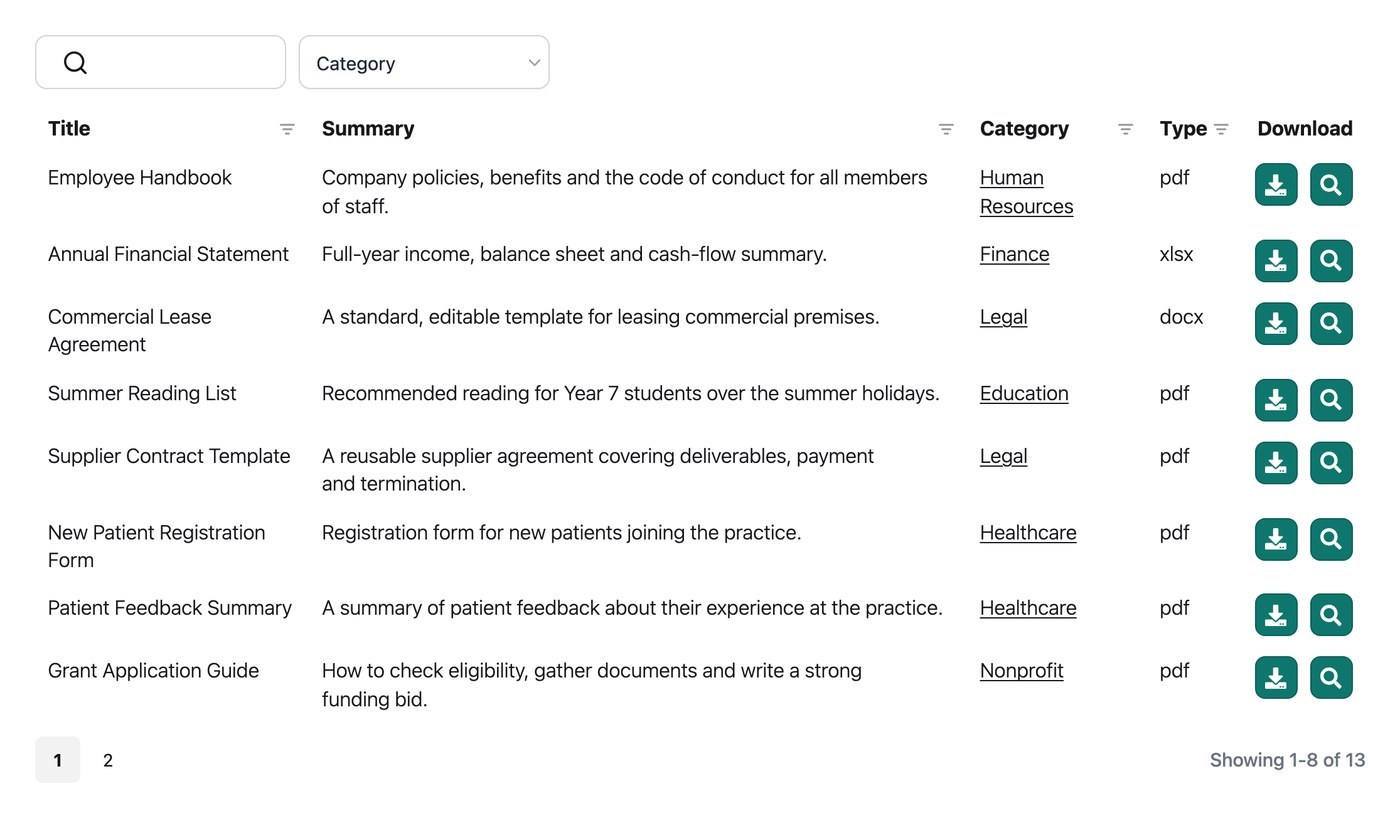
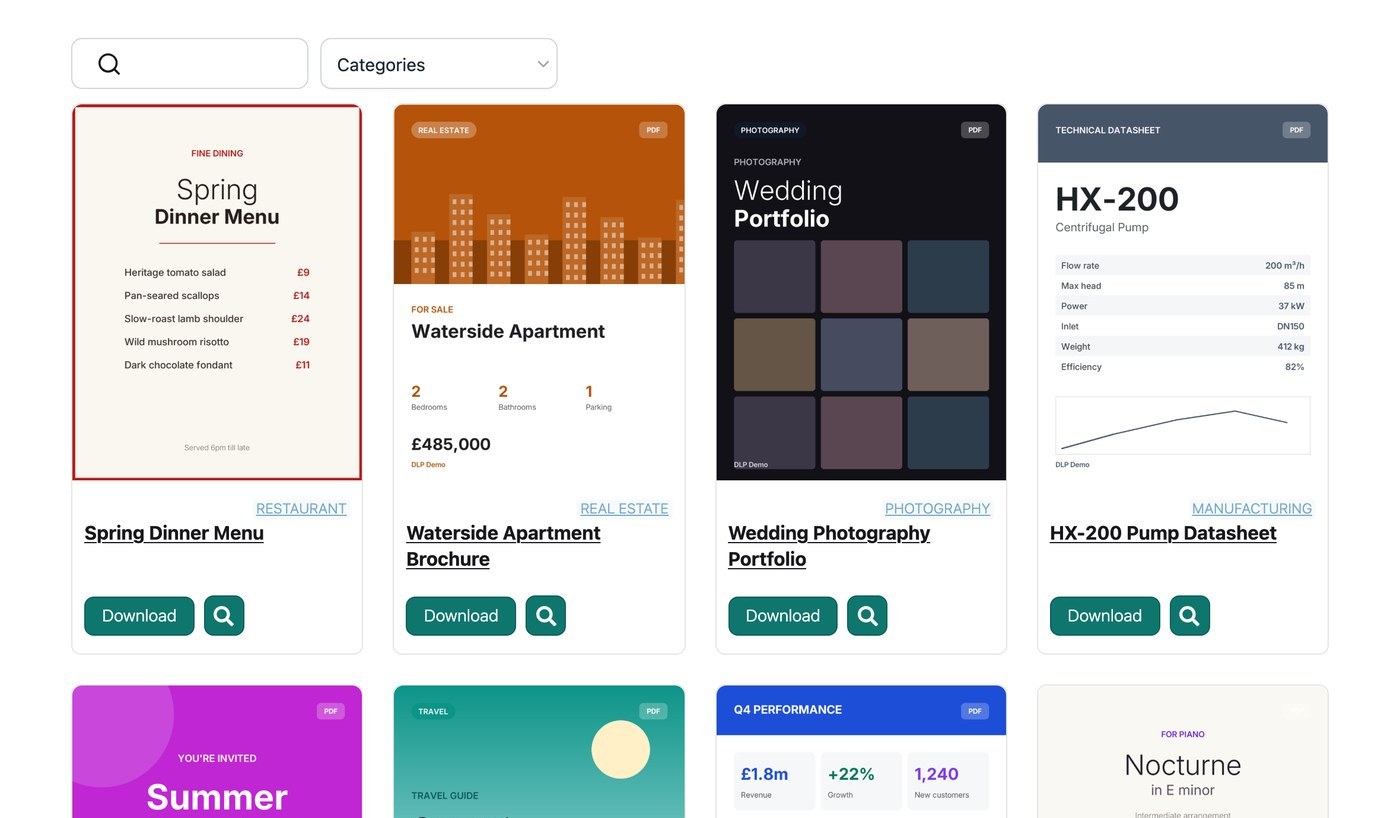
- Layout predefinito - Tabella elenca i documenti con più colonne di informazioni, ed è adatta a elenchi lunghi che i visitatori cercano e scorrono. Griglia mostra i documenti come riquadri, ed è adatta a raccolte visive come brochure e report. Vedi layout della libreria di documenti.
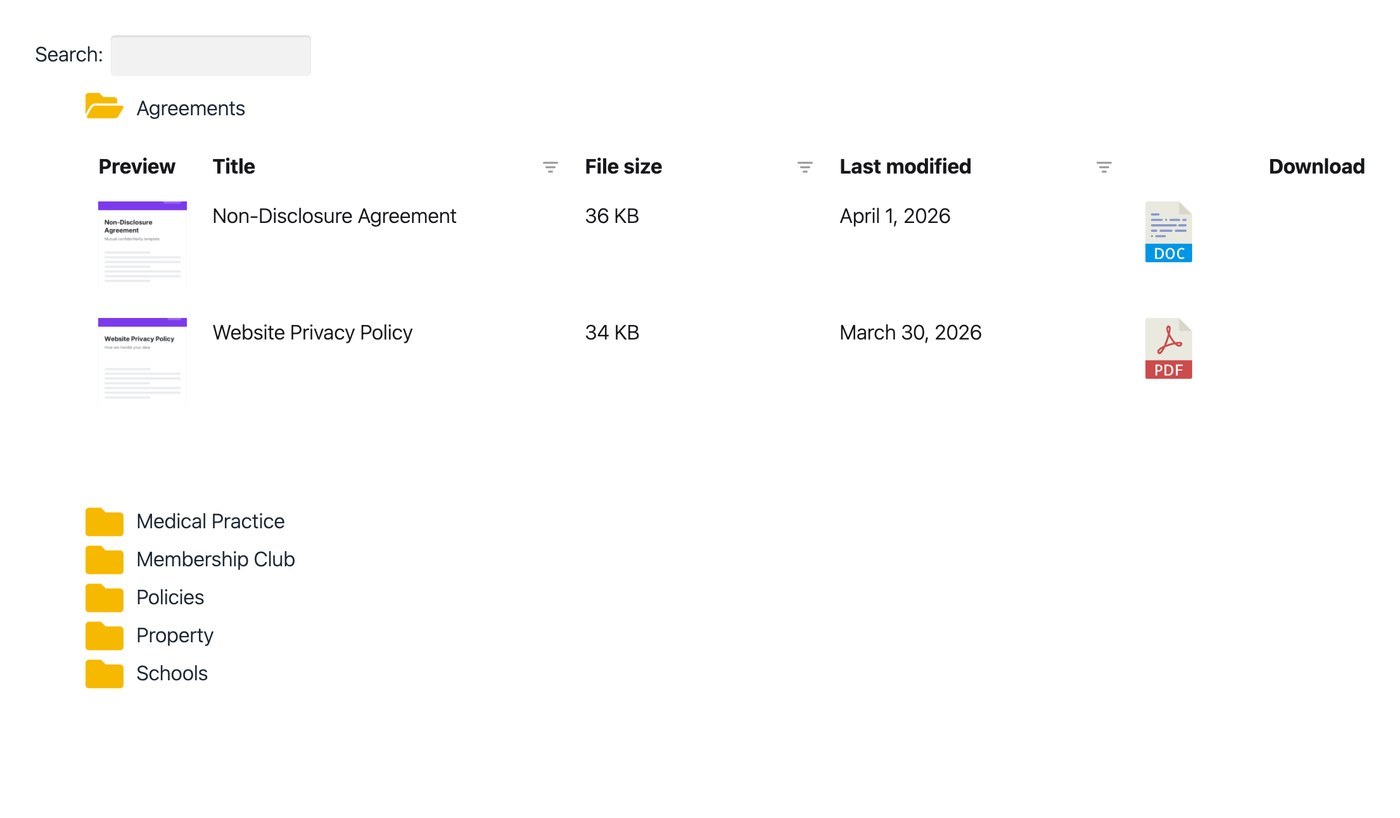
- Cartelle - Organizza la libreria in un albero di cartelle creato dalle categorie dei documenti, che i visitatori aprono una cartella alla volta. Vedi cartelle dei documenti.
- Anteprima documento - Aggiunge un pulsante di anteprima, così i visitatori possono leggere un documento in una lightbox invece di scaricarlo. L'opzione di anteprima appare solo per i tipi di file supportati. Vedi anteprima documento.
- Lingua principale - La lingua che i visitatori vedono nella tua libreria. Imposta anche la lingua della bacheca e delle email che ti vengono inviate. Per usare una lingua non elencata, o una lingua diversa in ogni libreria, vedi tradurre la tua libreria di documenti.
Passaggio 2: Tabelle o Griglia
Il secondo passaggio dipende dal layout selezionato nel passaggio 1. Scegliendo Tabella viene mostrato il passaggio Tabelle , mentre scegliendo Griglia viene mostrato il passaggio Griglia .
Il passaggio Tabelle ha due opzioni:
- Colonne - Usa il generatore di colonne per selezionare quali dati dei documenti appaiono nella tabella, come titolo, categorie, tipo di file, dimensione del file, data e link al documento. Trascina e rilascia per riordinare le colonne, e usa l'icona della matita per rinominarne una o regolarne la larghezza. Vedi contenuto della libreria di documenti.
- Download multipli - Aggiunge una casella di selezione a ogni riga, più un pulsante che scarica i documenti selezionati come un unico file zip. Vedi link nella libreria di documenti.
Il passaggio Griglia ha un'opzione:
- Contenuto della griglia - Seleziona quali informazioni appaiono su ogni scheda. Le opzioni sono immagine, titolo, nome file, tipo di file, dimensione del file, conteggio download, categorie, autori, descrizione del documento e link al documento.
Ogni libreria che crei in seguito può usare l'altro layout, e le sue colonne o il contenuto delle schede vengono impostati nel Library Builder.
Passaggio 3: Filtri dei documenti
I filtri sono menu a discesa che i visitatori usano per restringere la libreria per categoria, tag, autore o tipo di file.
- Abilita menu a discesa dei filtri - Disattivati per impostazione predefinita, perché i filtri hanno bisogno di categorie o tag per filtrare.
- Posizioni dei filtri - Mostra i menu a discesa dei filtri sopra la libreria, dentro le intestazioni delle colonne o in entrambi i posti.
- Filtri a selezione multipla - Permette ai visitatori di selezionare più di un'opzione per ogni filtro.
- Filtri attivi - Mostra sopra la libreria i filtri applicati al momento.
- Conteggi filtri - Mostra il numero di documenti corrispondenti accanto a ogni opzione in un menu a discesa dei filtri.
Vedi filtri della libreria di documenti per tutti i dettagli, incluso come rinominare e riordinare i filtri.
Configurazione completata
Il passaggio finale della procedura guidata conferma che la configurazione è finita. Clicca su Visualizza libreria per aprire la tua libreria di documenti, che resta vuota finché non vengono aggiunti documenti.
La tua bacheca
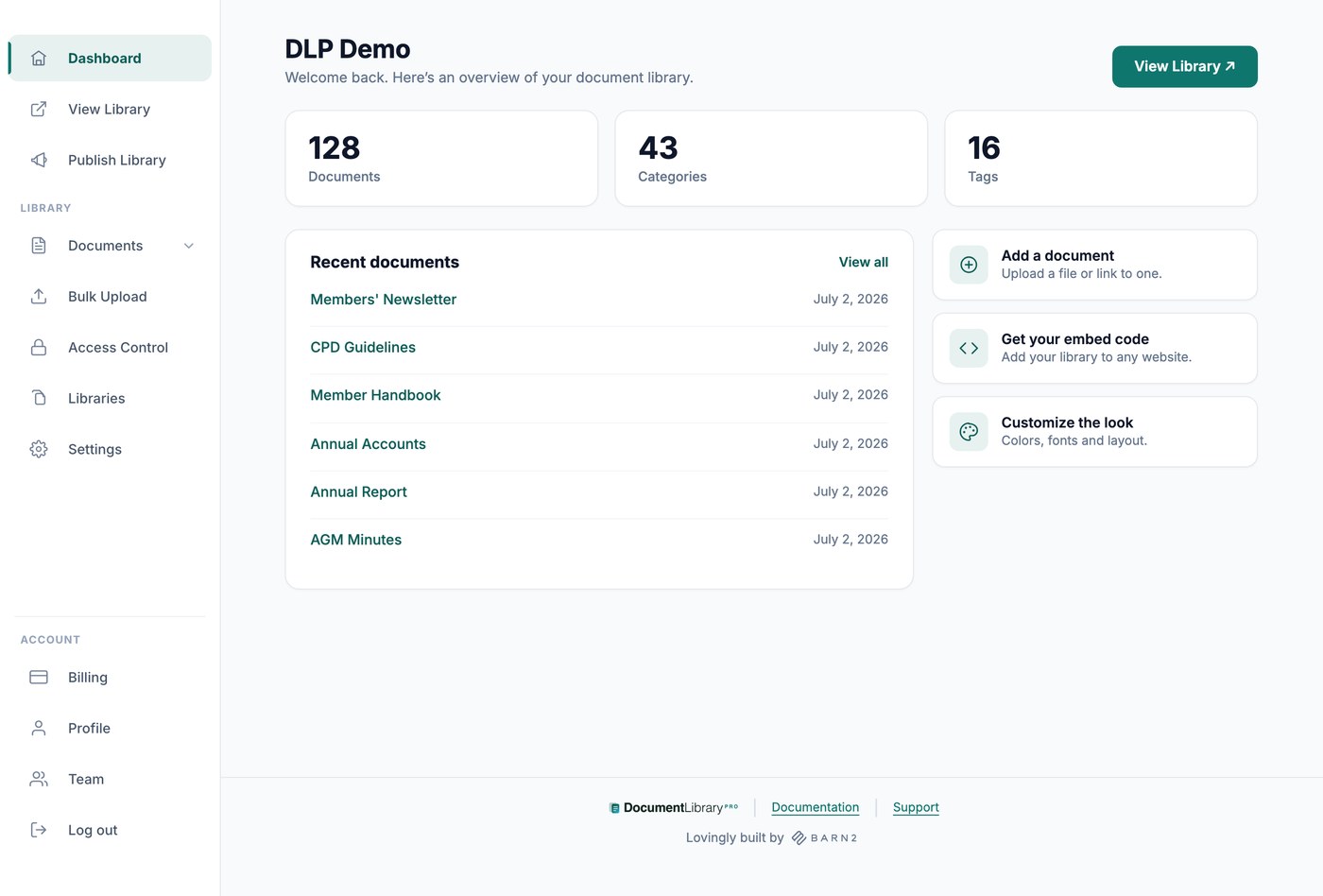
La schermata iniziale della bacheca mostra il nome della libreria, il numero di documenti, categorie e tag, e i tuoi sei documenti più recenti. Il menu a sinistra contiene le seguenti sezioni:
- Visualizza libreria - Apre la tua libreria di documenti in una nuova scheda.
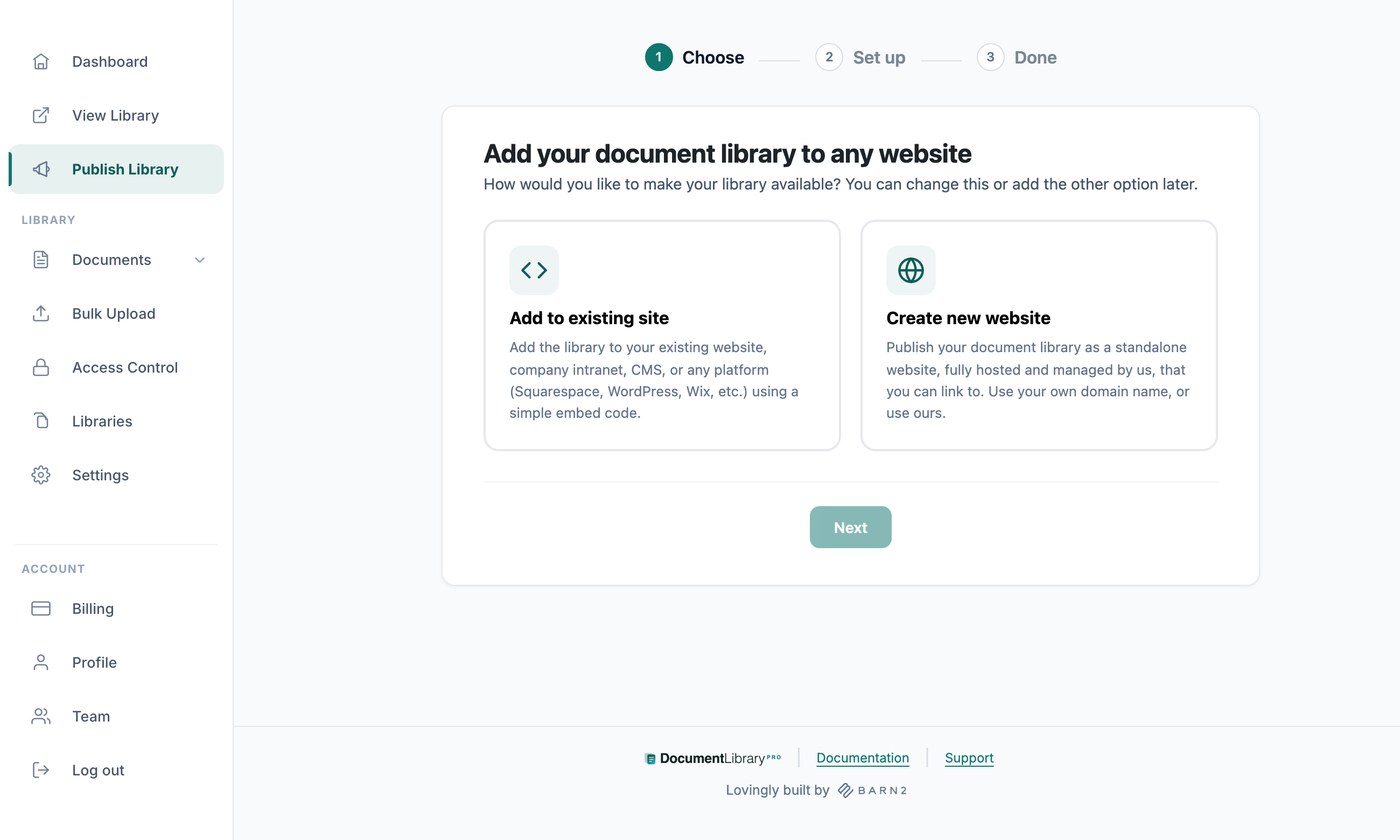
- Pubblica Libreria - Contiene il codice embed e le impostazioni del sito web della tua libreria.
- Documents - I miei documenti, Aggiungi documento, Categorie, Tag e Autori.
- Caricamento in blocco (Solo piano Advanced) - Crea documenti da un gruppo di file o da un foglio di calcolo.
- Controllo accessi (Solo piano Advanced) - Protegge con password le tue librerie e i file che hai caricato.
- Libraries - Crea librerie di documenti aggiuntive, ognuna con i propri documenti, opzioni e codice embed.
- Impostazioni - Sette schede di opzioni globali: Generale, Visualizzazione, Ricerca, Branding, Design libreria, Traduzioni e Avanzate.
- Billing - Cambia piano, aggiorna i dati di pagamento e visualizza le fatture.
- Profilo - Cambia nome, indirizzo email e password.
- Team - Invita altre persone ad aiutarti a gestire i documenti.
Pubblica libreria, Librerie, Controllo accesso, Impostazioni, Fatturazione e Team sono disponibili solo per il proprietario dell'account. I membri del team invitati vedono un menu più breve, perché gestiscono i tuoi documenti invece dell'abbonamento e delle impostazioni globali.
Passaggi successivi
La tua libreria ora è configurata e pronta per i documenti. Gli articoli seguenti spiegano cosa fare dopo, nell'ordine utile per la maggior parte delle librerie:
- Aggiungere documenti alla libreria - Aggiungi documenti uno alla volta, come caricamento o come link a un file ospitato altrove.
- Caricamento in blocco (Solo piano Advanced) - Crea documenti in blocco trascinando un gruppo di file o importando un foglio di calcolo.
- Categorie, tag e autori - Organizza i tuoi documenti. I filtri e le cartelle vengono creati dalle categorie dei documenti.
- Impostazioni - Le opzioni che non sono nella procedura guidata di configurazione. Includono il logo e il colore brand, il design di tabelle e griglie, le opzioni di ricerca e i messaggi mostrati quando una libreria è vuota. Il controllo versioni e la lead capture sono nella stessa pagina con il piano Advanced.
- Pubblicare la tua libreria - Condividi la tua libreria come sito web autonomo, oppure incorporala in un sito che hai già.
- Proteggere la tua libreria di documenti (Solo piano Advanced) - Proteggi una libreria con password, così solo le persone giuste possono aprirla.
- Creare librerie multiple - Crea librerie aggiuntive quando pagine diverse hanno bisogno di set di documenti diversi.
- Aggiungere membri del team - Invita colleghi, così possono aggiungere e modificare documenti.
Se hai bisogno di aiuto con la configurazione, contattaci e saremo felici di aiutarti.