





With HubSpot’s built-in Rich text module, you can place your hosted document library on any HubSpot page. The steps below cover the whole process.
Before you begin: This works on every HubSpot plan, including the free one. You do not need a paid upgrade or a custom module. HubSpot adds the library at a narrow fixed width, so there is one extra step to widen it later in the article. The HubSpot editor also may not show the finished result, so check the published page.
Copy your embed code
In your hosted Document Library Pro dashboard, open Publish Library and copy the embed code for your library. If you have built more than one library, open the Libraries screen and copy the code for the specific library you want to add to HubSpot.
Use your own embed code, not this sample:
<iframe src="https://your-library.documentlibrary.app/?dlp_embed=1" title="Document library" style="display:block;width:100%;border:0;height:600px;" loading="lazy"></iframe>
<script src="https://your-library.documentlibrary.app/?dlp_embed_resize=1" async></script>
HubSpot free and Starter plans
HubSpot free and Starter plans do not let you build your own modules, so you use the built-in Rich text module. There are two ways to do it and both work the same.
Method 1: Insert the embed
- Open the HubSpot page where you want to display the document library.
- Drag a Rich text module onto the page, or click a Rich text module that is already there.
- Click Insert on the toolbar.
- Choose Embed.
- Paste your Document Library Pro embed code.
- Click Insert.
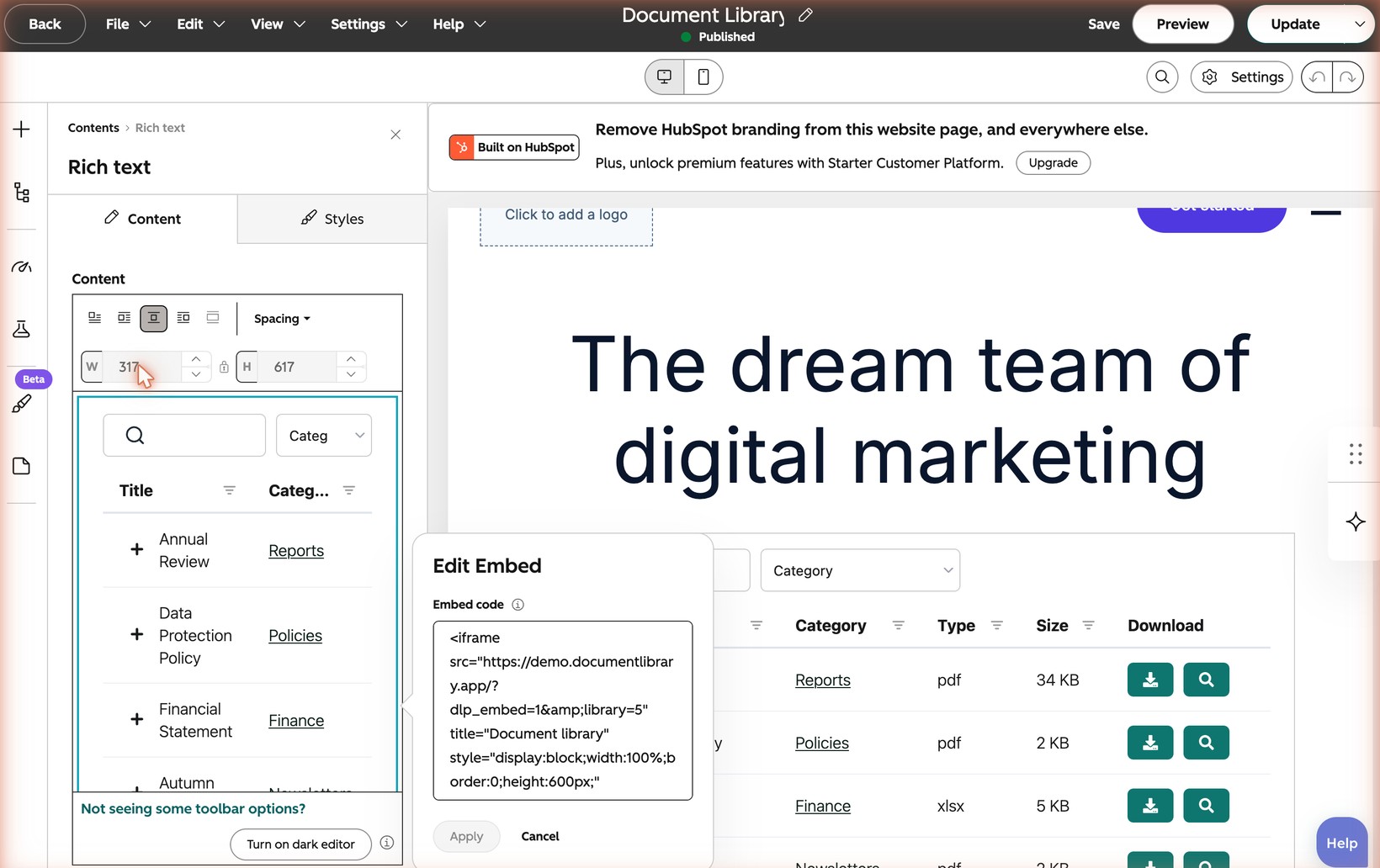
On the free plan, there is no separate Embed module in the module list. Rich text is the route.
Method 2: Paste it into the source code
- Open the HubSpot page where you want to display the document library.
- Drag a Rich text module onto the page, or click a Rich text module that is already there.
- Click Advanced.
- Choose Source code.
- Paste your Document Library Pro embed code.
- Click Save changes.
This method suits you if you are comfortable with HTML. It is also where you go later if you need to change the library width.
HubSpot Professional and Enterprise plans
Both methods above still work on HubSpot Professional and Enterprise plans, and they are the quickest route. These plans also unlock the design manager, so a developer can wrap the embed code in a custom module if your team wants to reuse it across many pages. This is optional and needs someone who is comfortable with HubSpot templates.
Make the library the right width
When you insert the library, HubSpot guesses how wide it should be. It picks something narrow, usually 317 pixels. As a result, the document library looks squashed into a thin column.
HubSpot has a Full width button that would normally fix this. It does not work for the document library, because the library includes a small script. HubSpot greys the button out.
That same greyed-out button also locks the width and height boxes. You cannot type a width there either.
So the only way to set the width is in the source code:
- Click the Rich text module that contains your document library.
- Click Advanced.
- Choose Source code.
- Find max-width: 317px.
- Change 317 to the width you want in pixels. 1100 is a sensible starting point for most pages.
- Click Save changes.
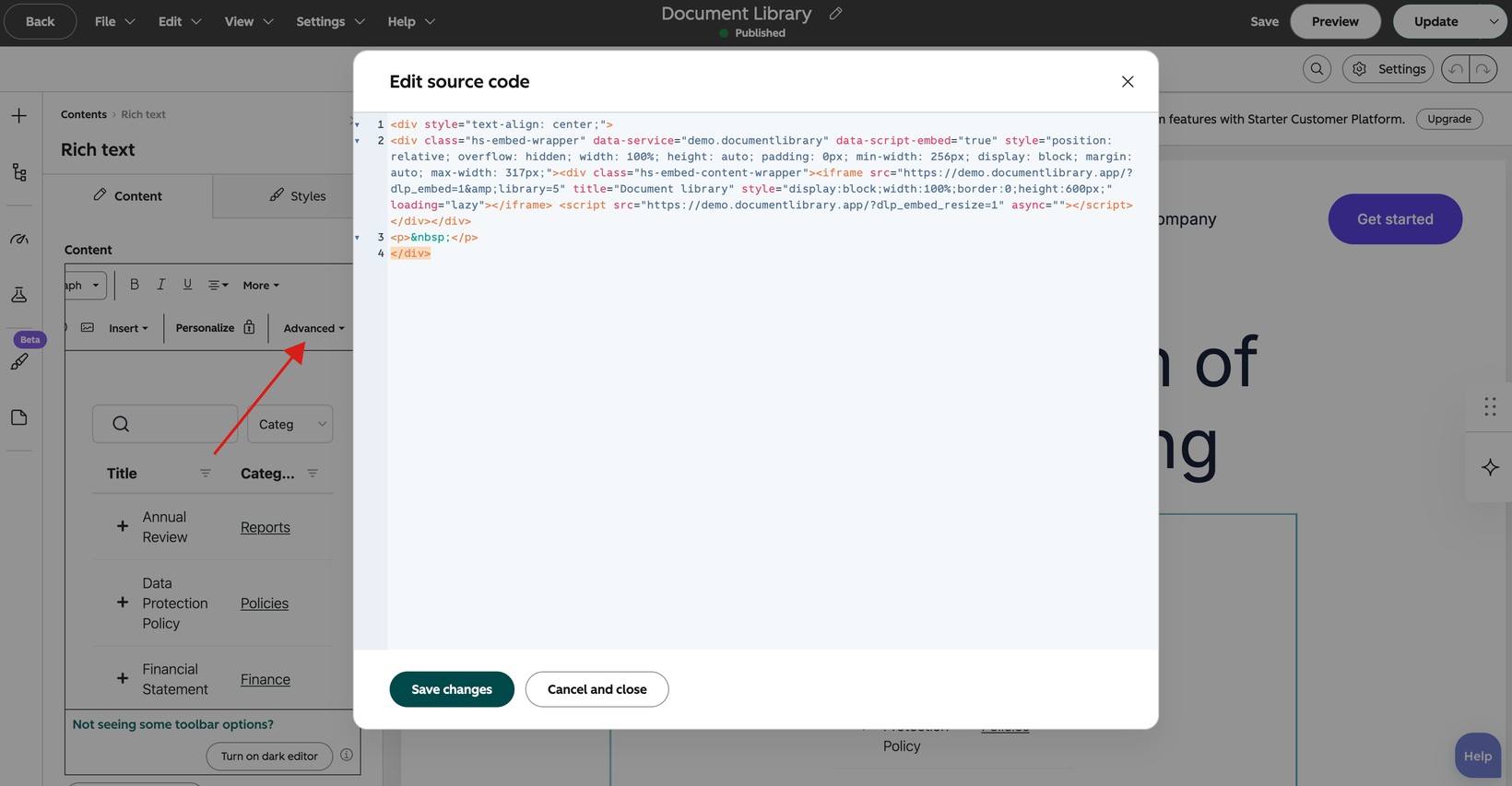
The library still shrinks to fit smaller screens and phones. The number you enter is a maximum width, not a fixed width.
Publish and check the page
Click Publish, or Update if the page is already live.
The library resizes itself to fit its contents. This means the HubSpot page grows and shrinks as visitors move between pages of documents.
The HubSpot editor does not always show the finished result. Check the published page after you save the change.
If the library does not appear
First, make sure you pasted both lines of the embed code. The second line is what lets the library resize itself.
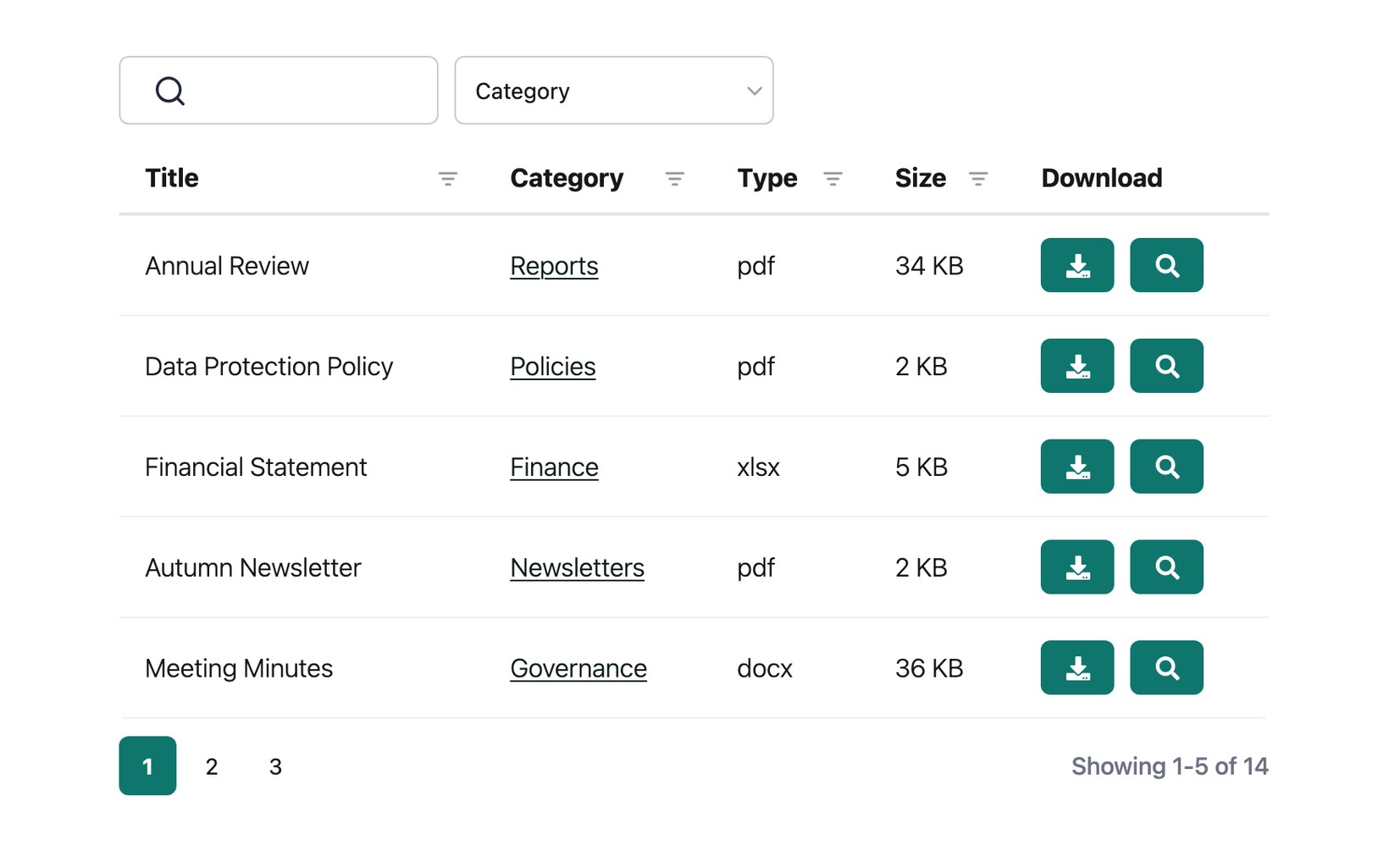
Next, check the published page instead of relying on the editor preview. The live page is the place to confirm that the document library is displaying correctly.