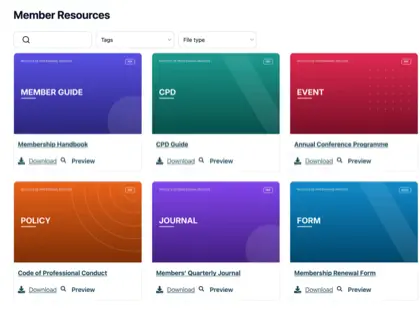
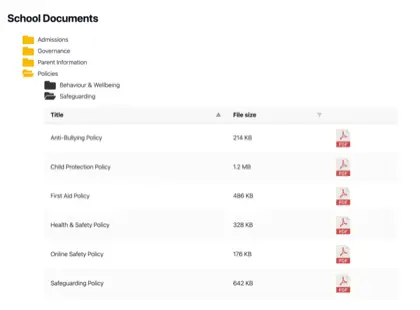
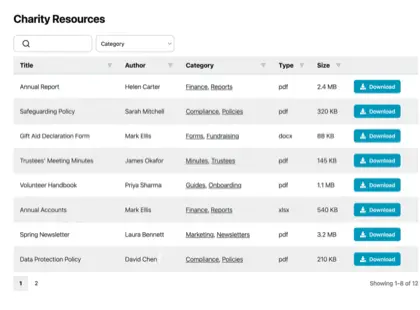
If your organization is anything like ours, Google Drive is where your documents already live. Everything gets updated there, everyone knows their way around it, and it all works beautifully. (Drive’s search is so good that I barely bother organizing my own files into folders!) Then someone asks you to put those documents on the website, and Drive suddenly isn’t so helpful.
At that point, most people do one of two things:
- Upload every file to the website by hand, and then spend the rest of their days keeping two copies of everything up to date.
- Paste a bare link to the folder, which dumps visitors into Google’s interface.
I’ve clicked those folder links on plenty of websites, and it always feels like the site gave up halfway through. The good news is that there are four proper ways to display a Google Drive folder on your website, without re-uploading anything.
I’ll walk you through all four, including the exact embed code and the folder sync feature we built into Document Library Pro for exactly this situation. Here’s the quick version:
- Google’s iframe embed code - Free and instant, but visitors can’t search it.
- The Google Sites folder insert - Built into the editor, but it only works on Google Sites.
- Document Library Pro folder sync - Paste the folder’s share link and get a searchable, branded document library on any website.
- The Google Drive API - Fully customizable, but you need a developer to build and maintain it.
Comparing the four ways to display a Google Drive folder
If you’re in a hurry, this table shows how the four ways to display a Google Drive folder on your website compare:
| Method | Setup | Visitors can search? | Matches your branding? | Works on |
|---|---|---|---|---|
| Google iframe embed | Paste one line of code | No | No | Any website |
| Google Sites insert | Built into the editor | No | No | Google Sites only |
| Document Library Pro folder sync | Paste the folder’s share link | Yes | Yes | Any website, or a standalone library |
| Google Drive API | Developer project | Only if you build it | Yes | Any website |
The free embed code will do the job if you only need a handful of files visible on an internal page. For a public document library that people can search and browse, skip ahead to the folder sync method.
Method 1: Embed the Google Drive folder with Google’s iframe code
Google doesn’t give you an embed button for folders. The Share dialog only produces a link, and while you can paste that link onto your page, it sends visitors away to the Google Drive interface. To embed the Google Drive folder on your own page instead, you can use a special embed address that Google has supported for years.
Here’s how to set it up:
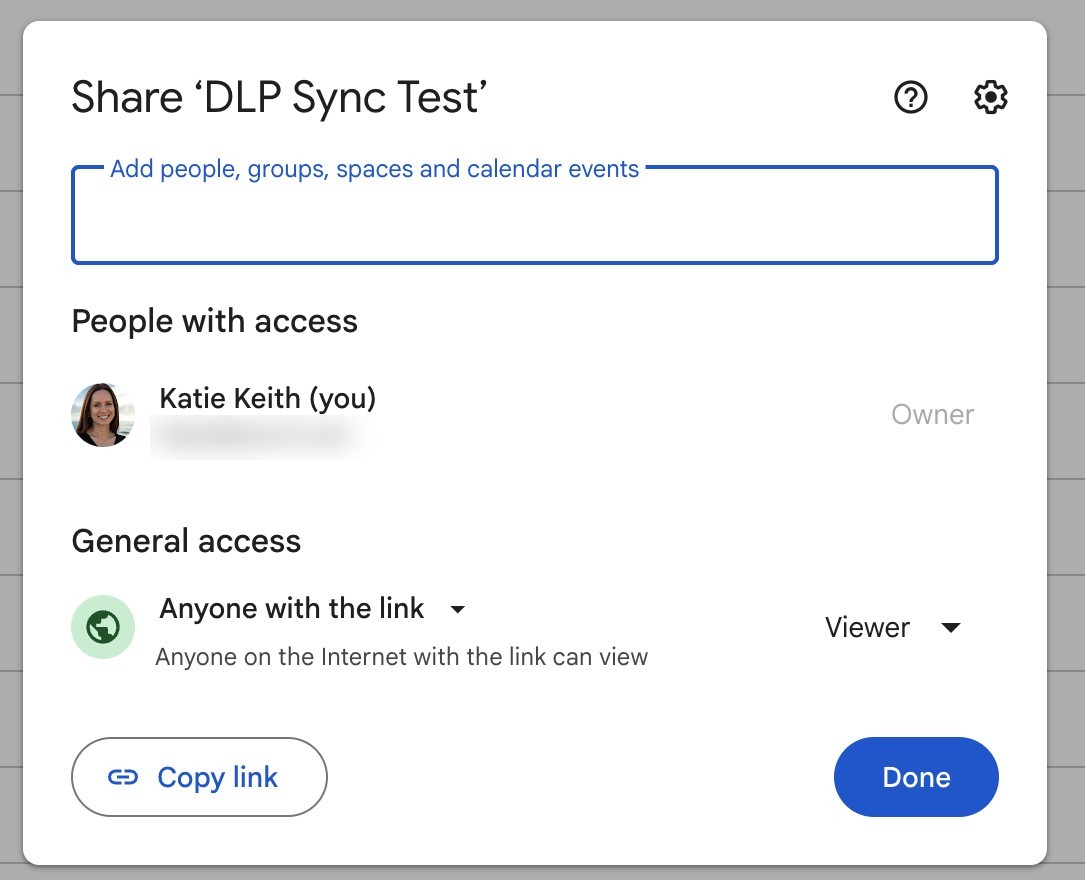
- Open Google Drive, right-click the folder and choose ‘Share’. Under ‘General access’, set the folder to ‘Anyone with the link’ as a Viewer. Google’s guide to sharing files from Google Drive covers the options in detail.
- Open the folder and copy its ID from your browser’s address bar. The ID is the long string of letters and numbers after
/folders/.
Then paste this code into your web page, replacing FOLDER_ID with the string you copied:
<iframe src="https://drive.google.com/embeddedfolderview?id=FOLDER_ID#list" width="100%" height="500"></iframe>The #list at the end displays the files as a list. Change it to #grid if you prefer large thumbnails.
I embedded a test Google Drive folder on a web page while writing this article, and this is what visitors see:
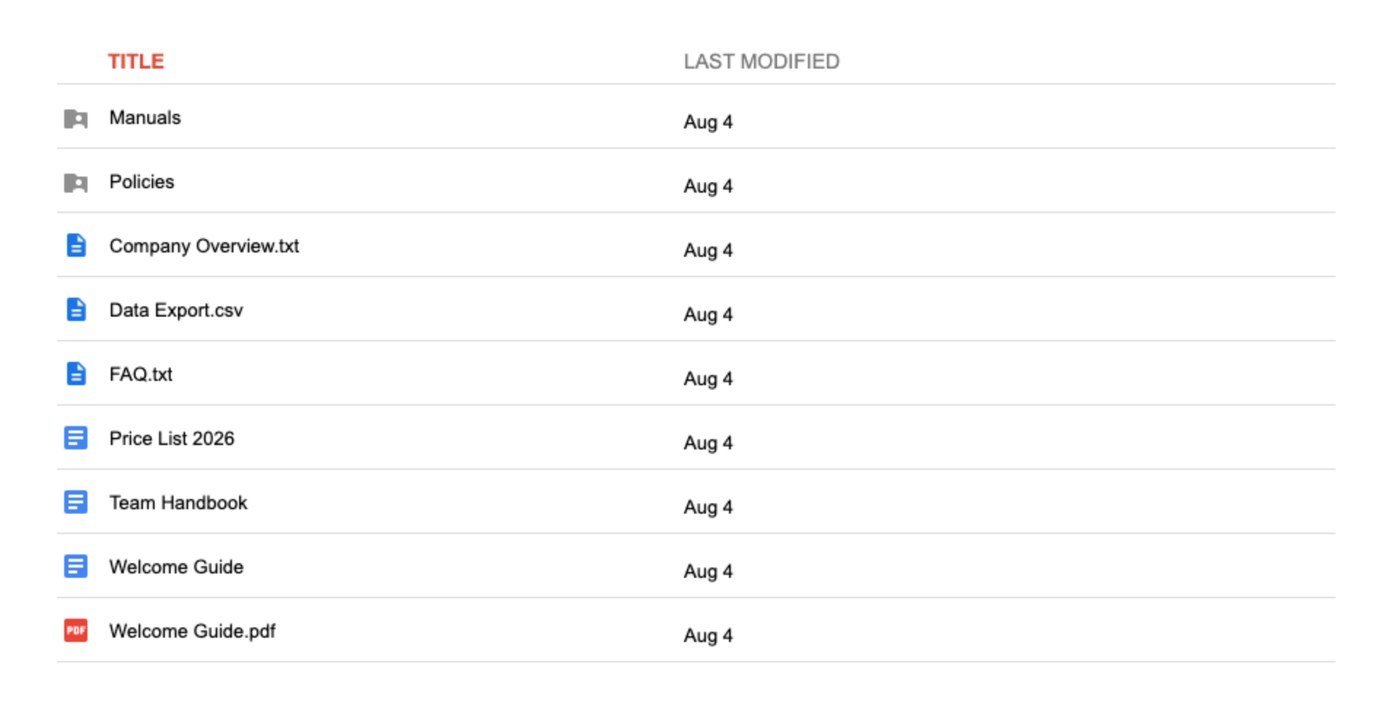
The embed works, and it updates automatically because it displays the live contents of the folder. Subfolders appear at the top and visitors can click into them. However, you can see the limitations at a glance:
- There’s no search box, so visitors have to scroll and hunt for the file they need.
- You get Google’s gray styling with a title column and a date column, and there’s no way to change the fonts, colors or layout to match your site.
- Clicking a file opens it on drive.google.com in a new tab, which takes visitors away from your website.
- The iframe has a fixed height and its own scrollbar, which feels clunky on mobile.
One more thing to be aware of: Google has never officially documented the embeddedfolderview address. The trick dates back to the classic version of Google Sites, and it has kept working for over a decade, but Google could retire it at any time without notice. I wouldn’t build anything important on it.
Method 2: The Google Sites folder insert
If your website runs on Google Sites, you don’t need any embed code to show a Google Drive folder on a page. Follow these steps to add the folder:
- Open your site in the editor at sites.google.com.
- Click ‘Insert’ in the panel on the right, then choose ‘Drive’.
- Select the folder you want to show and click ‘Insert’.
- Drag the handles to resize the folder view on the page, then click ‘Publish’ to make it live.
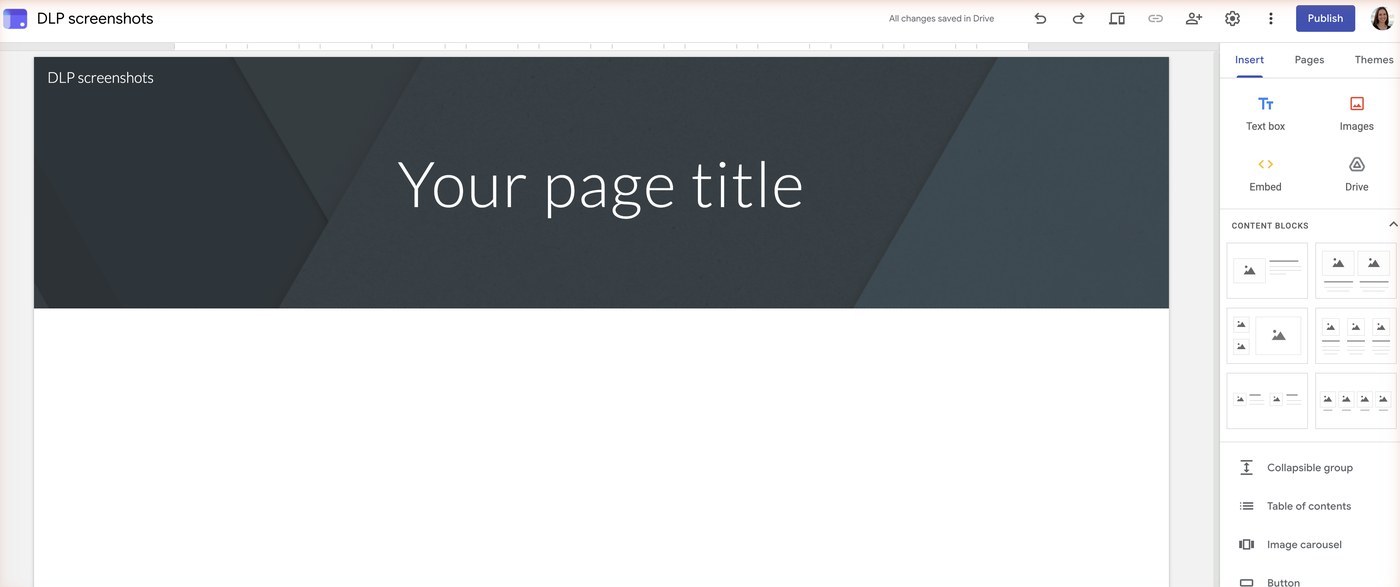
Google’s help article on adding Google files to a site covers each option in more detail.
The result looks similar to the iframe embed: A plain, browsable folder view with Google’s styling. Visitors need view access to the folder, so check the sharing settings before you publish.
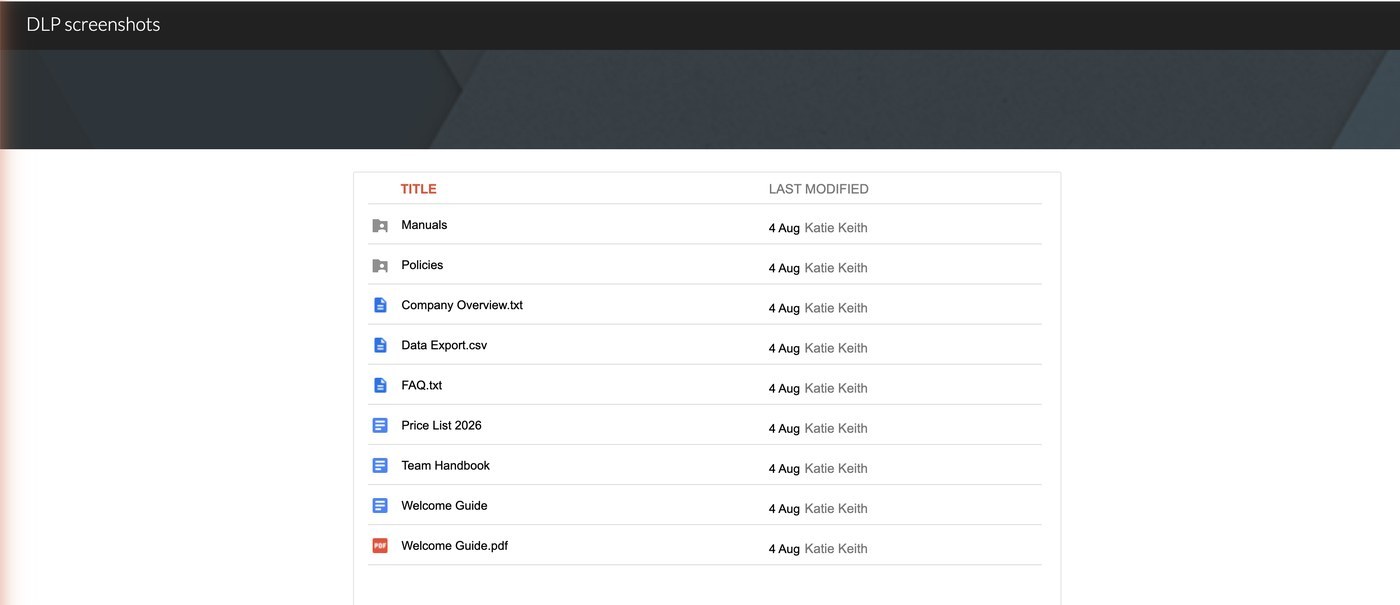
The obvious restriction is that this method only works on Google Sites. It’s a reasonable choice for an internal intranet that already lives in Google Workspace, but it can’t help you display a Google Drive folder on your main website.
Method 3: Sync your Google Drive folder into a searchable document library
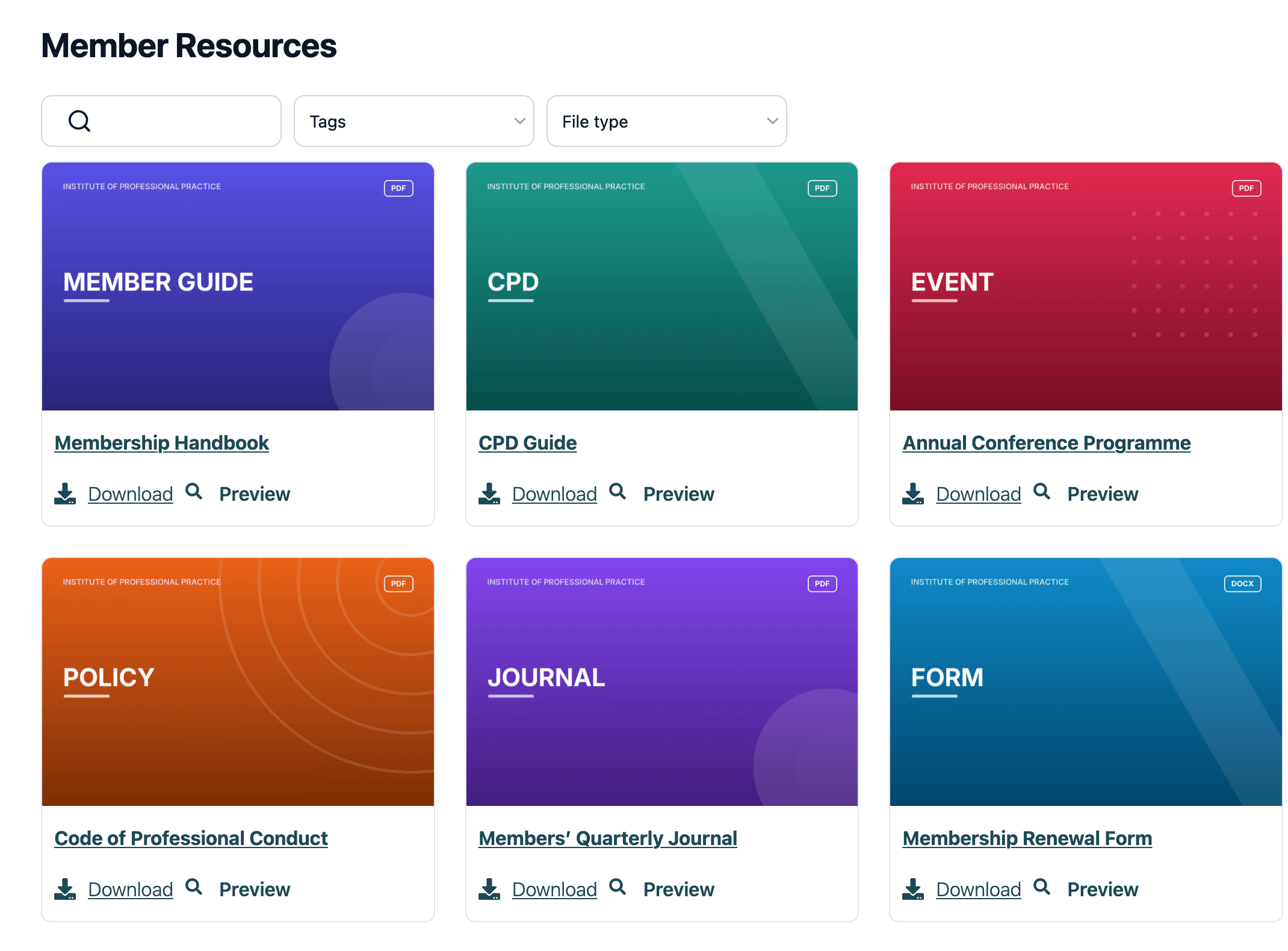
We built the folder sync feature in Document Library Pro because the embed code and the Google Sites insert both stop short of what most organizations really want. The end goal is usually a proper document library that visitors can search and download from, published straight from your Google Drive folder.
How folder sync works
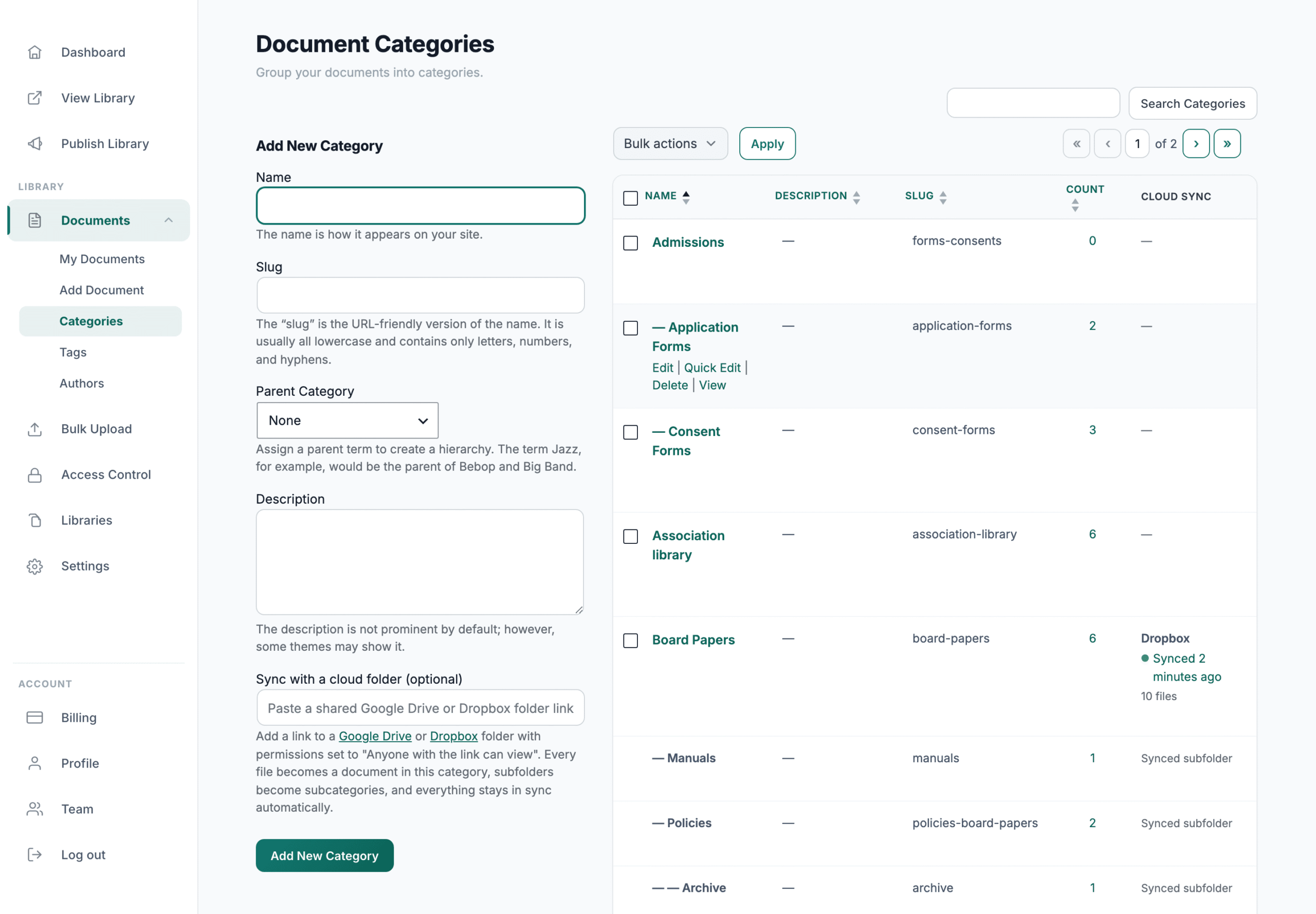
Folder sync works like this: You paste the Google Drive folder’s ‘Anyone with the link’ share link into a category in your document library. Every file in the folder becomes a document on your website, complete with a download button, and any subfolders become subcategories automatically.
Setting it up takes three steps:
- In your document library dashboard, go to the Categories screen.
- Add a new category, or edit an existing one, and paste the folder’s share link into the cloud sync field.
- Save the category to start the first sync. Every file in the folder appears as a document in your library straight away.
From then on, the library re-syncs itself every day. There’s also a ‘Sync Now’ button whenever you need a change to show up immediately.
Your Google Drive folder stays the single source of truth. You keep adding, renaming and deleting files in Drive exactly as you do now, and the changes flow through to your website on the next sync. The synced documents are deliberately read-only on the website side, so nobody can edit the library copy and put it out of step with the folder.
We spent a surprising amount of the build working on what happens when something goes wrong. If the folder link stops working, for example because someone tightens its sharing settings, the sync reports the error and leaves your published documents exactly as they were. A sync problem never deletes anything from your website, and neither does disconnecting the folder later on.
What your visitors get
For your visitors, the difference is huge. Instead of Google’s gray list, your Drive files appear in a branded library with instant keyword search, category filters, document previews and one-click downloads. It works whether you’re publishing a PDF library or a mix of PDFs, Office files and Google Docs.
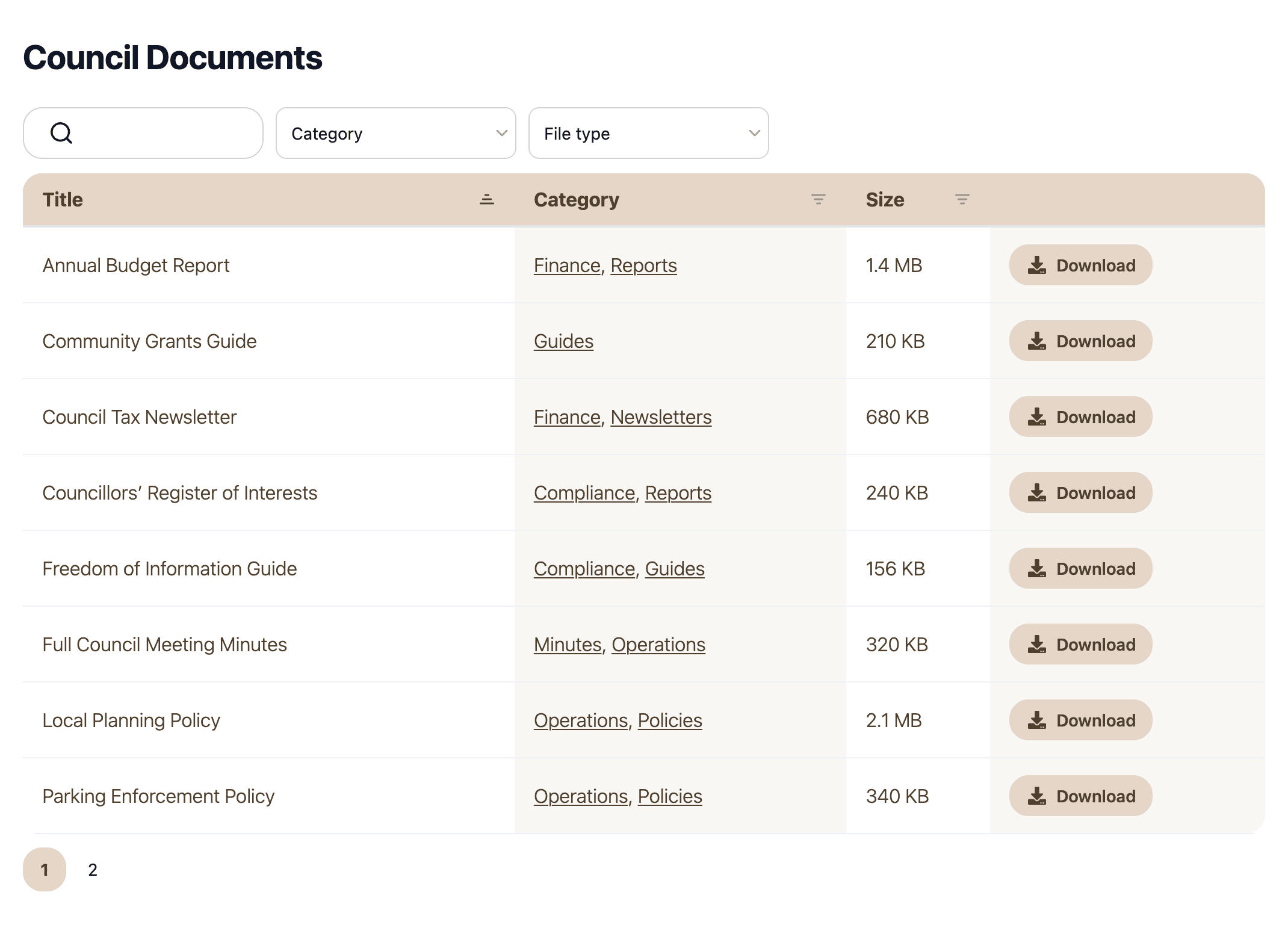
One quirk we found while testing the Drive integration: Native Google Docs, Sheets and Slides don’t exist as files you can download. For those, the library links visitors to the document’s view on Google instead of showing a download button.
PDFs, Office files and everything else download directly from your site. If downloads matter for a particular document, save it to the folder as a PDF.
Platforms, pricing and limits
Document Library Pro isn’t tied to one platform. You can embed your library into a WordPress, Shopify, Wix, Squarespace or Webflow site, or run it as a standalone hosted library with its own address. The same folder sync also works with Dropbox folders, so you can publish folders from both services side by side.
The folder sync setup guide has the full instructions. The whole process takes a couple of minutes, because there are no API keys or code to configure.
If your site runs on WordPress, there’s also a step-by-step guide to embedding a Google Drive folder in WordPress.
There are some limits to the Google Drive folder sync that you should be aware of. The folder must be shared as ‘Anyone with the link’, the same requirement as Google’s embed code, so it isn’t suitable for private folders.
However, that only affects things on the Google side. You can still restrict who sees the synced documents on your website, by using password protection on your whole document library or just the library that contains the synced files.
The automatic sync runs daily rather than instantly, although the ‘Sync Now’ button covers you when a file needs to go live straight away. And unlike the embed code, folder sync is part of a paid product. Fortunately, the 14-day free trial lets you paste in a real folder and see the full library on your site before you pay anything.
Method 4: Custom code with the Google Drive API
The developer route gives you complete control, because your code fetches the folder’s file list and renders it however you want. Broadly, the build looks like this:
- Create a project at console.cloud.google.com, then find the Google Drive API under APIs & Services → Library and enable it.
- Generate an API key under APIs & Services → Credentials, and restrict it so it only works from your website.
- Share the folder as ‘Anyone with the link’, the same as for the embed method.
- Write code that requests the folder’s file list from
https://www.googleapis.com/drive/v3/files?q='FOLDER_ID'+in+parents&key=YOUR_KEY. - Render the results on your page with your own search box, filters and styling.
If you have a developer, point them at Google’s Drive API quickstart guides, which include working sample code in several languages.
The downside is everything that comes with a custom build. You need a developer to write it, somewhere to host the code, and someone to maintain it when Google changes the API or your key needs rotating. You’ll also need to think about API usage quotas and about restricting the key so nobody else can use it.
In my view, this route makes sense for software teams building Drive access into a product. For a business that simply wants its documents visible on its website, it’s a lot of cost and maintenance for something you can get off the shelf.
Frequently asked questions
How do I embed a Google Drive folder in a website?
Share the folder as ‘Anyone with the link’, then add Google’s iframe embed code to your page: <iframe src="https://drive.google.com/embeddedfolderview?id=FOLDER_ID#list"></iframe>. Replace FOLDER_ID with the string after /folders/ in the folder’s address. If your visitors need to search or download the files on your own site, sync the folder into Document Library Pro instead.
Can visitors search a Google Drive folder displayed on my website?
That depends on the method you choose. Google’s embed code and the Google Sites insert only offer a list or grid view, with no search box. In contrast, Document Library Pro indexes every synced file, so visitors get a real search box, filters and categories on your own website.
Does an embedded Google Drive folder update automatically?
Yes. The iframe embed displays the live contents of the folder, so new and deleted files appear as soon as the page reloads. A synced document library updates once a day automatically, plus on demand with its ‘Sync Now’ button.
Can I embed a Google Drive folder on Shopify, Wix or Squarespace?
Yes. Google’s iframe code works on any platform that lets you add custom HTML to a page. Document Library Pro’s folder sync also works on all of these platforms, and it adds search, filtering and your own branding on top.
Is it safe to display a Google Drive folder on my website?
Sharing a Google Drive folder on your website is safe as long as everything in the folder is meant to be public. Both Google’s embed code and folder sync require ‘Anyone with the link’ sharing, which means anyone who finds the link can open the files.
Keep confidential files in a separate folder, and read my guide to secure document sharing if some of your documents need access control instead.
The best way to display a Google Drive folder on your website
For a few files on a low-traffic page, Google’s free embed code is fine, and now you have the exact snippet to do it. The Google Sites insert serves the same purpose if your site lives in Google Workspace, and the Drive API suits development teams with specific requirements.
If the goal is to share a Google Drive folder on your website as a real document library for the public, your members or your clients, folder sync is the method I’d choose. Your visitors get search and downloads on your own site, while you keep working in Google Drive as normal.
You can set it up in minutes: Start a free 14-day trial of Document Library Pro and paste in your first folder link today.