





Framer’s Embed component is all you need to drop your hosted document library onto any page. The steps below cover the whole process from start to finish.
Before you begin: You can use the Embed component on Framer’s free plan, and your library shows up as soon as the site is published. Note that free sites publish to a framer.website address and carry a small “Made in Framer” badge. Moving to a paid Framer plan clears that badge and unlocks your own custom domain.
Step 1: Copy your embed code
In your hosted dashboard, open Publish Library to find your embed code, then copy it. Most sites have a single library, and the Publish Library page is where its embed code lives. (If you have built more than one library, copy the code for the one you want from the Libraries screen instead.) Always paste the exact code from your own dashboard, not the sample below:
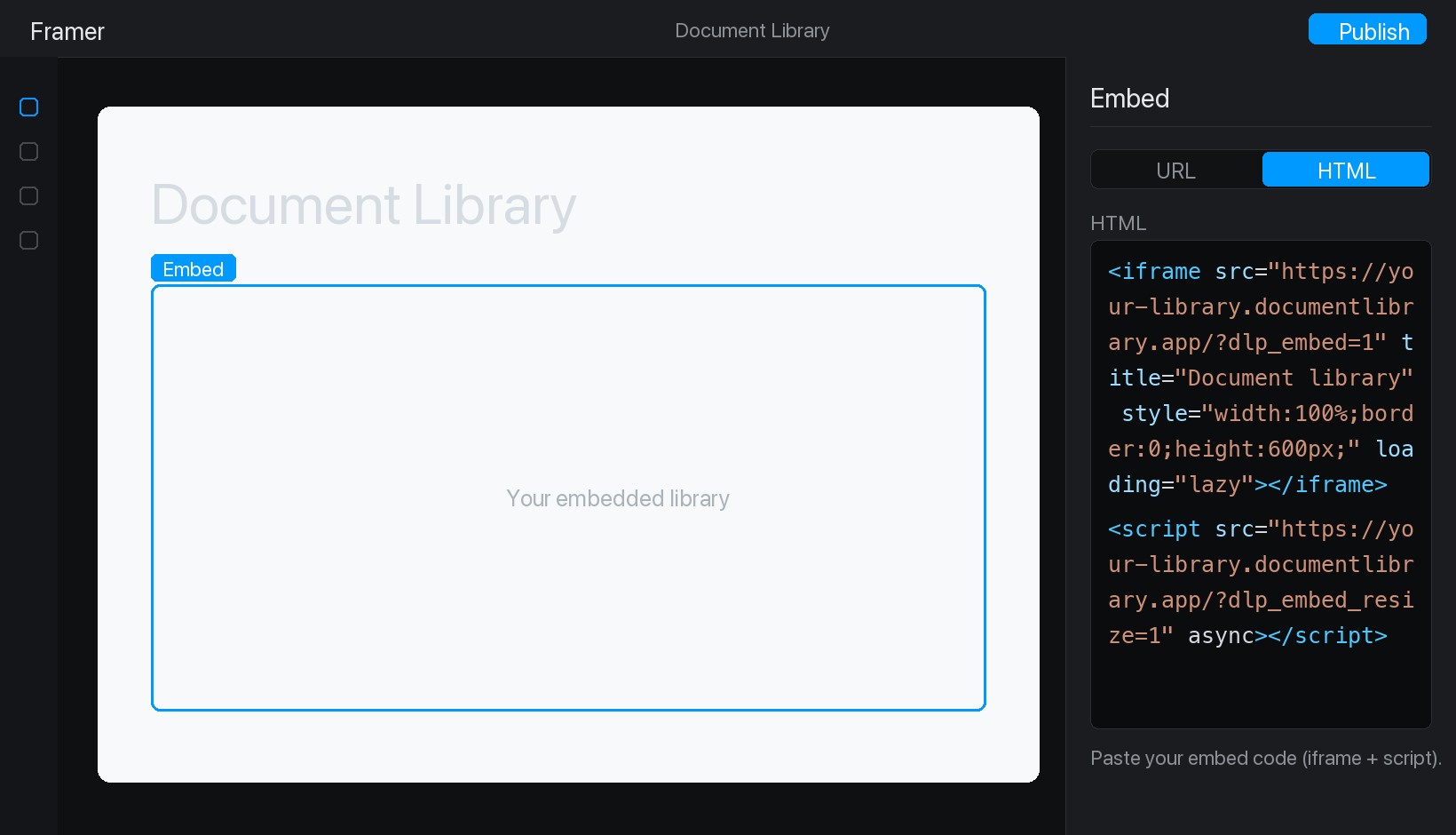
<iframe src="https://your-library.documentlibrary.app/?dlp_embed=1" title="Document library" style="width:100%;border:0;height:600px;" loading="lazy"></iframe>
<script src="https://your-library.documentlibrary.app/?dlp_embed_resize=1" async></script>
Step 2: Open the page for your library
Inside the Framer editor, navigate to the page that will hold the library. If you would rather use a fresh page, create one from the Pages panel and give it a clear name like Document Library.
Step 3: Add an Embed component
Choose Insert, type Embed into the search box, and drag the Embed component onto the spot where the library should sit.
Step 4: Paste your embed code
Keep the Embed component selected so its settings appear on the right. Change the type from URL to HTML, then drop the code from Step 1 into the HTML field.
Step 5: Publish and view your library
Hit Publish at the top right and then open your live site. Your document library is now in place, and visitors can search it, filter by category, and preview or download any document.