





With a Squarespace Code Block, you can place your hosted document library on any page of your site. The steps below cover the whole process.
Before you begin: embed scripts inside Code Blocks are a paid Squarespace feature that requires the Business plan or above. Keep in mind too that the library is only visible after your site goes live. As you edit, Squarespace displays a “Script Disabled” placeholder in place of the working library.
Step 1: Copy your embed code
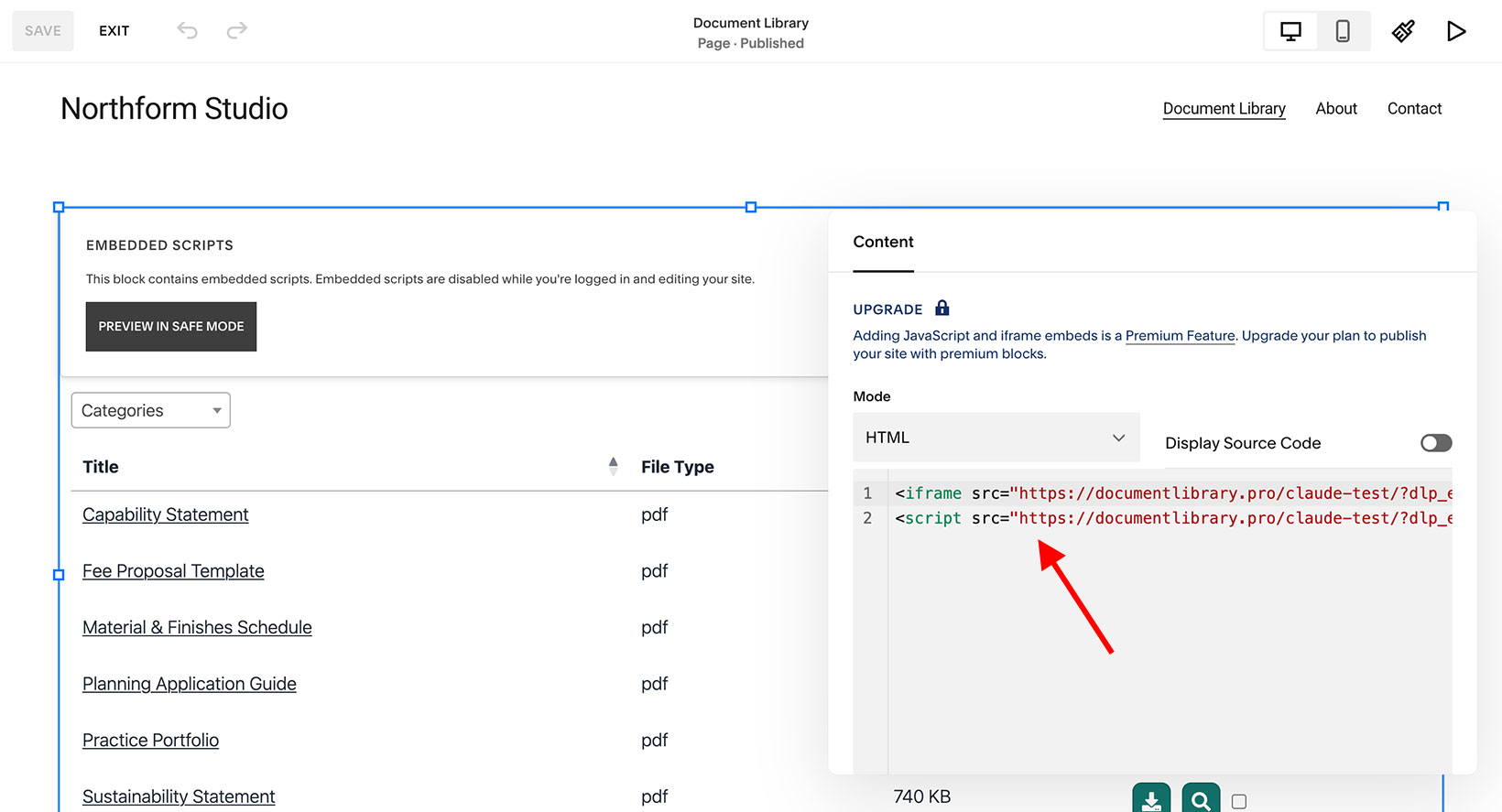
In your hosted dashboard, open Publish Library to find your embed code, then copy it. Most sites have a single library, and the Publish Library page is where its embed code lives. (If you have built more than one library, copy the code for the one you want from the Libraries screen instead.) Always paste the exact code from your own dashboard, not the sample below:
<iframe src="https://your-library.documentlibrary.app/?dlp_embed=1" title="Document library" style="width:100%;border:0;height:600px;" loading="lazy"></iframe>
<script src="https://your-library.documentlibrary.app/?dlp_embed_resize=1" async></script>
Step 2: Create a page for your library
From your Squarespace dashboard, head to Website → Pages. Click the + button beside Main Navigation, pick Page, and then choose a blank layout. Name it something like Document Library, and Squarespace will slot it into your navigation menu for you.
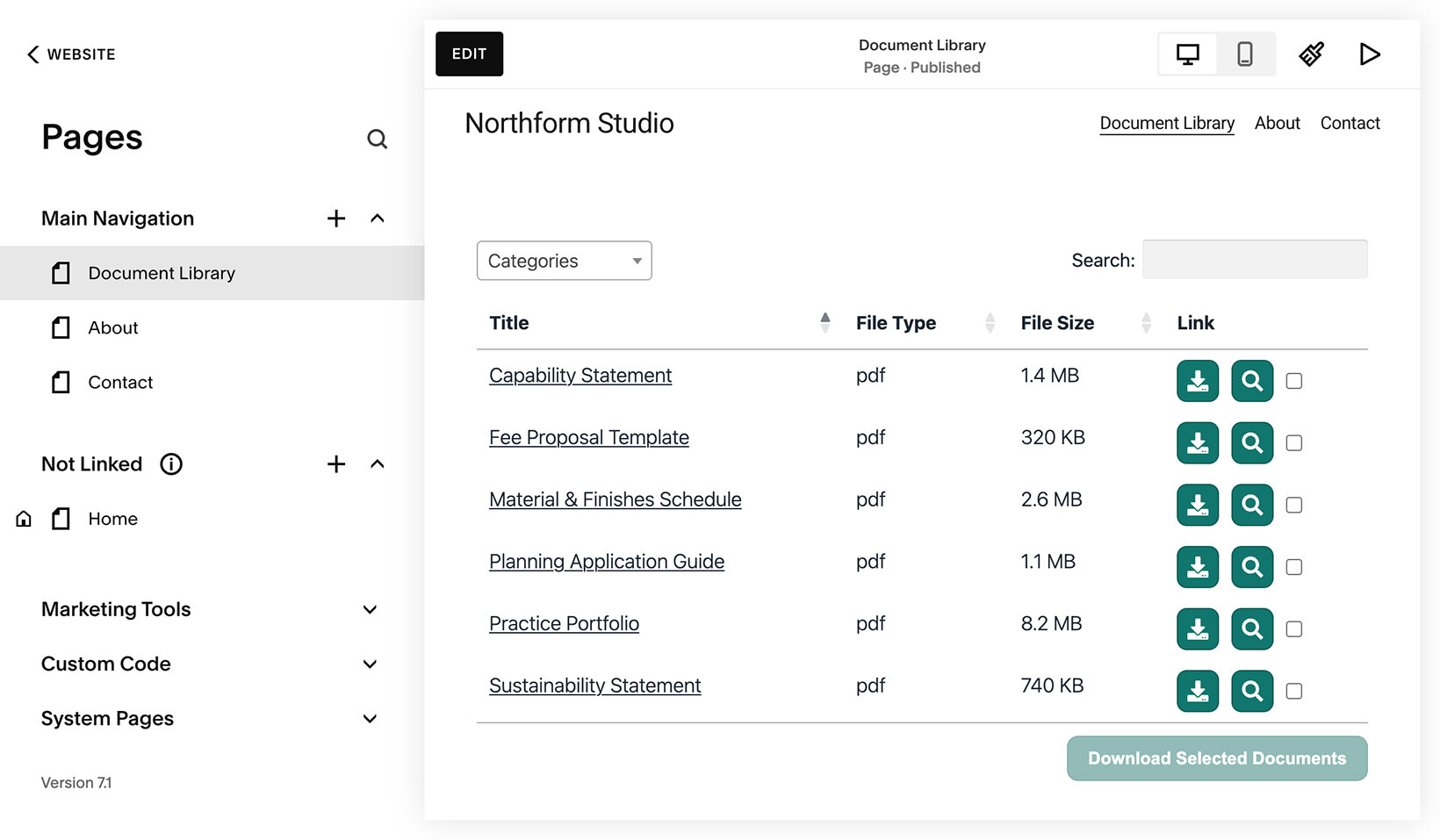
Step 3: Add a Code Block
Open the new page and click Edit. Choose Add Section, pick a blank section, then click Add Block, search for Code, and select the Code block.
Step 4: Paste your embed code
Click into the Code Block to open it. Confirm the mode is set to HTML, clear out the default “Hello, World!” text, and paste in the embed code from Step 1.
Step 5: Resize the block to fit your page
Do not skip this part. A Code Block starts off narrow, and a narrow block forces the library down to a single column. Select the Code Block and drag its right-hand edge outward until it spans the width you want for the library, which is usually the full page. Be sure you are in Desktop view (the monitor icon along the top) while you do this, giving the library enough room to display its full set of columns.
Step 6: Save and view your library
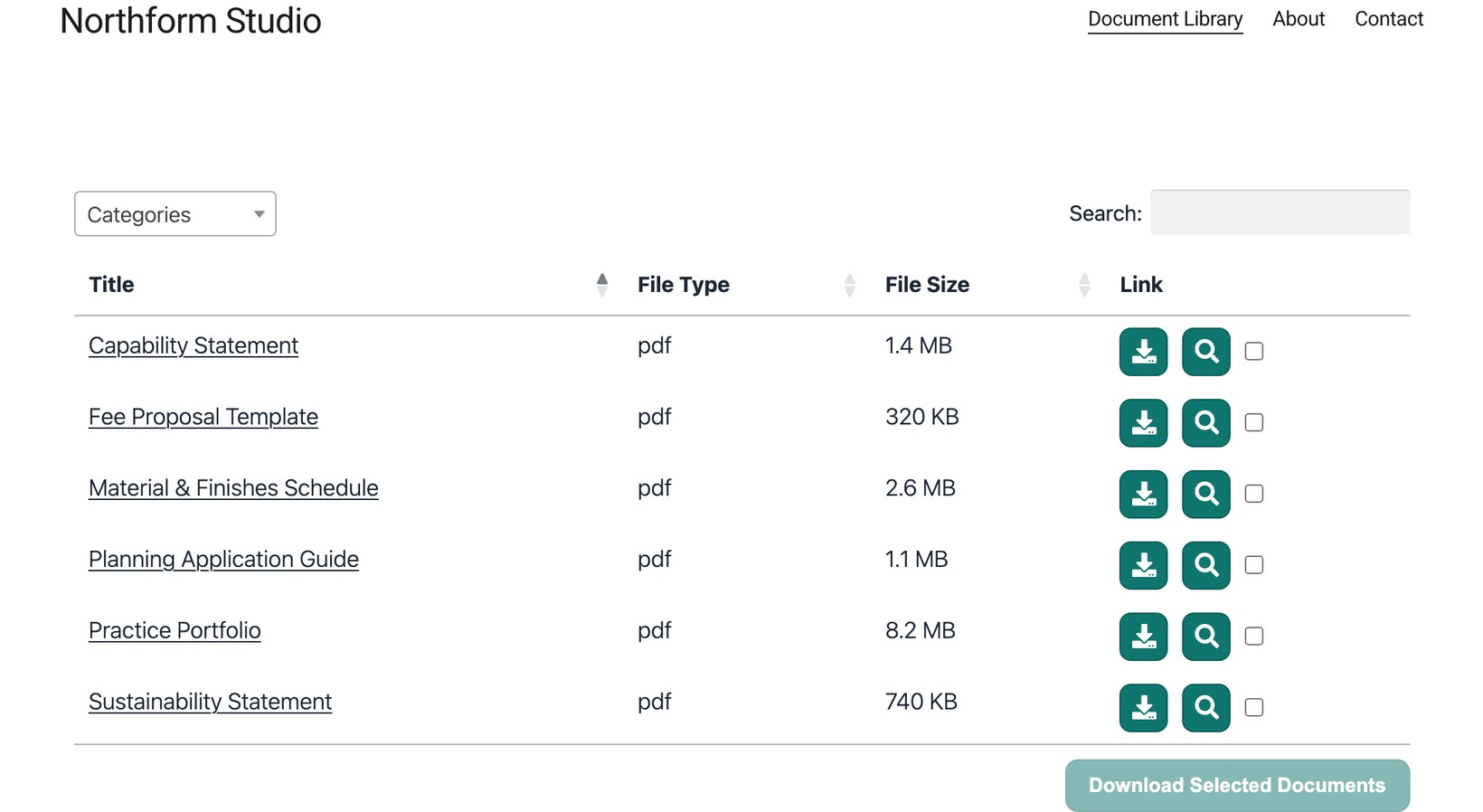
Click Save. The block will read “Script Disabled” while you are still editing, which is expected. After your site is published, open the page to see the library running, where visitors can search it, filter by category, and download or preview any document.
Use the Code block instead of the Embed block
Squarespace has both a Code block and an Embed block. For Document Library Pro, use the Code block.
If you add your embed code to an Embed block, Squarespace may show the library in a short frame roughly 200 pixels tall. You may see the search box, column headings and only the first document, with empty space below it.
To fix this, remove the Embed block and add a Code block instead. Then paste your embed code again by following the steps above.