





Adding your hosted document library to any WordPress page or post is just a matter of dropping in a short embed code. The whole thing takes a couple of minutes, with nothing to install and nothing to keep updated.
The key thing to get right: your embed code belongs in a Custom HTML block if you use the block editor, or in the Text tab if you use the Classic editor. Avoid the regular visual editor, which can remove embed code when you save. Both the Custom HTML block and the Text tab leave it intact.
Before you start: copy your embed code
In your hosted dashboard, open Publish Library to find your embed code, then copy it. Most sites have a single library, and the Publish Library page is where its embed code lives. (If you have built more than one library, copy the code for the one you want from the Libraries screen instead.) Always paste the exact code from your own dashboard, not the sample below:
<iframe src="https://your-library.documentlibrary.app/?dlp_embed=1" title="Document library" style="width:100%;border:0;height:600px;" loading="lazy"></iframe>
<script src="https://your-library.documentlibrary.app/?dlp_embed_resize=1" async></script>
Add your library to a page or post
For a self-contained document library, such as a downloads, resources, or publications page, this is the route to take.
- From your WordPress dashboard, head to Pages → Add New, or open whichever existing page or post you want to edit.
- Give it a title, for example Document Library.
- Select the + button, type Custom HTML into the search, and insert the block.
- Drop your embed code into the block.
- Choose Publish or Update.
- So visitors can find it, add the page to your menu via Appearance → Menus.
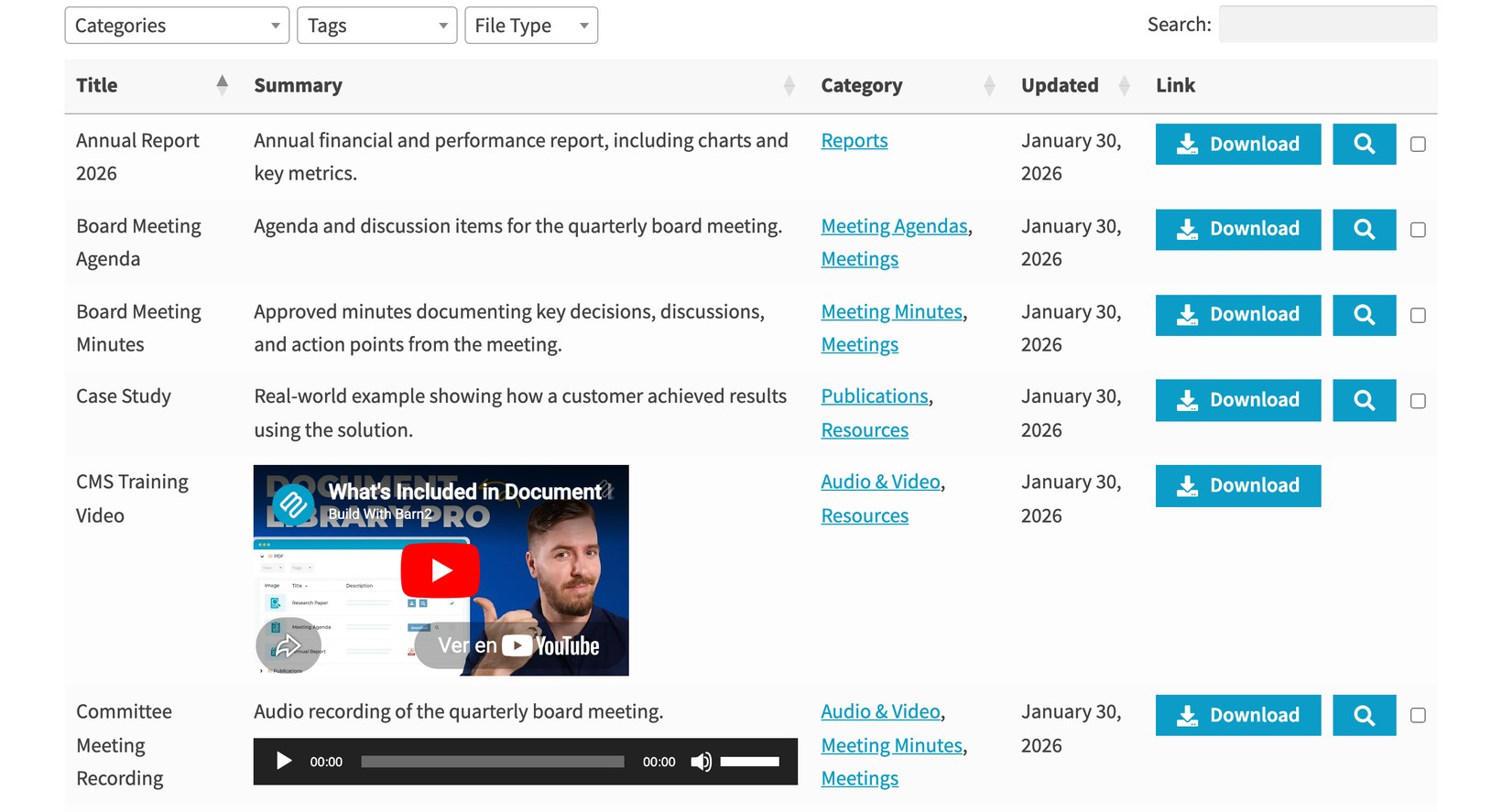
Select View Page to see the library live on your site. From there, visitors can run searches, narrow results by category, and preview or download any document.
Using the Classic editor
On a site running the Classic editor, open the page and click the Text tab in the top-right corner of the content box, which flips you from Visual to HTML. Paste the embed code at the spot where the library should appear, then update the page.
If the library does not resize automatically
Bundled into the embed code is a small helper script whose job is to size the library to its content. Certain WordPress security configurations strip out scripts that non-administrators add. Should that occur, the library carries on working, simply showing at a fixed height with its own scrollbar. To keep the resize script intact, paste the code while signed in as an administrator.
Prefer to host it yourself?
There is also a self-hosted WordPress plugin version of Document Library Pro, which builds the library straight inside your own site. Since the hosted version above asks for no installation and no upkeep, it is the option most WordPress users go for.