





Jedes Dokument in deiner Bibliothek ist entweder eine Datei, die du hochlädst, oder ein Link zu einer Datei, die woanders gehostet wird. Du fügst sie im Dokumente Bereich deines Dashboards hinzu und bearbeitest sie dort.
Dieser Artikel behandelt das Hinzufügen einzelner Dokumente. Wenn du viele Dokumente auf einmal hinzufügen möchtest, siehe Dokumente in großen Mengen hinzufügen.
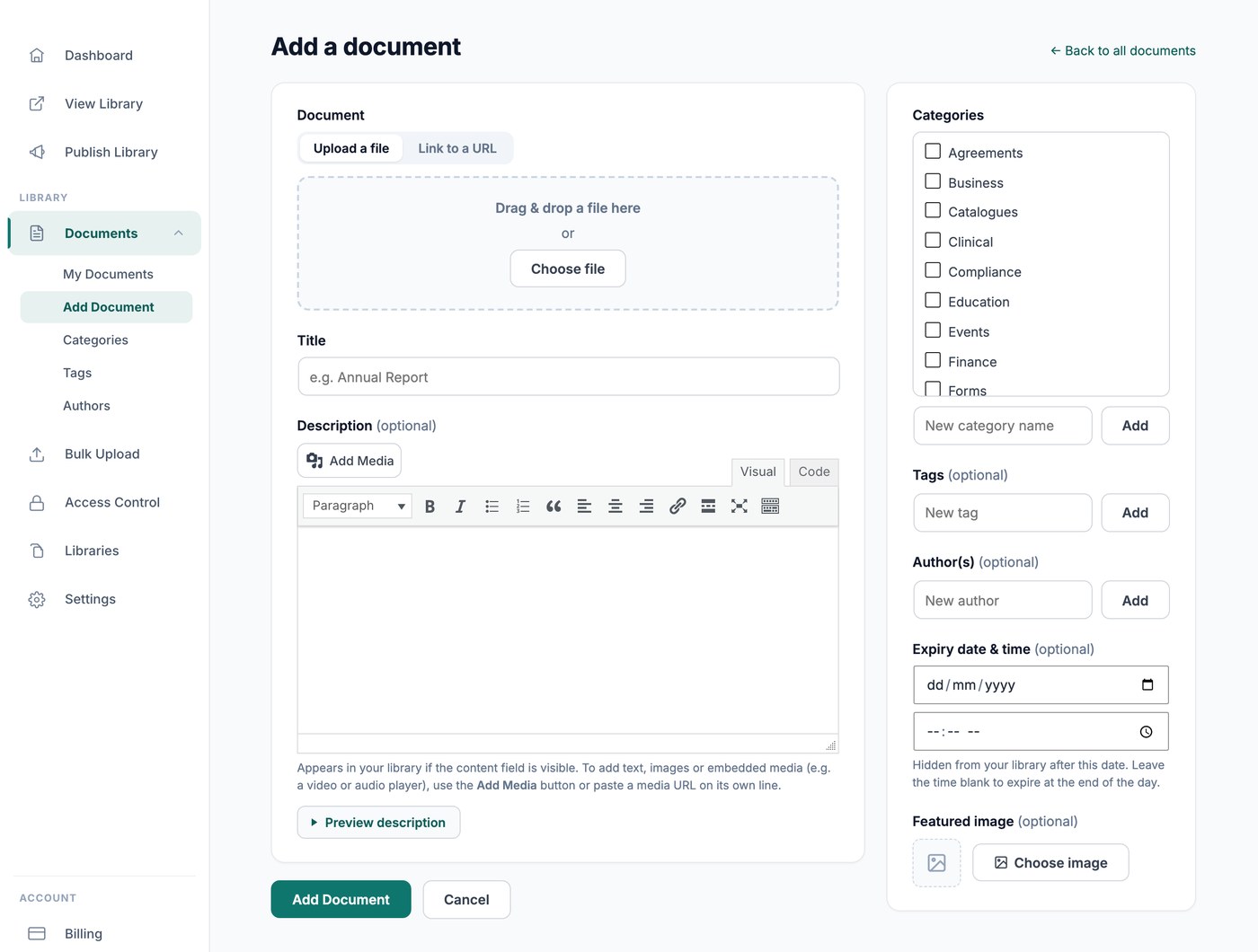
Dokument hinzufügen
Gehe zu Dokumente → Dokument hinzufügen. Der Bildschirm hat die folgenden Felder:
- Document - Wähle Datei hochladen oder Auf eine URL verlinken. Zum Hochladen zieh eine Datei in den Ablagebereich oder klicken auf Datei auswählen. Die meisten Dateitypen werden unterstützt, darunter PDFs, Word-, Excel- und PowerPoint-Dateien, Bilder, Audio und Video. Um auf eine Datei zu verlinken, die bereits online liegt, zum Beispiel eine Google Drive-Datei oder ein Video, wechsle zu Link zu einer URL und füge die Webadresse ein. Siehe welche Dateitypen und -größen du hinzufügen kannst.
- File size (optional) - Wird bei hochgeladenen Dateien automatisch erkannt. Gib es für eine URL manuell ein, zum Beispiel 2 MB, damit es in deiner Bibliothek erscheinen kann.
- Titel - Der Name des Dokuments in deiner Bibliothek. Dies ist das einzige Pflichtfeld.
- Beschreibung (optional) - Erscheint in deiner Bibliothek, wenn das Inhaltsfeld angezeigt wird. Verwende die Medien hinzufügen Schaltfläche, um Bilder einzufügen, oder füge eine Medien-URL in eine eigene Zeile ein, um einen Video- oder Audioplayer einzubetten. Klicke auf Beschreibung vorschauen um zu sehen, wie sie in deiner Bibliothek aussehen wird.
- Kategorien - Gruppiere zusammengehörige Dokumente. Deine Filter und Ordner werden aus deinen Dokumentkategorien erstellt, und jede Bibliothek kann auf bestimmte Kategorien begrenzt werden. Klicke auf Hinzufügen um eine neue Kategorie zu erstellen, ohne den Bereich zu verlassen. Siehe Kategorien, Schlagwörter und Autoren.
- Tags (optional) - Eine zweite, lockerere Möglichkeit, Dokumente zu kennzeichnen. Schlagwörter funktionieren zusammen mit Kategorien und können auch als Filter verwendet werden.
- Autor(en) (optional) - Der Autor, der beim Dokument angezeigt wird. Das ist unabhängig von der Person, die es hinzugefügt hat.
- Beitragsbild (optional) - Das Vorschaubild für das Dokument, das im Rasterlayout besonders gut aussieht. Lass es leer, und wenn möglich wird aus PDF- und Bilddateien automatisch ein Vorschaubild erzeugt. Siehe Bildoptionen für die Dokumentbibliothek.
- Versionsverlauf (Nur Advanced-Tarif) - Behält die vorherige Datei jedes Mal, wenn du eine ersetzt, sodass du einen Verlauf des Dokuments hast. Siehe Dokumentenversionsverwaltung.
- Ablaufdatum & -zeit (optional, nur Advanced-Tarif) - Das Dokument wird nach diesem Datum in deiner Bibliothek ausgeblendet. Lass die Uhrzeit leer, damit es am Ende des Tages abläuft. Siehe Dokumentablauf.
Klicken Veröffentlichen um das Dokument zu deiner Bibliothek hinzuzufügen, oder Entwurf speichern um weiter daran zu arbeiten. Entwurfsdokumente bleiben außerhalb deiner Bibliothek, bis du sie veröffentlichst.
Ein Dokument bearbeiten oder löschen
Gehe zu Dokumente → Meine Dokumente, um alles in deiner Bibliothek zu sehen, und klicke dann auf ein Dokument, um es zu öffnen. Der Bildschirm ist derselbe, den du zum Hinzufügen verwendet hast, mit einer Änderungen speichern Schaltfläche unten.
Um die Datei hinter einem Dokument auszutauschen, klicke auf Datei ersetzen und lade die neue Version hoch. Das Dokument behält Titel, Beschreibung, Kategorien und Einstellungen, sodass alle Links darauf weiterhin funktionieren. Siehe wie du Dokumente aktualisierst und ersetzt.
Um Dokumente zu löschen, wähle sie auf dem Bildschirm Meine Dokumente aus und lösche sie gemeinsam.
Dokumente in großen Mengen hinzufügen
Es gibt drei Möglichkeiten, Dokumente hinzuzufügen, ohne sie einzeln einzugeben:
- Massen-Upload (Nur Advanced-Tarif) - Lege eine Reihe von Dateien ab, um ein Dokument pro Datei zu erstellen, oder importiere eine Tabelle, um Titel, Beschreibung, Kategorien und mehr für jedes Dokument auf einmal festzulegen.
- Ordnersynchronisierung (Nur Advanced-Tarif) - Verbinde einen Google Drive- oder Dropbox-Ordner mit einer Kategorie. Die Dokumente werden für dich erstellt und bleiben mit dem Ordner synchron. Siehe einen Google Drive- oder Dropbox-Ordner mit deiner Bibliothek synchronisieren.
- Besuchereinreichungen - Lass Besucher ihre eigenen Dokumente über ein Formular einreichen, das du freigibst, bevor sie erscheinen. Siehe Dokumenteinreichungen von Besuchern annehmen.
Nächste Schritte
Nachdem deine Dokumente hinzugefügt sind, ist der nächste Schritt festzulegen, wie sie deinen Besuchern angezeigt werden. Siehe Layout der Dokumentbibliothek um zwischen Tabelle, Raster und Ordnern zu wählen, und deine Bibliothek veröffentlichen um sie deinen Besuchern zu zeigen.