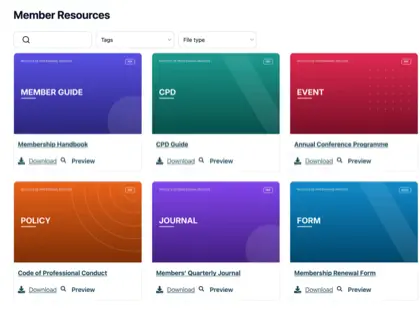
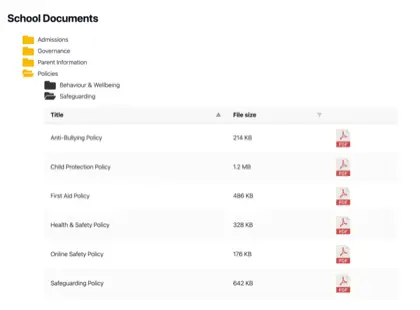
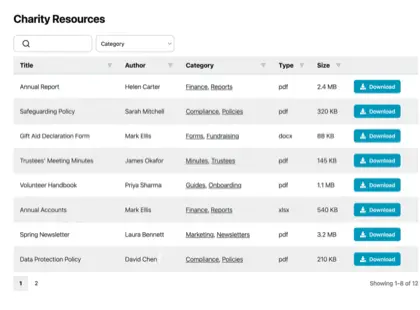
To organize documents well, it’s important to group them by how people look for them - not by who made them or when.
A workable system for organizing documents has three parts: a small set of clear categories, consistent file names, and just enough information about each document to make it searchable. By getting these right, you can transform a messy drive into a collection of documents that anyone can navigate.
Most people organize documents by burying them in folders inside folders, then spend years unable to find anything. In this article, I’ll cover why that falls apart and how to choose between folders, categories and tags. Then I’ll show you how to build a taxonomy you can maintain, and how to move a chaotic set of files into something people can search.
Why most document systems fall apart
Most document systems are built around one person’s mental model on one particular day.
Most ways of organizing documents make perfect sense to the person who set them up, and very little sense to anyone else. Six months later they don’t even make sense to their author! I know I’m guilty of that, and am sure you are too! Google Drive makes this dangerously easy because it’s tempting to let documents become disorganized and rely on its excellent search instead 😅
Deep folder nesting often makes documents even less organized. A file can easily end up five or six folders down, filed under a logic that only its creator remembers. Everyone else either gives up and saves a second copy somewhere easier, or pings a colleague to ask where things live. Either way, the document organization system has stopped doing its job.
This gets worse as a collection grows. A few dozen documents are easy to find by sight. However, once you are into the hundreds, every weak naming or filing decision costs the whole team a little time, every day, forever.
Luckily, there’s an easier way!
Folders vs categories and tags
The first real decision is whether to organize documents by folders or by categories and tags. A folder puts each document in exactly one place. In contrast, categories and tags let a single document belong to several groups at once.
Take a health policy that’s relevant to both “HR” and “Compliance.” In a folder system it can only live in one of them, so half your team looks in the wrong place. With categories or tags it appears under both, and either route finds it.
Folders still make sense for small, stable collections where everyone shares the same mental map. The moment a document could reasonably sit in two places, or different people would look for it in different ways, categories and tags win.
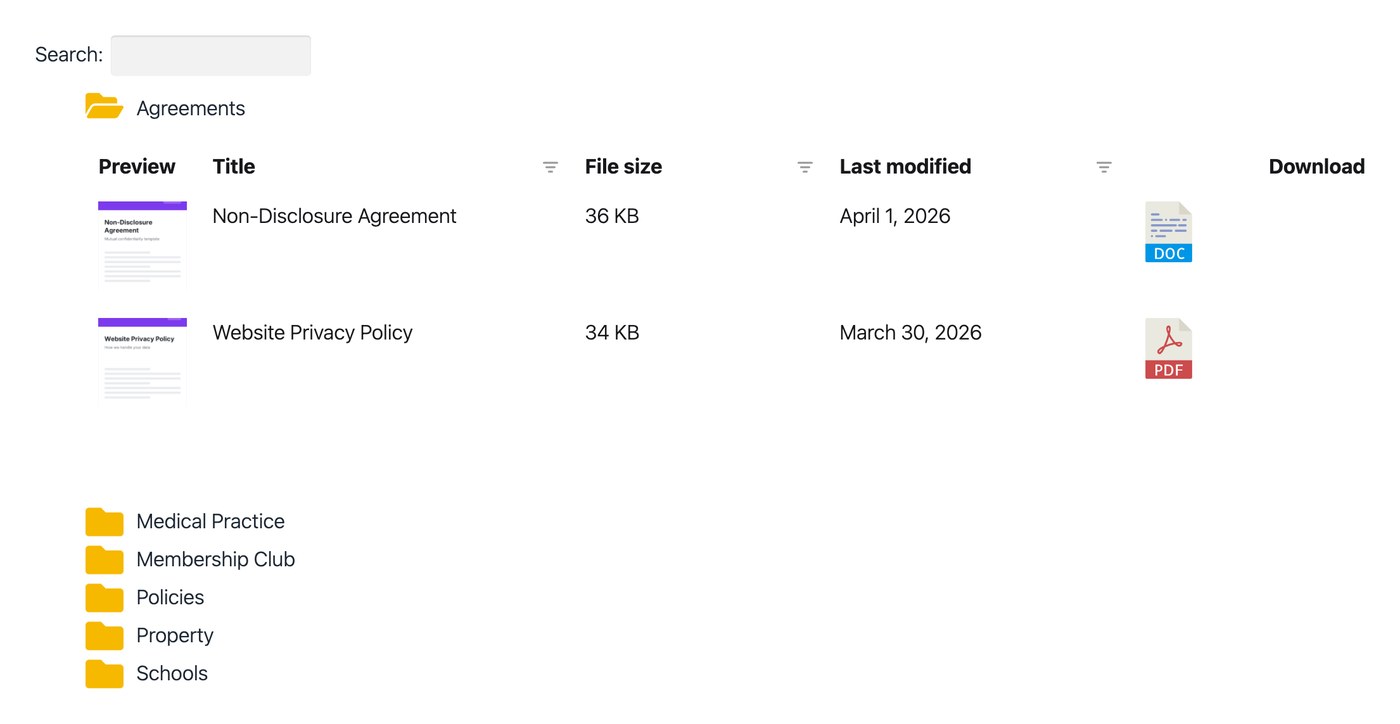
There’s also a third option that people forget: search. I rarely bother filing my own Google Drive into neat folders, because search finds what I need faster than clicking through a tree ever could. The best systems use all three, with structure for browsing and search for everything else. That way, you and your colleagues can easily find documents, whichever organizational method suits them best.
Building a simple document taxonomy
A document taxonomy is just the agreed list of categories you’ll sort everything into. The single most common mistake is making it too detailed. A taxonomy with 40 categories is as useless as no taxonomy at all, because nobody can remember which one to pick, and documents end up scattered across near-duplicate labels.
My advice is to start small. Aim for somewhere between five and ten top-level categories that match how your organization talks about its work: policies, reports, forms, minutes, guides, and so on. You can always add a second level later if one category genuinely gets too crowded.
Here are a few rules that help keep a taxonomy usable:
- Use words your team already says. Name categories after the language people use day to day, not internal jargon or department codes.
- Make every document fit somewhere obvious. If a file could plausibly go in three categories, your categories overlap too much and need tightening.
- Avoid a “Miscellaneous” bucket. It becomes the place everything lands when people can’t be bothered to choose, and it grows until it’s the biggest category you have.
- Write the list down. A taxonomy that lives in one person’s head isn’t a taxonomy. One short page everyone can see is enough.
Getting people to stick to the categories is the hard part. However tidy I keep my own filing, I’ve always found it surprisingly difficult to get colleagues to use the same labels. That’s why a short, visible list beats an elaborate one that nobody follows.
Adding metadata people will use
Document metadata is the set of facts you record about each file: its type, its date, who owns it, and whether it’s current or superseded. Categories tell you what a document is about. Metadata tells you everything else you need to find and trust it.
You don’t need much. For most collections, four or five fields cover it: a clear title, a category, a date, a document type and a status. Avoid recording metadata nobody searches by. If no one ever looks for documents by “internal reference code,” don’t make people fill that field in.
A lot of metadata can live in the file name itself, which is why a consistent file naming convention does so much heavy lifting. A name like 2026-06-18_policy_data-protection_v02.pdf already encodes the date, the type, the subject and the version, so the document sorts and searches sensibly before you’ve added anything else.
The “v02” matters more than it looks. A clear status field, or a version number in the name, is the simplest form of document version control, and it’s what stops people opening last year’s policy by mistake.
A step-by-step way to reorganize an existing set of files
Reorganizing a messy drive feels daunting, so the best way to organize files you already have is to do it in passes rather than all at once. Trying to fix everything in one sitting is how these projects stall. Here’s the order I’d work in:
- Agree the categories first. Settle your taxonomy before you touch a single file, and write the five to ten categories on a shared page so everyone sorts to the same list. Moving things around without a destination just creates a different mess.
- Start with what people use most. Sort the documents people search for most often first, such as this year’s policies, forms and reports. The long tail of old files can wait, and some of it can be archived rather than sorted.
- Rename as you go. Apply your naming convention while you’re already handling each file. The batch-rename feature built into Windows File Explorer and macOS Finder handles the repetitive cases without extra software.
- Assign a category and a status to each file. Decide where it belongs and whether it’s current, archived or superseded. Anything past its useful life gets archived, not deleted, so you keep a record.
- Put the survivors somewhere people can search. Once the keepers are named and categorized, move them out of the folder maze and into a single place people can filter and search.
If you’ve hooked your favorite AI up to your filing system then you can ask it to take care of a lot of the work for you. Just be careful to back up first, prompt it properly, and check its plan carefully before allowing it to make changes.
When to move from folders to a searchable library
Folders work until the people who need a document are no longer the people who filed it. The moment you’re sharing documents with colleagues across an organization, members, or the public, asking them to navigate your folder structure stops being realistic. They don’t know your categories, and they shouldn’t have to learn them.
When most organizations get to this stage, they publish a static list of file links onto their web page. That’s fine for a handful of documents. However, once you get past about five files, a flat list gives readers no way to search or filter. At this point, a folder tree or a page of links stops doing the job.
At this stage, it’s time to publish your files as a searchable document library instead. A library takes the categories and metadata you’ve already set up and puts them to work for visitors. They get a search box, filters down the side and sortable columns, rather than a tree to click through.
We built Document Library Pro to do exactly that. It publishes your documents as a page where people search by keyword, filter by the categories you defined, and sort the columns to find what they need. They can preview a document in the browser without downloading it, or select several files and download them together as a zip.
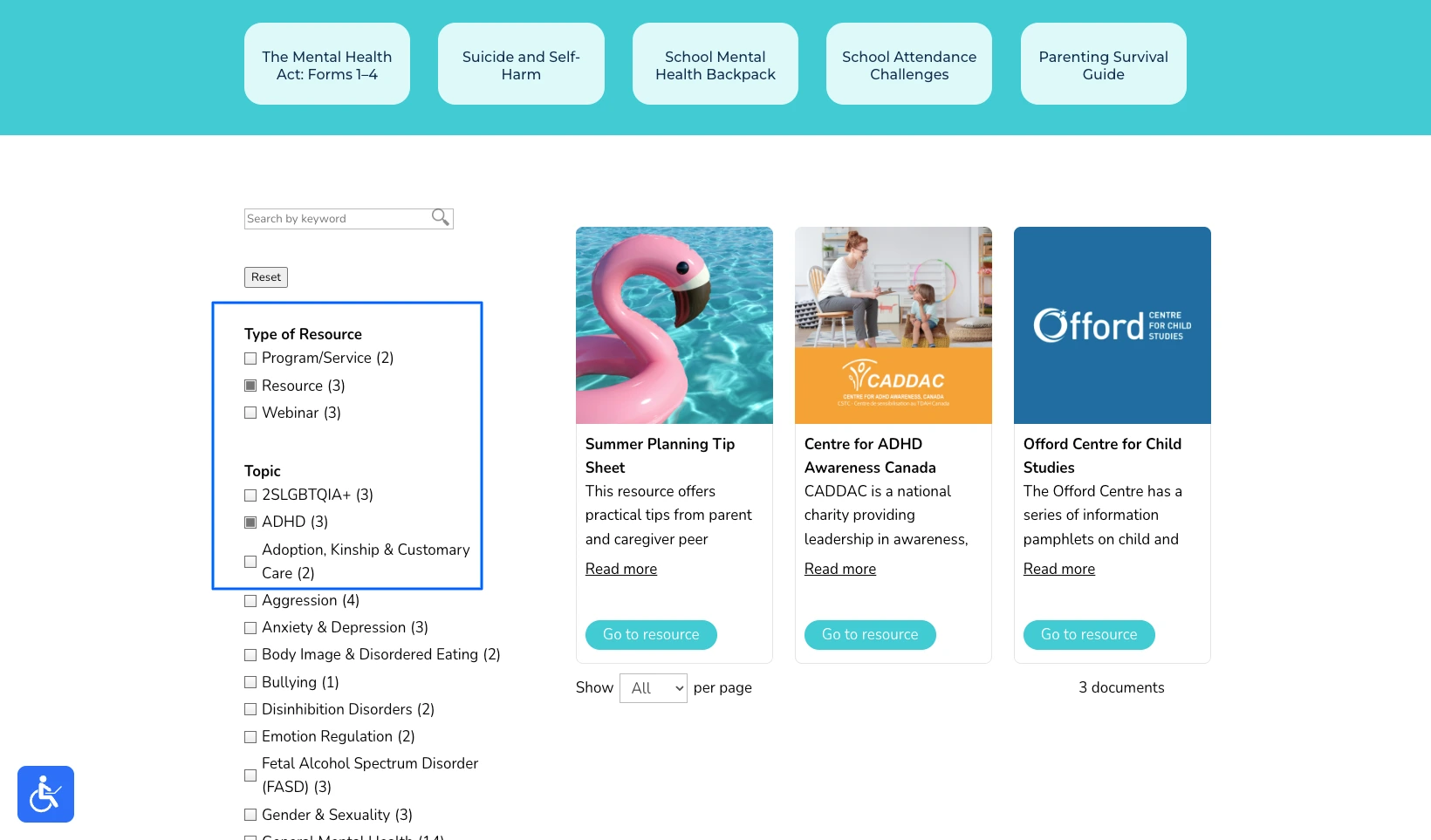
Children’s Mental Health Ontario publishes its family resources exactly like this, with categories down the side doing the work a folder tree used to. This is where the earlier organizing pays off. When we analyzed 500 sites that use Document Library Pro to publish their documents, PDFs were by far the most common file type, and the sortable table layout was the most popular choice.
A table only looks good when the documents behind it are named and categorized consistently. The organizing you do up front is what makes a published library look professional rather than messy.
It works as a WordPress plugin, and it embeds into Shopify, Squarespace, Wix, Webflow, a custom site, Salesforce or an intranet with a single embed code. The same categories work whether you’re publishing a public resource library of guides and downloads, or an internal set of policies and forms behind a login.
Frequently asked questions about organizing documents
What is the best way to organize documents?
The best way to organize documents is to group them by how people search for them, using a small set of clear categories rather than deep folders. Add consistent file names and a few pieces of metadata, such as date, type and status, so every document is easy to find, sort and recognize.
Should I use folders or categories and tags?
Use folders for small, stable collections where everyone shares the same mental map. Switch to categories and tags once documents could belong in more than one place, or different people look for them in different ways. A single file can then sit in several categories at once instead of being locked into one folder.
What is a document taxonomy?
A document taxonomy is the agreed list of categories you sort documents into. Keep it small, ideally five to ten top-level categories named in the language your team already uses, so people can pick the right one without thinking and documents don’t scatter across near-duplicate labels.
How do I organize thousands of existing files?
Work in passes rather than all at once. Agree your categories first, sort the documents people use most often before the rest, rename and categorize as you go, and archive anything past its useful life instead of deleting it. Then move the keepers somewhere people can search.
How does organizing documents help people find them?
Clear categories and consistent names give you the structure a searchable library needs. With Document Library Pro, visitors search by keyword and filter by the categories you defined, so they find the right document in seconds instead of clicking through folders they don’t understand.
Turning a messy drive into something people can use
Organizing documents comes down to a small set of categories, consistent names and a little metadata. Applied consistently, you can use these conventions to turn a chaotic drive into an organized library that anyone can navigate. You don’t need a perfect filing system to get there. Just agree the categories, fix the files people use most first, and keep the rules simple enough that everyone follows them.
When you’re ready to put those organized files in front of the people who need them, you can try Document Library Pro free for 14 days. Publish them as a searchable library on your own site.