Document version control is the practice of tracking which copy of a document is the current one, so everyone works from the latest version instead of an out-of-date duplicate. It’s how you avoid the situation where three people edit three different copies of the same policy and nobody can say which one is official.
You don’t need enterprise software to version control your documents. A few consistent habits matter far more than the tools you use.
Below, I’ll explain what version control means for everyday documents, and share a numbering scheme that you can copy. After that, I’ll cover how to keep a single source of truth, what to do with superseded versions, and how publishing your files removes the “which one is latest?” question for good.
What document version control means in practice
For most teams, document version control means knowing which version of a file is current, keeping a clear record as it changes, and making sure people open the right one. It’s the document equivalent of what software developers do with code, minus the technical machinery.
The mechanics are simple. Luckily, most organizations don’t need check-in and check-out locks, an approval engine or an audit trail to get the benefits. Those belong to heavyweight document management systems, and they’re overkill for a team that mainly needs everyone reading from the same page.
It’s easy to understand the benefits of version controlling your documents and files. Imagine this scenario:
- Someone emails a contract for review.
- Two colleagues reply with edits on separate copies, and a third saves another version to a shared drive.
- A week later there are four files, all called something like “contract”, and no reliable way to tell which one to send to the client.
Good version control avoids this problem completely. Specifically, you need two things:
- A naming and file versioning rule that everyone follows, and;
- A single agreed place where the current version lives.
I’ll show you how to achieve both when setting up your document version control.
Version numbering schemes that work
A version number tells anyone, at a glance, how current a document is and how it relates to earlier copies. The scheme matters less than picking one and using it everywhere. The most important thing here is consistency.
Research data teams, who manage versions for a living, give the same core advice in their versioning guidance: choose a consistent system and record each change as you go. I think that’s excellent advice.
Here are the three version numbering schemes that work for ordinary documents.
- Simple sequential. Number versions v01, v02, v03 with a leading zero so version 10 doesn’t sort above version 2. Best for documents that just move forward, like meeting minutes or a regularly updated form.
- Major and minor. Use v1.0 for a released version and v1.1, v1.2 for small revisions, then v2.0 for the next significant rewrite. Best for policies and handbooks, where readers care whether a change is cosmetic or substantial.
- Date-based. Stamp the version with the date in year-month-day order, such as 2026-06-19. Best for documents tied to a moment in time, like a quarterly report or a price list.
Whichever you choose, put the version in the filename so it travels with the document. A name like data-protection-policy_v2.1.pdf carries its own version history. This is where a consistent file naming convention pays off, because the version becomes one predictable field in every name rather than a free-for-all.
Here’s how a major-and-minor scheme looks for a staff handbook: The first approved version is v1.0. A small correction to one section becomes v1.1. When you rewrite a whole chapter for the new year, that’s v2.0, and anyone who sees it knows at once that it’s a substantial change rather than a typo fix.
Whichever scheme you pick, one shared rule keeps the version control working: agree as a team whether the highest number is always the current one, and never reuse a number. Once v2.0 exists, the old v1.4 keeps its name forever.
Keeping a single source of truth
A single source of truth is one location where the current version of a document lives, and which everyone treats as the only official copy. It’s the most important habit in version control, and it’s easy to get this wrong.
There are lots of reasons why teams and organizations end up storing different versions of the same document in different locations. For example, if a file gets emailed as an attachment, it means there’s a copy in someone’s inbox. Another sits on a desktop, and a third is on the shared drive. Each copy can be edited independently. The moment any of this happens, you’ve lost track of which is the definitive version.
The fix is to make one place authoritative, and route everyone there. That might be a single folder, a shared workspace or, for documents people need to access regularly, a published library on your website or intranet. The point is that people open the document from that location rather than keeping their own copy.
The documents this matters for most are the long-lived ones, such as a council’s meeting minutes, a charity’s annual report, or a manufacturer’s spec sheets revised by model year. Each gets a new version on a schedule, so a stray old copy on a web page or in someone’s inbox is a real risk rather than a hypothetical one. Simply emailing a link to the definitive location of the document avoids creating duplicate versions.
When the current version always lives in one spot, updating it is a single action instead of a hunt-and-replace across inboxes and drives. You change the file in one place, and everyone who opens it sees the latest version automatically.
Handling superseded and archived versions
When a new version replaces an old one, the old version is superseded. You’ll usually want to keep it for a while rather than delete it outright. You may need to show what a policy said on a given date, or refer back to a prior decision.
The practical approach is to move superseded versions out of the way without losing them. Keep the current version in your single source of truth, and move older copies into a clearly labeled “Archive” or “Superseded” folder.
The filename and its version number then tell you exactly what each archived copy is, which is another reason to get naming right first.
How long you keep old versions is a separate decision, and often not yours alone. Many organizations are required to retain certain records for a set number of years, and to dispose of them properly afterwards. If that applies to you, set the rules out in a document retention policy so archiving and deletion follow a schedule rather than someone’s memory.
The goal is to achieve a clean split. People see one current version and can’t accidentally open an old one, while the history stays available to anyone who genuinely needs it.
Version control in a published document library
Publishing your documents as a searchable library is the most reliable way to enforce a single source of truth, because there’s only ever one copy on display. When you update the file behind a document, every visitor who opens it gets the current version from the same link. Nobody is working from an attachment they saved last month.
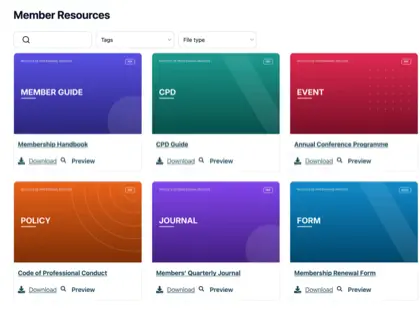
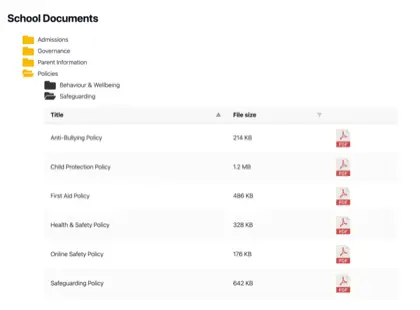
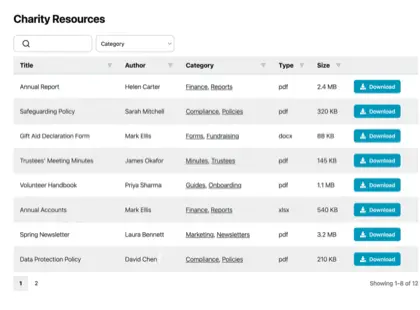
We built Document Library Pro to publish your files as exactly this kind of library, on your own site rather than a separate system people have to log into. Visitors search by keyword, filter by category and sort the columns, and they can preview a document in the browser without downloading it.
It can either work as a WordPress plugin, or embed into Shopify, Squarespace, Wix, Webflow, a custom site or an intranet with a simple embed code.
For version control specifically, the useful part is that each document is a single entry at a stable web address. When a new version is ready, you replace the file on that entry and the public link keeps pointing to the latest copy. The previous versions remain available on the “Edit Document” page, where you can easily see them all, rename them, and even revert to a previous version. When you replace a document, you can choose to either keep the old one or automatically replace it to keep your file system tidy behind the scenes.
You can also show the date each document was last updated, so readers see at a glance how current it is. And you can set documents to expire automatically on a date, after which they will no longer be available.
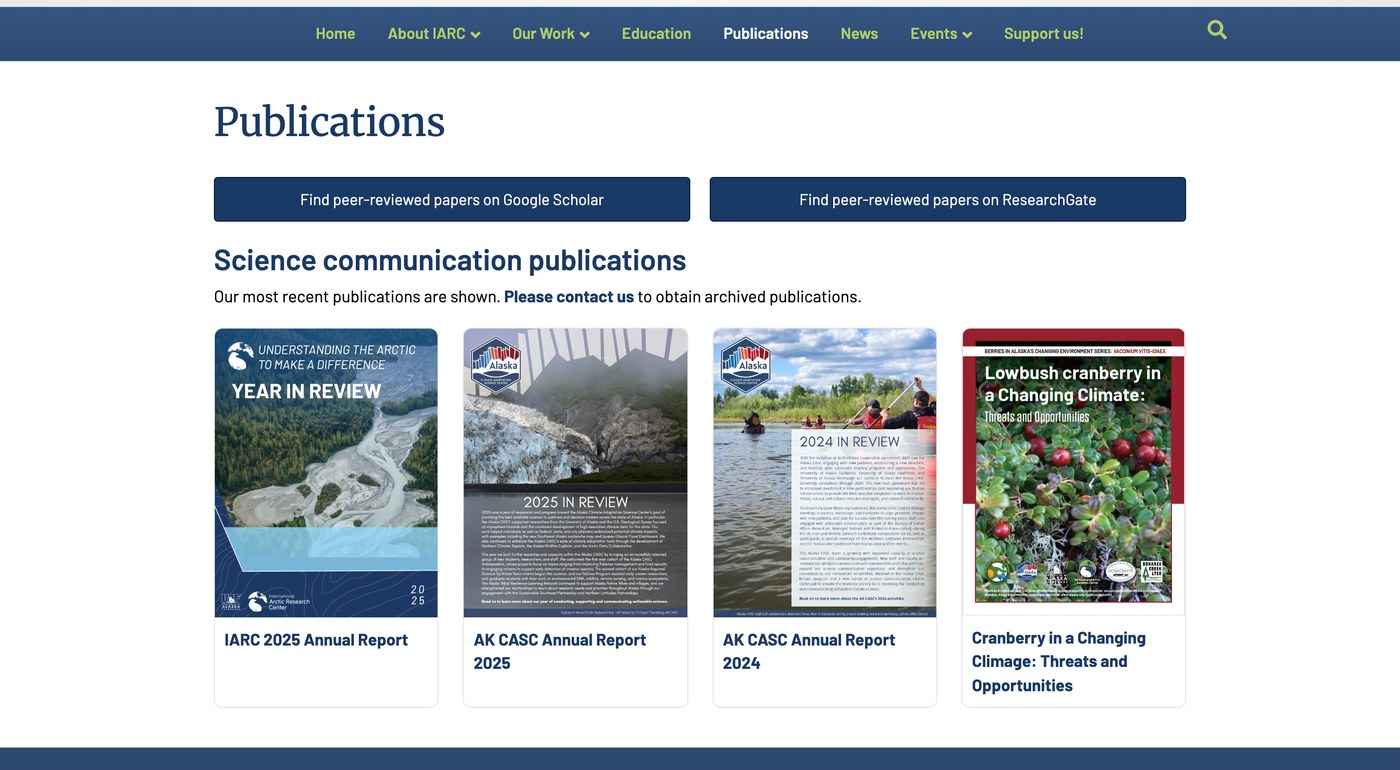
In our own analysis of 500 sites that use Document Library Pro, we learned that the majority of sites publish long-lived documents. These libraries are run mostly by larger organizations like nonprofits, health bodies, councils and membership associations. Those are exactly the files that need version control, because an out-of-date policy on a public page is worse than no policy at all.
Publishing files in a searchable document library means there’s one current version, in one place, that you update once.
Frequently asked questions about document version control
What is document version control?
Document version control is the practice of tracking which copy of a document is current as it changes over time, so everyone works from the latest version. It usually combines a version number in the filename with a single agreed location where the current copy lives.
What is the best way to number document versions?
Use v01, v02 and v03 for documents that simply move forward, or v1.0, v1.1 and v2.0 when you need to show whether a change is minor or major. Add a leading zero so version 10 doesn’t sort above version 2, and never reuse a number once it’s been used.
What does single source of truth mean for documents?
A single source of truth is one location that holds the current version of a document and that everyone treats as the only official copy. It prevents the problem of multiple edited copies spreading across inboxes and drives with no way to tell which is current.
Should I delete old versions of a document?
In most cases you shouldn’t delete them straight away. Move superseded versions into a clearly labeled archive folder so the current version stays easy to find, and follow a document retention policy for how long to keep them before deleting. Some records must legally be retained for a set number of years.
Can a document library handle version control?
Yes. With Document Library Pro, each document is a single entry at a stable link, so replacing the file updates the version everyone sees, and you can display the date each document was last updated. It shows the current version rather than storing a full history of past versions.
Settle your version control before you publish
Good document version control comes down to two habits: number your versions consistently, and keep the current copy in one place everyone trusts. Get those right and the “which file is latest” question stops coming up, whether you’re managing a handful of policies or hundreds of reports.
Here’s the whole system as a routine you can set up today:
- Pick one numbering scheme, such as v1.0, v1.1 and v2.0 for policies, and use it on every document.
- Put the version number at the end of the filename, like
board-minutes_2026-06_v1.pdf, so it travels with the file. - Choose one location as your single source of truth, whether that’s a shared folder or a published library, and point everyone to it.
- Move each superseded version into a clearly labeled “Archive” folder as soon as it’s replaced.
- Publish the current version where the people who need it can find it, and update it in that one place from then on.
When those documents need to reach colleagues or the public, publishing them removes the last way an old version can slip through, because there’s only one copy on display. You can try Document Library Pro free for 14 days and put your current versions in front of the people who need them, on the website you already have.