





Document Library Pro hébergé intègre une recherche flexible, ce qui permet aux visiteurs de trouver facilement des documents en saisissant un terme de recherche. Vous pouvez utiliser la recherche seule ou avec filtres, which let people narrow the list by choosing from a set of predefined options.
Champ de recherche above the bibliothèque de documents
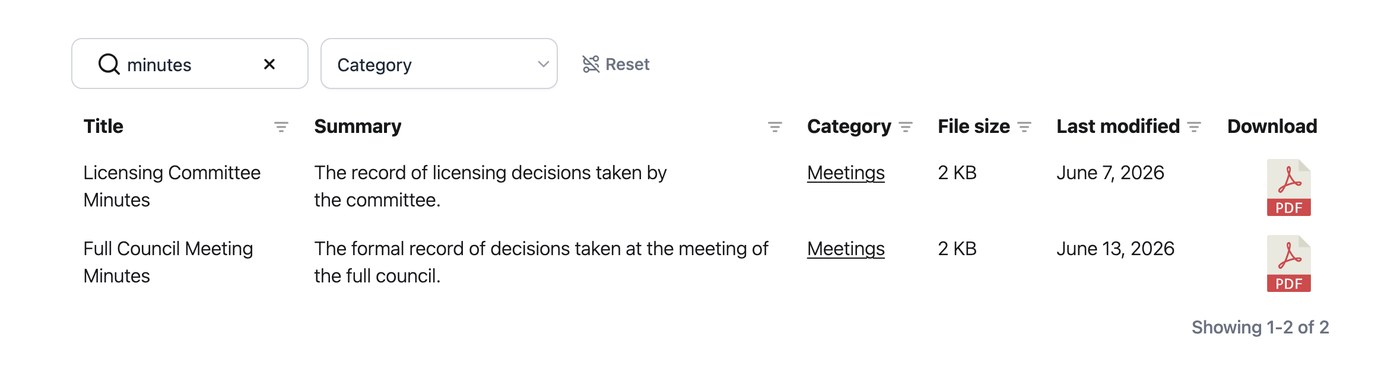
By default, your bibliothèque shows a champ de recherche above the tableau or grille, at the top right. Visiteurs can type into it to instantly narrow the list to documents matching their term.
In this example, the visitor has typed “policy” into the champ de recherche, which has narrowed the tableau to the two matching documents:
Vous pouvez aussi hide the champ de recherche dans le Library Builder.
logique de recherche
Le champ de recherche parcourt les informations de votre bibliothèque, afin que les visiteurs puissent rechercher par titre de document, description, auteur, nom de fichier, catégorie et étiquette. La recherche couvre toute votre bibliothèque, y compris les documents qui ne sont pas actuellement visibles à l’écran, et fonctionne de la même manière que vous utilisiez la mise en page en tableau, la mise en page en grille, ou dossiers.
Puis-je search the contenus of PDFs or fichiers in the bibliothèque?
Oui. The champ de recherche also looks inside the fichiers attached to your documents, so visiteurs can find a document by searching for words that only appear within the fichier itself. There is nothing to set up, as the fichier contenus are indexed automatically.
This works for PDF fichiers, Microsoft Office fichiers such as Word, Excel and PowerPoint (for example .docx, .xlsx and .pptx), and OpenDocument fichiers (for example .odt and .ods).
Gardez à l’esprit qu’un fichier doit contenir du texte réel pour que son contenu soit consultable. Les fichiers basés sur des images, comme un PDF créé en scannant un document papier, ne contiennent pas de texte lisible. Pour ceux-ci, libellez chaque document avec des catégories, des étiquettes ou des taxonomies correspondant aux mots que les personnes sont susceptibles de rechercher, ou ajoutez les détails clés au titre ou à la description du document.
Why aren’t the contenus of my protected PDFs searchable?
The search cannot read the text inside a PDF whose contenus are encrypted. When the search cannot read that text, it cannot match words that appear only inside the PDF.
PDF security can use two password types.
- An open password controls who can open the fichier.
- A permissions password controls actions such as printing, copying, or editing.
Either type prevents the PDF text from being searchable. A PDF can still open without asking you for a password and remain encrypted. Print or copy restrictions can encrypt the fichier too.
The document stays in your bibliothèque. You can still find it by its titre, description, catégories, and other details. A search for words that appear only inside the fichier returns no results for that PDF.
To make the PDF contenus searchable, save or export the PDF again without security restrictions. Then upload the new version to replace the existing fichier in the bibliothèque. You need to choose between protection and searchable fichier contenus.
How does search treat accents and special characters?
Search treats accented and plain characters as interchangeable. For example, a search for “Zurich” will also match “Zürich” in the bibliothèque, and vice versa, so visiteurs can find what they need whether or not they type the accent.