





Onglets Web Salesforce vous permettent d’intégrer et d’afficher une bibliothèque Document Library Pro sous forme d’onglet pleine largeur dans Salesforce. Les utilisateurs peuvent ouvrir la bibliothèque depuis Salesforce comme n’importe quel autre onglet, sans aucun code.
Avant de commencer : Vous devez être administrateur Salesforce ou disposer de l'autorisation Customize Application. Salesforce répertorie les onglets Web pour les éditions Contact Manager, Group, Professional, Enterprise, Performance, Unlimited et Developer. Les onglets Web fonctionnent dans Lightning Experience et Salesforce Classic. Si vous utilisez une autre édition de Salesforce et que vous ne voyez pas les onglets Web, vérifiez auprès de Salesforce avant de continuer. La principale différence avec les autres guides d'intégration est que Salesforce demande une adresse Web, et non le code d'intégration complet sur deux lignes.
Vous n'avez pas besoin d'ajouter votre bibliothèque aux Trusted URLs ni aux CSP Trusted Sites.
Étape 1 : copier l'adresse de votre bibliothèque
Ouvrez votre tableau de bord Document Library Pro et allez dans Publier la bibliothèque. Copiez le code d'intégration de votre bibliothèque.
Si vous avez plusieurs bibliothèques, copiez le code d'intégration depuis l'écran Bibliothèques de la bibliothèque que vous souhaitez afficher dans Salesforce.
L'adresse de la bibliothèque est la partie située dans src=”…” sur la première ligne du code d'intégration. Par exemple :
<iframe src="https://your-library.documentlibrary.app/?dlp_embed=1" title="Document library" style="display:block;width:100%;border:0;height:600px;" loading="lazy"></iframe>
Dans cet exemple, vous copieriez cette adresse :
https://your-library.documentlibrary.app/?dlp_embed=1
Utilisez l'adresse de votre propre bibliothèque, et non l'exemple ci-dessus. Copiez tout ce qui se trouve entre les guillemets, y compris ce qui suit le point d'interrogation.
Étape 2 : créer un onglet Web Salesforce
- Dans Salesforce, cliquez sur l'icône d'engrenage et choisissez Configuration.
- Dans Recherche rapide, saisissez Tabs, puis sélectionnez Onglets.
- Dans le Onglets Web section, cliquez sur Nouveau.
- Choisissez Pleine largeur de page, puis cliquez sur Suivant.
- Saisissez un Libellé de l'onglet, par exemple Document Library. Salesforce remplit le Nom de l'onglet.
- Cliquez sur le Style de l'onglet icône de recherche et choisissez une icône et une couleur.
- Définir Hauteur du cadre de contenu (pixels). La valeur par défaut est 600. 1 200 convient à la plupart des bibliothèques, ou définissez une valeur plus élevée pour une bibliothèque longue. Dans Salesforce, la bibliothèque ne peut pas se redimensionner elle-même. Ce champ définit la hauteur de la zone de la bibliothèque. Si la bibliothèque est plus haute, Salesforce affiche une barre de défilement dans l'onglet.
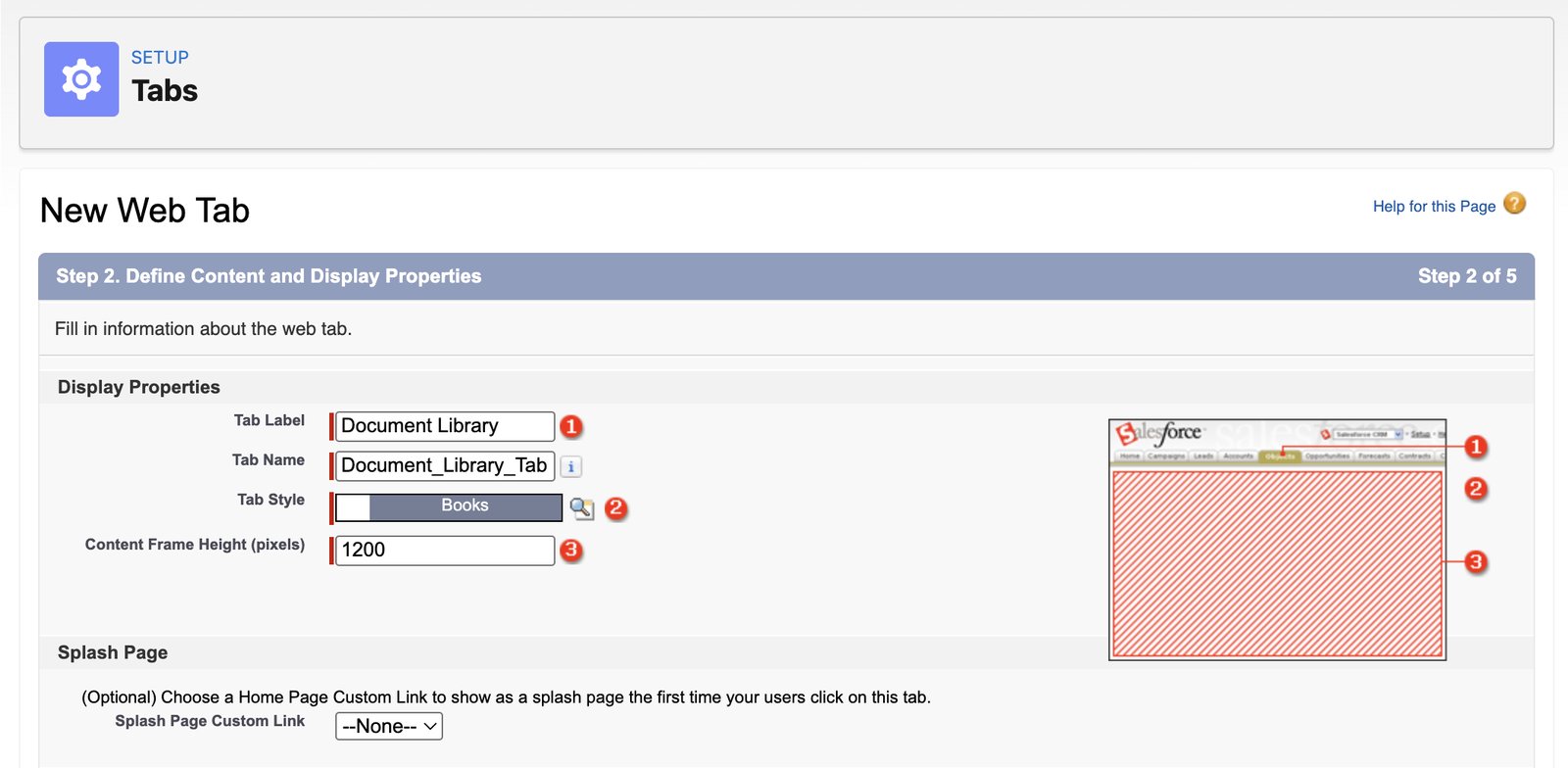
- Cliquez sur Suivant.
- Collez l'adresse de la bibliothèque dans le champ URL du bouton ou du lien . Laissez Encodage tel quel. Cliquez sur Suivant.
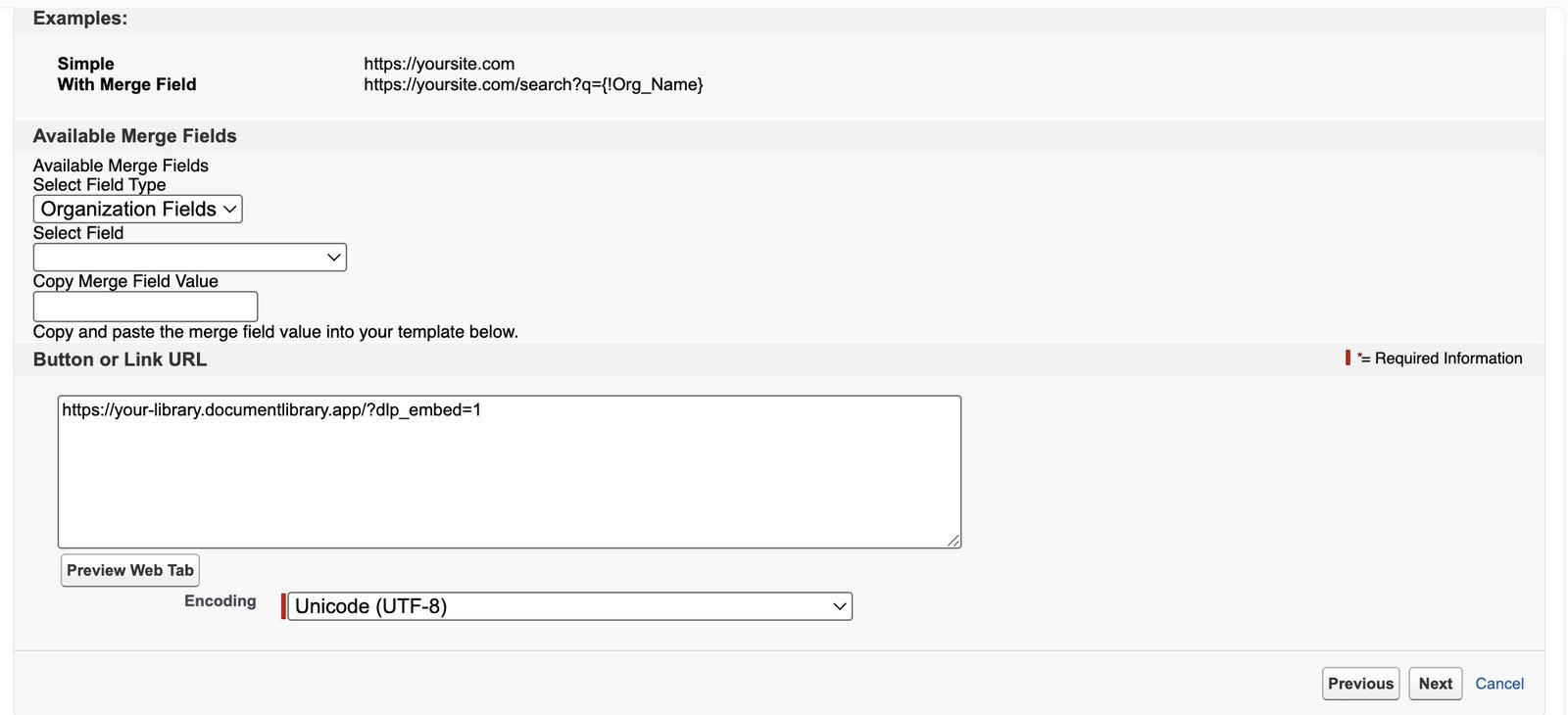
- Choisissez les profils utilisateur qui voient l'onglet. Activé par défaut l'affiche pour tout le monde. Cliquez sur Suivant.
- Choisissez les applications Salesforce qui incluent l'onglet. Toutes les applications sont cochées par défaut. Cliquez sur Enregistrer.
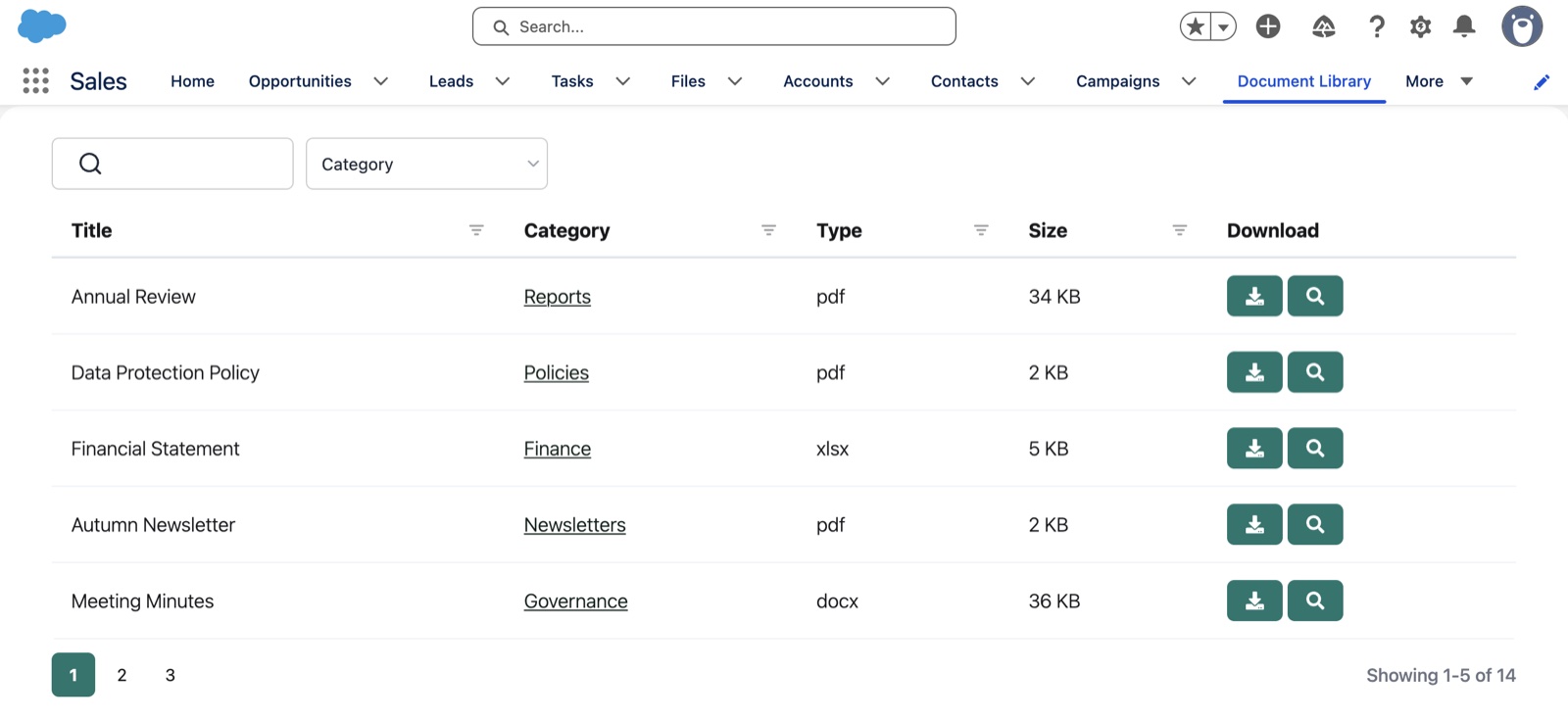
Salesforce ajoute l'onglet Web à chaque application que vous avez sélectionnée à la dernière étape. Par exemple, l'application Sales l'affiche à côté de Campaigns. Certaines applications le masquent sous Plus, et les utilisateurs peuvent aussi le trouver avec le Lanceur d'application (la grille de points, en haut à gauche) en saisissant le nom de l'onglet. Les utilisateurs ne peuvent pas ajouter un onglet Web avec l'icône de crayon, donc un administrateur doit l'ajouter dans Gestionnaire d'applications si une application ne l'affiche pas.
Étape 3 : vérifier le résultat
Ouvrez l'onglet dans Salesforce et vérifiez que votre bibliothèque de documents s'affiche en pleine largeur. Le champ de recherche, le filtre de catégorie et les numéros de page doivent tous apparaître dans l'onglet.
La recherche doit fonctionner normalement. Lorsque vous cliquez sur l'aperçu, la bibliothèque de documents ouvre l'aperçu dans l'onglet, avec un bouton de fermeture.
Les modifications que vous apportez dans Document Library Pro s'affichent immédiatement dans Salesforce. Vous n'avez pas besoin de modifier à nouveau l'onglet Salesforce après avoir mis à jour votre bibliothèque.
Qui peut voir la bibliothèque
Dans Salesforce, votre bibliothèque de documents s'affiche dans le Web Tab pour les personnes dont le profil peut ouvrir cet onglet. L'adresse de la bibliothèque que vous collez dans le Web Tab fonctionne uniquement dans un élément intégré comme cet onglet. Si quelqu'un ouvre la même adresse dans un onglet de navigateur, la bibliothèque ne s'affichera pas.
L'adresse n'est pas totalement infaillible. Pour les documents confidentiels comme les listes de prix ou les politiques internes, protégez votre bibliothèque de documents par mot de passe et activez Bloquer les liens directs vers les fichiers sur la page Contrôle d'accès . Les deux sont inclus dans le forfait Advanced.
Si la bibliothèque n'apparaît pas
Onglet vide ou erreur
Vérifiez que vous avez collé uniquement l'adresse de la bibliothèque, et non le code d'intégration complet. L'adresse doit commencer par https://.
Bibliothèque tronquée ou barre de défilement dans l'onglet
Modifiez l'onglet dans Salesforce et augmentez Hauteur du cadre de contenu (pixels). Vous pouvez le trouver depuis Configuration > Onglets > Modifier à côté de l'onglet.
Onglet non visible pour certains utilisateurs
Vérifiez la visibilité des profils que vous avez choisie lors de la création de l'onglet. Les utilisateurs ne voient l'onglet que si leur profil y a accès.
Vous souhaitez que nous le configurions pour vous ?
Si vous préférez que nous construisions la bibliothèque pour vous, demandez notre service de configuration gratuit.