





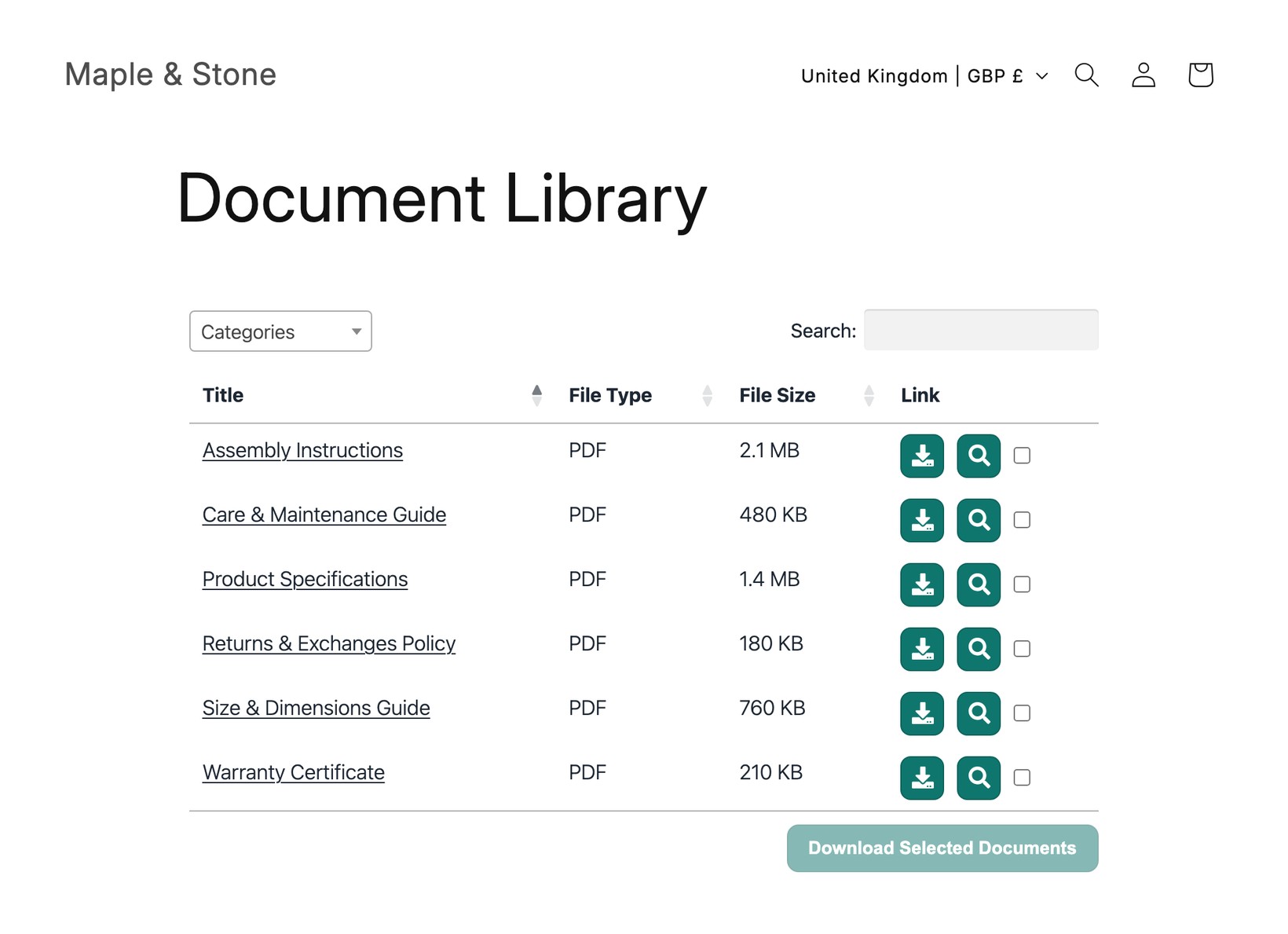
Document Library Pro est disponible sous forme d’application Shopify, ce qui vous permet d’ajouter à votre boutique une bibliothèque de documents consultable et filtrable sans utiliser de codes d’intégration. L’application crée automatiquement une page principale “Documents” qui répertorie tous vos documents, que vous pouvez ajouter au menu de votre boutique, et elle fournit un moyen simple d’insérer des bibliothèques de documents dans d’autres pages et produits.
Installer l’application
- Dans le Shopify App Store, recherchez Document Library Pro et ouvrez sa fiche.
- Cliquez sur Ajouter l’application, puis Installer, puis approuvez les autorisations demandées.
- Choisissez une offre pour commencer votre essai gratuit de 14 jours. Votre abonnement est facturé de manière sécurisée via Shopify, et vous pouvez changer d’offre à tout moment. Si vous annulez avant la fin de l’essai, aucun montant ne vous sera facturé.
Où gérer votre bibliothèque
Vos documents et bibliothèques se trouvent sur la plateforme Document Library Pro à documentlibrary.app, et c’est là que vous les gérez. Le rôle de l’application Shopify est de connecter ces bibliothèques à votre boutique et de faciliter leur affichage.
Vous n’avez pas besoin d’un identifiant séparé. Ouvrez Document Library Pro depuis le Applications section de votre interface d’administration Shopify, et vous accédez directement à votre compte Document Library Pro, déjà connecté. Depuis celui-ci, vous pouvez :
- ajouter et modifier des documents, et les classer en catégories, étiquettes et auteurs.
- Créer des bibliothèques supplémentaires qui répertorient un ensemble précis de documents, par exemple les documents d’un produit.
- Modifier l’ apparence et les réglagesde votre bibliothèque, tels que ses colonnes, sa recherche et ses filtres.
Ainsi, chaque fois que vous devez modifier vos documents ou votre bibliothèque, ouvrez l’application depuis le menu Applications et effectuez vos modifications sur la plateforme. Pour un guide complet, consultez Ajouter des documents à votre bibliothèque et créer une bibliothèque avec le Library Builder. Le reste de cet article couvre toutes les façons de afficher une bibliothèque sur votre boutique.
Vous pouvez également créer des bibliothèques supplémentaires, chacune listant un ensemble différent de documents, et les insérer dans des pages, produits et modèles de thème spécifiques. Ce guide couvre toutes les options.
Remarque : Les trois premières options de cette page fonctionnent uniquement si vous utilisez l’application Shopify Document Library Pro. Si vous avez acheté Document Library Pro directement sur ce site web sans installer l’application Shopify, vous pouvez uniquement utiliser la méthode du code d’intégration.
Ajouter votre page Documents au menu de votre boutique
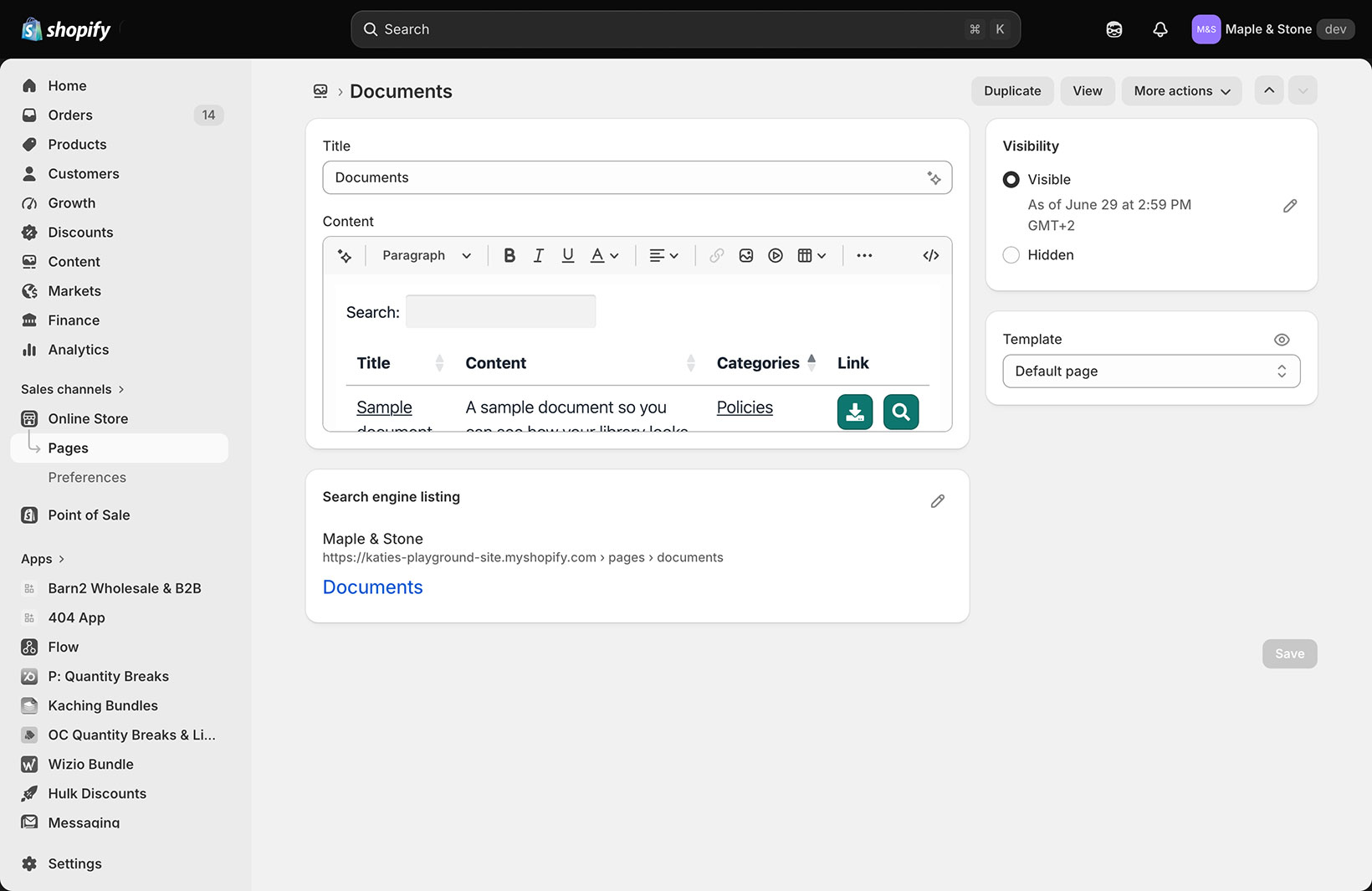
L’application crée une page prête à l’emploi appelée Documents qui répertorie tous vos documents. Pour ajouter un lien vers celle-ci dans la navigation de votre boutique :
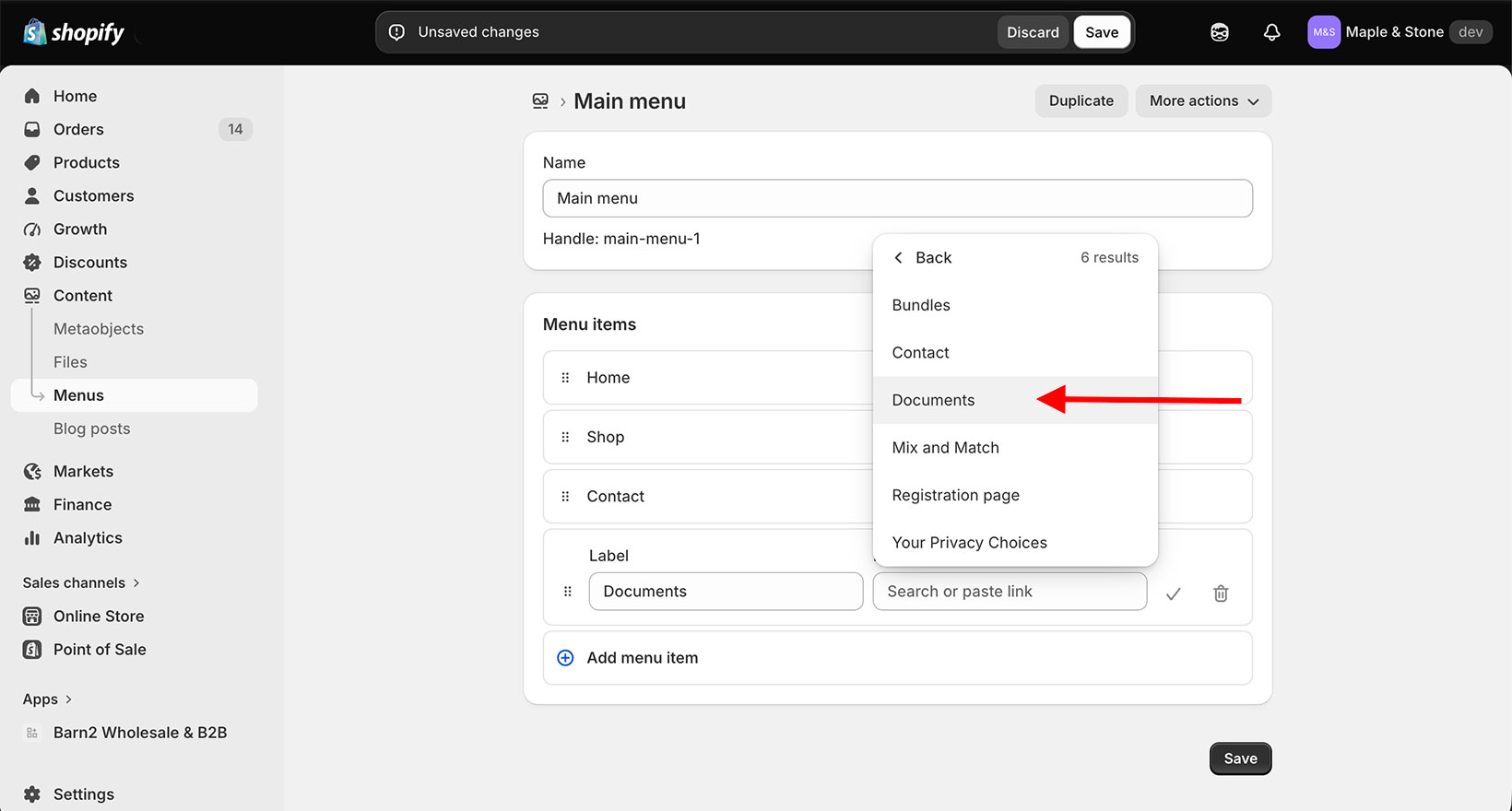
- Dans votre interface d’administration Shopify, allez à Contenu → Menus.
- Ouvrez le menu souhaité, par exemple votre menu principal, puis cliquez sur Ajouter un élément de menu.
- Dans le Lien champ, recherchez et sélectionnez la page Documents .
- Donnez-lui un nom tel que “Documents” et cliquez sur Enregistrer le menu.
La page Documents est une page Shopify normale, vous en gardez donc le contrôle total. Sous Boutique en ligne → Pages vous pouvez la renommer et ajouter votre propre texte et vos propres images au-dessus ou au-dessous de la bibliothèque, par exemple une courte introduction. Si vous souhaitez seulement afficher des documents sur des produits précis et n’avez pas besoin d’une page centrale de bibliothèque, vous pouvez simplement supprimer la page Documents.
Créer des bibliothèques supplémentaires
En plus de votre page Documents principale, vous pouvez créer des bibliothèques supplémentaires, chacune listant un ensemble différent de documents sur sa propre page de bibliothèque. Faites-le via la Bibliothèques section de l’administration Document Library Pro.
Par exemple, vous pouvez vouloir plusieurs bibliothèques afin de lister différents documents sur différentes pages de produit, ou d’afficher différentes bibliothèques dans différentes parties de votre boutique. Une fois vos bibliothèques supplémentaires créées, utilisez les méthodes ci-dessous pour les ajouter aux parties pertinentes de votre boutique.
Ajouter une bibliothèque à un produit
Pour ajouter une bibliothèque à un produit :
- Ouvrez le produit auquel vous souhaitez ajouter une bibliothèque.
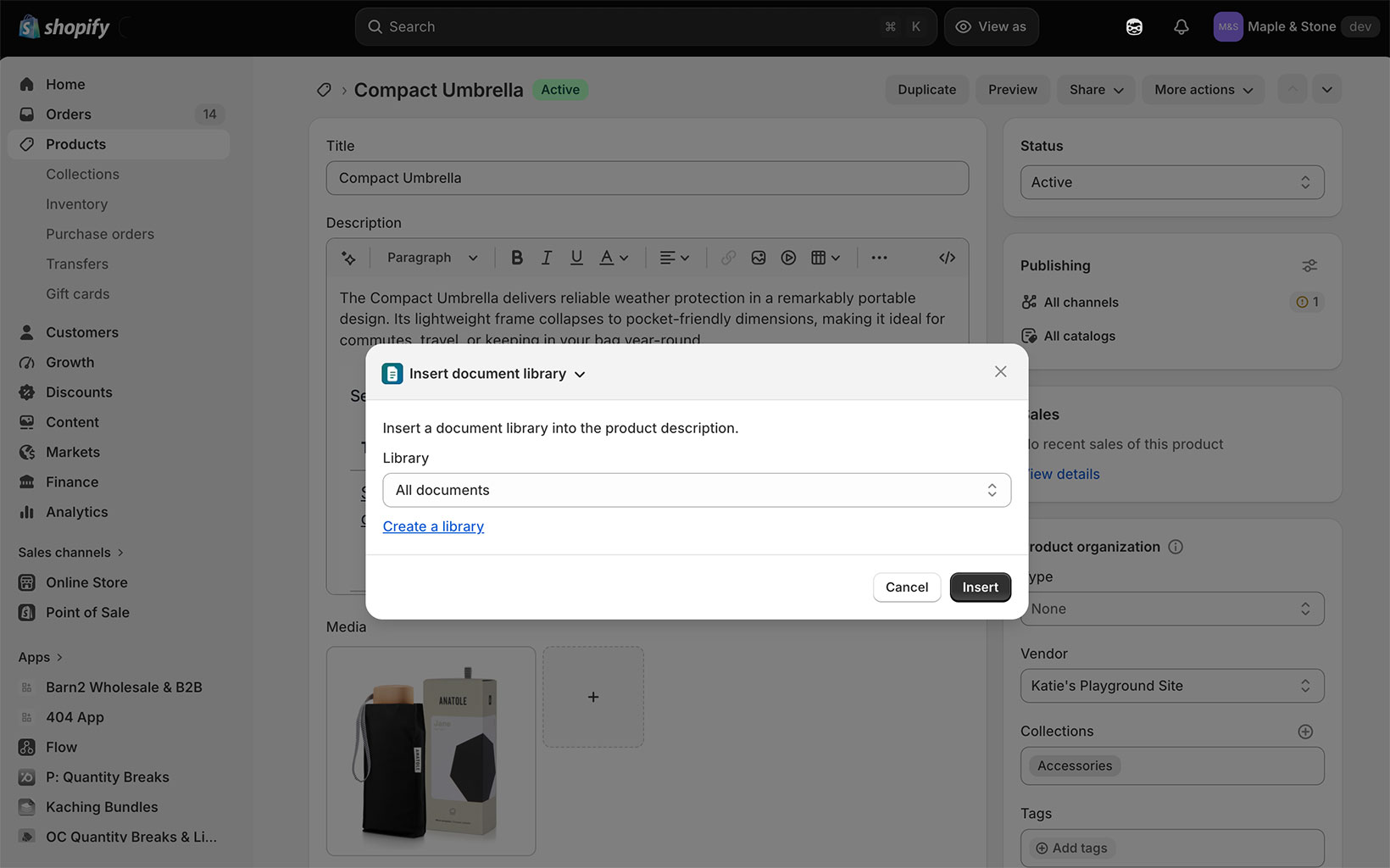
- Cliquez sur Plus d’actions en haut à droite, puis Insérer une bibliothèque de documents.
- Choisissez la bibliothèque à ajouter, puis cliquez sur Insérer.
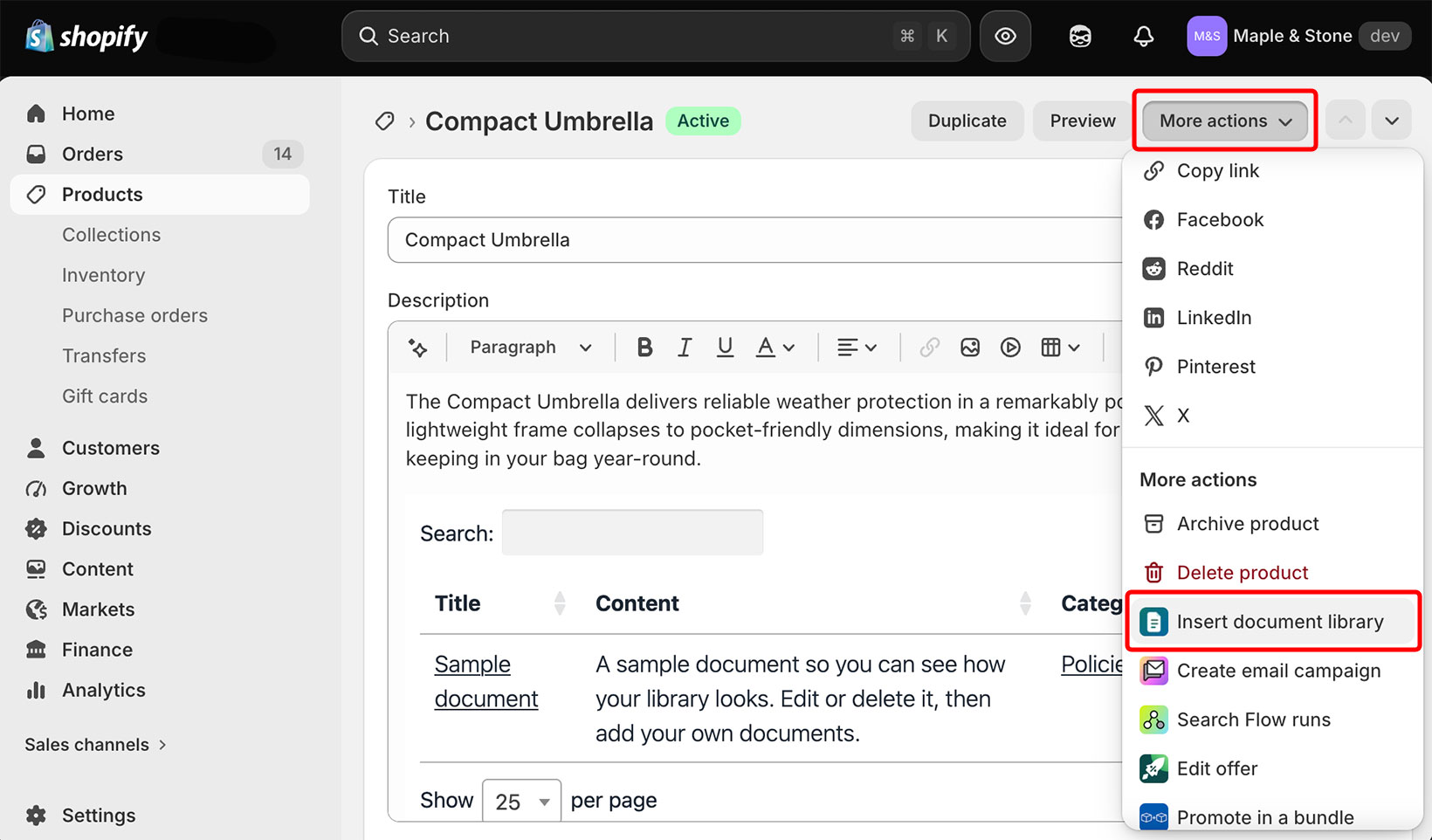
La bibliothèque est ajoutée à la description du produit et apparaît immédiatement sur votre vitrine. Il n’y a rien d’autre à activer.
Vous ajoutez une bibliothèque à une page ? Utilisez le méthode du code d’intégration ci-dessous.
Quelle bibliothèque est ajoutée : Par défaut, cela insère une bibliothèque qui liste tous vos documents. Si vous avez créé des bibliothèques supplémentaires, elles apparaissent également dans la liste afin que vous puissiez les choisir.
Afficher une bibliothèque différente sur chaque produit
Vous pouvez afficher une bibliothèque différente sur chaque produit. Insérez la bibliothèque souhaitée sur chaque produit en suivant les étapes ci-dessus. Par exemple, vous pourriez créer une bibliothèque distincte de fiches techniques pour chaque produit et insérer celle qui correspond sur chaque page produit.
Déplacer la bibliothèque dans la description
La bibliothèque est toujours ajoutée à la fin de la description. Pour la déplacer ailleurs :
- Dans l’éditeur de description, cliquez sur le bouton d’affichage du code (<>) dans la barre d’outils.
- Trouvez le
<iframe>...</iframe>bloc, qui se trouve tout à la fin du code. - Coupez-le et collez-le à l’endroit où vous souhaitez que la bibliothèque apparaisse parmi vos autres contenus, puis enregistrez.
Ajouter la carte Bibliothèque de documents
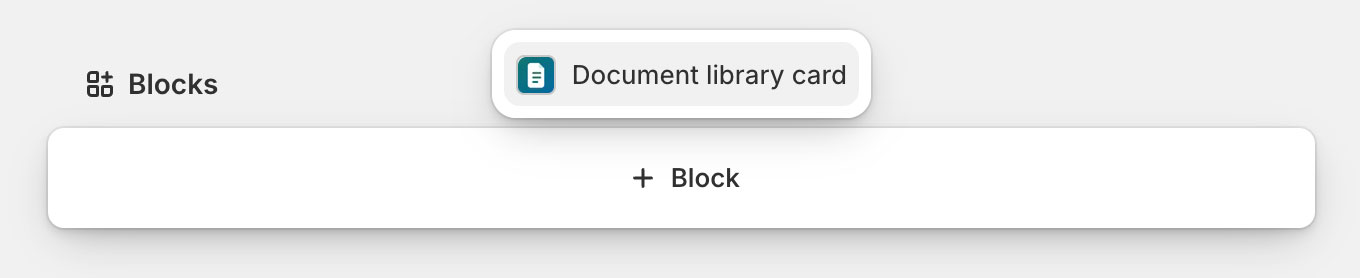
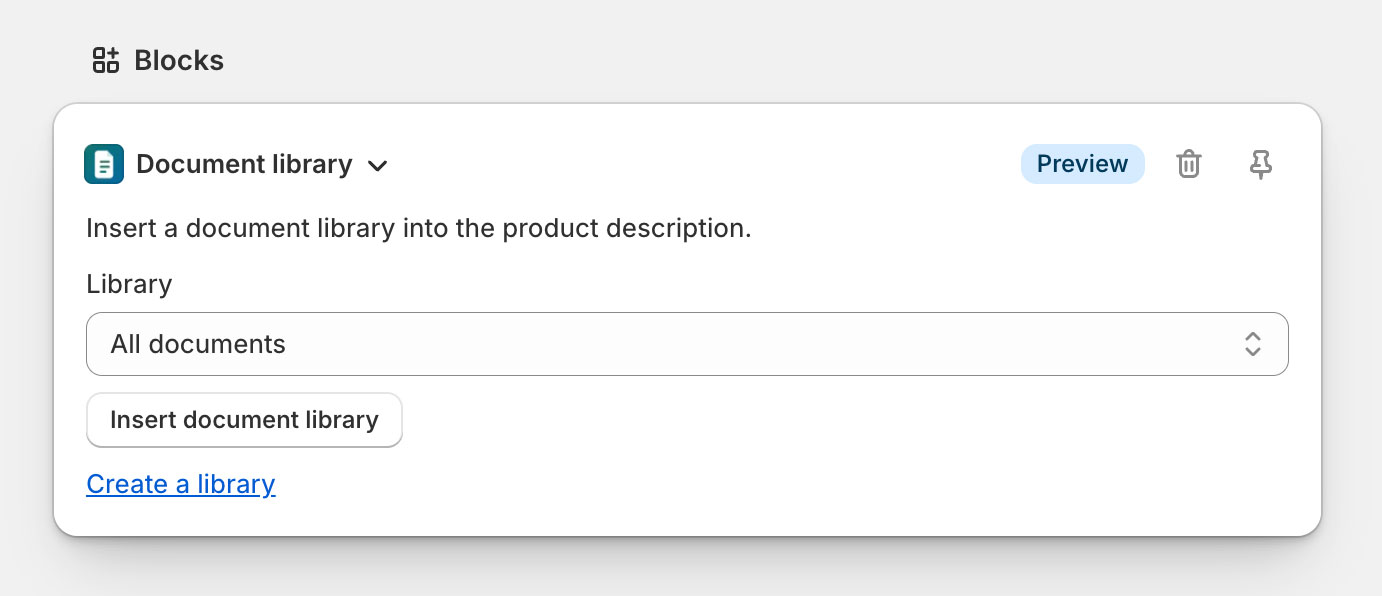
Pour ajouter plus facilement des bibliothèques de documents aux produits, vous pouvez également ajouter une carte Bibliothèque de documents à l’écran de modification du produit lui-même, afin que vous n’ayez pas à ouvrir le menu More actions à chaque fois. Nous recommandons de épinglage l’épingler (l’icône d’épingle sur la carte) afin qu’elle apparaisse sur l’écran de modification de chaque produit, et pas d’un seul. La carte apparaît dans l’onglet Blocs section vers le bas de l’écran de modification, et Shopify y conserve les cartes d’applications, elle ne peut donc pas être déplacée plus haut sur la page.
Faites défiler jusqu’à Blocs section au bas d’un produit, cliquez sur Ajouter un bloc, choisissez carte Bibliothèque de documents, puis épinglez-la.
Ajouter une bibliothèque à un modèle de thème
Si vous souhaitez ajouter une bibliothèque de documents à un emplacement fixe dans votre thème plutôt qu’à l’intérieur d’une description de produit ou de page (par exemple sous le bouton Ajouter au panier), vous pouvez l’ajouter comme bloc de thème :
- Aller à Boutique en ligne → Thèmes et cliquez sur Personnaliser.
- Ouvrez le modèle souhaité, par exemple le modèle de produit, puis cliquez sur Ajouter un bloc dans la section où vous voulez la bibliothèque, et choisissez le Bibliothèque de documents bloc.
- Elle liste tous vos documents par défaut. Pour afficher une bibliothèque spécifique à la place, choisissez-en une dans la Library liste déroulante, puis enregistrez.
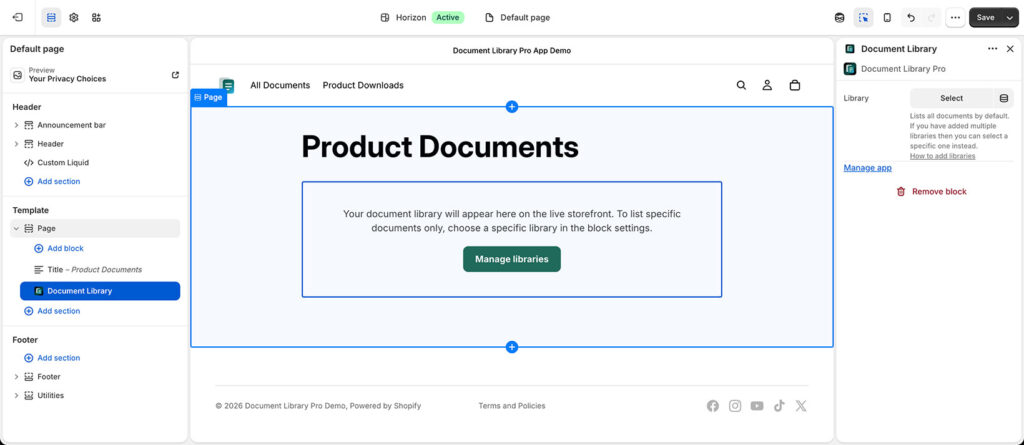
Comme un bloc de thème est placé sur le modèle, il affiche la même bibliothèque sur chaque produit ou page qui utilise ce modèle. Pour afficher une différent bibliothèque sur chaque produit, utilisez la méthode d’insertion ci-dessus, qui ajoute la bibliothèque à ce produit uniquement.
Utiliser un code d’intégration pour ajouter des bibliothèques n’importe où
Chaque bibliothèque possède un code d’intégration (un <iframe>). Vous pouvez le coller partout où vous pouvez ajouter du HTML. C’est la méthode à utiliser si vous utilisez Document Library Pro sans l’application Shopify, ou si vous souhaitez placer une bibliothèque à un endroit que les étapes ci-dessus ne couvrent pas.
Pour obtenir votre code d’intégration, ouvrez d’abord la Publier la bibliothèque page dans votre tableau de bord Document Library Pro et copiez le code d’intégration de la bibliothèque concernée. (Si vous n’avez pas encore créé la bibliothèque que vous souhaitez intégrer, vous pouvez le faire sur la page Bibliothèques.)
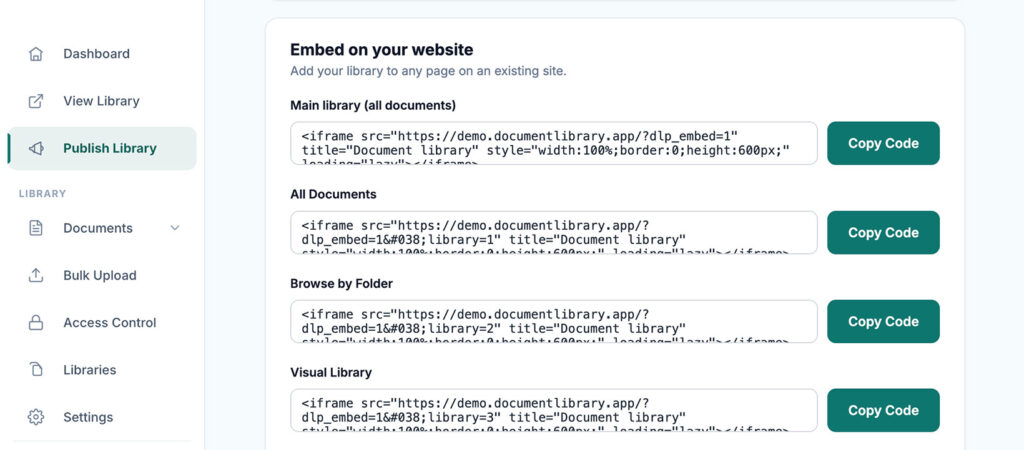
Ensuite, collez le code d’intégration dans l’un des éléments suivants :
- Une description de produit : Ouvrez le produit, cliquez sur le bouton d’affichage du code (<>) dans la barre d’outils de la description, puis collez le code d’intégration à l’endroit souhaité.
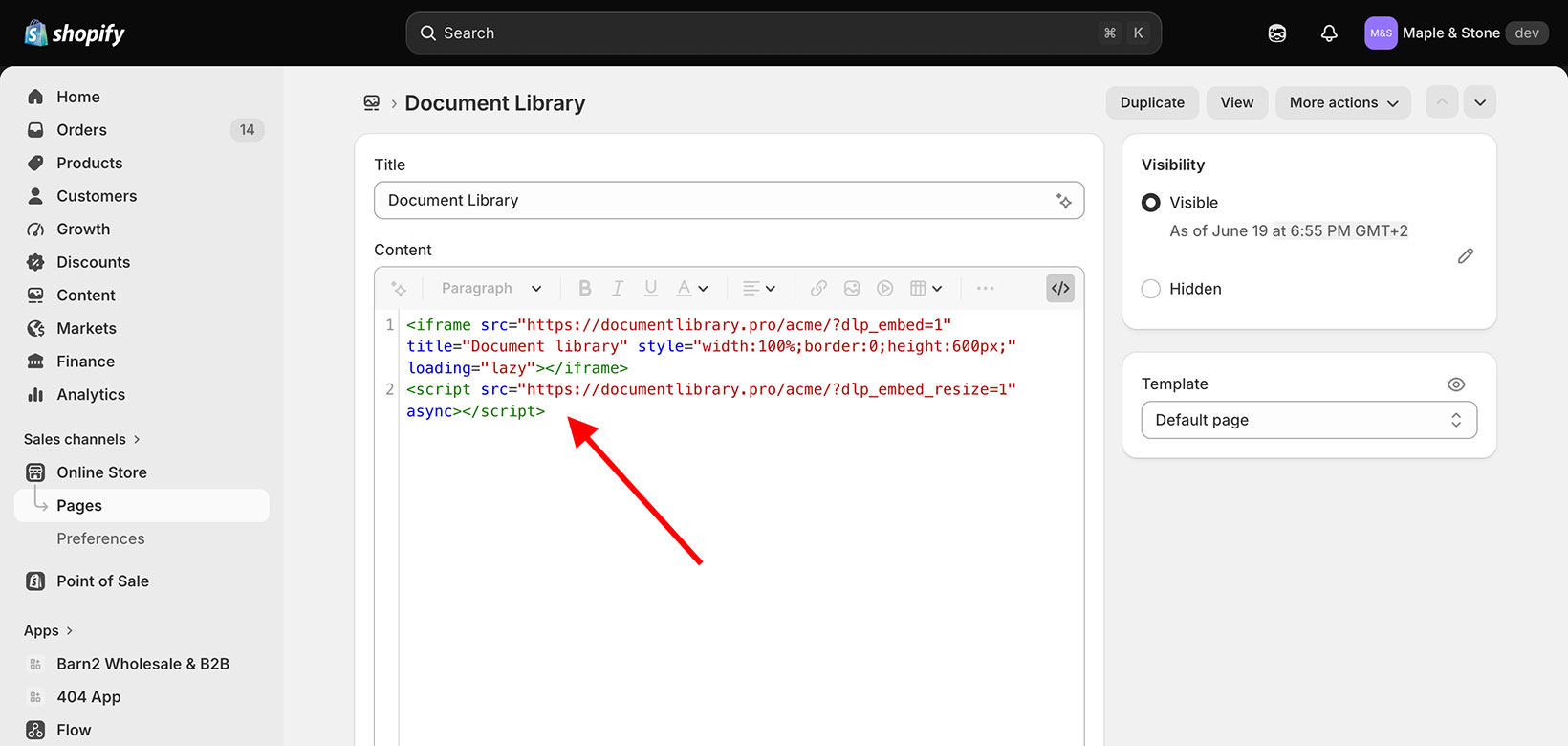
- Une page : Aller à Boutique en ligne → Pages, ouvrez ou créez une page, cliquez sur le bouton d’affichage du code (<>) dans la barre d’outils du contenu, puis collez le code d’intégration.
- Une section de thème : Dans Boutique en ligne → Thèmes → Personnaliser, ajoutez un Liquid personnalisé bloc à une section et collez-y le code d’intégration.
- Tout autre site web : Le même code d’intégration fonctionne sur n’importe quel site web, pas seulement Shopify.
Si le code d’intégration semble avoir disparu
Après avoir collé le code d’intégration dans Shopify, la bibliothèque peut sembler avoir disparu. Elle n’a pas disparu. Les éditeurs de pages et de descriptions de produits de Shopify n’affichent pas une bibliothèque intégrée dans l’onglet visuel, la zone peut donc sembler vide même si le code a bien été enregistré.
Assurez-vous de coller le code d’intégration via le bouton d’affichage du code, affiché comme <> dans la barre d’outils de l’éditeur. Le saisir ou le coller dans l’onglet visuel ne fonctionne pas. Après l’enregistrement, affichez la page sur votre boutique en ligne active pour voir la bibliothèque.
Notre code d’intégration comporte deux parties : un <iframe>, et un petit script en dessous qui permet à la bibliothèque de se redimensionner pour s’adapter à son contenu. L’éditeur de Shopify conserve le <iframe> et supprime le script. Cela signifie que la bibliothèque reste à la hauteur définie sur le <iframe> au lieu de s’agrandir pour s’adapter. Vous pouvez modifier la valeur de hauteur dans l’attribut style, par exemple height:600px, pour l’adapter à votre bibliothèque.
Si vous voulez que la bibliothèque ajuste elle-même sa taille, utilisez l’une des options propres à l’app abordées plus haut sur cette page : la page Documents prête à l’emploi, l’option Insert document library sur un produit, ou le bloc de thème Document Library.