





Document Library Pro ist ein gehosteter Dienst. Du musst also nichts installieren und keine Updates einspielen. Dieser Artikel behandelt deine Bibliothek erstellen, den Einrichtungsassistenten durchgehenund dich in deinem Dashboard zurechtfinden.
Sieh dir das vollständige Tutorial an
Deine Dokumentenbibliothek erstellen
Nach der Registrierung öffnet sich der Einrichtung deiner Dokumentenbibliothek abschließen Bildschirm. Er hat zwei Felder:
- Bibliotheksnamen - Der Name deiner Dokumentbibliothek, der in deinem Dashboard und auf deiner Bibliothekswebsite verwendet wird. Du kannst ihn später unter Settings → General ändern.
- Webadresse - Eine kurze Adresse wie acme, die acme.documentlibrary.app erstellt. Verwende Kleinbuchstaben, Zahlen und Bindestriche. Eine eigene Markenadresse wie docs.yourcompany.com kannst du später einrichten, indem du eine eigene Domain verbindest.
Klicken Meine Bibliothek erstellen. Das dauert etwa 20 Sekunden. Lass die Seite offen, bis der Vorgang abgeschlossen ist.
Einrichtungsassistent
Der Einrichtungsassistent öffnet sich automatisch, wenn du dein Dashboard zum ersten Mal besuchst, beginnend mit einem Willkommen Bildschirm. Er legt die wichtigsten Optionen für deine Dokumentbibliotheken fest und hat drei Schritte.
Alle diese Optionen sind danach in den Einstellungen verfügbar, und jede Bibliothek, die du später erstellst, kann andere Optionen verwenden.
Schritt 1: Deine Bibliothek
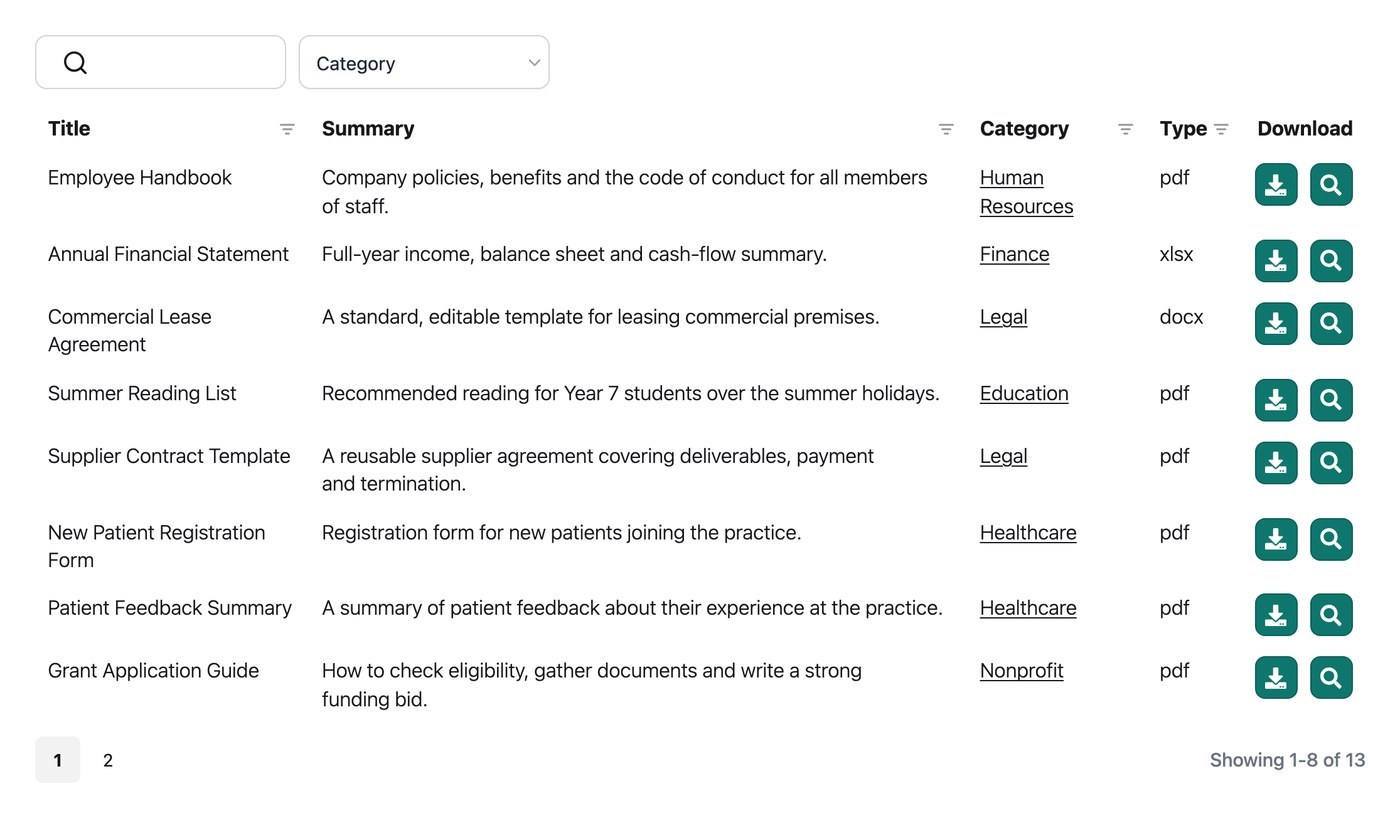
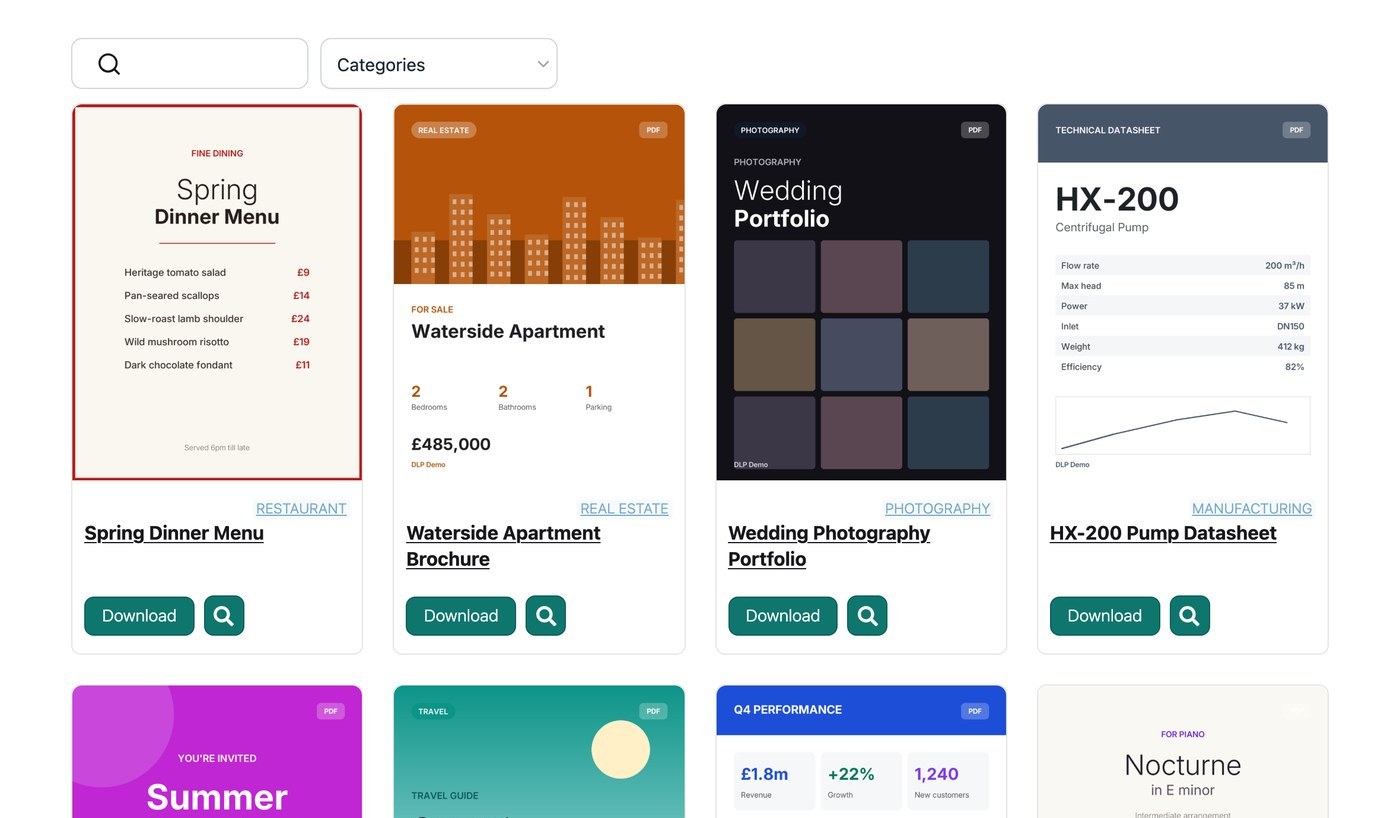
- Standardlayout - Table listet Dokumente mit mehreren Informationsspalten auf. Das passt für lange Listen, die Besucher durchsuchen und überfliegen. Grid zeigt Dokumente als Kacheln an. Das passt für visuelle Sammlungen wie Broschüren und Berichte. Siehe Layout der Dokumentbibliothek.
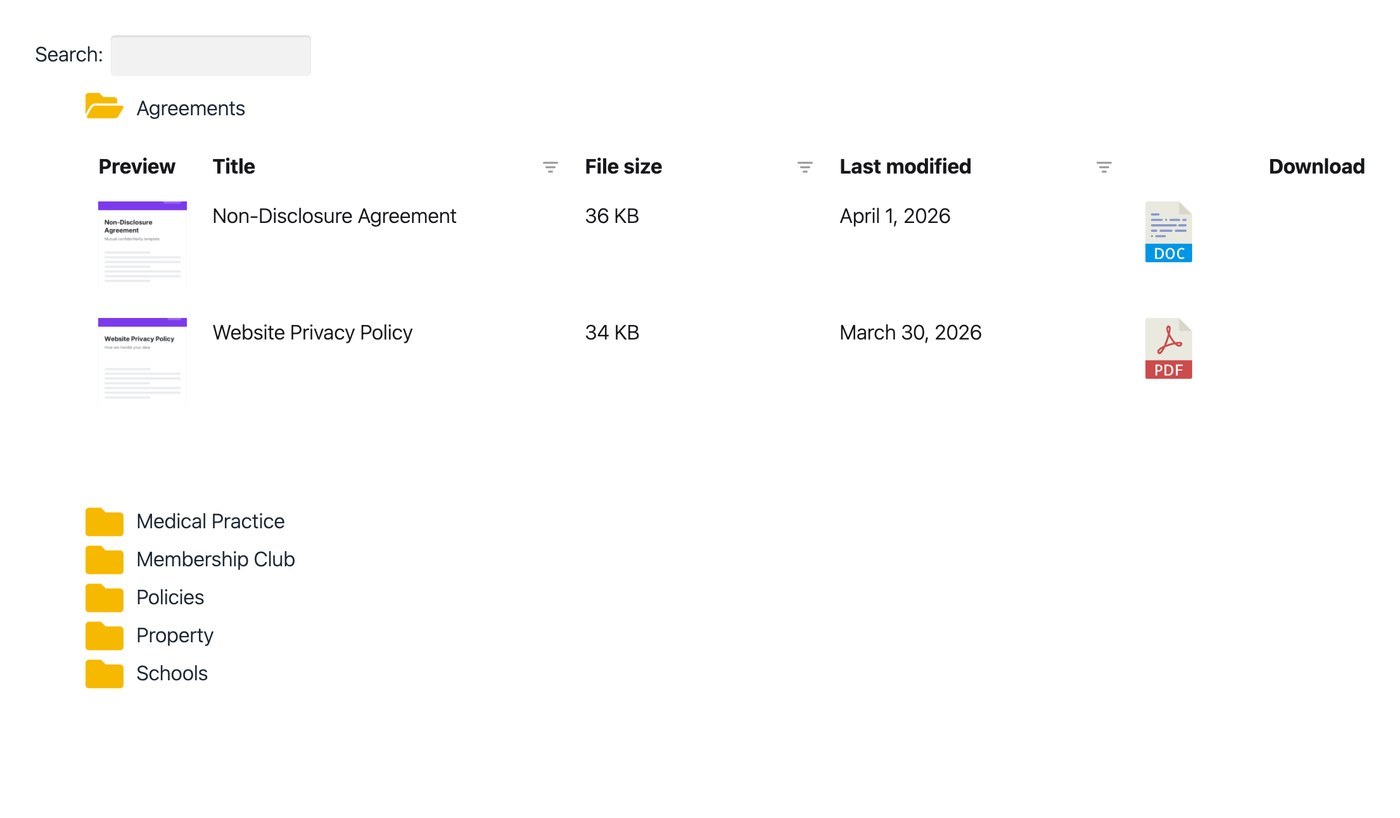
- Ordner - Ordnet die Bibliothek in einer Ordnerstruktur an, die aus deinen Dokumentkategorien erstellt wird. Besucher öffnen jeweils einen Ordner. Siehe Dokumentordner.
- Dokumentenvorschau - Fügt einen Vorschau-Button hinzu, damit Besucher ein Dokument in einer Lightbox lesen können, statt es herunterzuladen. Die Vorschauoption erscheint nur für unterstützte Dateitypen. Siehe Dokumentvorschau.
- Hauptsprache - Die Sprache, die deine Besucher in deiner Bibliothek sehen. Sie legt auch die Sprache deines Dashboards und der E-Mails fest, die an dich gesendet werden. Wenn du eine Sprache verwenden möchtest, die nicht aufgeführt ist, oder eine andere Sprache in jeder Bibliothek, siehe deine Dokumentbibliothek übersetzen.
Schritt 2: Tables oder Grid
Der zweite Schritt hängt vom Layout ab, das du in Schritt 1ausgewählt hast. Wenn du Table wählst, wird der Tables Schritt angezeigt. Wenn du Grid wählst, wird stattdessen der Raster Schritt angezeigt.
Der Tables-Schritt hat zwei Optionen:
- Spalten - Verwende den Spalten-Builder, um auszuwählen, welche Dokumentdaten in der Tabelle erscheinen, zum Beispiel Titel, Kategorien, Dateityp, Dateigröße, Datum und Dokumentlink. Ziehe die Spalten per Drag-and-drop, um sie neu anzuordnen, und verwende das Stiftsymbol, um eine Spalte umzubenennen oder ihre Breite anzupassen. Siehe Inhalt der Dokumentbibliothek.
- Mehrfachdownloads - Fügt jeder Zeile eine Checkbox hinzu, plus einen Button, der die ausgewählten Dokumente als einzelne ZIP-Datei herunterlädt. Siehe Links in der Dokumentbibliothek.
Der Grid-Schritt hat eine Option:
- Grid-Inhalt - Wähle aus, welche Informationen auf jeder Karte erscheinen. Die Optionen sind Bild, Titel, Dateiname, Dateityp, Dateigröße, Downloadanzahl, Kategorien, Autoren, die Beschreibung des Dokuments und der Dokumentlink.
Jede Bibliothek, die du später erstellst, kann das andere Layout verwenden. Deine eigenen Spalten oder Karteninhalte legst du im Library Builder fest.
Schritt 3: Dokumentfilter
Filter sind Dropdowns, mit denen Besucher die Bibliothek nach Kategorie, Schlagwort, Autor oder Dateityp eingrenzen.
- Filter-Dropdowns aktivieren - Standardmäßig deaktiviert, weil Filter Kategorien oder Schlagwörter brauchen, nach denen sie filtern können.
- Filterpositionen - Zeigt die Filter-Dropdowns über der Bibliothek, in den Spaltenüberschriften oder an beiden Stellen an.
- Mehrfachauswahl-Filter - Erlaubt Besuchern, in jedem Filter mehr als eine Option auszuwählen.
- Aktive Filter - Zeigt die aktuell angewendeten Filter über der Bibliothek an.
- Filteranzahlen - Zeigt die Anzahl der passenden Dokumente neben jeder Option in einem Filter-Dropdown an.
Siehe Filter der Dokumentbibliothek für alle Details, einschließlich wie du Filter umbenennst und neu anordnest.
Einrichtung abgeschlossen
Der letzte Schritt des Assistenten bestätigt, dass die Einrichtung abgeschlossen ist. Klicke auf Bibliothek anzeigen um deine Dokumentbibliothek zu öffnen. Sie bleibt leer, bis Dokumente hinzugefügt werden.
Dein Dashboard
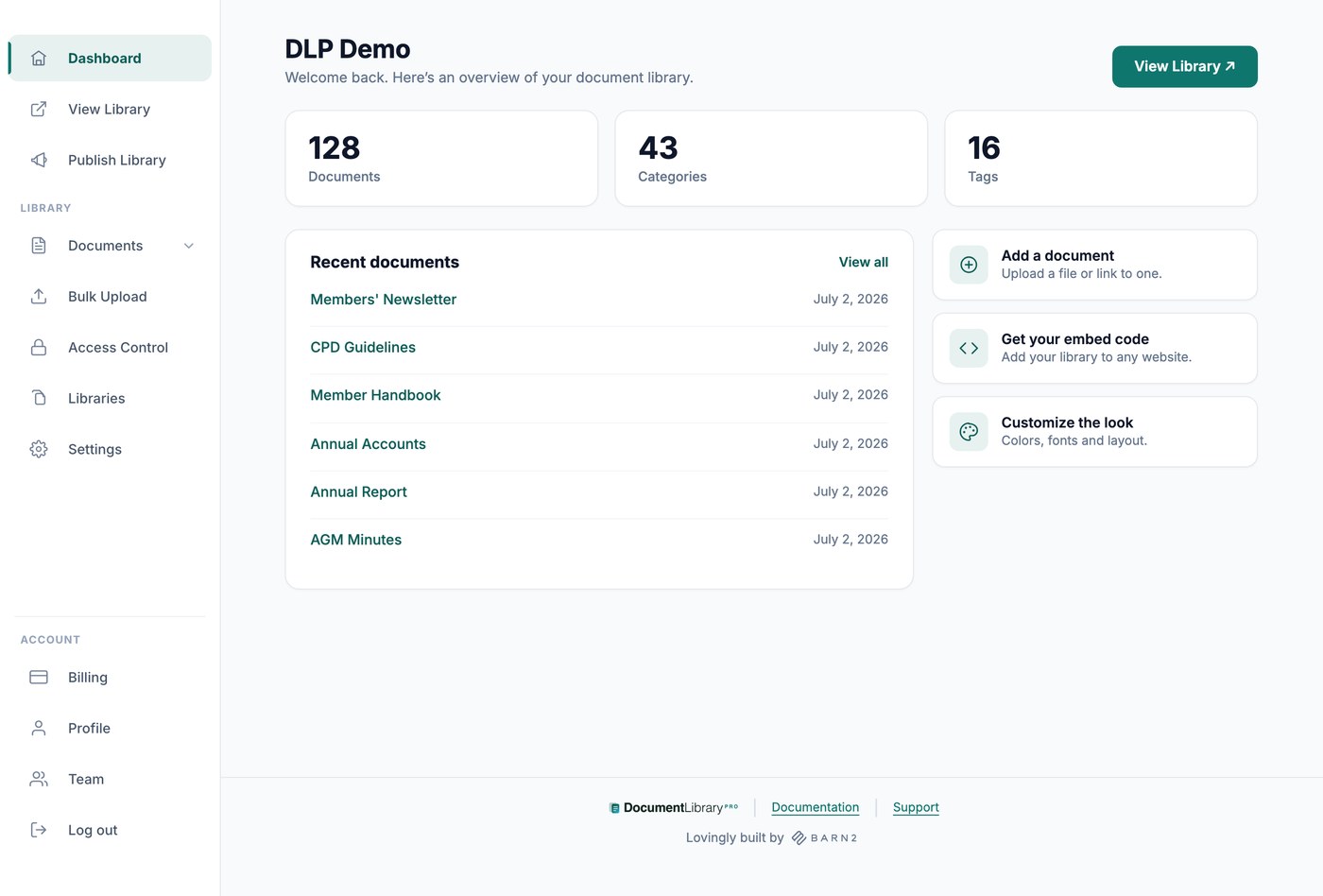
Die Startseite des Dashboards zeigt den Namen deiner Bibliothek, die Anzahl deiner Dokumente, Kategorien und Schlagwörter sowie deine sechs neuesten Dokumente. Das linke Menü enthält die folgenden Bereiche:
- Bibliothek anzeigen - Öffnet deine Dokumentbibliothek in einem neuen Tab.
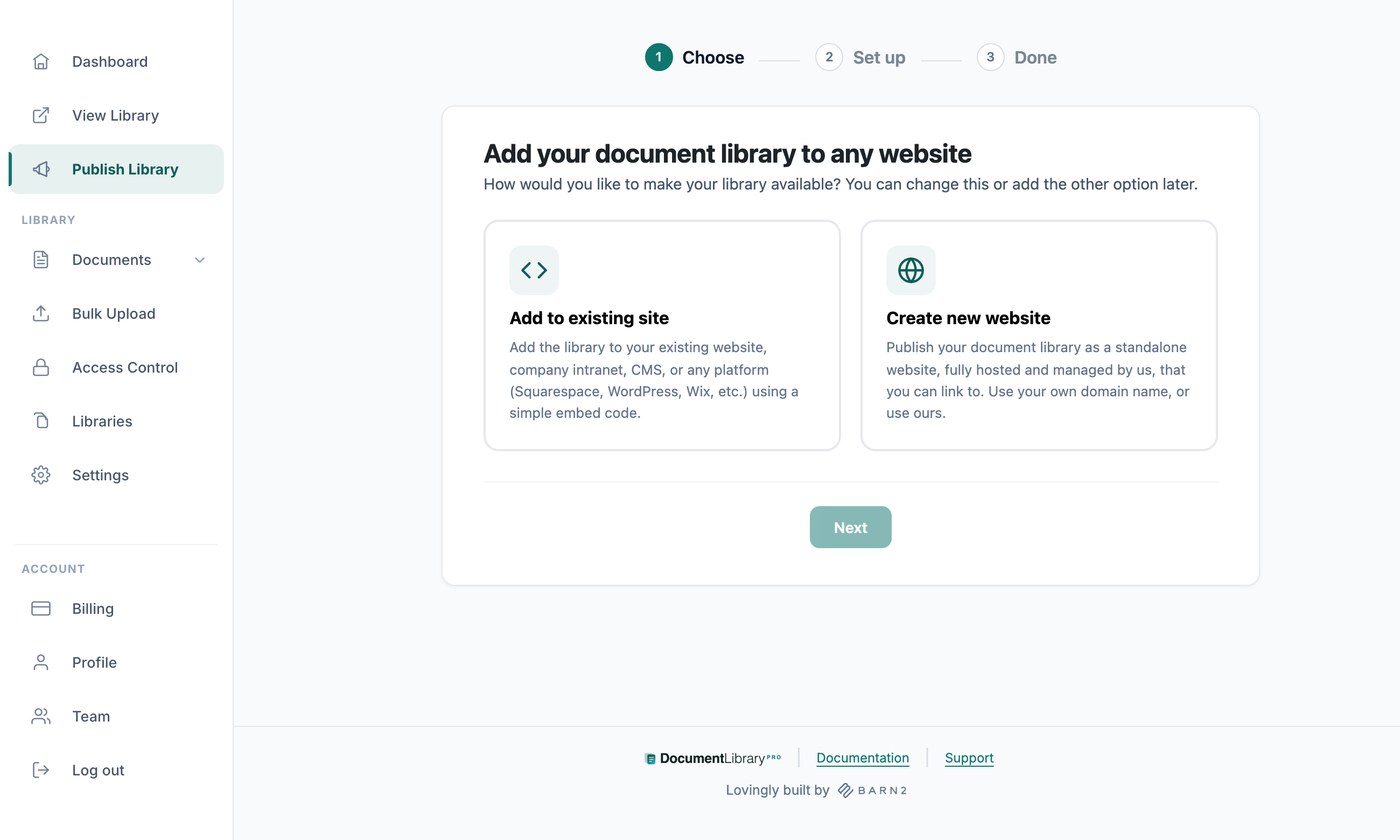
- Publish Library - Enthält deinen Einbettungscode und die Einstellungen für deine Bibliothekswebsite.
- Dokumente - My Documents, Add Document, Categories, Tags und Authors.
- Massen-Upload (Nur im Advanced-Tarif) - Erstellt Dokumente aus einem Stapel Dateien oder einer Tabelle.
- Zugriffskontrolle (Nur im Advanced-Tarif) - Schützt deine Bibliotheken und deine hochgeladenen Dateien mit einem Passwort.
- Libraries - Erstellt zusätzliche Dokumentbibliotheken, jeweils mit eigenen Dokumenten, Optionen und Einbettungscode.
- Einstellungen - Sieben Tabs mit globalen Optionen: General, Display, Search, Branding, Library Design, Translations und Advanced.
- Billing - Ändere deinen Tarif, aktualisiere deine Zahlungsdaten und sieh deine Rechnungen an.
- Profil - Ändere deinen Namen, deine E-Mail-Adresse und dein Passwort.
- Team - Lädt andere Personen ein, bei der Verwaltung deiner Dokumente zu helfen.
Bibliothek veröffentlichen, Bibliotheken, Zugriffskontrolle, Einstellungen, Abrechnung und Team stehen nur dem Kontoinhaber zur Verfügung. Eingeladene Teammitglieder sehen ein kürzeres Menü, denn sie verwalten deine Dokumente und nicht dein Abonnement oder deine globalen Einstellungen.
Nächste Schritte
Deine Bibliothek ist jetzt eingerichtet und bereit für Dokumente. Die folgenden Artikel behandeln die nächsten Schritte, in der Reihenfolge, in der die meisten Bibliotheken sie brauchen:
- Dokumente zu deiner Dokumentenbibliothek hinzufügen - Füge Dokumente einzeln hinzu, entweder als Upload oder als Link zu einer Datei, die anderswo gehostet wird.
- Massen-Upload (Nur im Advanced-Tarif) - Erstelle Dokumente gesammelt, indem du einen Stapel Dateien ablegst oder eine Tabelle importierst.
- Kategorien, Schlagwörter und Autoren - Organisiere deine Dokumente. Deine Filter und Ordner werden aus deinen Dokumentkategorien erstellt.
- Einstellungen - Die Optionen, die nicht im Einrichtungsassistenten enthalten sind. Dazu gehören dein Logo und deine Markenfarbe, das Design deiner Tabellen und Grids, deine Suchoptionen und die Nachrichten, die angezeigt werden, wenn eine Bibliothek leer ist. Versionskontrolle und Lead-Erfassung befinden sich im Advanced-Tarif auf derselben Seite.
- Deine Bibliothek veröffentlichen - Teile deine Bibliothek als eigene Website oder bette sie auf einer Website ein, die du bereits hast.
- Deine Dokumentbibliothek schützen (Nur im Advanced-Tarif) - Schütze eine Bibliothek mit einem Passwort, damit nur die richtigen Personen sie öffnen können.
- Mehrere Dokumentenbibliotheken erstellen - Erstelle zusätzliche Bibliotheken, wenn verschiedene Seiten unterschiedliche Dokumentgruppen brauchen.
- Teammitglieder hinzufügen - Lade Kollegen ein, damit sie Dokumente hinzufügen und bearbeiten können.
Wenn du Hilfe bei der Einrichtung brauchst, kontaktieren und wir helfen dir gern.