You’ve been sent a 48-page lease and you need the renewal date before a call. The file opens fine, but scrolling line by line feels absurd (especially when the answer is probably one sentence hiding on page 37!).
For one PDF on your own screen, the quick answer is to use your browser or PDF reader’s search: Press Ctrl+F on Windows or Cmd+F on Mac, type the clause, figure or date, and move through the matches. It sounds almost too basic, but it saves a lot of pointless scanning.
However, that only solves the file in front of you. The next problem arrives when someone needs to find something across several PDFs, because a visitor won’t thank you for having to open and check each one individually.
I’ll cover both sides together:
- Search a PDF you already have - Use the built-in find tool in a browser, Preview, Acrobat or a mobile reader.
- Search several PDFs - Check a folder of files rather than one document.
- Publish searchable PDFs - Use Document Library Pro to give visitors search, previews and downloads in one place.
- Fix PDFs that won’t search - Spot scanned pages and run OCR so the words become searchable text.
Search the PDF that’s already open
If you’re searching the contents of an individual PDF, the first method to try is the Find box. You don’t need a special PDF trick. You use the same search tool that works on any page you view in your browser or PDF reader.
On Windows, press Ctrl+F. On a Mac, press Cmd+F. A small find bar usually appears near the top right of the browser or reader window, although some apps put it in a side panel instead.
If you don’t like keyboard shortcuts, use the menu instead. In a browser, open the browser’s own menu and choose the Find option. In most PDF readers, the Find option sits under Edit.
From there, the basic search steps are:
- Type the word, phrase, number or date you want to find.
- Look for the highlighted matches through the document.
- Press Enter, use the up and down arrows, or click Next to move from one match to the next.
- Check the match counter, for example the third match out of 17, to see whether the document mentions something once in passing or covers it properly.
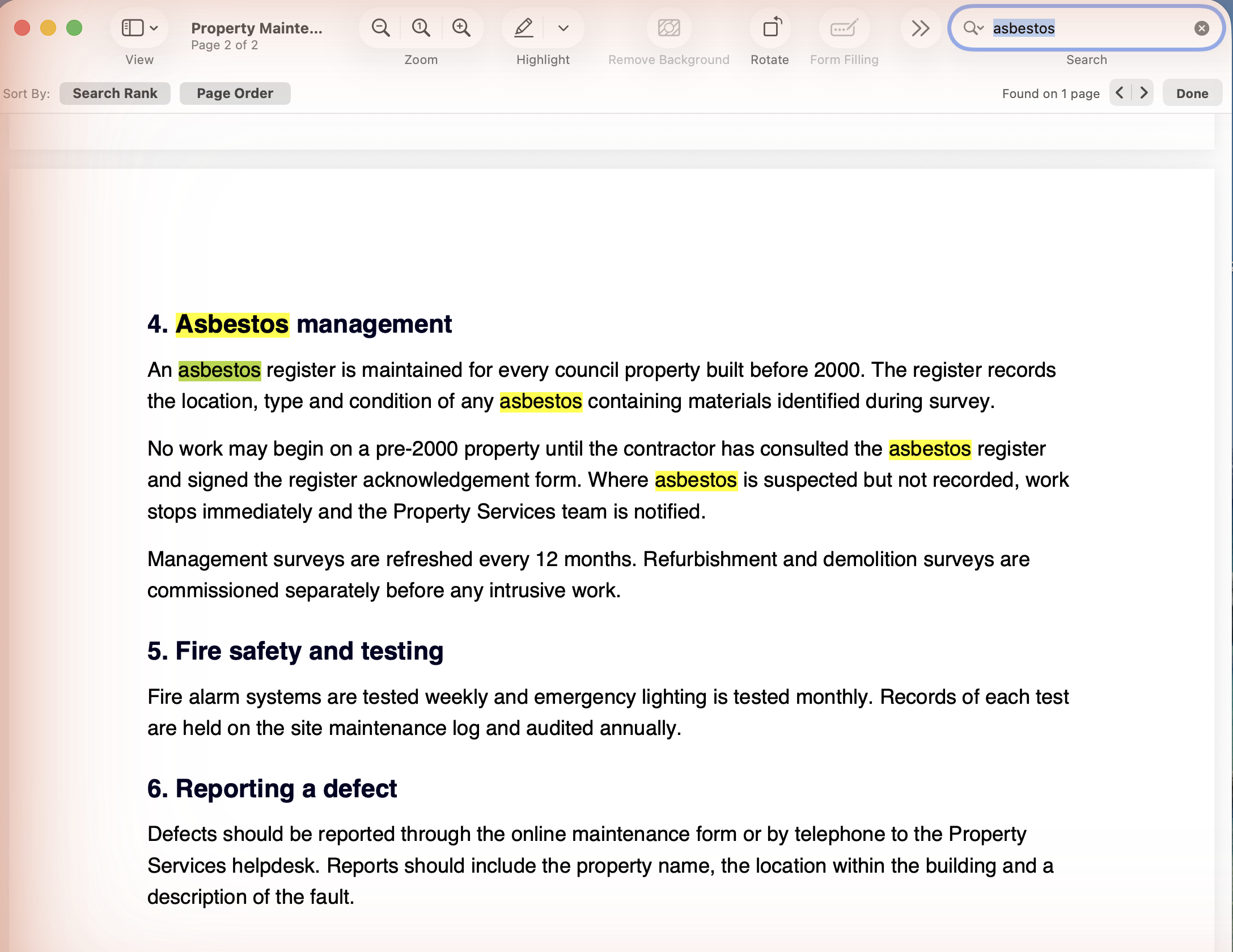
This basic way to search a PDF works in Chrome, Edge, Firefox, Safari, Anteprima, the PDF viewer Apple includes on every Mac, and Acrobat Reader, Adobe’s free PDF reader.
You can search the content of PDFs on mobile too, but it’s a bit harder to find. Chrome puts search in its menu. Safari has Find on Page in the share menu, and Adobe Acrobat’s mobile app uses a magnifier icon. I find phone PDF search more fiddly than it should be, but it’s still better than swiping through pages by hand.
PDF search in a browser has its limits:
- It searches only the PDF you have open, not the folder where that PDF lives.
- It looks for the letters in the form you enter, so policy won’t return policies.
- It can miss a word split by a hyphen across two lines.
- It can fail when unusual embedded fonts confuse the browser’s PDF viewer.
- It returns nothing from a scanned document, which I’ll cover later.
Use a PDF reader when the browser search isn’t enough
A browser’s find bar works well when you only need a quick lookup. However, a long contract, policy or report can leave you working through dozens of matches with very little context, which is when a dedicated PDF reader is easier.
Acrobat Reader is Adobe’s free PDF reader, and it is worth installing when you want more control over a long PDF than a browser usually gives you. Its advanced search can look for whole words only, decide whether capital letters count and include bookmarks and comments as well as the words on the page.
Acrobat also shows results as a list, with the page number and a short snippet of the surrounding text. As a result, you can judge whether a match is useful before you jump to that page. That saves a surprising amount of clicking in a 100-page PDF.
Preview has fewer choices, but it still improves on a plain browser search on a Mac. Its results sidebar shows matches beside page thumbnails, which is often all you need when you’re checking a lease, minutes document or policy file.
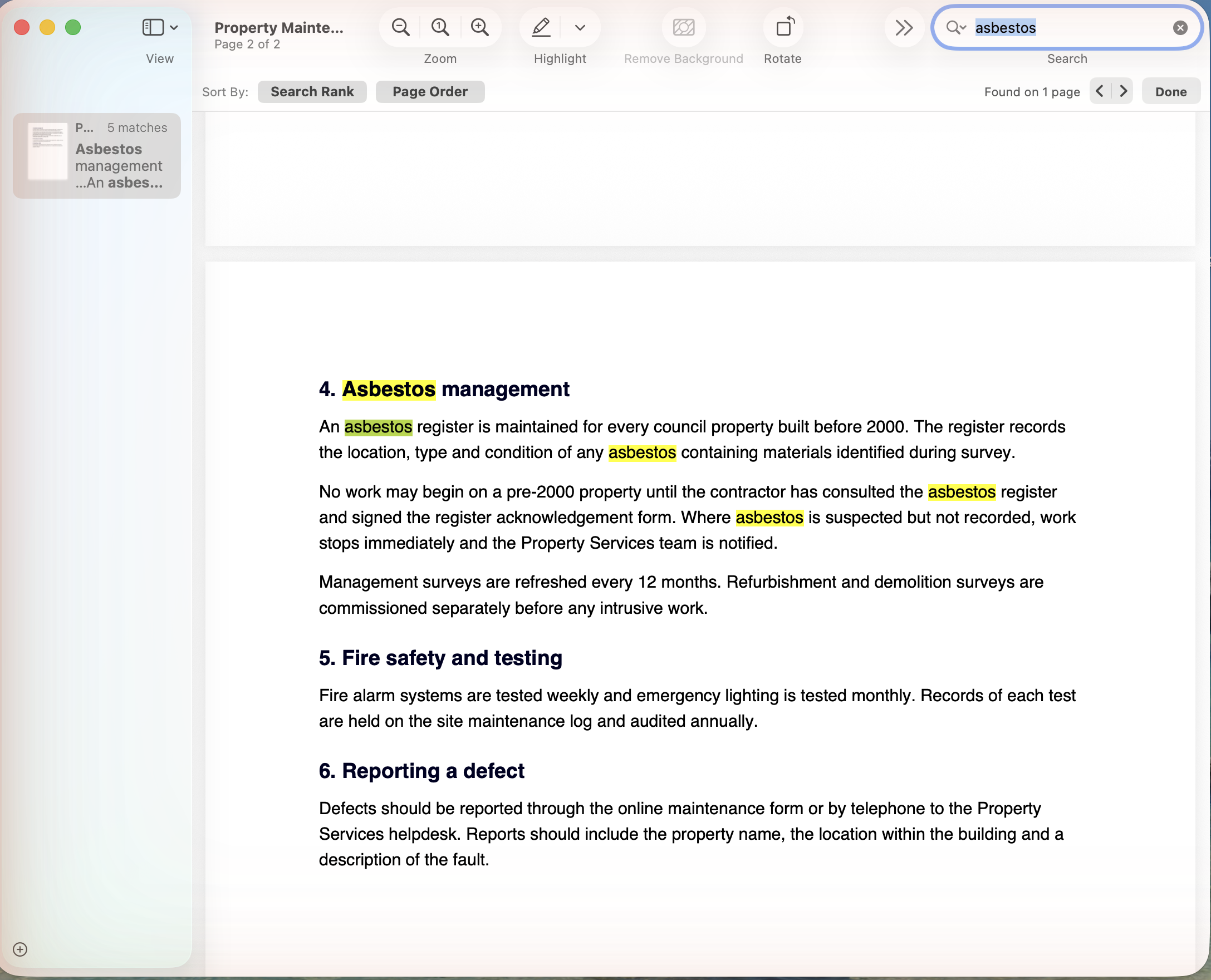
If the document is still just one file, a reader like Acrobat or Preview usually solves the problem. But what if the thing you need could be in any one of 40 PDFs?
Search a folder of several PDFs
When you have a folder full of PDFs, opening each file and pressing Ctrl+F gets old fast. The better approach is to search several PDFs at once, so the computer tells you which file contains the word before you open anything.
On Windows, File Explorer is the window you use to browse files and folders. It can search inside PDFs in indexed places, and Documents is indexed already. If your PDFs live somewhere else, you can add that folder under indexing options.
Outside those indexed places, Windows may match only file names. There is a slower setting that tells Windows to search file contents everywhere, but I would save that for folders where you genuinely need it. A broad contents search can take a while.
On a Mac, Spotlight is the magnifying glass search built into macOS. Spotlight catalogs the text inside PDFs, so Finder search can find words inside files. Finder is the Mac window you use to browse files, and it lets you choose whether you’re searching file contents or file names.
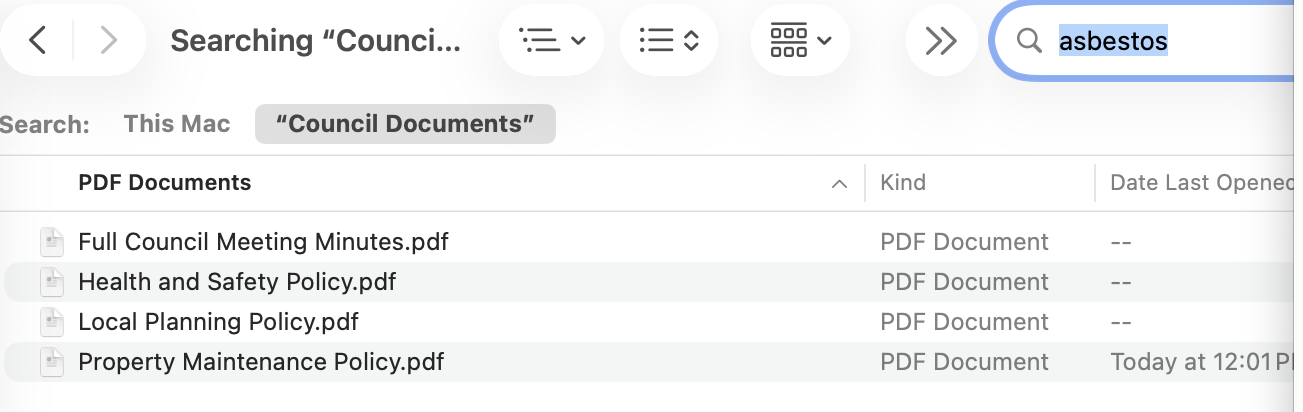
Acrobat is useful here too. It can send one search through every PDF in a folder and all the folders inside it, which is much easier than opening each file by hand. I would start with Windows search or Finder because they’re already there, then use Acrobat when I wanted clearer page numbers and snippets.
All of these methods stop at your own computer. They help you find the PDF you need, but they don’t help a resident, member, parent or client search the same files on your website. Once other people need the answer, you need to look at a way of publishing PDFs in a searchable format rather than personal file search.
Make a PDF library visitors can search on your site
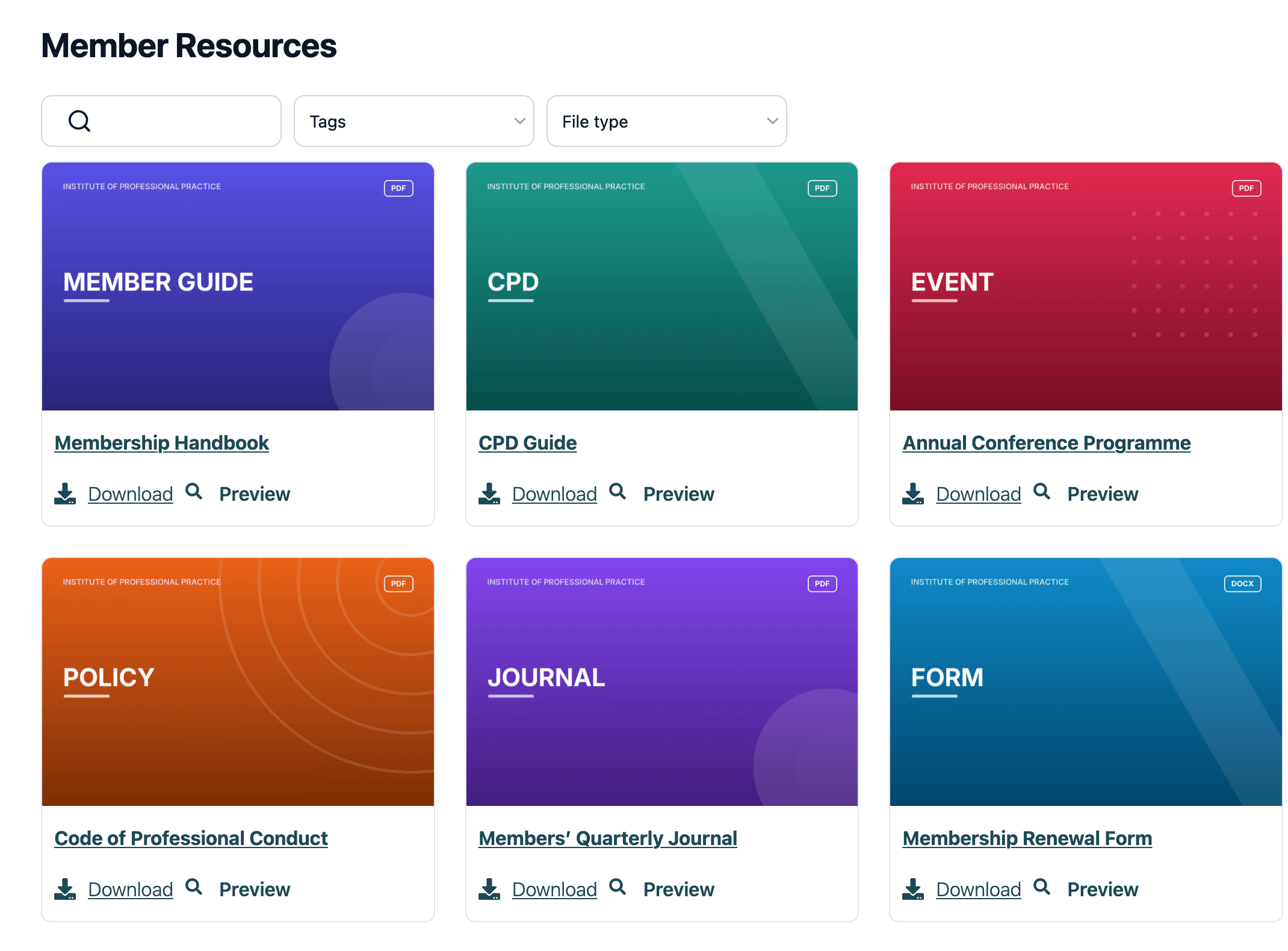
All the PDF search methods we’ve discussed so far help one person at one computer. If you need to share the PDFs more widely, then you need a completely different solution because the people you’re sharing with don’t have access to the files on your computer.
This matters for a libreria di risorse, a council, a nonprofit, a membership site or a school. Most of these sites publish a page of download links or point visitors to a shared folder. That setup works when the visitor already knows the document title.
However, people often arrive with much less than that. They may know only a subject, an address, a case number or a phrase from inside the document. If your site only searches titles, those visitors are stuck.
For example, think about a resident searching for a street name inside a planning document. If the street name isn’t in the title, a normal site search may miss it. A library that searches within a PDF document can bring the right planning file into the results.
A search for asbestos in a council’s documents may show no results because the term appears on page 12 of a policy. The policy exists, but the council’s website search doesn’t know what’s in the PDFs that it links to. If visitors ever email you to request a document, that’s a sign that you need to start publishing searchable PDFs online.
A good searchable PDF library treats the files as content people need to search, preview and download. Clear nomi file and a sensible document structure still help, because people browse as well as search.
How to create a public library of searchable PDFs
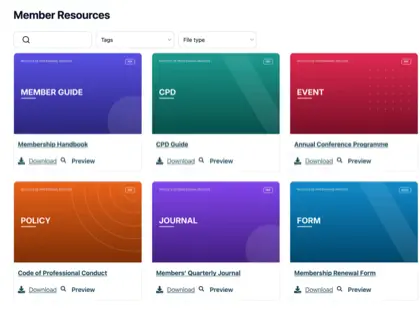
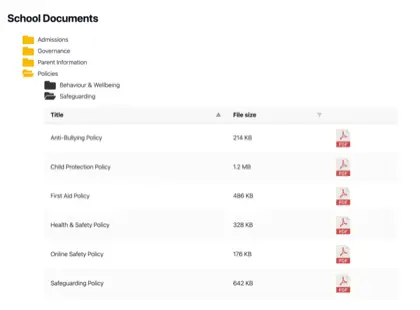
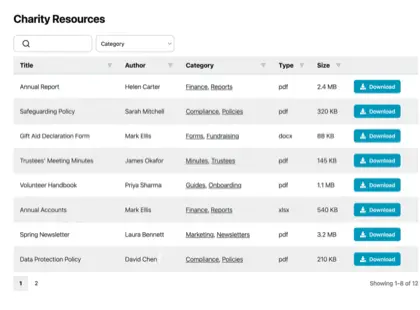
If visitors need to search inside PDFs on your website, they need more than a download page. They need one searchable library that reads the files for them, narrows the results as they type and lets them open the right document without guesswork.
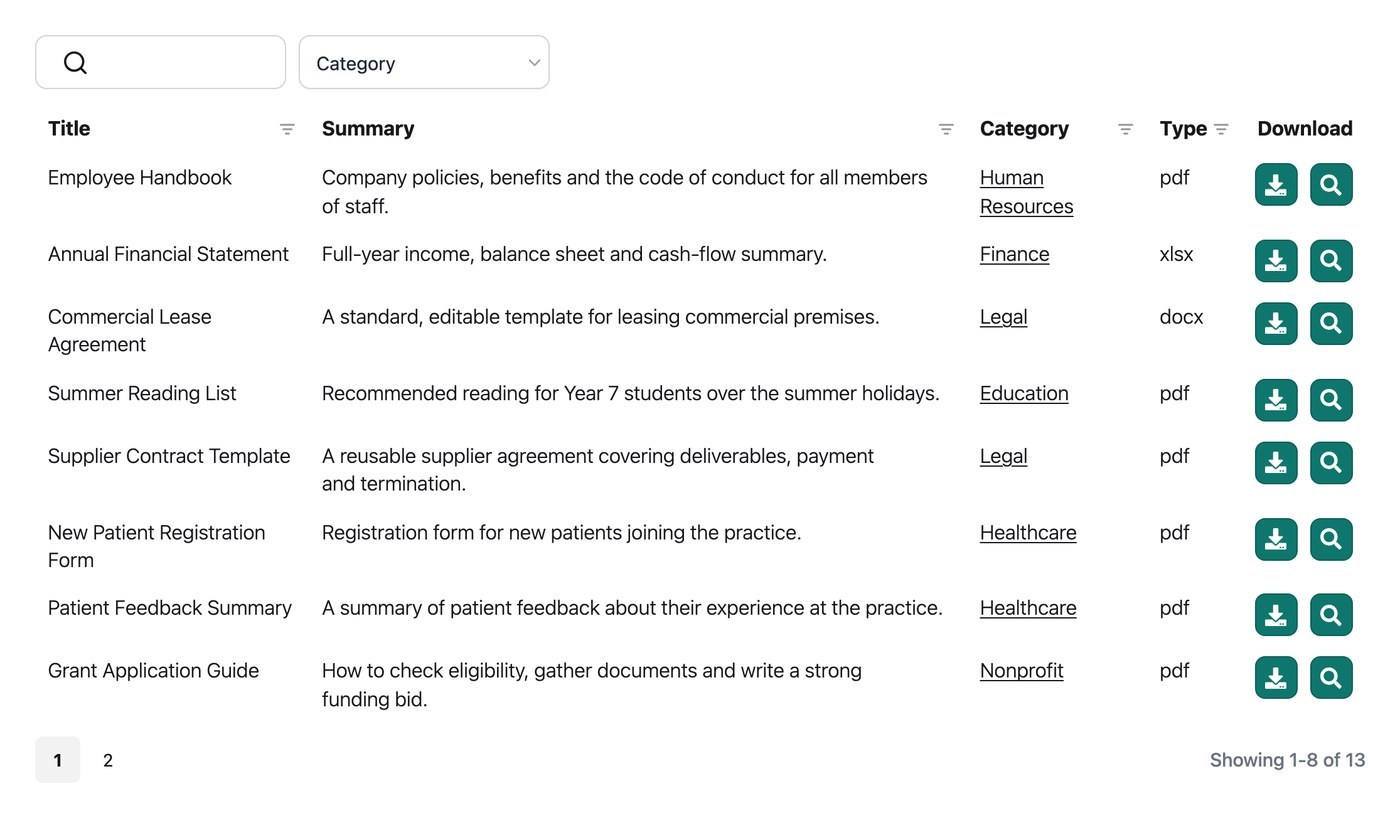
We built Document Library Pro for that job. It turns a collection of files into a libreria di documenti on your own site, with search across the whole library rather than only the files showing on the current screen.
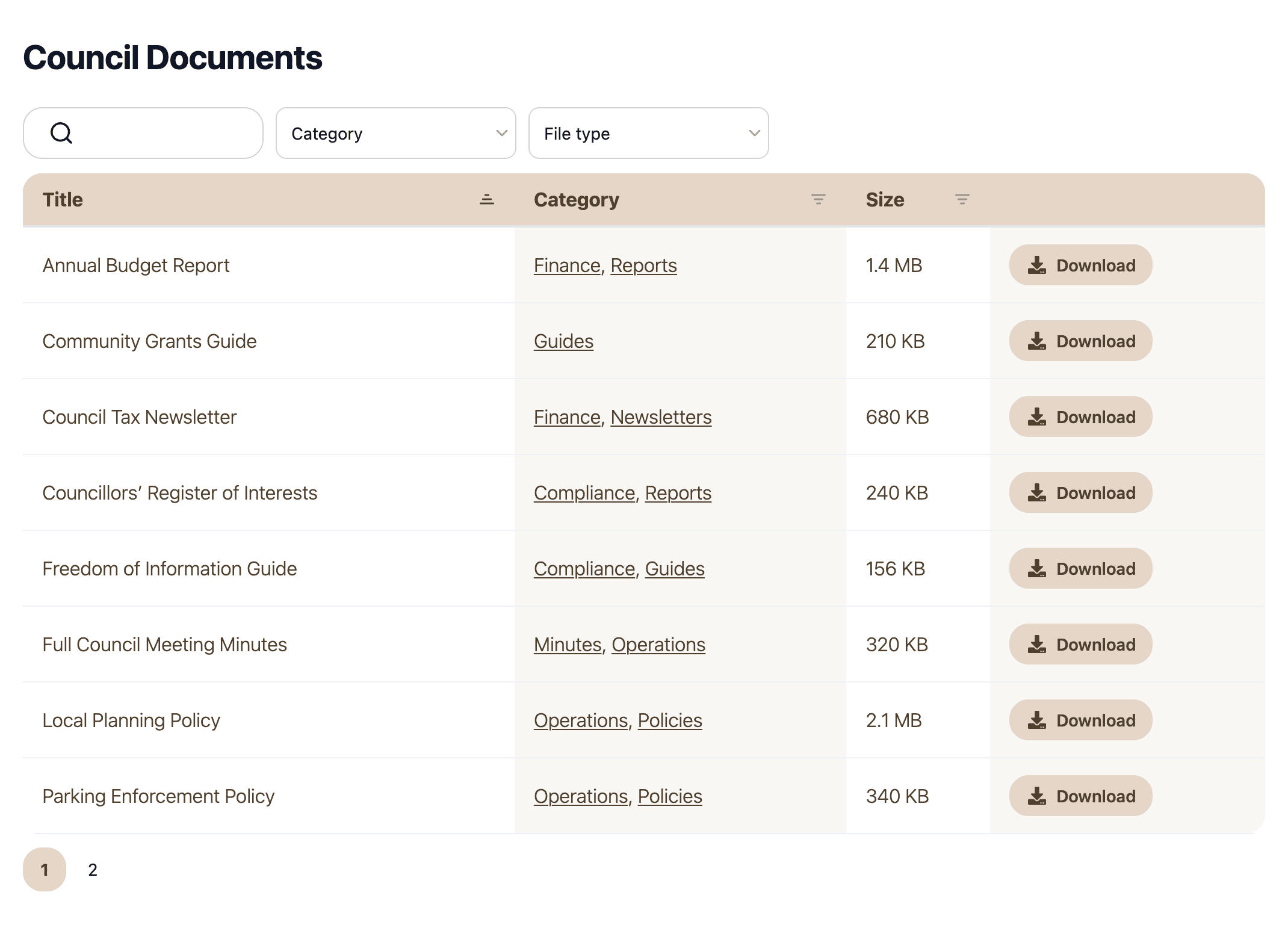
Document Library Pro searches the title, excerpt, description, author, filename, categories, tags, taxonomies and the text inside attached files. The indexed file types you can add include PDF, Word, Excel, PowerPoint and OpenDocument.
Indexing is automatic, so there isn’t a switch to find or remember. Accents match both ways, which means Zurich finds Zürich and Zürich finds Zurich. Custom fields become searchable once you show them as a column, and the library search documentation covers the full list of searchable fields.
I visitatori possono preview without downloading, which helps when they only need to check whether a file is the right one. Document Library Pro runs as a WordPress plugin. An embed code can put the same library on Shopify, Squarespace, Wix, Webflow, a custom site or an intranet.
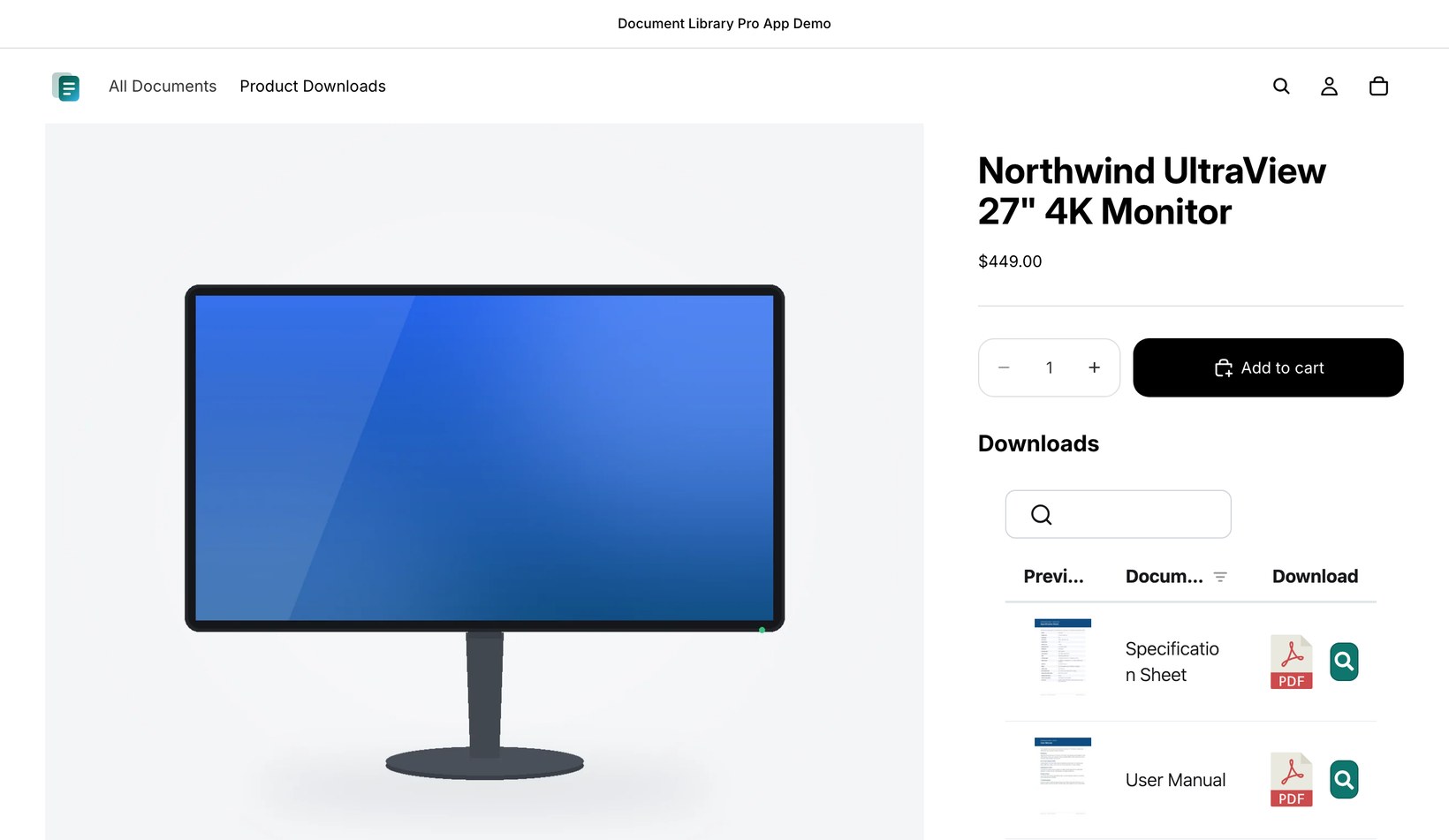
You can try it with your own files in the 14 giorni gratis.
What to do when a PDF search finds nothing
If PDF search keeps returning no matches, the file may be a scanned PDF. A scanned PDF is a photograph of a page, which means there is no text layer for the search tool to match. It can look perfectly normal, which is what makes this so annoying.
The quick test is to try selecting one line of text. If your cursor picks out words, the PDF has text. However, if the cursor drags a box across the whole page, you’re looking at an image of text.
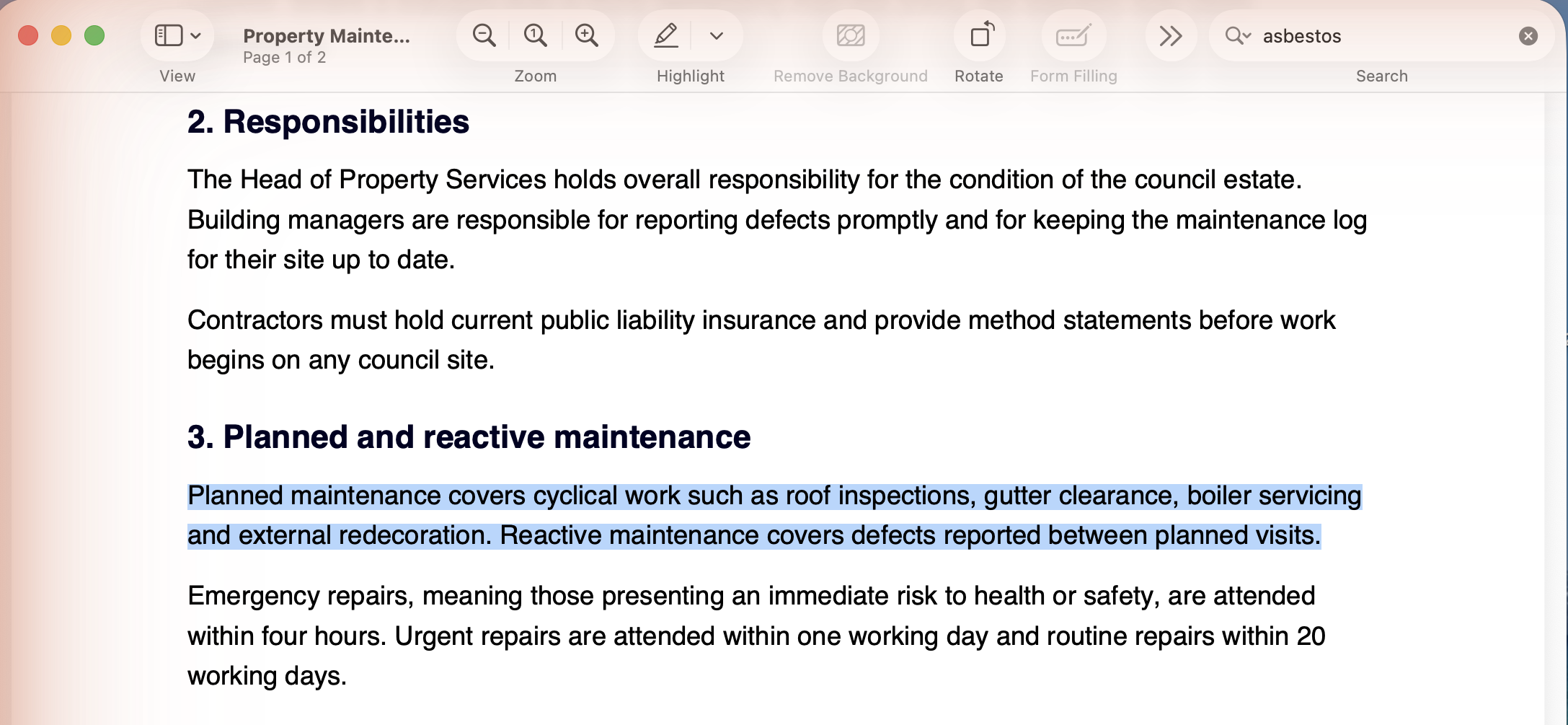
This means the problem is bigger than search. You can’t copy text from an image-only PDF either. Image-only PDFs also make life harder for screen readers and give Google far less to index.
Sometimes you get a similar problem when a design tool saves letters as vector shapes instead of proper text. The page still looks like text to you, but the PDF reader sees shapes instead of words. The fix is the same: Run OCR, which reads the page and adds a searchable text layer.
I’ll cover OCR in the next section. Once the PDF’s content is proper text, all types of PDF search will work.
Use OCR when a scanned PDF won’t search
When the PDF is a scan, the obvious hope is that you can rescue it instead of retyping the whole thing. You often can, as long as the scan is clear enough for software to read.
OCR means optical character recognition. It is software that reads the page image, identifies the letters it can see and adds those words beneath the image as a hidden text layer that search tools can read.
You can get OCR in Acrobat and in most scanner software. Google Drive can help with a one-off too: Upload the PDF to a cartella Google Drive, open it with Google Docs and Google runs OCR during the conversion. Plenty of free tools can do OCR too.
A sharp typed page scanned at 300 dpi usually converts into searchable text well. However, OCR gets worse when the source is harder to read:
- Pages that are faded, tilted, low-resolution or copied again and again produce more mistakes.
- Handwriting produces unreliable results.
- Tables and pages with multiple columns often return in the wrong reading order.
One wrong character can stop a search match. For example, OCR might read asbestos as asbest0s. A search for asbestos then won’t find that word, and the PDF won’t warn you.
After OCR finishes, search for three or four words you already know are in the file. Choose a heading, a person’s name and a phrase from the middle. Checking the first page alone can give you false confidence.
A final option is to upload the PDF to an AI assistant and ask it to produce the text. You can then use that text to create a new PDF. It helps with the wrong-character problem above because the AI understands the meaning of the words, so it can resolve characters that OCR gets wrong. However, it can paraphrase, skip content or introduce its own errors on a long document. I would use that approach for a handful of files, not a whole archive.
Converting a whole archive takes time, so begin with the documents people request most often. Once the files people need are searchable, you can work through the rest in a sensible order.
Common PDF search questions
Can I search inside a PDF before I open it?
Yes, if the PDF is on your computer and has a text layer. On Windows, indexed search can check inside files. On a Mac, Spotlight can find words inside PDFs through Finder. Both methods only help on your own machine.
Why won’t my scanned PDF search?
A scanned PDF is usually an image of text, so the search tool has no words to match. Put the PDF through OCR first. Then search for several words you know are in the file, because one good page doesn’t prove the whole document converted well.
How do I search several PDFs at once?
Use Windows indexing, Mac Spotlight or Acrobat folder search when the PDFs are on your computer. If other people need the same PDF search, publish the files as a library instead of making visitors open each document by hand.
Can website visitors search inside PDFs?
Yes. Document Library Pro indexes attached file contents, so visitors can search inside PDFs on your website and watch the results narrow as they type. The prova gratuita lets you test it with your own PDFs.
Choose the right PDF search method
For one open PDF, use the search box in your browser or PDF reader. Press Ctrl+F on Windows or Cmd+F on Mac, type the word or date you need and move through the matches.
For a folder of PDFs on your own computer, use Windows search, Finder or Acrobat folder search. Those tools save you from opening every file by hand, especially when you only know a phrase from inside the document.
If other people need to search the files too, publish them as a searchable PDF library. That gives visitors a search box, previews and downloads in one place, and you can test it with your own files in the Document Library Pro free trial.