





Cada documento de tu biblioteca es un archivo que subes o un enlace a un archivo alojado en otro lugar. Los añades y editas en la Documents sección de tu panel de control.
Este artículo cubre cómo añadir documentos de uno en uno. Para añadir muchos documentos a la vez, consulta añadir documentos en bloque.
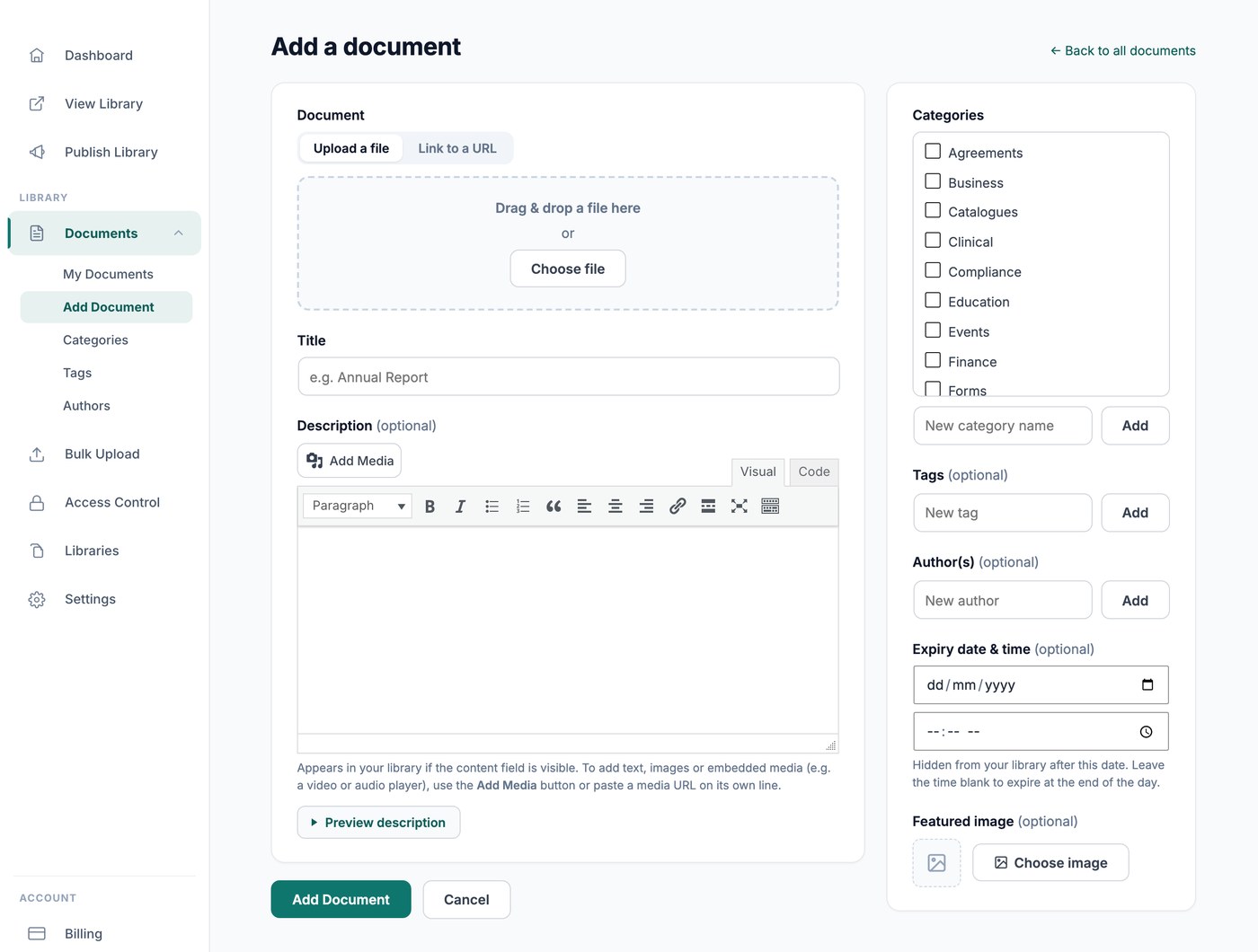
Añadir un documento
Ve a Documentos → Añadir documento. La pantalla tiene los siguientes campos:
- Document - Elige Subir un archivo o Enlazar a una URL. Para subirlo, arrastra un archivo a la zona de destino o haz clic en Elegir archivo. Se admiten la mayoría de tipos de archivo, incluidos PDF, archivos de Word, Excel y PowerPoint, imágenes, audio y vídeo. Para enlazar a un archivo que ya está online, como un archivo de Google Drive o un vídeo, cambia a Enlazar a una URL y pega la dirección web. Consulta qué tipos y tamaños de archivo puedes añadir.
- File size (opcional) - Se detecta automáticamente para los archivos subidos. Introdúcelo manualmente para una URL, por ejemplo 2 MB, para que pueda aparecer en tu biblioteca.
- Título - El nombre del documento en tu biblioteca. Este es el único campo obligatorio.
- Descripción (opcional) - Aparece en tu biblioteca cuando se muestra el campo de contenido. Usa el Añadir medios botón para incluir imágenes, o pega una URL de medios en su propia línea para incrustar un reproductor de vídeo o audio. Haz clic en Previsualizar descripción para ver cómo quedará en tu biblioteca.
- Categorías - Agrupa documentos relacionados. Tus filtros y carpetas se crean a partir de las categorías de tus documentos, y cada biblioteca puede limitarse a categorías concretas. Haz clic en Añadir para crear una categoría nueva sin salir de la pantalla. Consulta categorías, etiquetas y autores.
- Tags (opcional) - Una segunda forma, más flexible, de etiquetar documentos. Las etiquetas funcionan junto con las categorías y también pueden usarse como filtro.
- Autor(es) (opcional) - El autor que se muestra junto al documento. Es independiente de la persona que lo añadió.
- Imagen destacada (opcional) - La miniatura del documento, que queda especialmente bien en el diseño de cuadrícula. Déjala en blanco y se generará una miniatura a partir de archivos PDF e imágenes cuando sea posible. Consulta Opciones de imagen de la biblioteca de documentos.
- Historial de versiones (Solo plan Advanced) - Conserva el archivo anterior cada vez que lo sustituyes, para que tengas un historial del documento. Consulta control de versiones.
- Fecha y hora de caducidad (opcional, solo plan Advanced) - El documento se oculta de tu biblioteca después de esta fecha. Deja la hora en blanco para que caduque al final del día. Consulta caducidad de documentos.
Clic Publicar para añadir el documento a tu biblioteca, o Guardar borrador para seguir trabajando en él. Los documentos en borrador no aparecen en tu biblioteca hasta que los publicas.
Editar o eliminar un documento
Ve a Documentos → Mis documentos para ver todo lo que hay en tu biblioteca y haz clic en un documento para abrirlo. La pantalla es la misma que usaste para añadirlo, con un Guardar cambios botón en la parte inferior.
Para cambiar el archivo asociado a un documento, haz clic en Sustituir archivo y sube la nueva versión. El documento conserva su título, descripción, categorías y ajustes, así que cualquier enlace a él sigue funcionando. Consulta cómo actualizar y sustituir documentos.
Para eliminar documentos, selecciónalos en la pantalla Mis documentos y elimínalos juntos.
añadir documentos en bloque
Hay tres formas de añadir documentos sin introducirlos uno por uno:
- Subida masiva (Solo plan Advanced) - Suelta un lote de archivos para crear un documento por archivo, o importa una hoja de cálculo para configurar el título, la descripción, las categorías y más para todos los documentos a la vez.
- Sincronización de carpetas (Solo plan Advanced) - Conecta una carpeta de Google Drive o Dropbox a una categoría. Los documentos se crean por ti y permanecen sincronizados con la carpeta. Consulta sincronizar una carpeta de Google Drive o Dropbox con tu biblioteca.
- Envíos de visitantes - Permite que los visitantes envíen sus propios documentos mediante un formulario, que apruebas antes de que aparezcan. Consulta aceptar envíos de documentos de los visitantes.
Siguientes pasos
Con tus documentos añadidos, el siguiente paso es elegir cómo aparecen a tus visitantes. Consulta diseño de biblioteca de documentos para elegir entre una tabla, una cuadrícula y carpetas, y publicar tu biblioteca para ponerla delante de la gente.